How to make a jump cut: 2 fast ways on a Mac
What a jump cut is, when it works, and two ways to make one on a Mac: split and delete by hand, or cut the pauses and fillers from the transcript.
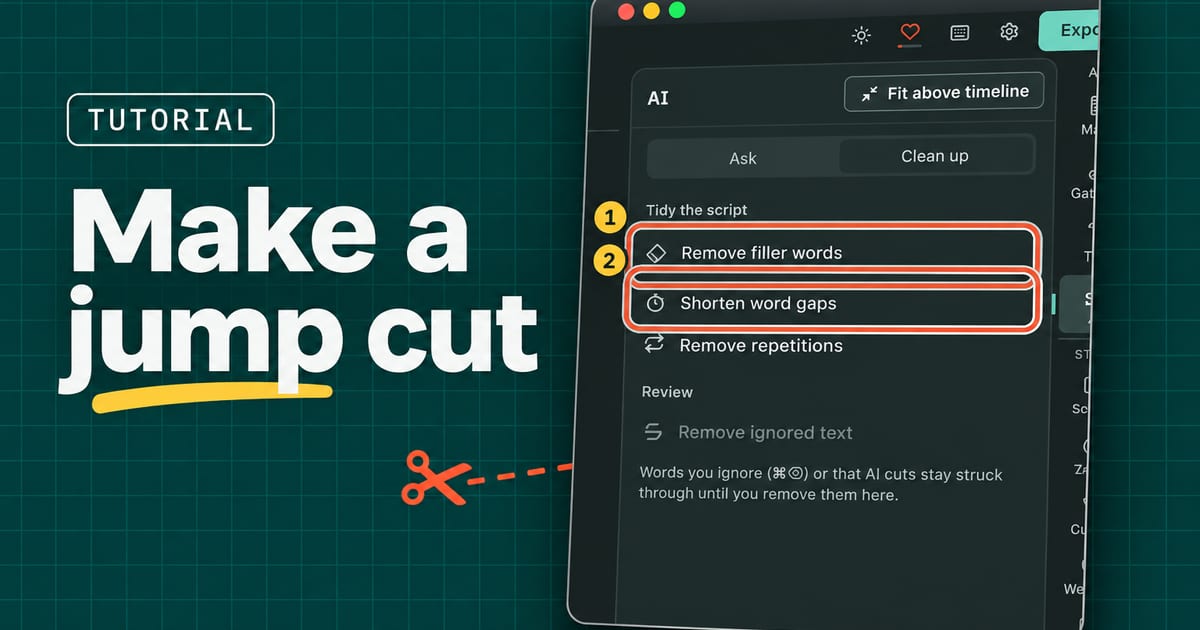
The slow way to cut a talking-head video is to watch it, find every "um", and split the clip by hand. Every one of those cuts is a jump cut, and a long clip needs dozens of them.
There is a faster route, and I will show both. First, the quick answer.
A jump cut is an edit that removes a stretch from one continuous shot, so the person on screen seems to skip ahead in time. To make one, split the clip at the start and end of the part you want gone and delete it. Or delete the words from a transcript and let the editor cut the video.
Key Takeaways
A jump cut removes part of one continuous shot, so the subject appears to skip forward in time.
Jump cuts work well in talking-head YouTube videos and tutorials, where they remove pauses, restarts and filler words.
A jump cut jars when it removes something the viewer needed, or when the cuts all look the same and pile up.
In iMovie on a Mac, you make a jump cut by splitting the clip with Command-B and pressing Delete on the piece between the splits.
In Cutscript, you cut long pauses and filler words from the transcript in one step, and one undo brings them back.
In the Claude desktop app, Claude Code can run FFmpeg on your video file to list the pauses, and in a regular chat Claude can read your transcript and list the sentences to cut. You make the final call.
What is a jump cut?
A jump cut is a cut inside a single shot that leaves out a piece of time, so the picture seems to leap forward. The speaker's head moves a little, the sentence continues, and the viewer notices the edit.
Film schools treat it as a break from smooth storytelling. Yale's Film Analysis guide says the French New Wave of the 1960s made the device essential, and that editors use jump cuts expressively, for example to suggest a character's ambivalence.
Jump cuts in movies: Breathless
The film everyone names is Jean-Luc Godard's Breathless (1960). The BFI notes that Godard breaks up the long handheld takes with jump cuts and other devices that keep the viewer at a distance.
In that film the cut is a style. On YouTube it is mostly a tool: you cut the dead air and keep the energy up.
When does a jump cut work, and when does it jar?
A jump cut works when it removes what the viewer would skip anyway: a long breath, a restart, an "um". It jars when it removes something the viewer needed, or when the seam draws more attention than the speech.
It works in:
Talking-head videos, where one person speaks to the camera for minutes.
Screen tutorials, where you pause to find a menu and the pause adds nothing.
Interviews you tighten, where an answer runs long.
It jars when:
You cut a reaction or a beat that carries meaning, like a joke's pause.
The cuts land at the same rhythm for ten minutes, so the video feels twitchy.
Two shots of the same subject differ only slightly, and the picture seems to hiccup instead of skip.
You can test your own video. YouTube Help says the audience retention report shows dips where viewers abandon or skip a part, and that you should review those segments to see why viewers lost interest. If a dip sits on a slow stretch, a jump cut is the fix.
If you want the jump to feel softer, cover the seam. Zoom in a little on one side of the cut, or lay a few seconds of screen footage over it. I use a short transition on the few cuts that feel abrupt.
How do you make a jump cut? The two ways
You make a jump cut by deleting a piece of a continuous clip and joining the two ends. On a Mac you can do it with iMovie, which is free, or with Cutscript, which cuts from the transcript.
iMovie (by hand) | Cutscript (from the transcript) | |
|---|---|---|
How you find the cut | You watch and listen | The script shows every word and gap |
Remove every "um" | One split pair per filler | One step: Remove all |
Remove long pauses | One split pair per pause | One step: Shorten all |
Undo | Command-Z, one step at a time | One undo for the whole batch |
Price | Free with your Mac | Free plan, exports carry a small watermark |
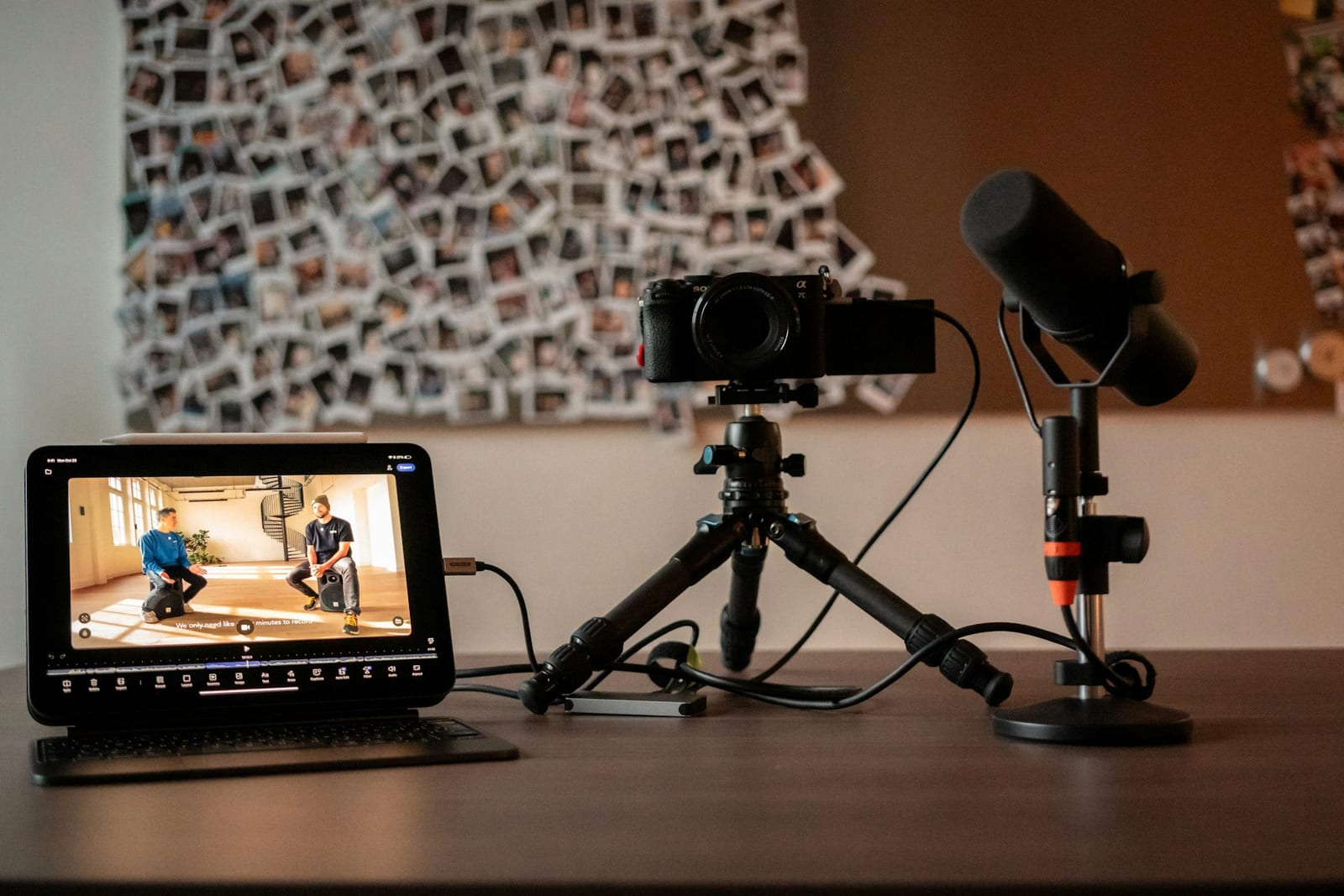
How to make a jump cut in iMovie on a Mac
iMovie gives you the two tools you need: split and delete. The work is finding the place to cut, because iMovie shows you the picture and the sound, not the words.
Add your clip to the timeline. Play it and stop where the pause begins.
Select the clip, then choose Modify > Split Clip or press Command-B to split it at the playhead.
Move the playhead to where the speaker starts again and split a second time.
Click the short piece between the two splits and press Delete. Apple's list of shortcuts says the Delete key removes the selection from the timeline.
Play across the join. If it is rough, press Command-Z, which Apple lists as Undo, and move the split by a few frames.
Repeat for the next pause.
To grab a piece without two splits, hold the R key and drag across the clip. Apple says a yellow border with handles marks the range, and you cannot select across clip boundaries.
Apple's split guide covers the Modify menu route. Apple's pages show these steps for the clip; they do not mention any way to find silences or filler words for you, so you do that by ear.
How to make a jump cut in Cutscript
Cutscript turns the video into a script, so a jump cut is a deleted word. You delete words, or you let it find the filler words and long pauses, and the video is cut to match. Your original file never changes.
You need a transcript first. Edit by editing text explains how the script is made. Once it exists, the steps below need no AI account and no internet.
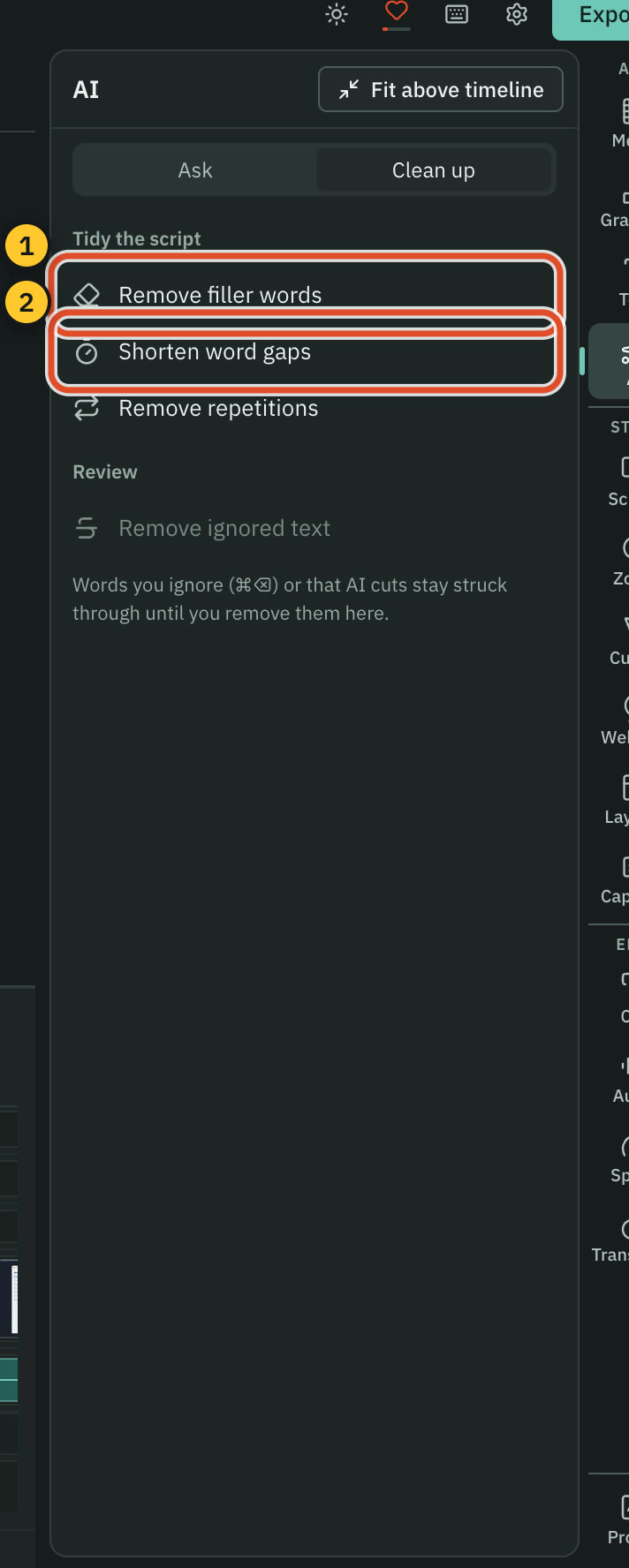
Cut the pauses and filler words in one step
Open your project and press
⇧ ⌘ F. The bar reads Filler words and shows the count, such as 3/12.Press
Enterto step through the highlighted matches. Words such as "kind of" or "you know" are sometimes meant, so set Action to Ignore first if you want to check them.Press Remove all. A message such as "Deleted 12 filler words" appears, and one Undo brings them all back.
Open AI with
⌘ 4, choose the Clean up tab and press Shorten word gaps.Set More than to 0.8 seconds, then set shorten to 0.3 seconds. At 0, the pause is removed completely.
Press Shorten all. Cutscript cuts the middle of each pause, so exactly 0.3 seconds remains.
Each of those cuts is a jump cut. The fillers and pauses guide lists the starting word list and the settings.
Cut a sentence by deleting its words
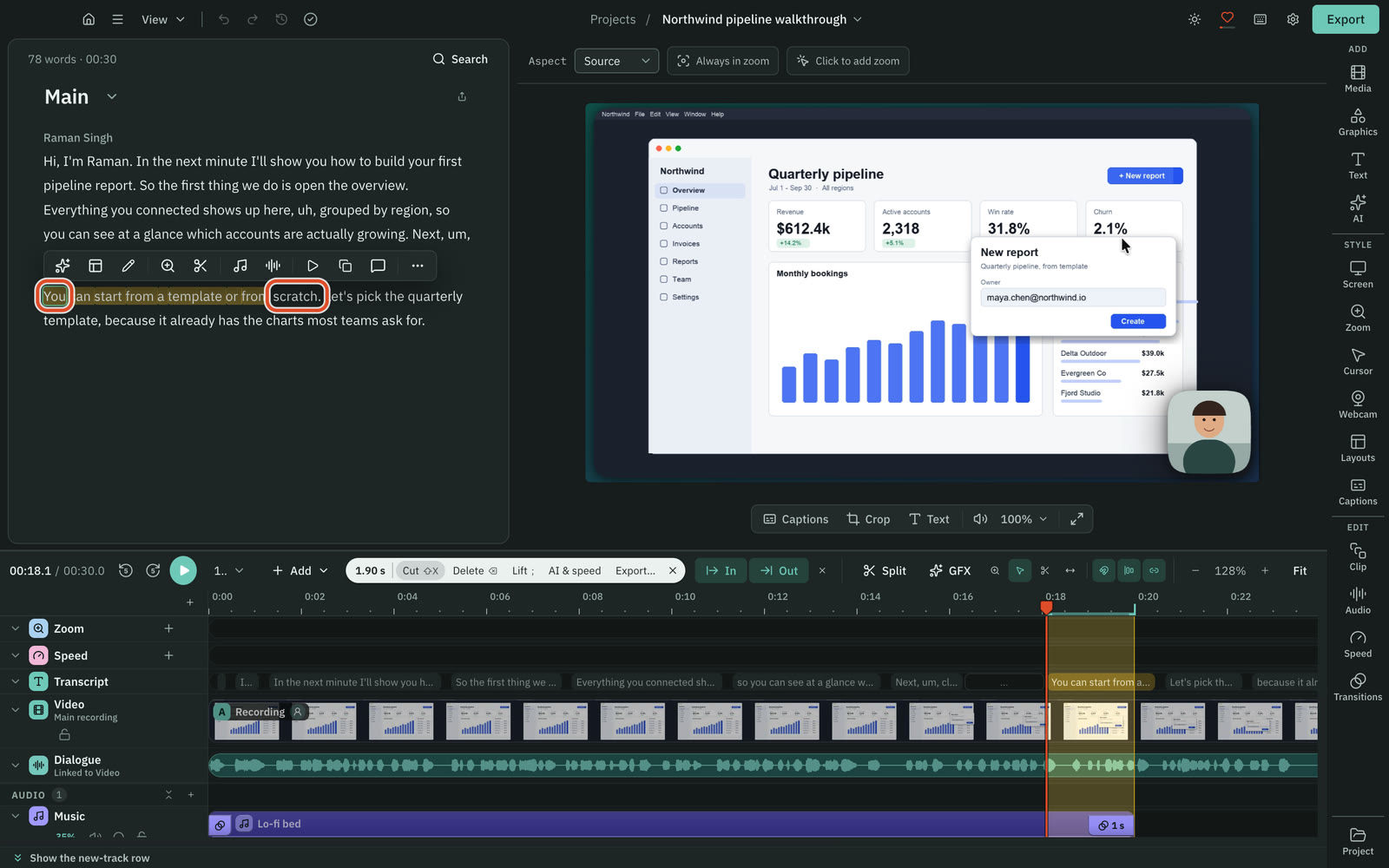
Click a word in the script, then drag across the sentence you want gone.
Press
Delete. The words leave the script and the preview skips that stretch.
When you delete a stretch of words, Cutscript also removes the shorter of the two pauses next to it, so the sentence on either side keeps one natural pause. The new length shows above the script.
Check the joins
Press Space and listen through each cut. If a join feels abrupt, open Transitions in the right rail and drag one onto the cut, as the clean up a talk tutorial shows. The timeline marks each cut as a seam, and hovering it shows how much you removed and a Restore button.
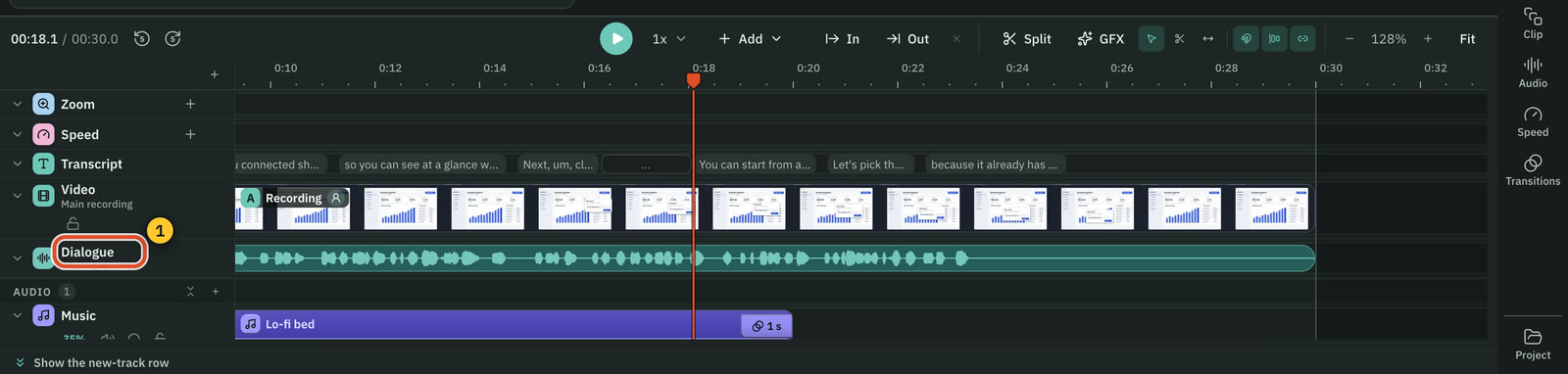
Where Claude helps: pick the sentences to cut
In the Claude desktop app, Claude Code works with files on your computer. With FFmpeg installed, it can run FFmpeg on your video and find the silences with the silencedetect filter. It does not cut anything unless you ask.
Paste this into Claude Code with the path to your video:
Use ffmpeg's silencedetect filter on the video file I give you, with a noise level of -35dB and a minimum duration of 0.7 seconds.
List every pause longer than 0.7 seconds with its start time and end time in mm:ss.
Do not cut, trim or change the video. Do not write any new video file.
Output a numbered list, then the total number of pauses and their total length in seconds.

Video: [path to your video]
In a regular chat on claude.ai, or the chat in the app, the upload list for Claude covers documents and images, not video or audio files. There, Claude works from the words. It can read a transcript and tell you which sentences repeat a point, wander off topic or add no information.
Export the transcript from the Transcript tab in Cutscript, then paste it into Claude with this prompt:
You are a video editor tightening a talking-head video. Below is the full transcript.

Find the sentences to cut so the video is shorter and tighter without losing the main points.

Rules:
- Cut a sentence only if it repeats an earlier point, restarts a thought, goes off topic, or adds no information.
- Never cut a sentence that a later sentence depends on.
- Keep the opening hook and the closing call to action.
- Aim to remove about 15 percent of the words.

Output a numbered list. For each item give: the exact first six words of the sentence, the reason in five words or fewer, and "keep the rest" or "cut the whole sentence".
End with the estimated percent of words removed.

Transcript:
[paste your transcript here]
Then delete those sentences in Cutscript's script. Read each one first. A sentence that looks like filler on paper sometimes carries a joke or a pause that makes the line work.
Mistakes that make a jump cut look bad
The cut itself rarely looks bad. These habits do.
Cutting every breath. A speaker with no pauses sounds like a machine. Keep 0.3 seconds so the line still breathes.
Cutting at the same rhythm. Mix in a zoom, a screen clip or a transition so the cuts do not form a pattern.
Cutting a half-spoken word. Check the join by playing it. In iMovie, move the split a few frames. In Cutscript, undo the cut and select the words again.
Cutting what the viewer needs. A cut that removes a step in a tutorial makes the next step confusing.
Frequently Asked Questions (FAQs)
What is a jump cut in film?
A jump cut is a cut that removes a piece of time from one continuous shot, so the subject seems to skip forward. Yale's Film Analysis guide notes that the French New Wave made it essential in the 1960s. Godard's Breathless is the best-known example.
Are jump cuts bad editing?
No. A jump cut is bad only when it removes something the viewer needed or when every cut looks the same. Classical editing hid cuts, but online video uses visible cuts on purpose to keep the pace up.
How do I make a jump cut on a Mac?
Split the clip at the start and end of the part you want gone, then delete the piece between. In iMovie, Modify > Split Clip or Command-B splits the clip and the Delete key removes the selection. In Cutscript, delete the words in the script.
How do I avoid a jump cut?
Hide the seam. Cover the cut with other footage such as a screen clip, change the framing by zooming in, or add a short transition. Each of these tells the viewer the change is on purpose.
How often should I jump cut a YouTube video?
There is no official number. Cut where a pause or filler word adds nothing, then check YouTube's audience retention report for dips. Cut more where viewers leave and less where they stay.
Final Thoughts
A jump cut is a deleted stretch of one shot, and on YouTube it is mostly a way to remove dead air. Do it by hand in iMovie if you have a short clip. Use Cutscript when you have a long one and want every pause and filler word gone in two steps.
Record a short talk this week, press ⇧ ⌘ F, and watch the cuts land. If one feels wrong, undo it and keep the pause.
Comments
Longer questions go better in the forum.
No comments yet. Ask a question or add what you found.
Sign in with GitHub or Google to comment.
Sign in to commentKeep reading
Tutorials
Blur screen in a video: 3 ways to hide private details
Hide emails, names, passwords and faces in a screen recording. A fixed box, a blur that follows, and what QuickTime Player and iMovie can do.
Tutorials
Extract audio from video on a Mac: 3 free ways, step by step
Pull the sound out of any video on a Mac with QuickTime Player, FFmpeg or Cutscript, and learn which of MP3, WAV and M4A to keep.
Tutorials
Lower third: how to make one for free on a Mac
What a lower third is, the safe area and contrast rules that keep it readable, and three free ways to build one on a Mac.