Clean up a talk
Import a recorded talk, transcribe it, remove fillers, repeats and long pauses, trim it with the AI chat, clean the sound and export it.
This walk-through takes a recorded talk, a webinar or a conference session, and turns it into a tighter version people will finish. You do most of it with free tools on your Mac. The one optional AI step shows its price before it runs.
Before you start
- A video or audio file of the talk. MP4, MOV, MKV, WebM, MP3, WAV, M4A and more work.
- A transcription key from ElevenLabs, fal.ai or OpenRouter. See Transcription.
- For step 6, an AI source: a Claude plan, a ChatGPT plan or an OpenRouter key. See Connect an AI account.
1. Import and transcribe
- Press
⌘ Non the home screen, or choose File › New Project…. - Press Choose file and pick the talk. The project name fills in from the file name.
- Leave Transcribe after import on. Under Language, name the language if you know it. Under Transcription model, check the price line, which is for the length of your file. A model that labels speakers helps if there is a host and a guest.
- Press Create project.
The script appears when the transcript is ready. The Project panel at the bottom of the right rail says Transcribed. Skim the first minute. If the language or the words are wrong, press Re-transcribe… now, before you edit, because it resets your script edits. See Get accurate transcripts.
2. Cut what does not belong
Read the script and select a tangent, a long intro or a section you do not want. Press Delete. The words leave the script and the video is cut at those words.
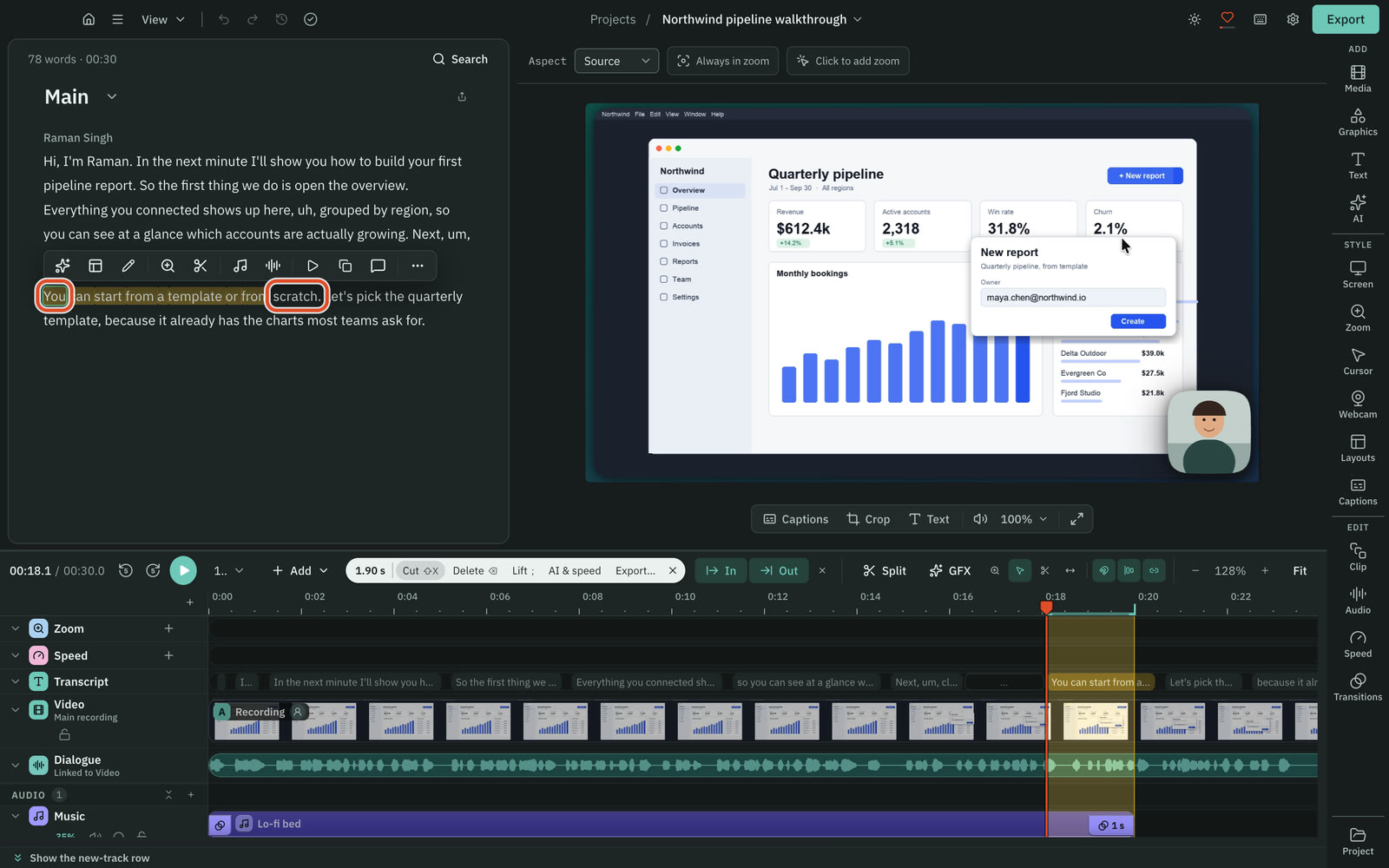
Press ⌘ ⌫ instead to ignore the words. They stay on screen, struck through, so you can review them, and ⇧ ⌘ ⌫ restores them.
3. Remove the repeats, fillers and long pauses
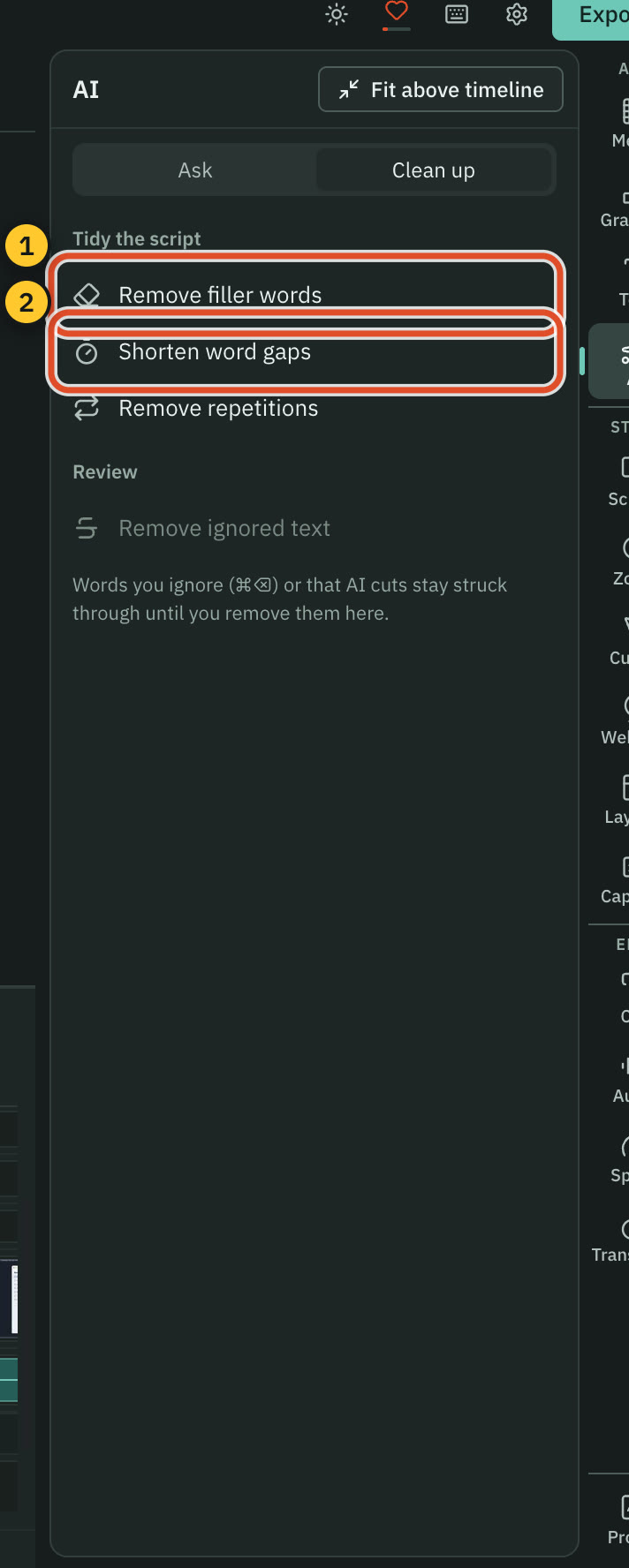
Press ⌘ 4 to open AI and choose the Clean up tab.
- Press Remove repetitions and Remove all. A speaker who restarts a sentence leaves two takes. This keeps the last one.
- Press Remove filler words. The bar shows how many it found. Set the action to Ignore and press Remove all.
- Play a stretch. When you are happy, press Remove ignored text.
- Press Shorten word gaps. A talk breathes, so set shorten to 0.5 seconds before you press Shorten all.
To mark a word the list misses, press Filler word settings in the filler bar, type it under Add a word or phrase and press Add. A single word matches every use. Adding "like" would also cut "I like it", so add only words you never mean. See Remove filler words and pauses.
4. Fix the words that are wrong
Names, product terms and numbers are where a transcript slips. Select a wrong word, press C, type the right text and press Correct. For a name that is wrong everywhere, right-click it and choose Correct all instances…. The audio is untouched. Captions and exports use the corrected text.
5. Check the joins
Press Space and listen through each cut. Where a cut feels abrupt, open Transitions in the right rail and drag one onto the cut. See Transitions.
6. Trim further with the AI chat (optional)
To shorten the talk to its best parts, open AI, stay on Ask, and type a request such as "Cut this talk down to the best 10 minutes, and keep the story in order". Read the price line under the box, then press Send.
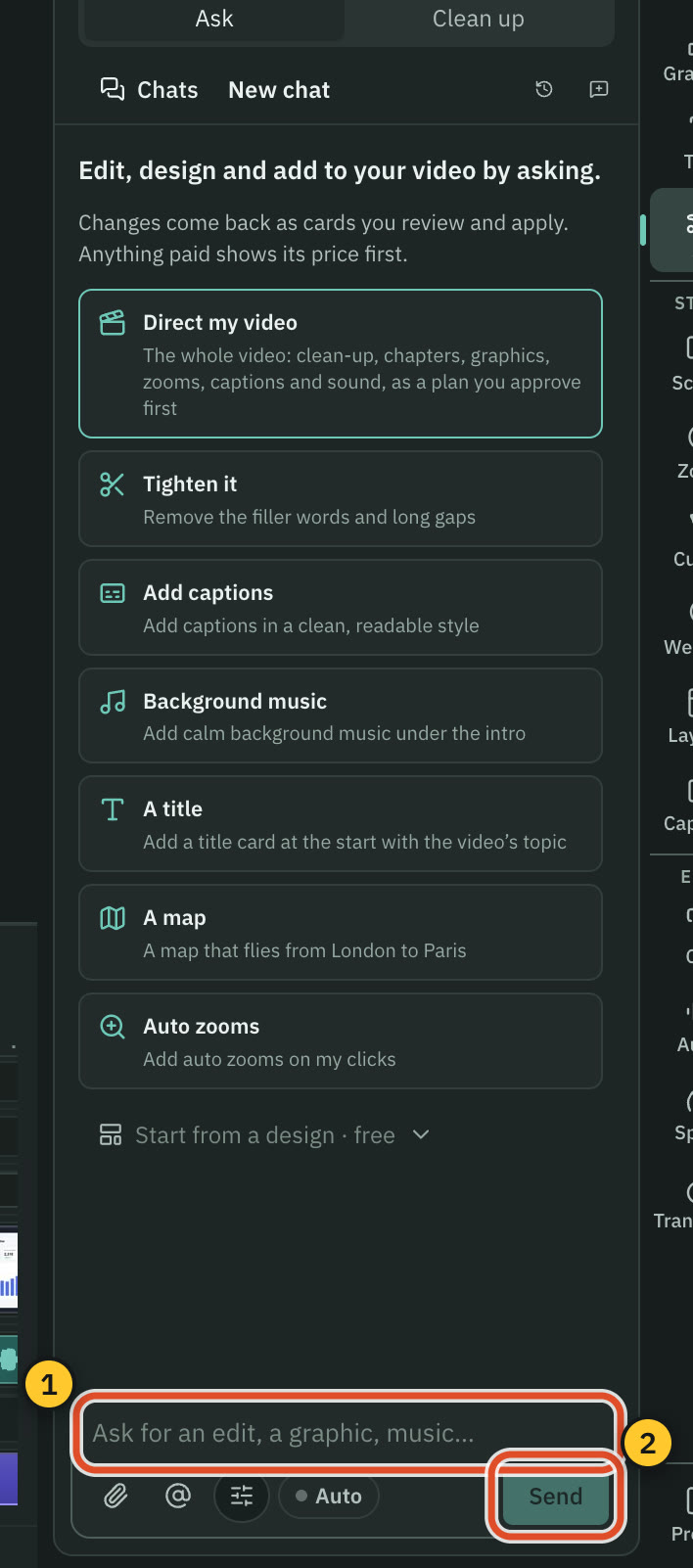
The AI answers with a change card that lists the cuts it proposes. Read them, and press Apply to accept. The whole change is one undo step.
Typing "remove the fillers and long gaps" in the same box runs the free tools from step 3. It calls no AI model and costs nothing. See One AI and Spend less on AI.
7. Clean the voice
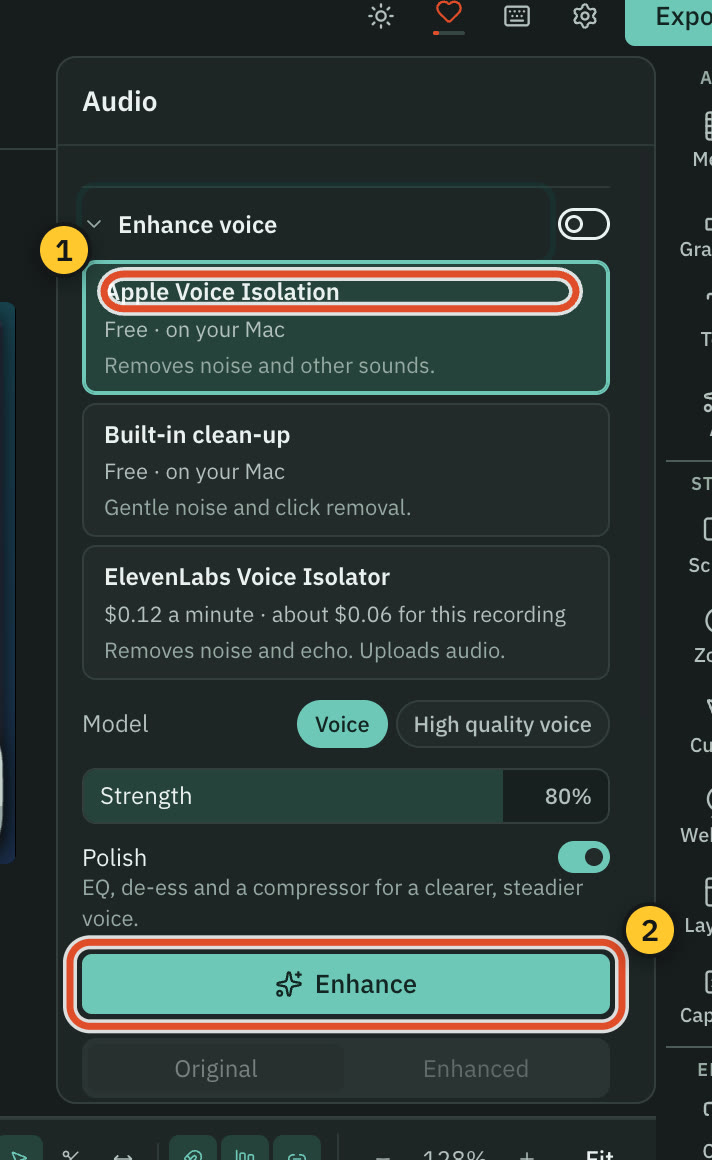
Open Audio in the right rail. In Enhance voice, choose Apple Voice Isolation or Built-in clean-up and press Enhance. Use Original and Enhanced to compare. Both engines are free.
8. Export
- Press Export, or press
⌘ E. - On the Video tab, leave Format on MP4 H.264.
- Open Advanced and set Normalize volume to -16 LUFS, a common target for speech.
- Press Export.
For the words, open the Transcript tab and export a Markdown (.md) or Microsoft Word (.docx) file. The Subtitles tab writes SubRip Titles (.srt) or Video Text Titles (.vtt).
What you made
A shorter talk with the repeats, fillers and long pauses gone, wrong words corrected, cleaner sound and an even volume, plus a text version for show notes. Every step is an undo step. For the next version of the same talk, make a composition instead of a copy. See Compositions and clips.
Related
Was this page helpful?
Comments
Longer questions go better in the forum.
No comments yet. Ask a question or add what you found.
Sign in with GitHub or Google to comment.
Sign in to comment