Record so editing is easy
Habits at the microphone and on screen that leave less to fix in the transcript, based on how the recorder and the clean-up tools work.
Cutscript cuts a video by its words, so the cheapest edit is the one you never need to make. The habits below follow from how the recorder and the clean-up tools behave. None of them is a rule, but each one saves a step later.
Before you start
- Recording needs macOS 15 or later, plus the Screen Recording and Microphone permissions. See Get set up and permissions.
- With Transcribe automatically on, which is the default, a take is sent to your transcription account as soon as it becomes a project. That is a paid cloud step, so see Spend less on AI if you want to check first.
Check the microphone before you press Start
The recorder bar shows your microphone with a live level meter. Say a sentence and watch the meter move. If the microphone delivers only silence, Cutscript warns you while you record.
This matters more than anything else on the page. The transcript of a recording is read from the microphone track. System sound is used only when there is no microphone. A weak or wrong microphone gives wrong words, and every cut, caption and filler search depends on those words.
Begin when the countdown ends
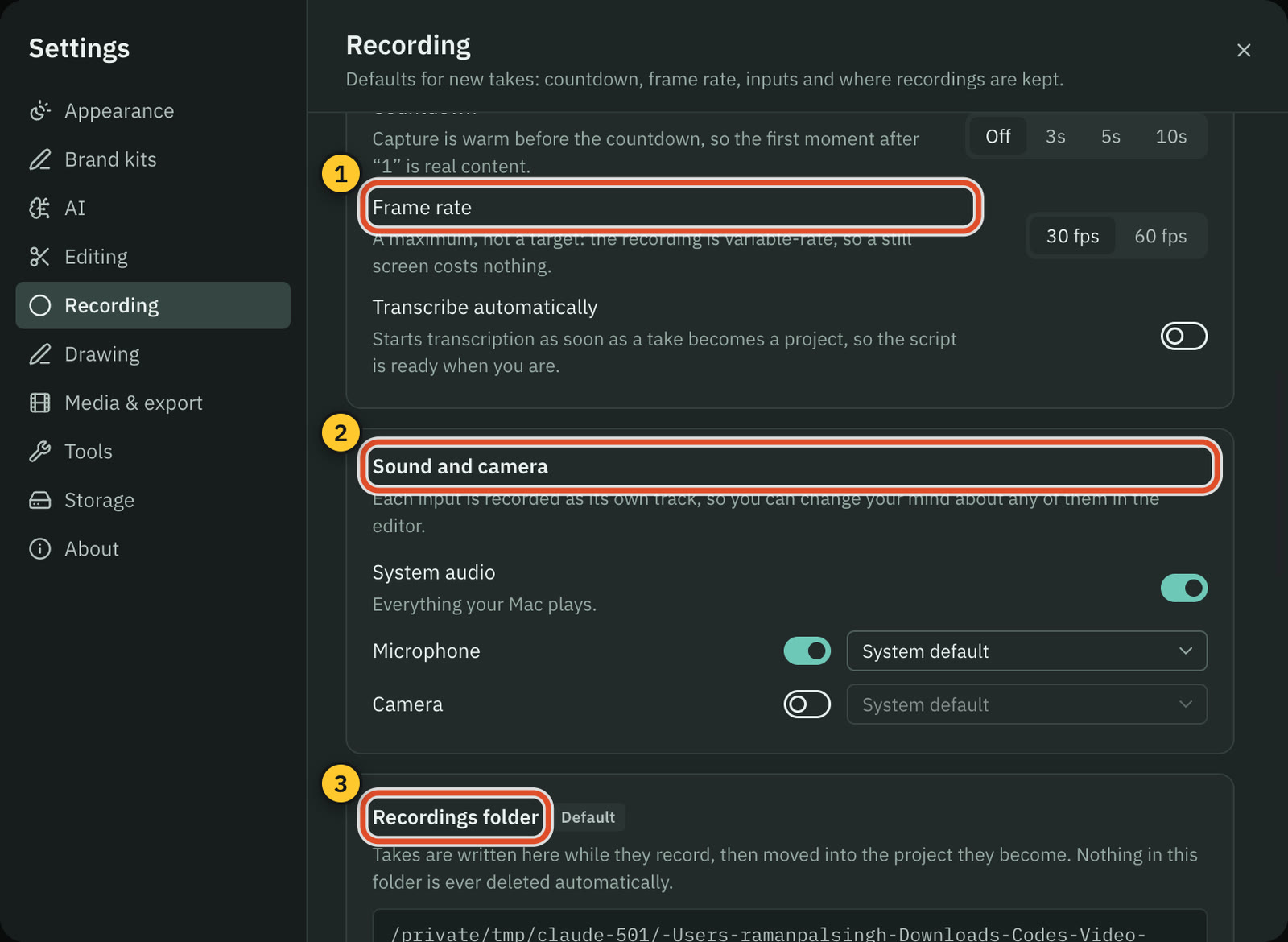
The countdown is 3 seconds by default. Change it in Settings › Recording with Countdown: Off, 3s, 5s or 10s. Capture is already running while it counts down, so the first moment after the count is real content. Start your first sentence when the count ends.
Pause instead of leaving dead air
Pause removes the paused time from the recording, and you cannot get it back. Use it to look something up or reset the screen. The shortcuts are ⌃ ⌥ ⌘ P to pause and resume and ⌃ ⌥ ⌘ R to stop. Both work while Cutscript is in the background.
Silence you leave in becomes a long gap between words. Shorten word gaps can fix it later, but it is faster not to record it.
Know what the clean-up tools look for
The three clean-up tools read the transcript and its word timings. They do not listen to the audio. That tells you what is worth changing in how you speak.
| Tool | What it looks for | What it means for you |
|---|---|---|
| Remove filler words | Words and phrases from a list: um, umm, uh, uhh, uh-huh, er, erm, ah, hmm, mm, mhm, you know, i mean, kind of, sort of, basically and literally. A phrase matches words that follow each other, spoken by one speaker. | You do not need to stop saying "um". The list also holds "you know", "kind of", "sort of", "basically" and "literally", so every use is flagged, even when you mean it. A tic that is not on the list, such as "ehm", needs adding in Filler word settings. |
| Shorten word gaps | The silence between the end of one word and the start of the next, longer than 0.8 seconds by default. It includes silence at the start and the end. | A pause to think is safe: anything under 0.8 seconds is left alone. A longer one is cut down to 0.3 seconds by default. |
| Remove repetitions | A phrase of up to 8 words that you say again straight away, such as "I think I think". | It removes the earlier one and keeps your last take. |
Redo a flubbed sentence from its start
When you stumble, stop, then say the sentence again from its first word, with the same words. That is exactly what Remove repetitions finds. A second try that rewords the sentence is not a repeat, and you would cut the first one by hand. The limit of 8 words is set in Settings › Editing, under Longest repeated phrase.
Click on purpose
Auto zooms are made from your clicks. The How many setting in the Zoom panel decides which clicks count:
- Fewer keeps only double-clicks and click clusters.
- Balanced adds single clicks on material you kept.
- More follows every click the analysis found.
Idle clicks can become zoom candidates. Click once, on the thing you are talking about, and let it sit on screen for a moment.
Keep the editable cursor and click tracking on
In Settings › Recording:
- Cursor starts on Editable cursor (recommended). The pointer is drawn after recording, so you can change its style, size and smoothing later. System cursor in the video bakes the pointer into the picture. No cursor leaves it out.
- Track clicks is on by default. It records clicks for zooms, click effects and click sounds, and it needs the Input Monitoring or Accessibility permission. Either one is enough.
See Click tracking.
Record the shape you will publish
An Area recording offers the aspects Free, 16:9, 9:16, 4:3 and 1:1. If the finished video will be vertical, a 9:16 area records exactly that shape.
The other route is to record the whole Display or one Window and let Auto reframe in the Screen panel fill a 9:16 frame and follow the recorded cursor. This keeps everything on screen, so you can still change your mind later. A 9:16 area records only its rectangle, and you cannot widen it afterwards.
Keep each input on its own track
Cutscript saves the screen, the microphone, system sound and the camera as separate tracks. You can mute system sound or hide the camera bubble in the editor, so turn Camera on if you might want it. Turn System audio off if your Mac plays sounds you do not want, because it records everything your Mac plays.
Leave room on disk
Before the countdown, the recorder shows free space and how long it lasts, for example "18 GB free · about 74 min". It warns you when the disk runs low. If free space reaches a floor, it stops and saves the take instead of losing it.
If Cutscript quits during a take, the recorder shows a button such as Recover 1 unfinished recording.
Related
Was this page helpful?
Comments
Longer questions go better in the forum.
No comments yet. Ask a question or add what you found.
Sign in with GitHub or Google to comment.
Sign in to comment