Connect an AI account
Where your AI accounts live in Settings, what each of the five powers, and how Cutscript keeps your keys and sign-ins.
Cutscript uses your own AI accounts. You connect them once in Settings › AI › Providers. There are five: a ChatGPT plan, a Claude plan, OpenRouter, ElevenLabs and fal.ai. You do not need all of them.
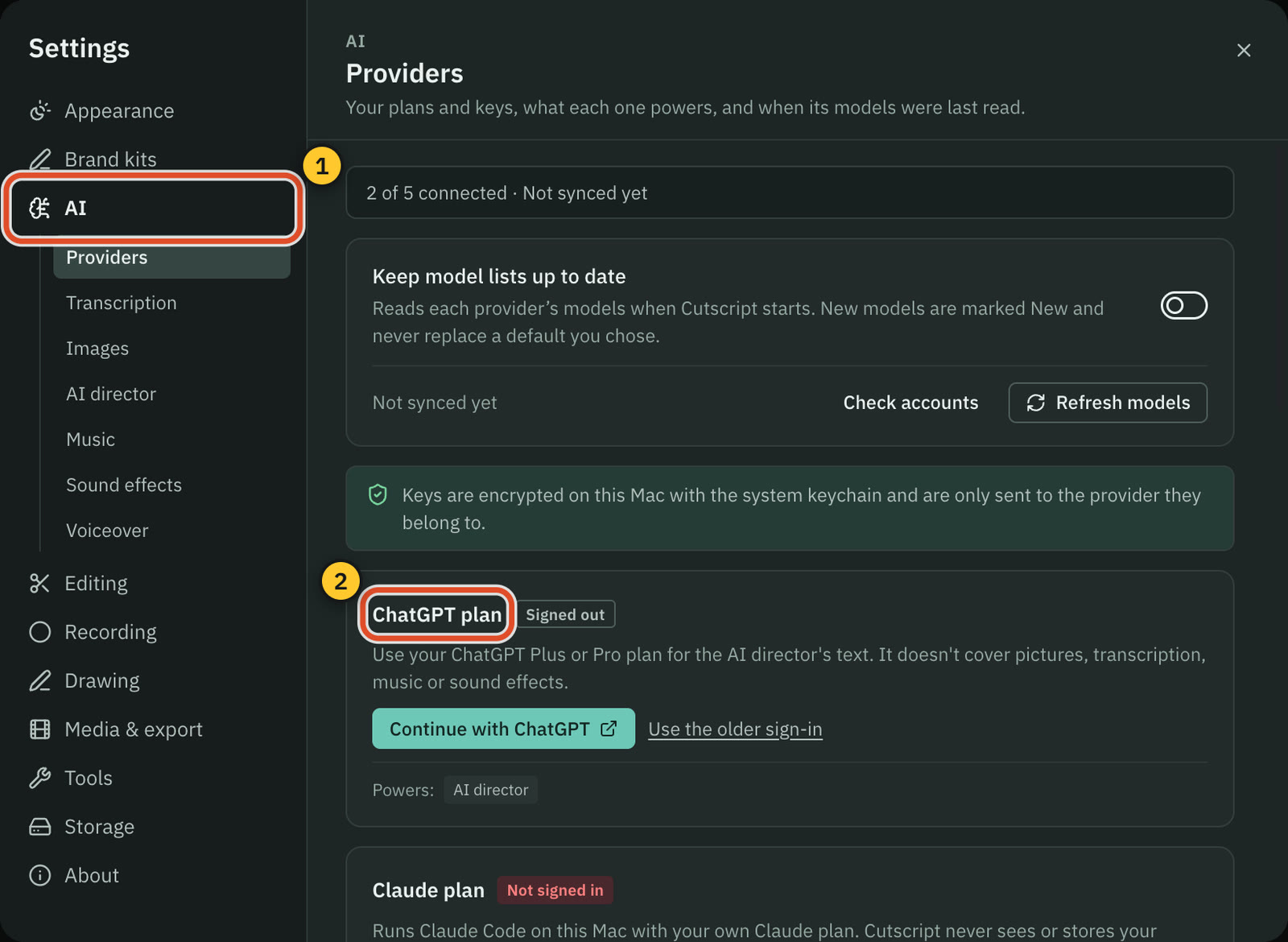
Open the providers
- Press
⌘ ,to open Settings. On the home screen you can also pick AI from the settings list in the left sidebar. - Choose AI, then Providers.
The page opens with a line such as "2 of 5 connected", then one card for each account.
What each account is for
Every card ends with a Powers line that lists what it can run in Cutscript.
| Card | What you need first | Powers |
|---|---|---|
| ChatGPT plan | A ChatGPT Plus or Pro plan | AI director |
| Claude plan | A Claude plan, and Claude Code installed on your Mac | AI director |
| OpenRouter | An OpenRouter account and a key, or sign in with OpenRouter | Transcription, Pictures, AI director, Music, Sound effects, Voiceover |
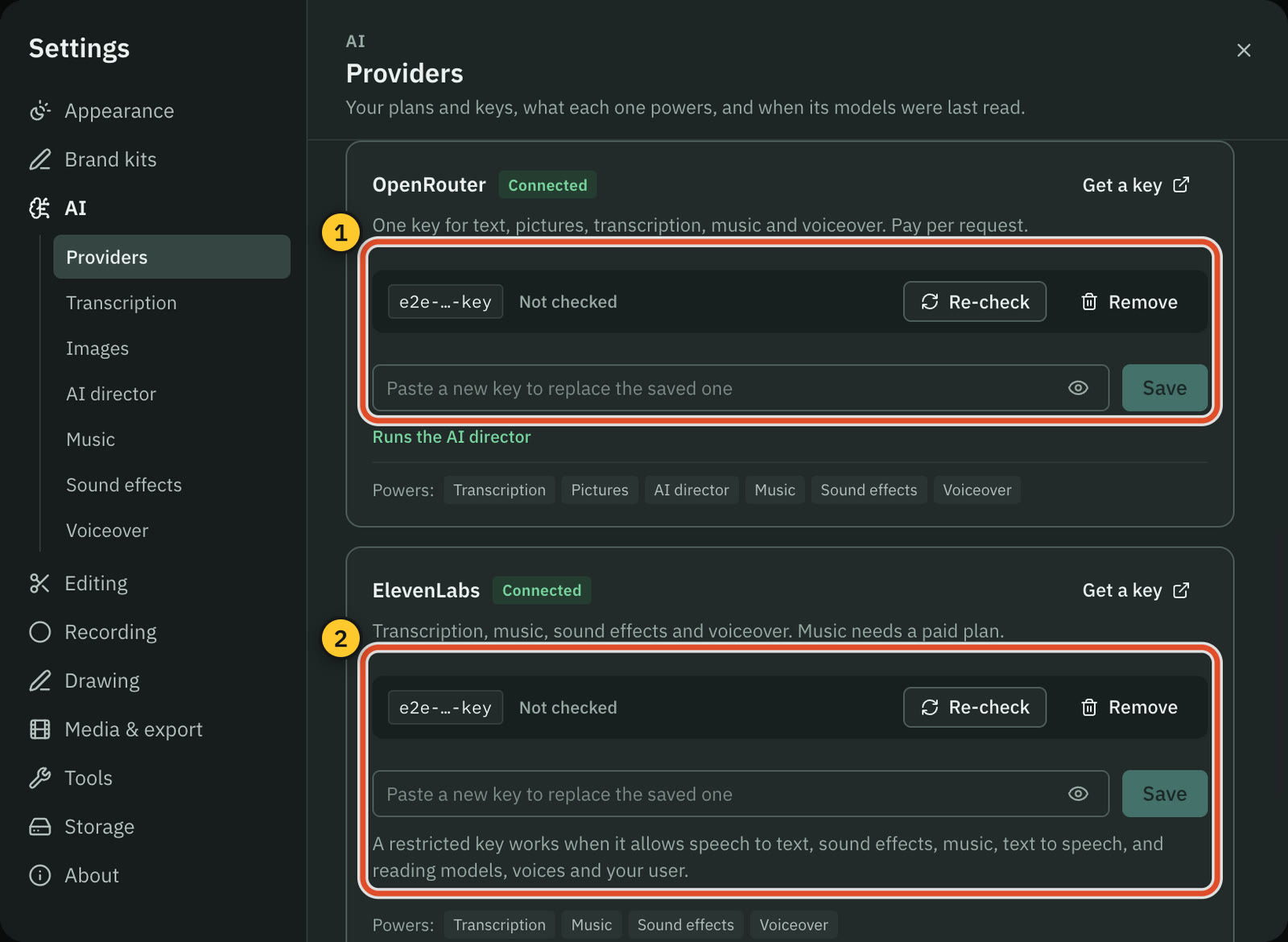
| ElevenLabs | An ElevenLabs account and an API key | Transcription, Music, Sound effects, Voiceover |
| fal.ai | A fal.ai account and an API key | Transcription, Pictures, Music, Sound effects, Voiceover |
The two plans cover the AI director's text only. A plan does not transcribe, make pictures or generate audio.
Which ones to connect
- One key for everything. OpenRouter covers every row of the table, so one OpenRouter key is the smallest setup.
- A plan you already pay for. Connect the ChatGPT or Claude plan for the AI director. Add an OpenRouter, ElevenLabs or fal.ai key for the transcript, and for pictures if you want them.
- Audio first. ElevenLabs transcribes and makes music, sound effects and voiceover. Add a plan or OpenRouter for the AI director.
Each job has its own default model in Settings › AI. Recommended picks from the accounts you have connected, so connecting a new one can change what Recommended means. A default you chose yourself never changes without you.
The controls at the top
- Keep model lists up to date reads each provider's models when Cutscript starts. New models are marked New and never replace a default you chose.
- Check accounts checks every saved key again and looks for Claude Code again.
- Refresh models reads the model lists now. The line beside it says when they were last read.
Where keys are kept
The page says it plainly: "Keys are encrypted on this Mac with the system keychain and are only sent to the provider they belong to." A saved key shows only as a short preview, the first four and last four characters. The key itself is never shown again.
To disconnect a key, press Remove on its card and confirm with Remove key. To disconnect a plan, press Sign out on the ChatGPT card, or sign out of Claude Code itself. Each provider page has the details.
Choose which account the AI director uses
The AI director can run on your Claude plan, your OpenRouter key or your ChatGPT plan. Pick one in Settings › AI › AI director › Model, under Runs on. A ready plan card also has a Use it for the AI director button.
If the AI director's current source cannot run, for example because it has no OpenRouter key, and you finish signing in to a plan while this page is open, Cutscript switches to that plan for you. A notice names the new source and has an Undo button.
Related
In this part
ChatGPT plan
Sign in with your ChatGPT Plus or Pro plan so the AI director writes on your plan instead of a pay-per-use key.
Claude plan
Run the AI director on your own Claude plan through Claude Code on your Mac. Cutscript never sees or stores your Claude login.
OpenRouter
Connect OpenRouter with a sign-in or an API key. One account covers the AI director, pictures, transcription, music, sound effects and voiceover.
ElevenLabs
Add an ElevenLabs API key for transcription, music, sound effects and voiceover, and see what the key needs to be allowed to do.
fal.ai
Add a fal.ai API key for pictures, transcription, music, sound effects and voiceover from many model makers, priced live on your account.
Was this page helpful?
Comments
Longer questions go better in the forum.
No comments yet. Ask a question or add what you found.
Sign in with GitHub or Google to comment.
Sign in to comment