Maps, charts and data
Ask for a map, a chart or an infographic. Give the director your places or your numbers, and every figure on screen traces back to what you provided.
Maps, charts and infographics are the graphics where accuracy matters most. The design director draws them from your words and your data, and its checks refuse numbers it cannot trace to what you gave it. You make them the same way as any graphic, in Graphics › Create or in the AI chat. This page covers what to give it, and what you can control.
Before you start
- An AI source for the AI director. See Connect an AI account.
- Your places or your numbers. A map needs the places. A chart needs the values, typed, pasted or attached.
- Nothing, to start from a free design. The Design pack has maps, charts and infographics that work offline.
Make a map
- Open Graphics (
⌘ 2) and stay on Create. - Describe the trip and the look. For example: "Delhi to Paris at night: start close on Delhi, pull out along the route, push into Paris, with my India Gate and Eiffel Tower images on the cities."
- Check the price, press Send, review the Storyboard, and press Build. See The design director.
What you can ask for:
- Real routes. A plane, car, train or ship follows the true route between the places you name, on a flat map or a globe. The camera keeps both ends of a long flight in view.
- Light. Day, golden hour, dusk, blue hour, night with city lights, or a studio look.
- Camera moves. Zoom in on a city, pull out along the route and push into the next one, with up to 12 camera shots.
- Landmarks. Photos from your library can sit on their city, such as India Gate on New Delhi. Each one can be nudged by hand. If the director needs a picture it does not have, it asks you to Upload one, Pick from library, Use an icon or Leave out the landmark.
- Regional maps. They show states, provinces and lakes, so a trip from Springfield to Chicago ends on the shore of Lake Michigan.
Choose whose borders a map draws
Where a border is disputed, countries draw it differently. Open Settings › Editing, find the Maps card and set Borders. The default is This Mac’s region. You can pick Worldwide, where disputed borders are dashed, a country's own view, or the ISO 3166 edition. New maps use your choice. A map keeps the view it was made with, so changing the setting never redraws an older map.
Make a chart
- Give the director the numbers. You can:
- type them in the request ("Three stats from my video: 12 lakh views, 3× orders, 45 min saved");
- attach a spreadsheet or data file, which can be CSV, Excel or JSON, with the paperclip;
- paste a table. Pasted CSV or tab-separated text is attached as a table instead of typed.
- Say what the chart should show: "Chart this spreadsheet: which month grew most?"
- Press Send, then Build.
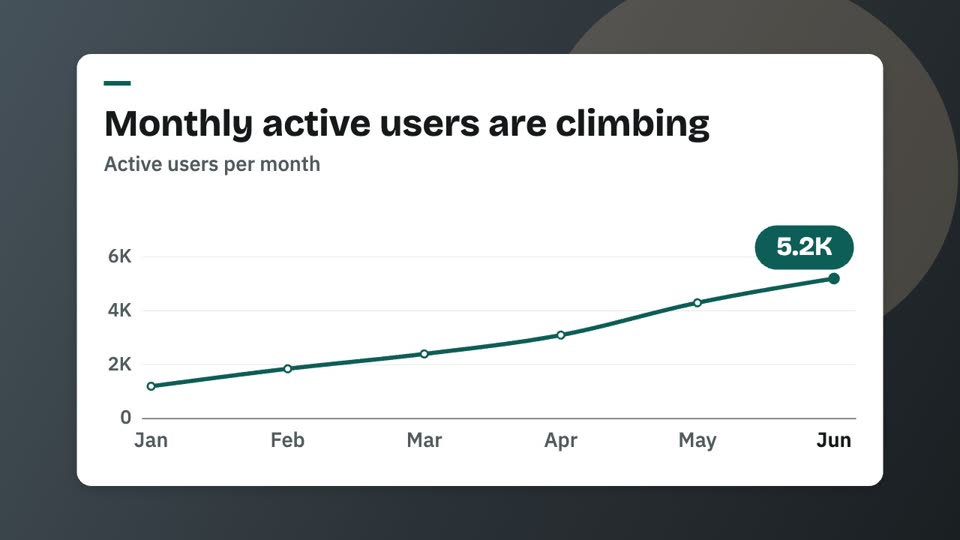
The director picks the chart type that fits your data and your point. There are 29 types, from bars, lines and donuts to funnels, waterfalls, slopes, heatmaps, bar races and treemaps, each checked so it cannot mislead. A ranked list tends to become ranked bars, a change over time a line, and a share of a whole a donut or another part-to-whole chart.
Numbers you can trust
- Every number comes from you. Each value on screen comes from your request, your transcript, your data or the fields you set in the design. The director does not invent a metric, and the automatic checks compare every number it draws with those sources.
- Charts are honest. Bars start at zero, parts add up to their whole, and scales are fair and labelled.
- Placeholders are labelled. If you ask for made-up, sample or placeholder numbers, it draws them and marks them as illustrative. Without that request, a number it cannot trace fails the check.
- A paused or reduced-motion preview shows the final numbers, not a count still running.
Make an infographic
Describe the facts and how they relate: "Three stats from my video", "Before and after", "A checklist of the steps". The director builds infographics from parts: cards, shapes, arrows that state the change between two numbers, counters that count up as you say the number, and icons. It lays them out again for phone-shaped videos. It can use over 13,000 icons from Lucide, Phosphor, Heroicons, Font Awesome Free and Tabler, found by a search on your Mac. When a graphic uses a Font Awesome icon, its credit is added to the export notes.
Edit the numbers afterwards
Once a map or chart is built, you can change its words, numbers, colours and rows without the AI, for free. See Edit a graphic by hand. To change the design itself, type a change in the chat, such as "make the route gold". That is a small priced change.
Start from a free design
The Design pack holds ready-made versions you can fill with your own data: Night route with landmarks (Delhi → Paris), Choropleth of a rate, Global reach on a dotted globe, Growth line, drawn, Hero stat, odometer, KPI trio, ledger, Leaderboard race, Earnings, quarterly bars and Roadmap spine. In the AI chat and in Graphics, Start from a design · free opens one.
Costs and limits
The price shows before Build. The director's own look at its frames is part of that price. A map that uses pictures from a model is priced per picture. Landmark photos from your library cost nothing. See Prices before every paid step.
There is no offline street map. Maps use the built-in world map, exact routes and places.
Common problems
The map shows the wrong place. Name it more fully, for example "Springfield, Illinois", and give the country when it could be confused.
A chart is marked illustrative. Your request asked for placeholder or sample numbers. Give it the real values and ask again.
The map's borders are not the ones I expected. Change Settings › Editing › Maps › Borders, then make the map again.
Related
Was this page helpful?
Comments
Longer questions go better in the forum.
No comments yet. Ask a question or add what you found.
Sign in with GitHub or Google to comment.
Sign in to comment