Edit a graphic by hand
Change a graphic's words, colours, numbers, pictures, timing and position yourself. It is free, needs no AI and works offline.
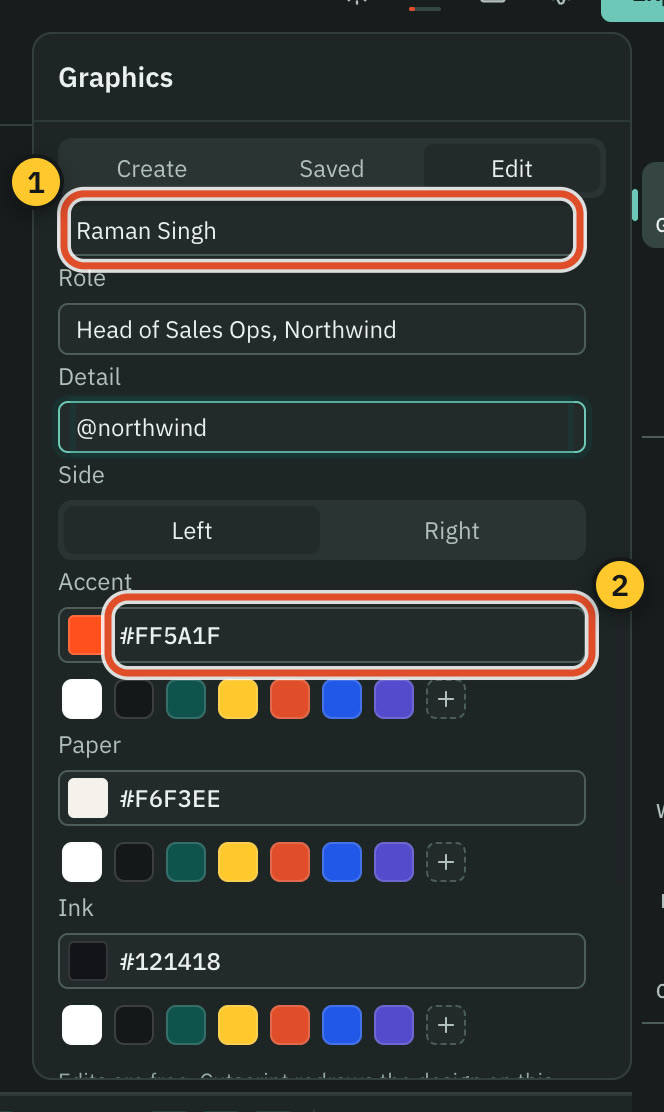
Any graphic in your video can be edited without asking the AI. You change its words, colours, numbers, rows and pictures in a form, move and resize it on the preview, and trim it on the timeline. Cutscript redraws the design on your Mac, and the model is never called. Every edit is one undo step.
Before you start
- A graphic in your video: one from the Design pack, one the design director made, or a saved one.
- Nothing else. No key, no account and no internet.
Edit a graphic in your video
- Click the graphic in the preview, or its block on the timeline.
- Open Graphics (
⌘ 2). A selected graphic opens on the Edit tab. - Change what you want. The preview updates as you go.
If nothing is selected, the tab says Select a graphic to edit it, with a Browse saved graphics button.
The top of the panel names the graphic and says which one it is, for example "Lower third over footage · 2 of 5". Rename it there, and use the arrows to step to the previous or next graphic. Below the name is a player that shows the graphic at its length, and a line with the result of its checks.
Click a word in the preview and the panel jumps to the field that holds it, scrolls to it and focuses it. With the graphic already selected, click it again to jump to the field under the pointer.
What you can change
The Edit tab has these groups.
- Variants. Free preset looks, shown as small pictures. A design usually has Quiet, Balanced and Loud. Pick one to change the energy and colours in one step.
- Content. One field for each thing the design lets you change: texts, long text, colours, numbers, switches, choices, rows of data, pictures and timings. Type a word and press Return, or click away, to commit it as one undo step. A field that has not been changed says "As designed". A field with a limit counts characters as you near it. A value the design cannot take shows a warning and is not applied.
- Colour fields offer your brand kit's colours first.
- A picture field has Choose from the library…, which adds the picture to the design.
- A table of rows has buttons to move a row up or down, remove a row, or add one, up to the design's limit.
- Timing. How long the graphic plays and how far it can be trimmed, with its beats listed. A longer graphic holds its moments longer, and never plays slower. Some designs cannot be made shorter than they were drawn.
- Position and size. Left, Top, Width and Height, as a share of the frame, and Layer. Fit the frame puts it back where it belongs. You can also drag and resize it on the preview.
- Start and length. When it starts and how long it stays on the video, and Delete graphic.
- Code. The design's code, read-only. Press Edit code, change it, and press Check and apply · free. The code is compiled and checked, and nothing applies until the checks pass. Cancel puts it back.
Buttons at the top of the panel:
- Add a copy puts the same graphic again at the playhead, as one undo step.
- Save to library keeps this copy, code and fields included, in Graphics › Saved for every project.
- Edit with AI opens the design in a conversation. A change you ask for there is priced before you send it.
Note: If the Text lane is locked, the panel says "The Text lane is locked" and asks you to turn the lock off before you edit this graphic.
Repeating graphics
A graphic can be designed once and reused, such as chapter cards, lower thirds or a rating card. The panel shows a badge with the family, such as "Chapter cards", and its place: Master, or "Reuse · 2 of 4". The look is shared. The words and numbers are each one's own.
If you change the look of one member, the panel offers:
- Update all, to apply this look to every member, each keeping its own words.
- Only this one, to leave the family and keep this look.
- Edit master, on a reuse, to select the master, where a look change is made for the family.
- Detach, to keep a graphic's look as its own design.
Edit a saved graphic
Saved graphics live in Graphics › Saved › Graphics. Each card has Add and Edit, and a button that moves it to the Trash.
- Press Edit on the card. The graphic opens on the Edit tab as a working copy, away from your video.
- Make your changes. Nothing is written until you save.
- Press Save changes to change the saved graphic, Save as copy to keep the original and save a new one, or Add to video to place this version at the playhead.
- Discard changes drops what you did. Close closes the copy, and asks first if it has unsaved changes.
Saving changes the saved graphic only. Videos that already use it keep their own copies. A Saved graphic name field renames it.
The pencil on a Design pack card opens your own copy in the same way, with Save to library instead of Save changes. The pack never changes.
Older graphics
Graphics made before the design director have their own editor, with each layer's words, colour, value and timing. A note says "Made by the earlier director. Its content stays editable here, free." with a Remake with the design director button, which puts a remake request in the message box with its price shown first when you press Send. Older graphics open, play and export as they always did.
Common problems
The Edit tab says to select a graphic. Nothing is selected. Click the graphic in the preview or on the timeline.
It says the Text lane is locked. Turn off the lock on the lane, then edit.
A change is rejected. The field shows a warning with the reason, such as a number out of range. Fix the value.
My code change does not apply. The checks failed. The errors appear with their file and line. Fix them, or press Cancel.
Related
Was this page helpful?
Comments
Longer questions go better in the forum.
No comments yet. Ask a question or add what you found.
Sign in with GitHub or Google to comment.
Sign in to comment