Edit by editing text
Select words in the script and delete them, and the video is cut to match. Restore, ignore, correct and search without touching your footage.
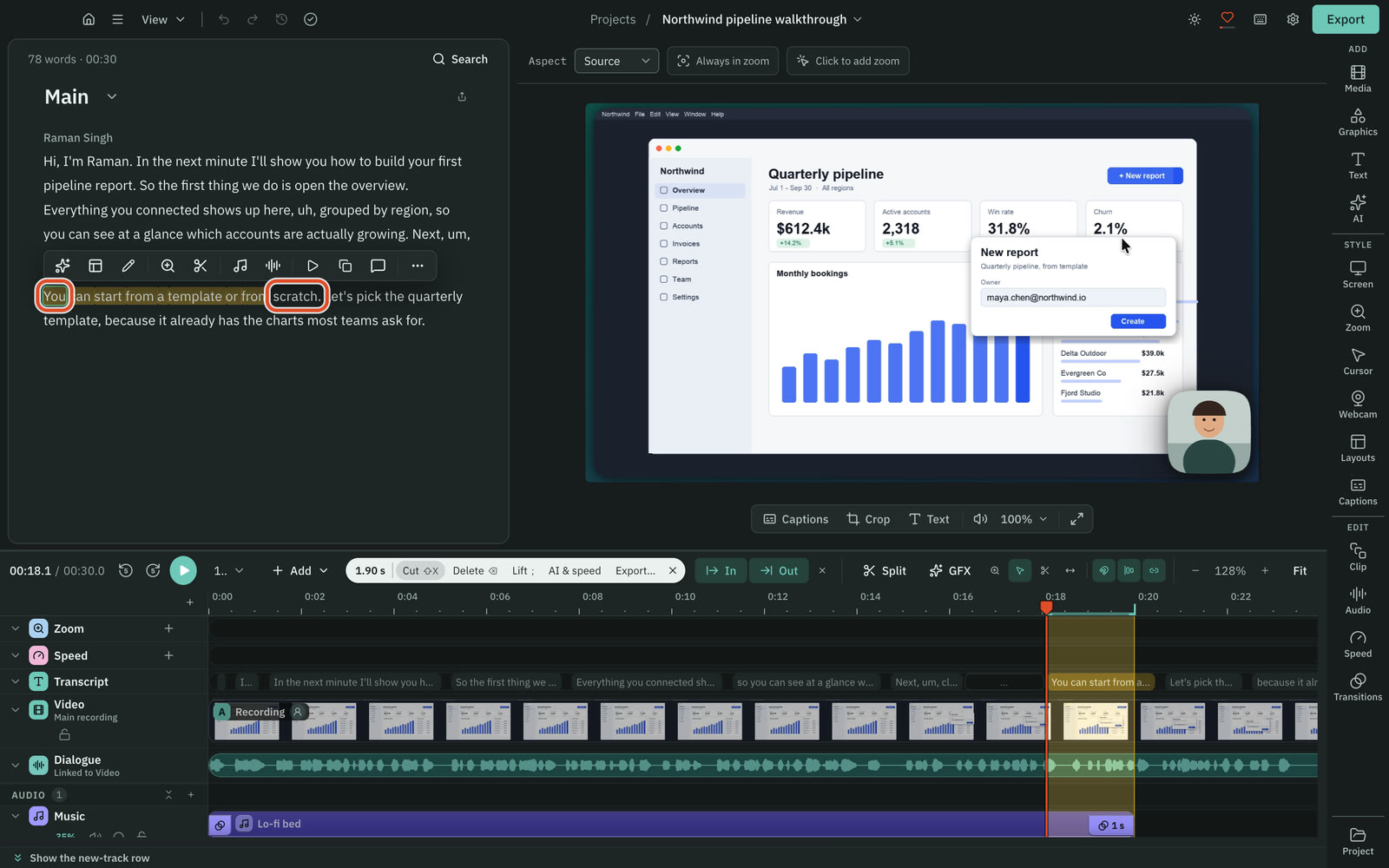
The script is the transcript of your video, shown as text beside the preview. Select words and press Delete, and the matching picture and sound are cut. The preview, the waveform and the timeline all follow, and every cut can be restored.
Before you start
- You need a transcript. Transcription is a cloud step that runs on your own ElevenLabs, fal.ai or OpenRouter account: see Transcription. A recording is transcribed automatically unless you switched that off in Settings › Recording. For any other project, press Transcribe in the empty script.
- Once the transcript exists, editing by text works offline.
- Your original media is never changed. Cuts are stored as edits on top of it, and the export applies them.
Cut words from the video
- Click a word in the script. The caret lands there and the playhead jumps to that moment.
- Select the words you want to remove. Drag across them, double-click a word, triple-click a paragraph, hold
⇧and click to extend, or press⇧ ←and⇧ →.⌘ Aselects every word. The word being spoken is marked while the video plays. - Press
⌫(orDelete). The words leave the script, a thin edit boundary marks the place, and the preview skips that stretch.
The header above the script shows the new length ("78 words · 00:27"). On the timeline the cut shows as a seam. Hover it and a chip says how much was removed, such as "2.56 s removed", with Restore and a + button for a transition.
When you delete a stretch of words, Cutscript also removes the shorter of the two pauses next to it, so the sentence on either side keeps one natural pause.
Four things you can do to words
| Action | Keys | Cuts the video? | What the script shows |
|---|---|---|---|
| Delete | ⌫ | Yes | The words disappear and an edit boundary marks the place |
| Ignore | ⌘ ⌫ | Yes | The words stay, struck through |
| Remove from transcript | Edit script menu | No: the video still plays them | The words are hidden from the script, captions and transcript files |
| Restore | ⇧ ⌘ ⌫ | Puts deleted or ignored media back | The words come back |
Ignore is for review. Edits that the AI makes arrive as ignored words, so you can check them before they are final. When you are happy, open AI in the right rail, choose the Clean up tab and press Remove ignored text. That turns every ignored word into a deletion in one undo step.
To see deleted words as struck-through text, choose View › Show deleted text in the top bar.
Restore a cut
Any of these brings the media back:
- Select the words, or put the caret next to them, and press
⇧ ⌘ ⌫. - Click an edit boundary in the script. A Removed text popover shows what was cut. Press Restore removed media.
- Hover the seam on the timeline and press Restore in its chip.
The selection toolbar and the right-click menu
When words are selected, a toolbar floats above them: Make a graphic, Add layout to selection, Correct transcript, Zoom webcam over selection, Edit script (Delete, Ignore, Remove from transcript and the matching restores), Add audio, AI & speed, Play the selection, Copy, Ask AI and More actions.
Right-click the selection for the same actions and more: Cut (⌘ X), Copy, Pause, Set timeline range to selection, Export selection…, New composition from selection…, Correct…, Play from here and Add note here. Cut copies the text, then deletes the words. Copy puts plain text on your clipboard. Words are not pasted back into the script: use undo or Restore to get them back.
Correct a word
Select the word and press C. The Correct box changes the text only, so a misheard name is fixed in the script, captions and exports while the audio stays as it was. If the word appears more than once, Correct all (3) fixes every instance (⌘ ↵). If you type a different number of words, the text goes on the first word.
Shorten a pause
Select words and press ⌘ G to shorten the pause after them. See Remove filler words and pauses.
Search the script
Press ⌘ F to find whole words and phrases, in the script and in your notes. Enter and ⇧ Enter step through the matches, and Delete all (with the count, such as Delete all 3 matches) removes every match in one step. The same bar can review filler words, gaps and repeats.
Speakers
If the transcript labels speakers, a name sits above each paragraph. Click a name to rename it. Enter applies the new name everywhere in the project.
Undo
⌘ Z and ⇧ ⌘ Z undo and redo. The clock icon in the top bar opens History, a list of every step. Click a step to go back to it. Later steps stay available until you make a new edit.
View options
The View menu in the top bar controls the script: Show edit boundaries (on), Underline filler words (off), Show deleted text (off), Follow playhead (on), and text size (⇧ ⌘ = and ⇧ ⌘ -).
Tip:
⌫in the empty space after a line moves the caret to the nearest word first. It does not delete anything until your next press.
Note: If you have unlinked the recording's audio, the script says "Audio unlinked: script edits change the picture only." See The timeline.
Related
Was this page helpful?
Comments
Longer questions go better in the forum.
No comments yet. Ask a question or add what you found.
Sign in with GitHub or Google to comment.
Sign in to comment