Turn a screen recording into a polished demo
Record a product walkthrough, cut it by editing the script, add zooms, a cursor, a background and captions, then export an MP4.
This walk-through takes a one-minute product demo from a raw recording to a finished video. The example is a tour of a sales dashboard: open the overview, click New report, pick a template. Use your own app instead. Every step is free except the transcript, which your transcription account charges.
Before you start
- A Mac on macOS 15 or later with the Screen Recording and Microphone permissions. See Get set up and permissions.
- A transcription key from ElevenLabs, fal.ai or OpenRouter, so the recording can become a script. See Transcription.
- Nothing else. The zooms, cursor, background and captions need no AI.
1. Record the walkthrough
- On the home screen press Record, or press
⇧ ⌘ R. You can also choose File › New Recording…. - Pick Display to record the whole screen, Window for one app, or Area for a rectangle.
- Say a sentence and check that the microphone meter moves.
- Press Start recording. Begin talking when the 3-second countdown ends.
- Click through the demo. Click once, on the thing you are describing.
- Press Stop or
⌃ ⌥ ⌘ R.
Cutscript saves the take as a project and opens the editor. With the default settings it also starts the transcript and adds zooms from your clicks. For more on each habit, see Record so editing is easy.
2. Cut by editing the script
Read the script on the left. Select a sentence you do not want, such as a false start, and press Delete. The words disappear from the script, a cut appears on the timeline and the video gets shorter. Press ⇧ ⌘ ⌫ on the selection to restore it.
3. Clean up the fillers and pauses
- Press
⌘ 4to open AI, then choose the Clean up tab. - Press Remove repetitions, then Remove all.
- Press Remove filler words, set the action to Ignore, and press Remove all.
- Play the video. If it sounds right, press Remove ignored text.
- Press Shorten word gaps and Shorten all. The defaults find pauses over 0.8 seconds and shorten them to 0.3.
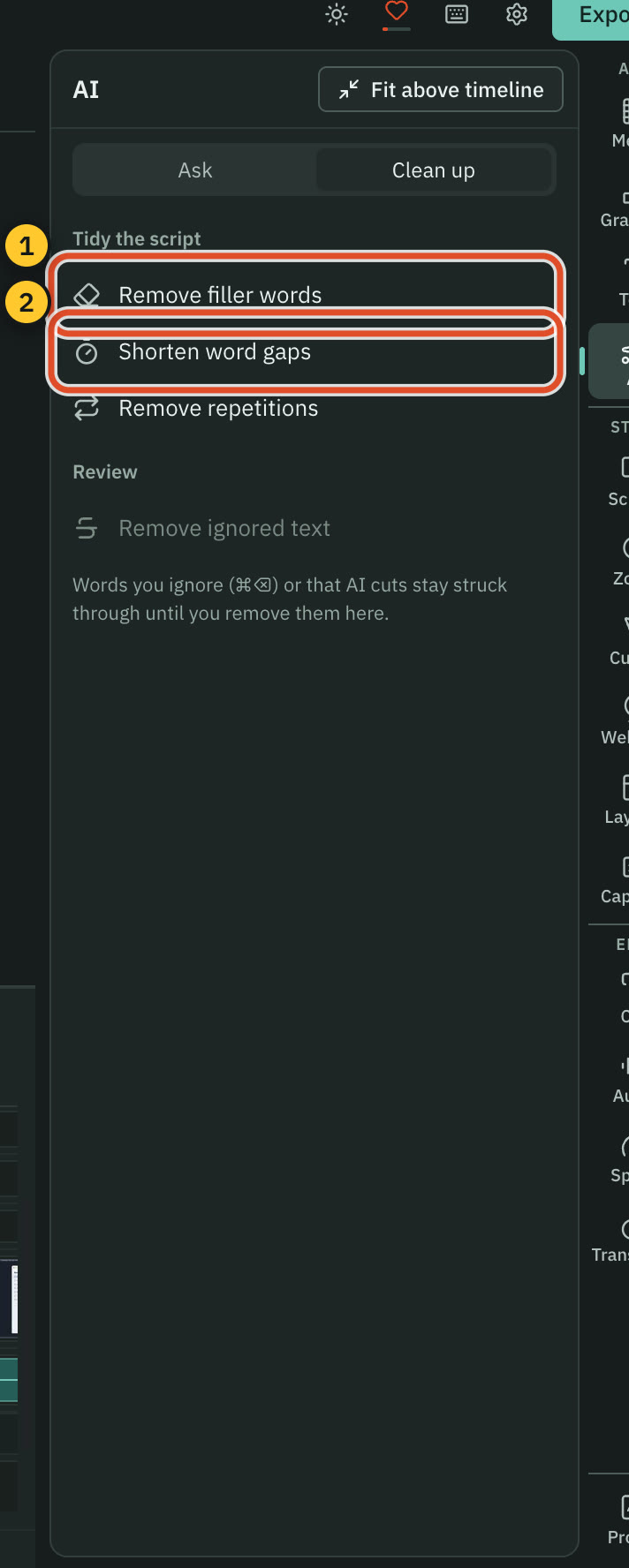
These tools run on your Mac and cost nothing. See Remove filler words and pauses.
4. Check the zooms
Press ⌘ 6 to open Zoom. Under Auto zooms, How many is set to Balanced. Choose Fewer if the video feels busy, or More for every click. After your cuts, press Redo auto zooms so the zooms match what is left.
Click a zoom in the list. Its Zoom mode is Follow cursor or Fixed, and Depth sets how far it goes in.
5. Tidy the cursor
Press ⌘ 7 to open Cursor. Turn on Show pointer, then set its Size. Movement offers presets for how the pointer glides, and a live demo shows each one. Under Clicks, choose a Click effect, such as a ripple. A click sound is already added to new recordings. Change it, or its Volume, under Click sound.
6. Frame the screen
Press ⌘ 5 to open Screen. Pick a Look: Bare, Studio, Spotlight or Soft. Then adjust the Background, and the Padding, Corners and Shadow of the frame around your recording.
If you recorded with the camera, press ⌘ 8 to open Webcam. Choose the bubble's shape, size and position. See Webcam and layouts.
7. Add captions
Press ⌘ 0 to open Captions. Pick a style in the grid. The preview updates as you click. Choose where the captions sit with Top, Middle or Bottom.
8. Clean the voice (optional)
Open Audio in the right rail. In the Enhance voice group, press Enhance with Apple Voice Isolation or Built-in clean-up. Both are free. Compare with Original and Enhanced. See Get clean sound.
9. Export
- Press Export in the top right, or press
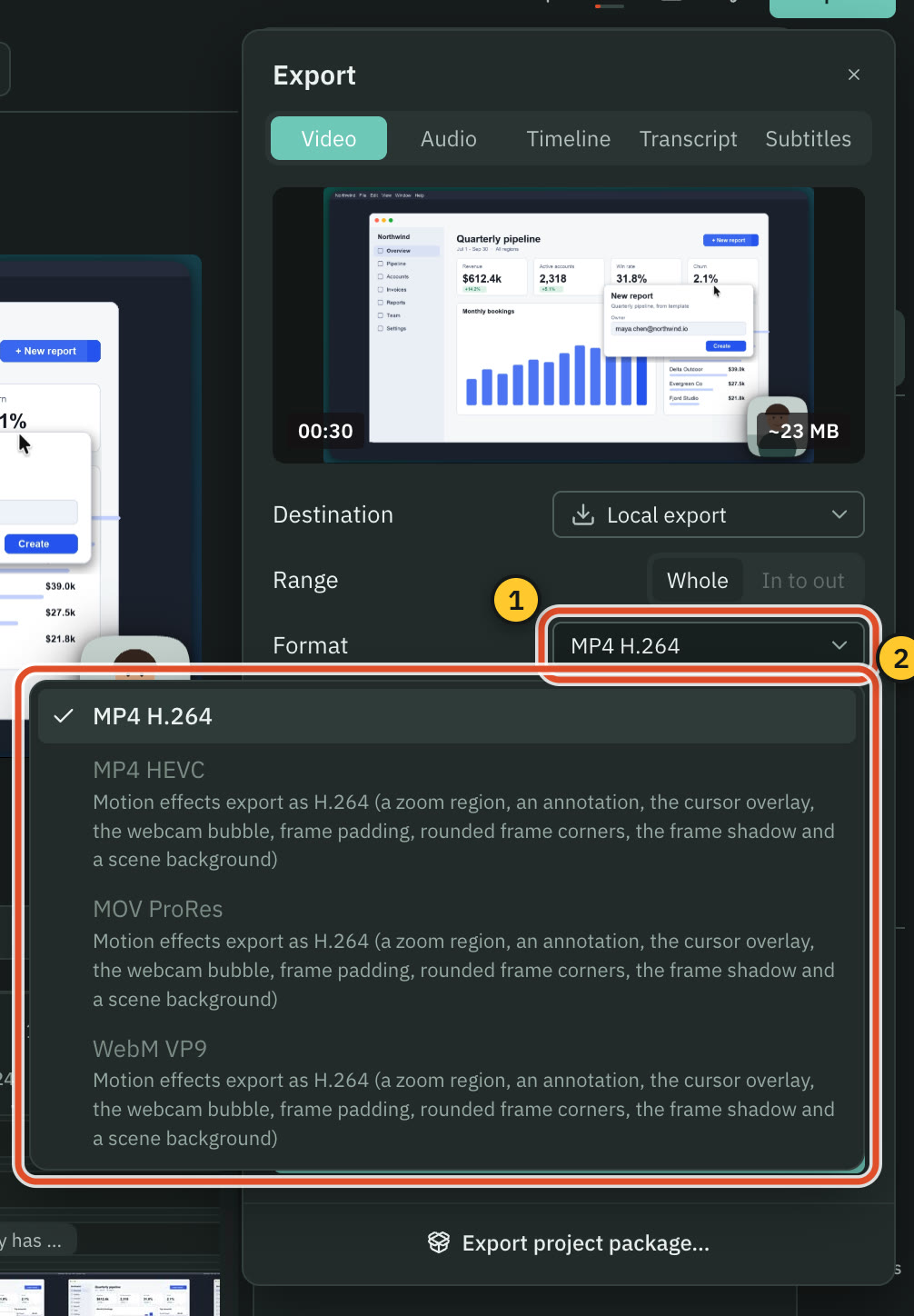
⌘ E. - On the Video tab, leave Format on MP4 H.264. Zooms and a styled frame mean this is the only format available.
- Turn on Burn in captions.
- Open Advanced and set Normalize volume to -14 LUFS.
- Press Export and choose where to save the file.
What you made
A finished MP4 with your cuts, zooms that follow your clicks, a smoothed cursor with click sounds, a framed background and burned-in captions. The project stays editable, so you can change any of it and export again. For where to publish it, see Export for each platform.
Related
Was this page helpful?
Comments
Longer questions go better in the forum.
No comments yet. Ask a question or add what you found.
Sign in with GitHub or Google to comment.
Sign in to comment