Make short clips
Ask for short clips and the AI finds the strongest moments of a long video, frames each one for vertical, checks it and exports the lot.
The clipper turns one long video into several short ones. It reads the transcript, picks the moments most likely to hold a viewer, and makes each one its own composition, framed on the speaker's face or on the cursor. Finding the clips is priced on the Send line. Making them is free.
Before you start
- A transcript. The clipper reads the words. See Transcription.
- An AI source. Connect a Claude plan, a ChatGPT plan or an OpenRouter key.
- A long video. The clipper reads it in parts of about nine minutes.
Ask for clips
You can start in two places.
From the home screen. In Let’s create something, paste a YouTube link or attach a file, then press the Make short clips starter. It fills the box with "Make 5 short clips of the most viral moments." Pick the shape in the Aspect menu: Source (keep the video's own shape), 16:9 (landscape, YouTube), 9:16 (vertical, Shorts, Reels and TikTok), 1:1 (square) or 4:5 (portrait, Instagram feed). Press Create.
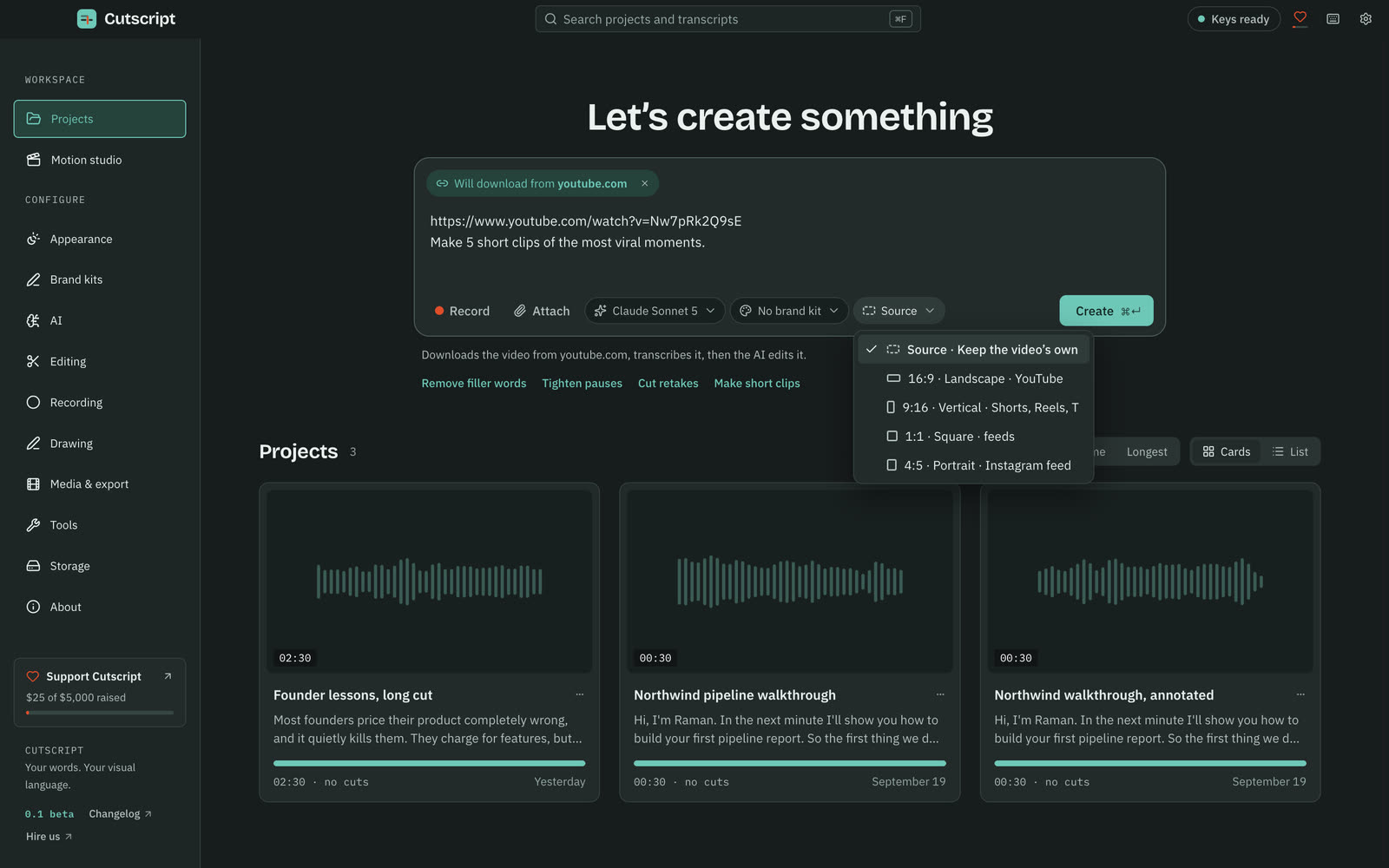
From a project. Open the AI panel (⌘ 4), stay on Ask, and type something like "make 5 short clips", "find the viral moments" or "clip this into shorts". You can say how many (the default is five, the most is ten) and how long (the default is 15 to 60 seconds). The line under the box shows the price of the search before you press Send. On a plan it runs on your plan.
The five steps
The chips at the top of the card show where you are: Find, Plan, Create, Check, Done.
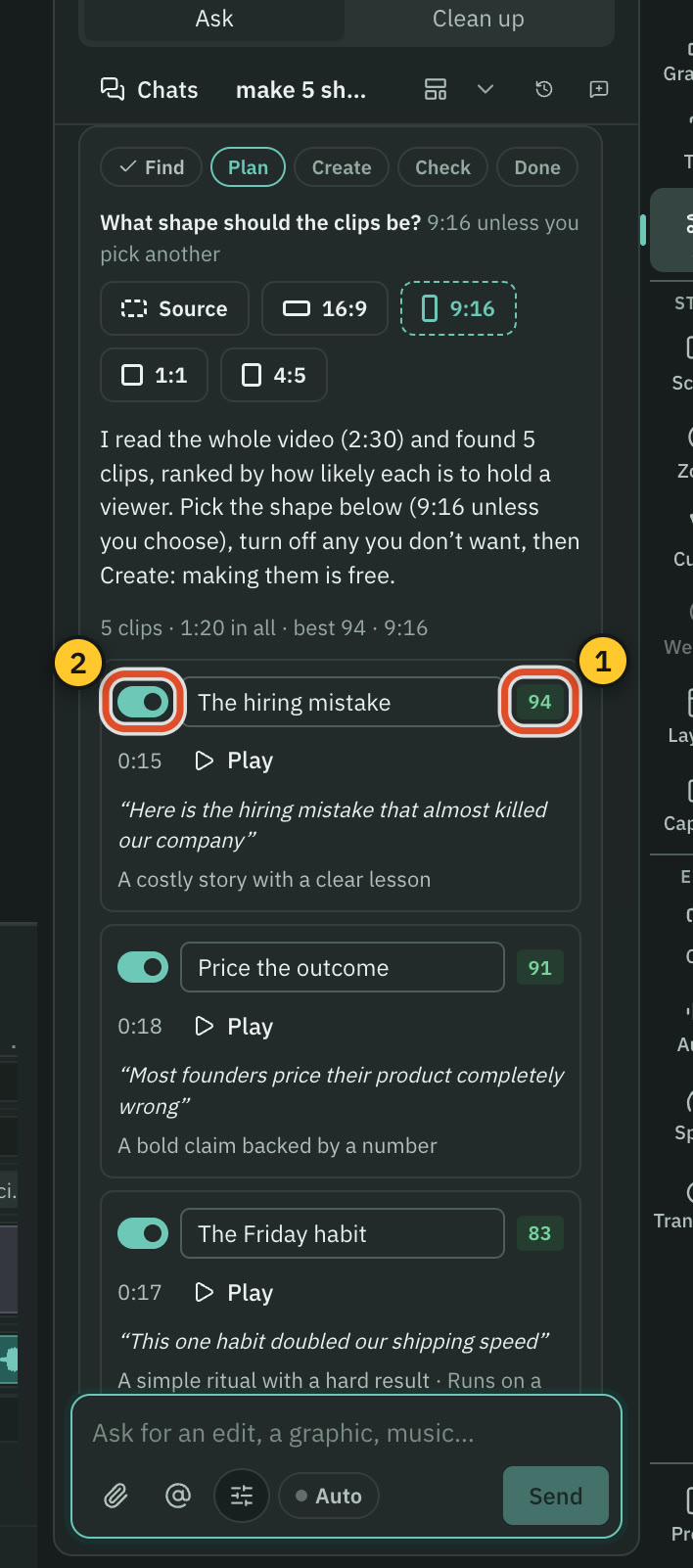
- Find. The AI reads the video and proposes clips. If your request did not name a shape, the card asks "What shape should the clips be?" and preselects 9:16.
- Plan. The clips appear ranked by score. Each row has a switch, a title you can edit, its length, a score from 0 to 100 ("How likely it is to hold a viewer"), the hook it opens on, the reason it was picked, and a Play button that jumps to it in the video.
- Create. Press Create 5 clips · free. Each clip becomes its own composition, in the shape you chose.
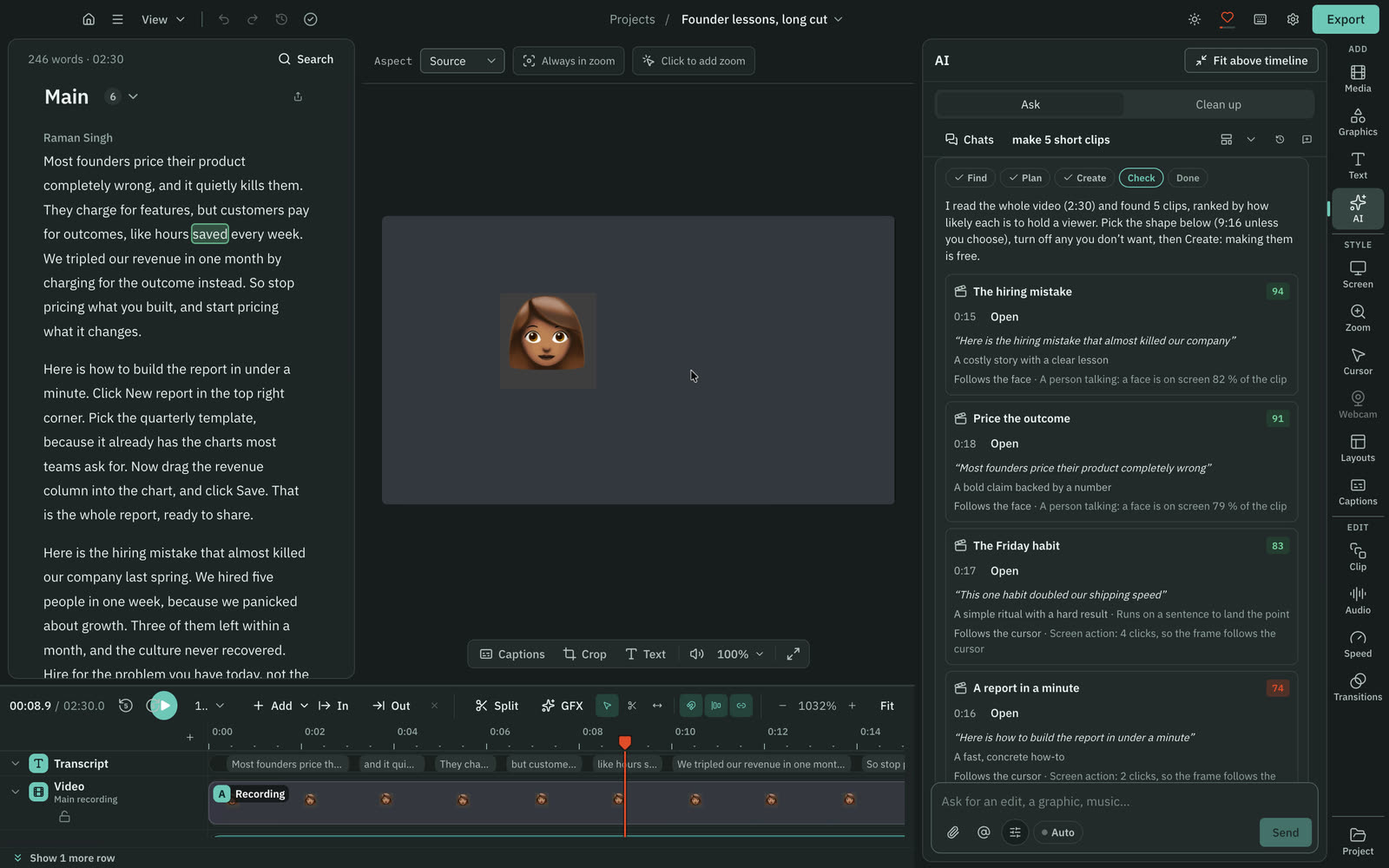
- Check. Each clip is checked as it will export.
- Done. Export all clips, or open any clip's composition and keep editing.
What makes a good clip
The AI proposes candidates, then Cutscript holds each one to rules for short video:
- A clip does not start in the middle of a thought. If it opens on "and" or "but", it takes the sentence before.
- The hook, the line that makes someone stay, comes within about three seconds. If it comes later, the clip starts at the hook when enough is left.
- A clip is tightened: fillers and pauses longer than 0.6 seconds are cut down to a short breath.
- Clips that overlap are merged into the better one, and only the best ones are kept.
Turn on Full-screen hook text in the plan to show the opening line full screen, word by word, as it is said. Switch a clip off, or rename it, before you create.
How each clip is framed
Cutscript looks at what is on screen and chooses a frame:
- Follows the face. A person is talking, so the frame follows their face. Cutscript uses Apple's face detection on your Mac. When it knows who is speaking, it follows the speaker.
- Follows the cursor. A screen recording with clicks and pointer movement, so the frame follows the cursor.
- Still crop. No face and no pointer, so a still crop where the motion is, or the centre.
Each row says which one it chose and why. Clips also get captions made for short video: a few words at a time, the active word coloured, bold and centred inside the safe area.
Check the clips
The free checks run first. They look at whether the face the frame follows is inside the frame and not cut by an edge, whether the captions sit inside the vertical safe area and clear of the face, and whether the hook lands in time.
Then you can press Check by image. The AI looks at up to six real frames from each clip as it will export, and its price, a typical figure and the most it can cost, is on the button. Press Free checks only to skip the look. Each problem comes with a fix card, such as shifting the crop or following the face more tightly, and you press Apply or Discard. You can check again once more with Check again, and then press Done.
Export
Press Export all clips. Each file is named after its clip's title, and the batch export dialog opens with every clip chosen. To export one clip, open its composition with Open and use the normal export. See Compositions and clips and Export a video.
Auto mode
With Auto on in the message box, the clipper creates the clips, checks them by image, applies the fixes by itself and checks once more. Anything over your limit still needs your click.
Common problems
No clips are found. Check that the project has a transcript and that an AI source is ready.
The frame misses the speaker. Open the clip, press Check by image, and apply the fix it proposes, or adjust the reframe by hand in the composition.
Create is disabled. Wait for the AI to finish, and make sure the project this chat belongs to is open.
Related
Was this page helpful?
Comments
Longer questions go better in the forum.
No comments yet. Ask a question or add what you found.
Sign in with GitHub or Google to comment.
Sign in to comment