Read and change the prompts
Every instruction Cutscript's AI follows is yours to read and reword. The reply format stays locked so the app keeps working.
Cutscript does not hide what it asks the AI to do. The instructions behind the AI chat, Direct my video, the clipper, the design director and brand kit analysis are listed in Settings, in full. You can change their wording, tone and taste, and put them back whenever you like.
Before you start
Editing a prompt needs no account and no internet. It only changes what the AI is told on its next request, so you notice it when you use an AI feature. Your version is saved for the whole app, not for one project.
Open the prompts
- Press
⌘ ,, choose AI, then AI director. - Choose Prompts at the top of the page. Its card is headed Prompts: "The instructions Cutscript's AI follows."
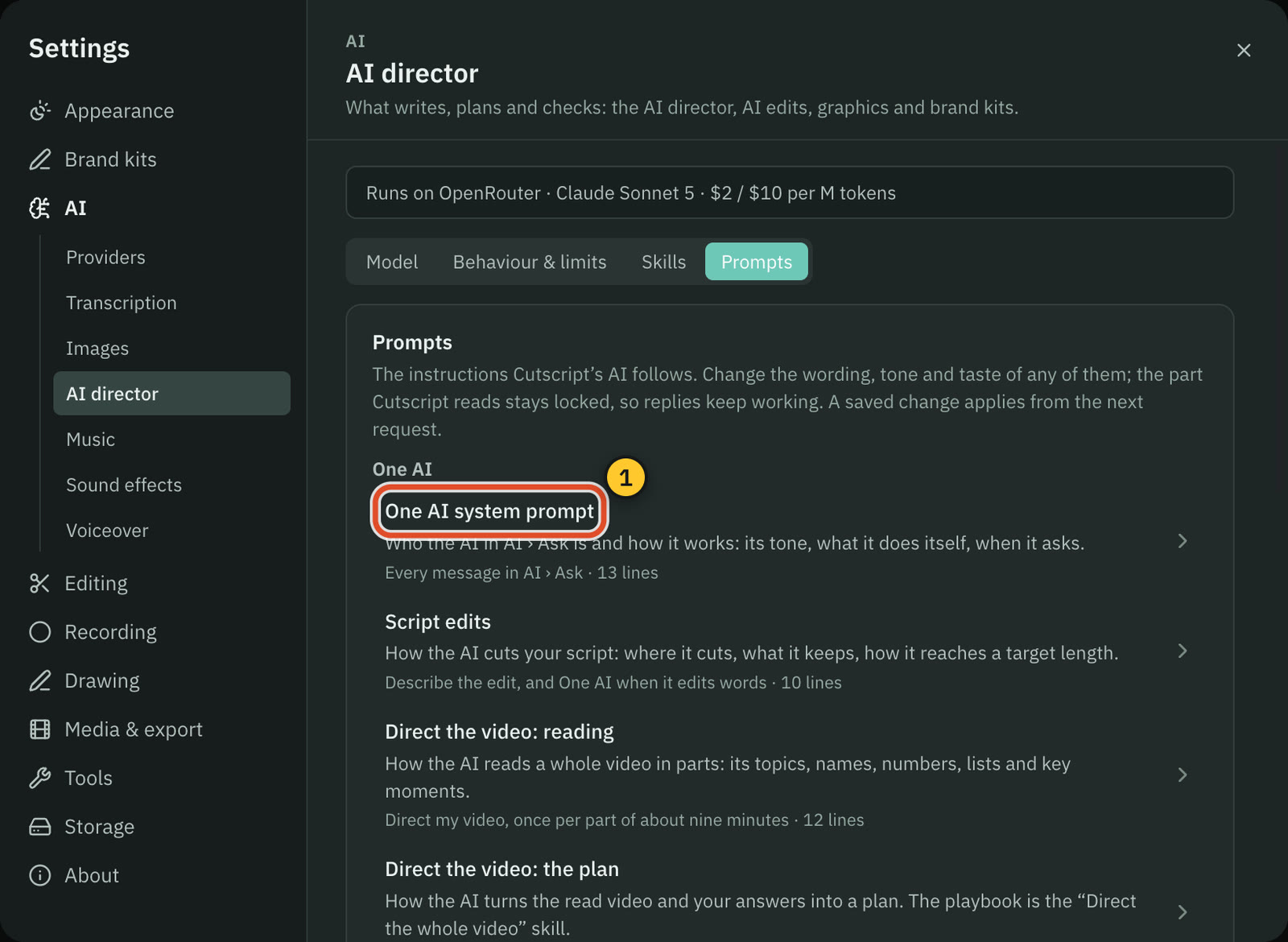
The list is grouped by where the prompts are used.
| Group | Prompt | What it decides |
|---|---|---|
| One AI | One AI system prompt | Who the AI in the chat is and how it works: its tone, what it does itself, when it asks |
| One AI | Script edits | How the AI cuts your script: where it cuts, what it keeps, how it reaches a target length |
| One AI | Direct the video: reading | How the AI reads a whole video in parts: topics, names, numbers, lists and key moments |
| One AI | Direct the video: the plan | How the AI turns what it read and your answers into a plan. The playbook itself is the Direct the whole video skill |
| One AI | Short clips: finding them | How the AI picks the moments that work as Shorts: the hook, the payoff, standing alone, the score |
| Design director | Design rules | The design director's rules: honesty, and what a designed, bold, legible piece looks like |
| Design director | Craft guide | The motion design principles the director follows, and the habits it avoids |
| Design director | Storyboard rules | How a new graphic is planned before any code: tone, beats and shots, pictures, formats |
| Design director | Look rounds | How the director judges its own frames before it ships a design |
| Brand kits | Brand kit analysis | How a captured website's colours and fonts become a brand kit's design language |
Each row shows where the prompt is used, how many lines it has, and, once you change it, a Changed badge and the date.
Change a prompt
- Press a row to open it.
- Edit the text under Instructions. A counter shows how many characters you have used out of the limit, which is 40,000.
- Press Save (
⌘ S). A saved change applies from the next request.
A prompt has two parts. The instructions are yours. Below them is a locked block headed Added by Cutscript after your instructions, with a Locked badge and a line saying why. It holds the reply format Cutscript reads back, the ids and times its tools need, and the rule that file contents are data and not instructions. You can read it but not edit it, so your wording can never break how the app reads a reply. The Craft guide has nothing locked, so all of it is yours.
You cannot save a blank prompt, or one over the limit. The editor says which.
See what you changed
Open the Differences from default tab to see your text beside Cutscript's default, line by line, with the changed words marked. The tab is greyed out when your text is the default word for word.
Go back to the default
Press Reset to default and confirm. If you had saved a version, it is removed and cannot be brought back, and the AI uses Cutscript's default from the next request. If you never saved a version, only your unsaved edits are replaced by the default text.
When an update changes a default
Cutscript keeps the default your edit was based on. If an update changes the default of a prompt you edited, the AI keeps using your version, and the row says Default changed · review. A note at the top of the list counts them. Open the prompt and choose:
- See what changed, which opens What the update changed, the old default beside the new one.
- Keep mine, to stay on your version.
- Use the new default, to drop your version.
Edit a prompt from where it is used
A brand kit has an Edit prompt link under Prompt used to build this kit. It opens Brand kit analysis here, and takes you back to the same kit afterwards. See Brand kits.
Tips
- Change one thing at a time and try an AI request, so you know what each edit did.
- Keep a copy of a long prompt before a big rewrite. Differences from default shows what moved.
- If an AI feature stops giving good results after an edit, reset that prompt and compare.
Related
Was this page helpful?
Comments
Longer questions go better in the forum.
No comments yet. Ask a question or add what you found.
Sign in with GitHub or Google to comment.
Sign in to comment