Draw while you record
Point at things with a pen, highlighter, shapes, laser or spotlight while you record, and see what became of each drawing in the edit.
While a recording runs you can draw on top of your screen: circle a number, underline a word, number the steps, dim everything but one corner. The drawings are part of the take, so viewers see them as you made them.
Drawing works in Display, Window and Area recordings. It is not available when you record an iPhone or iPad.
Before you start
- Drawing tools are on by default. To turn them off, use Settings › Drawing › Drawing tools, or the recorder gear › Drawing tools › Enable drawing tools.
- Drawing starts when the recording does: the palette says so if you press a tool earlier.
- Changes you make in Settings › Drawing apply to the next recording. Colour, width, style and fade choices made on the palette apply at once.
Draw during a take
- Start a recording: see Record your screen.
- Press Draw in the recorder bar, or press
⌃ ⌥ ⌘ D. Your clicks now draw instead of reaching your apps, and a palette appears at the left edge of the screen. - Pick a tool in the palette, or press its key. Drag on the screen to draw.
- To click in your apps again, press Pointer in the palette or press
A.Escleaves drawing too. - Stop the recording as usual.
Strokes fade after 3 seconds. Press F to step through Until cleared, 1, 3, 5 and a custom number of seconds, or use the Fade button on the palette.
The tools
| Tool | Key | What it does |
|---|---|---|
| Pointer | A | Lets your clicks through to your apps |
| Pen | P | Freehand line. Press P again to step through the solid, dashed and arrow pens. |
| Highlighter | H | A wide, see-through stroke |
| Arrow | ⇧ A | Press again to switch between one arrowhead and two |
| Line | I | A straight line |
| Rectangle | R | Turn on Fill shapes under Style to fill it |
| Ellipse | C | Circle or oval |
| Step counter | N | Numbered badges. ⇧ N restarts at 1. |
| Spotlight region | S | Drag a shape: everything else on that display dims |
| Laser pointer | L | A dot with a fading trail. Clicks still reach your apps. ⌃ ⌥ ⌘ L toggles it from anywhere. |
| Follow spotlight | ⇧ S | A spotlight that moves with the pointer |
| Privacy box | B | Blur, pixelate or redact an area. Press B again to cycle the three. |
| Zoom mark | Z | Drag a rectangle, or click a point, to mark where you want a zoom |
| Eraser | X | Removes a drawing you touch |
| Whiteboard, Blackboard | W, K | A blank board over the display. Press again to remove it. |
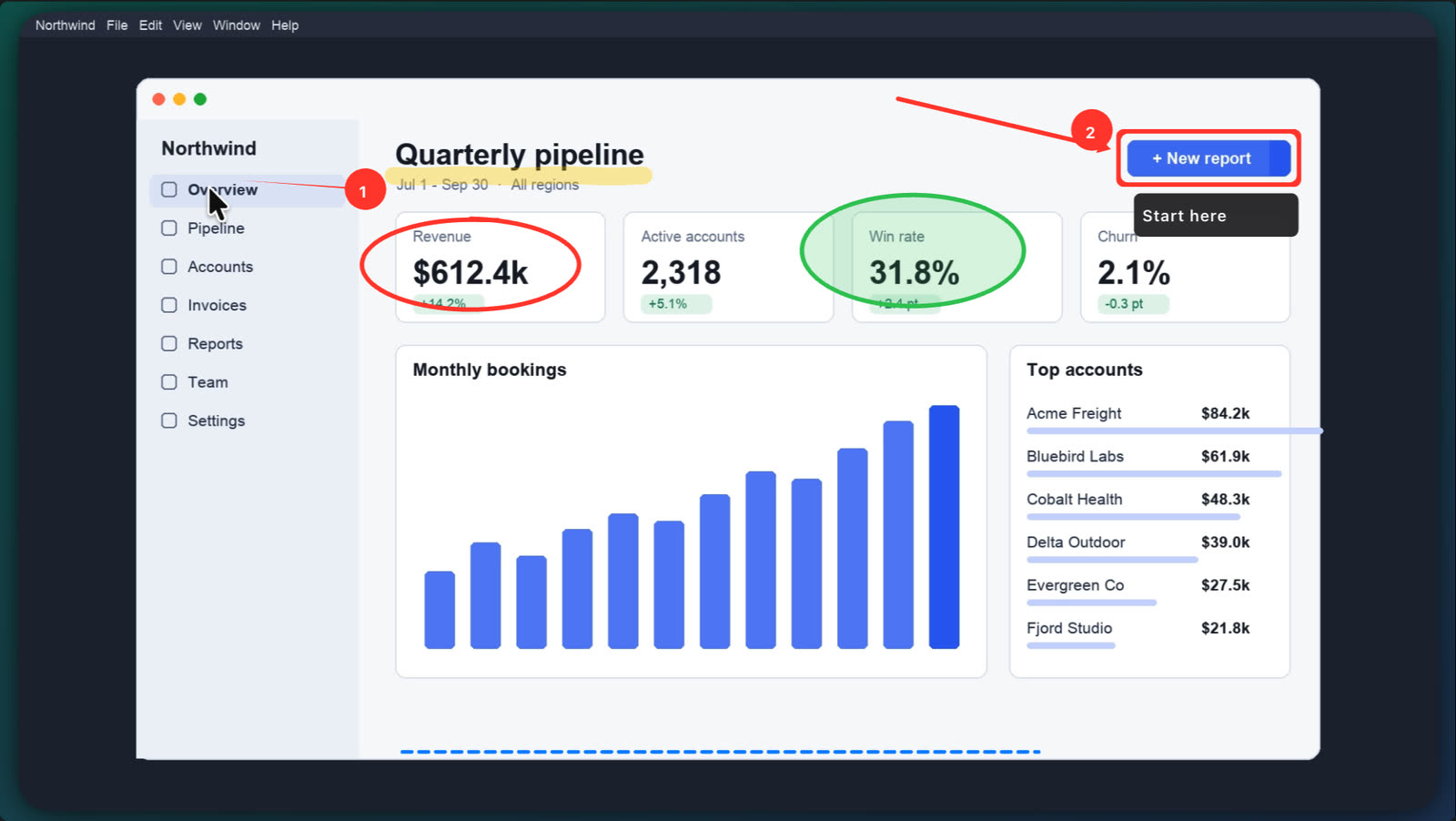
Other keys: ⌘ Z and ⇧ ⌘ Z undo and redo. E, ⌫ or ⌦ clear every drawing. 1 to 8 pick a colour, 0 picks the last custom colour, [ and ] change the width.
The palette also has Colour (eight swatches and a colour picker), Width, Style (solid, dashed, arrow end, arrow both, and Fill shapes) and Fade.
Note: There is no text tool in the recording palette yet. Add text afterwards in the Text panel.
What you get in the edit
What happens to a drawing depends on what you recorded.
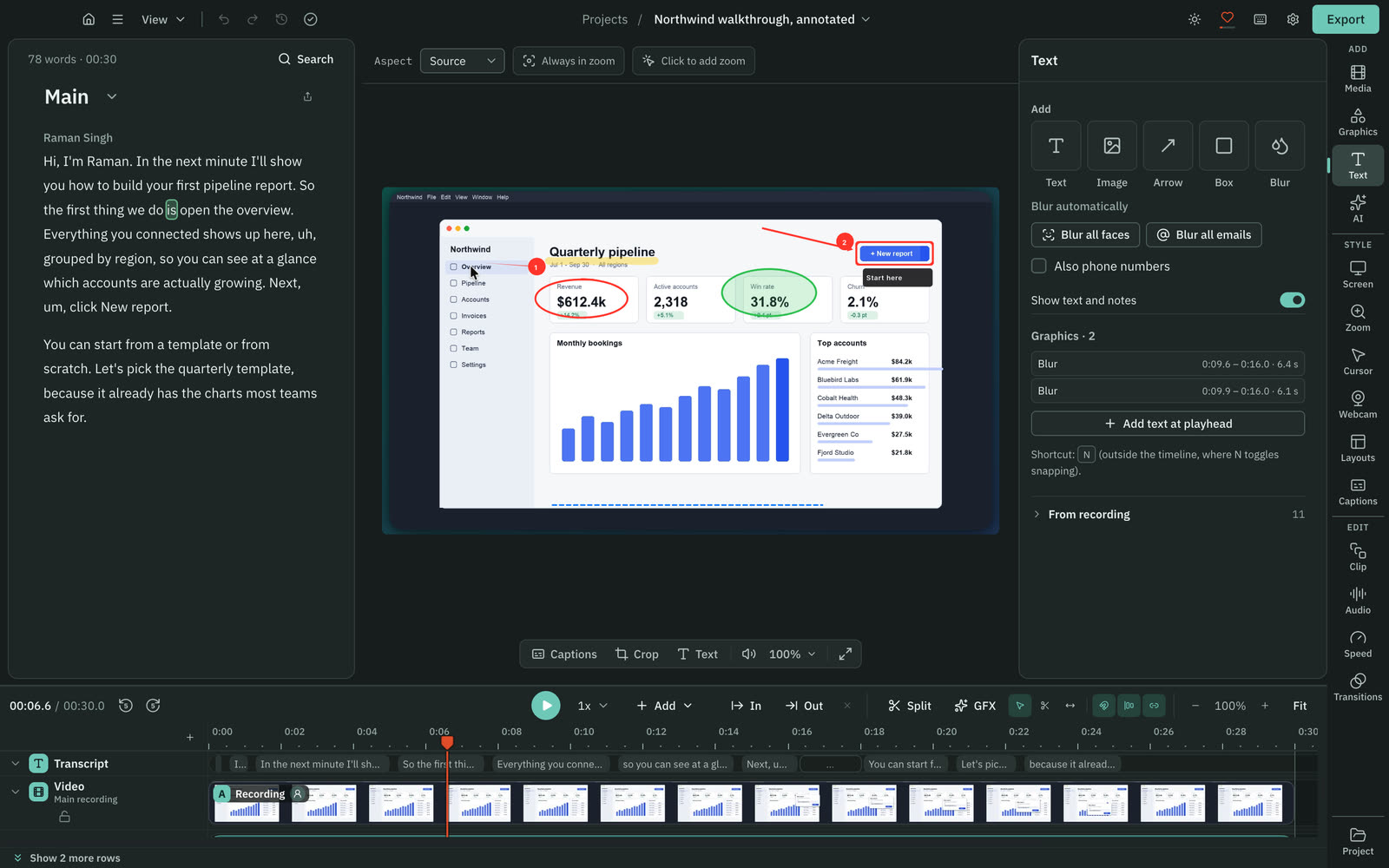
- Display or Area. Drawings are part of the picture. The editor lists them under From recording in the Text and Clip panels, with a time for each, and a click jumps there.
- Window. Cutscript keeps the drawings separately and replays them over the recorded window in the editor.
- Privacy boxes. Blur and pixelate boxes arrive in the editor as blur items you can move, resize and retime in the Text panel. The original recording keeps what is under them, and the export is blurred. Redact covers the pixels for good in Display and Area recordings. In Window recordings it is added at export, so the original file still holds the pixels. See Blur faces, emails and areas.
- Zoom marks. Each one becomes a zoom in the edit. Clicks you make while drawing are not counted as app clicks, so they do not create automatic zooms.
Settings › Drawing
| Section | What you can change |
|---|---|
| General | Drawing tools on or off. Where the palette goes: Palette display (recorded is the display you record, pointer is the one the pointer is on, primary is the main display), Palette edge, Palette size, and When drawing is off (pill, full or hidden). Show drawing mode indicator and Show brush ring. |
| Colours | Eight colours and a custom one, each with a colour wheel and an optional key |
| Shortcuts | Click a shortcut, then press the keys. Cutscript warns when a key clashes with another drawing key, a macOS shortcut or the stop and pause chords, and offers Use it here to take the key over. Each row has a remove button and a reset button, and Reset all shortcuts… puts everything back. |
| Pens and shapes | Three pen widths (3, 6 and 12 points to start), highlighter widths and opacity, pen type, smoothing, pressure, Fill shapes, corner radius, arrow heads |
| Step numbers | Size, filled or outline, and Restart numbering after clear |
| Fade | Hold drawings (Until cleared, 1, 3, 5 or a custom time, 10 seconds to start), Fade out seconds, Fade strokes together |
| Effects | Laser colour, dot size and trail. Spotlight shape, radius and dimming. Privacy box mode, Blur strength, Redaction colour. Zoom mark scale. Whiteboard and blackboard colours. |
| Recording and privacy | Clear scope: clear the drawings on all displays, or only on the display you are on |
Related
Was this page helpful?
Comments
Longer questions go better in the forum.
No comments yet. Ask a question or add what you found.
Sign in with GitHub or Google to comment.
Sign in to comment