Captions
Show your words on screen as you say them, in one of 24 styles with word highlighting, and burn them into the exported video.
Captions turn the transcript into text over the picture, timed to your voice. Pick a style, place the captions where you want them, and the word being said can light up as it is spoken. Captions follow your edit: words you deleted are not captioned, and a word you corrected shows its corrected spelling.
Before you start
- Captions come from the transcript, so the project needs one. Transcription is a cloud step that runs on your own ElevenLabs, fal.ai or OpenRouter account. See Transcription. Until a transcript exists, the Captions panel shows Captions come from the transcript with a Transcribe button.
- Styling captions needs no AI and no internet.
- Captions are shown in the preview as soon as you pick a style. They are only burned into a video file if you ask for that when you export.
Style the captions
- Open Captions in the right rail (
⌘ 0). Show in preview turns the captions on or off in the editor. It does not decide what the export contains. - Under Style, pick one of the 24 presets.
- Choose where the captions sit: Top, Middle or Bottom.
- Pick a Caption font from the fonts installed on your Mac. The list shows each name in its own font.
- Drag Size to make the text larger or smaller.
- In the paused preview, drag the captions to place them anywhere, and drag the corner to resize.
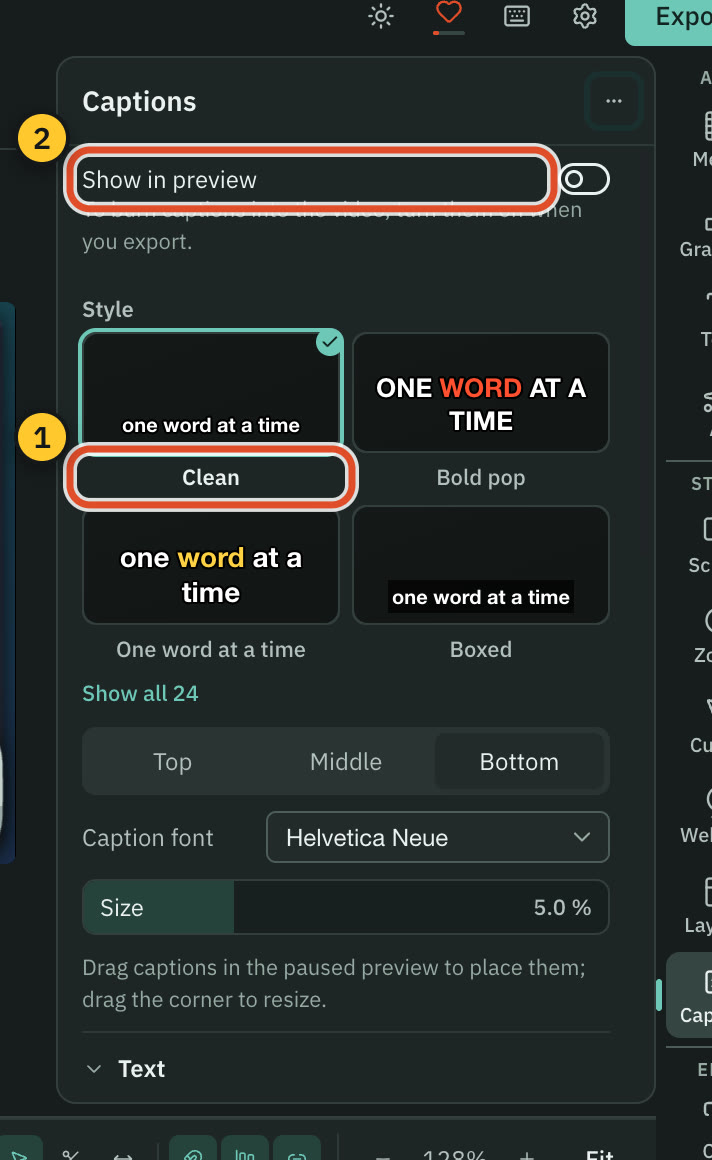
The presets are Clean, Bold pop, One word at a time, Boxed, Mono, Top headline, Karaoke, Word reveal, Single focus, Soft fade, Title pop, Slide up, Bounce, Pulse, Word underline, Editorial, Teal card, Yellow marker, Terminal reveal, Minimal, Sports shout, News line, Rose focus and Lecture. A preset is only a starting point. Change any setting below and the rest stays.
Highlight the word being said
Open Text:
- Turn on Highlight the active word and pick a Highlight colour.
- Turn on Underline the active word for a line under it.
- Words decides what shows: All words, Reveal as spoken (each word appears as it is said) or Only the active word.
- Animation can be None, Fade, Pop, Slide, Bounce or Pulse.
- Weight, Italic, Uppercase and Text colour set the type.
Several presets already highlight the active word, for example Bold pop, Karaoke, Word reveal and Rose focus.
Background and line length
- Under Background, choose None, Outline or Box. A box or outline has a Colour, and a box also has Box opacity.
- Under Layout, Characters per line (8 to 60) and Lines per caption (1 to 4) decide how a sentence is broken into cards.
The reset button in the panel header, or Reset captions to defaults in its menu, puts everything back to Clean. Each group also has its own reset.
Burn captions into the video
- Press Export (
⌘ E) and stay on Video. - Turn on Burn in captions.
- Press Export.
The toggle is off until the project has a transcript. The Caption style link beside it takes you back to this panel. Burned-in captions use the same layout as the preview, and they fit portrait and square exports too.
If you only need the text, export a subtitle file instead: press Export subtitles… at the bottom of the Captions panel. See Transcripts and subtitles.
Say a key line full screen
A key line can fill the whole frame, word by word as you say it, over a dimmed or blurred picture. While one is on screen, the captions leave out the words it shows, so nothing appears twice. See Text on screen.
Related
Was this page helpful?
Comments
Longer questions go better in the forum.
No comments yet. Ask a question or add what you found.
Sign in with GitHub or Google to comment.
Sign in to comment