Get clean sound
Fix sound at the microphone first, then pick an Enhance voice engine, set loudness once at export, and keep music well under your voice.
People forgive a plain picture much sooner than bad sound. Cutscript gives you tools for noise and loudness, but they work best on a recording that was already decent. This page puts them in the order that costs the least.
Start at the microphone
The transcript, the captions and every cut depend on how clearly your microphone heard you. Cutscript reads the transcript from the original microphone recording. Enhance voice does not change what the transcriber hears, so a noisy recording stays hard to transcribe however well you clean it afterwards.
- Watch the level meter in the recorder before you start, and keep it away from the top.
- Keep the microphone in the same place for the whole take.
- Record in the quietest room you have.
A voice that hits full scale for 0.3 seconds or more counts as clipped, and the Review check flags it. The review gives no automatic fix, because a clipped recording cannot be repaired by turning it down. The only cure is to record again at a lower level.
Clean the voice with Enhance voice
Open Audio in the right rail and use the Enhance voice group. It works on the recorded microphone. For an imported video, an audio file or a take with no microphone, it works on the main recording's own sound.
| Engine | Cost | What it does |
|---|---|---|
| Apple Voice Isolation | Free, on your Mac | Removes noise and other sounds. The Model row offers Voice, or High quality voice on macOS 15 or later. |
| Built-in clean-up | Free, on your Mac | Gentle noise and click removal. |
| ElevenLabs Voice Isolator | Priced, uses your ElevenLabs key | Removes noise and echo. Uploads the audio. |
| fal.ai clean audio | Priced, uses your fal.ai key | Removes noise. Uploads the audio. |
Start with a free engine and press Enhance. Then use the Listen to switch, Original or Enhanced, to compare the two at the same spot in the video. Your media never changes, and the cleaned copy keeps every word exactly where it was, so your cuts and captions stay in place.
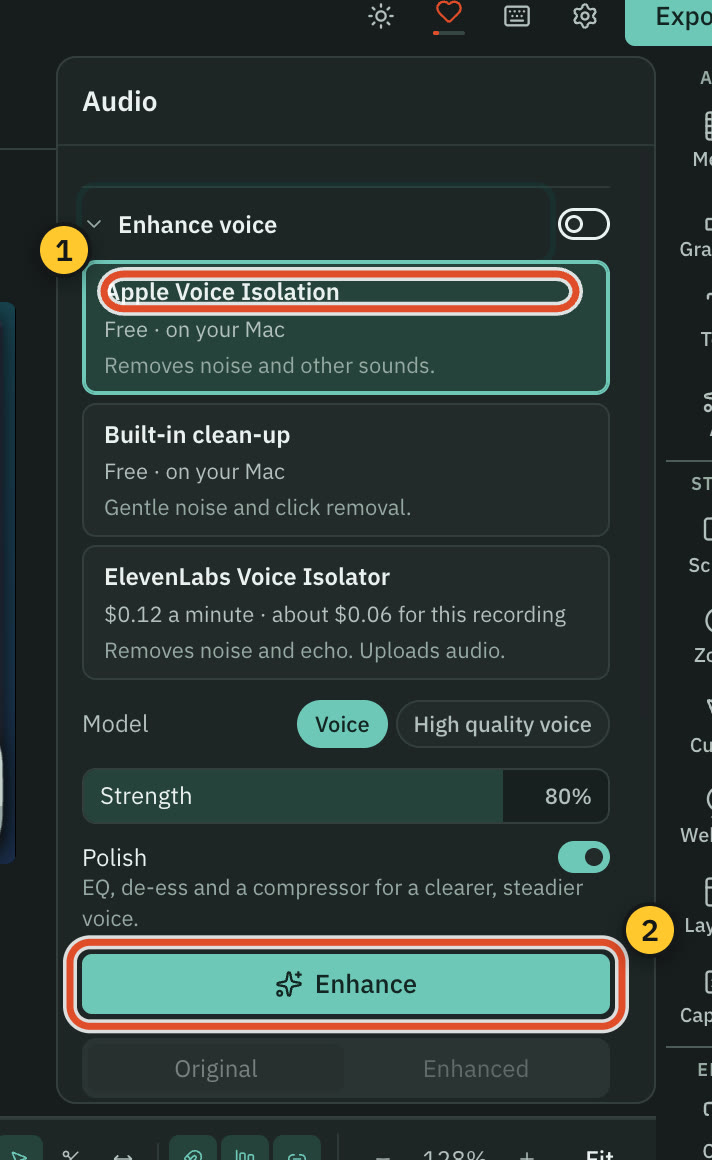
Two sliders shape the result:
- Strength is how much of the cleaned sound is mixed in. It starts at 80 %. Lower it if the voice sounds processed.
- Polish adds EQ, a de-esser and a compressor for a clearer, steadier voice. It is on by default.
A paid engine shows its price in a Confirm the price step before it runs. Once it has run, changing Strength or Polish re-mixes the clean-up it already made, so you are not charged a second time. Try the free engines first, and spend only if the voice is still not good enough.
Set loudness once, at export
Loudness is not set in the editor. It is set in Export, under Advanced, with Normalize volume:
- Off leaves your levels as they are. This is the default.
- Peak raises or lowers the whole file until its loudest peak sits at -1 dB.
- -14 LUFS, -16 LUFS, -18 LUFS and -23 LUFS measure the whole mix first and then bring its overall loudness to that target, with a true-peak ceiling of -1 dBTP (-1.5 dBTP for -16 and -18).
For speech, a LUFS target is the better choice, because it follows how loud the video sounds rather than its single loudest moment. Pick one target and use it for every video, so viewers do not have to reach for the volume between your uploads. The numbers are conventions, not Cutscript rules. -14 LUFS is a common target for online video and -16 LUFS for speech-led content. -23 LUFS is a broadcast target. See Export for each platform.
The same choice is on the Audio tab of Export, for sound-only files.
Keep music well under your voice
The Review check measures how far music sits under your speech. It flags music that is less than 18 dB below the voice while you talk. Its suggested fix lowers the music to 20 dB below. It also flags a sound effect that peaks above -1 dBFS, or that is less than 12 dB under the speech peak near it.
So set the music low from the start. The recorded microphone and system levels are in the Mix group of the Audio panel, and every other level is in Clip › Mix. To run the checks, ask the AI chat to "check my video". The measured checks are free, and a look at the frames is priced, with the price shown first.
Related
Was this page helpful?
Comments
Longer questions go better in the forum.
No comments yet. Ask a question or add what you found.
Sign in with GitHub or Google to comment.
Sign in to comment