Zooms
Zoom in on clicks and key moments, added automatically after a recording or by hand, and tune how the camera moves.
A zoom moves the camera in on part of the screen and eases back out. Cutscript can add zooms for you from your clicks, and you can add, move and tune your own. The preview and the exported file show the same zooms.
Before you start
- Zooms work on any video that has a picture. An audio-only project has nothing to zoom into.
- Automatic zooms and Follow cursor need a take recorded in Cutscript with click tracking on. See Click tracking. On an imported video, add zooms by hand.
- Zooms need no AI and no internet.
Let Cutscript add the zooms
When a recording becomes a project, Cutscript reads where you clicked and adds a zoom for each meaningful moment. Two settings in Settings › Recording, under After recording, decide how:
- Add zooms automatically turns it on or off for new recordings.
- Zoom sensitivity sets how many you get: Fewer (only double-clicks and click clusters), Balanced (clear moments plus single clicks on material you kept) or More (every click moment it found).
To work with the zooms of a project you already have:
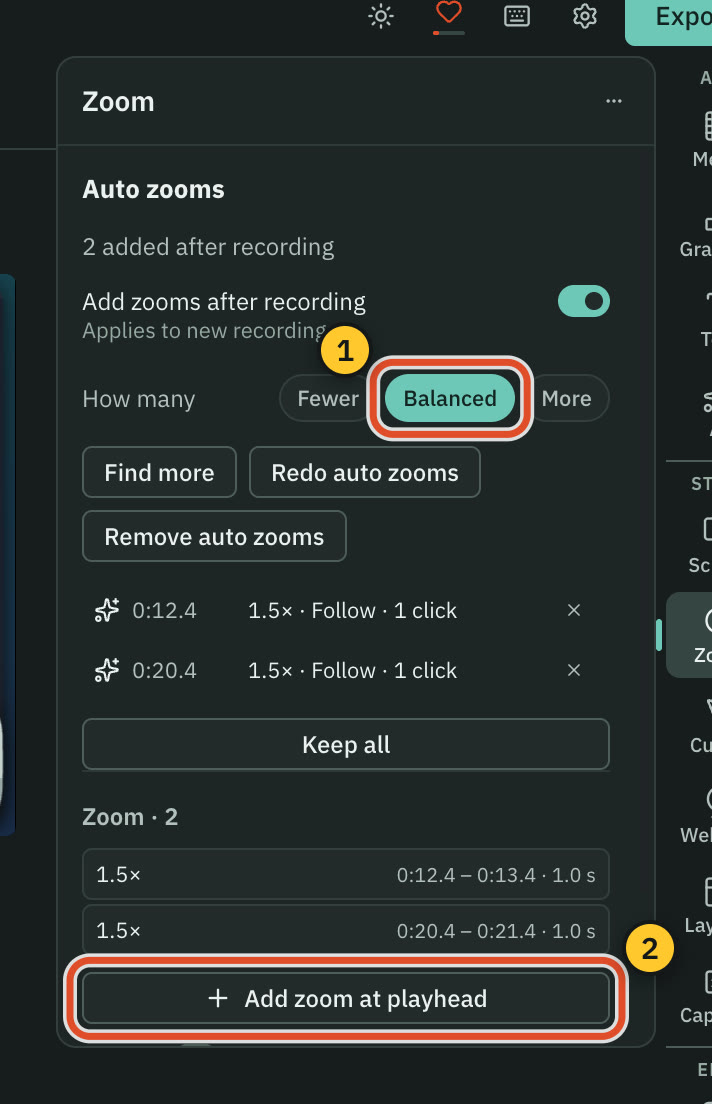
- Open Zoom in the right rail (
⌘ 6). - Read the Auto zooms line. It says how many were added, for example "5 added after recording".
- Change How many to Fewer, Balanced or More, then press Redo auto zooms to replace the automatic ones.
- To review proposals one by one, press Find more, then Find zoom moments. Each proposal shows its time and how many clicks it covers. Press the check to add it, the X to skip it, or Add all to take every one. Nothing is added until you accept it.
- In the Automatic zooms list, click a zoom to jump to it, press its X to remove it, or press Keep all to close the list and keep every one. Remove auto zooms deletes all the automatic zooms you have not edited.
A zoom you move or tune is yours: Redo auto zooms and Remove auto zooms leave it alone.
You can also mark a zoom while you record. In drawing mode, the Zoom mark tool (default key Z) lets you drag a box around the area, or click a point, and the zoom is added when you stop, even if Add zooms automatically is off. A click uses the Zoom mark scale from Settings › Drawing. See Draw while you record.
Add a zoom by hand
Pick whichever is closest to hand:
- Press Add zoom at playhead in the Zoom panel, or press
Zwith the playhead where you want it. - Drag on the Zoom lane of the timeline.
- Press Click to add zoom above the preview, then click a point in the paused picture.
Esccancels.
Always in zoom, next to it, keeps the picture at 1.5× or deeper the whole time, follows the recorded cursor and keeps any deeper zooms you made. Without cursor data the framing stays centred.
Tune one zoom
Click a zoom on the timeline, or pick it from the list in the Zoom panel.
- Fixed holds the focus point you chose. Follow cursor tracks the recorded pointer.
- The area editor shows the zoomed rectangle. Drag it to move, drag a corner to resize, use the arrow keys to nudge,
+and-to change depth and0to reset. The Result strip shows the framing. - Depth runs from 1× to 5× and starts at 1.5×. The chips jump to 1.25×, 1.5×, 1.8×, 2.2×, 3.5× and 5×.
- Safe zone appears for follow zooms. It is how far the pointer may drift before the camera moves, and it is shared by every follow zoom in the project.
Open Timing for the rest:
- Starts, Length and Ends are seconds of the original video, so cutting words elsewhere does not renumber them. On the timeline shows where the zoom lands now.
- Ramp in and Ramp out set how long the camera takes to arrive and to leave (0.06 to 4 seconds; they start at 0.6 and 0.5).
- Ease in and Ease out pick the curve: Linear, Smooth, Spring, Glide or Snap.
- Jump to it moves the playhead to the zoom, and Delete zoom removes it.
If every second under a zoom has been cut, the panel says the camera ignores it.
Settings every zoom shares
Open Camera · whole project at the bottom of the Zoom panel. These settings change every zoom at once:
| Setting | What it does |
|---|---|
| Smoothing | How softly the camera settles. |
| Anticipation | Starts each move earlier, up to 1 second. It starts at 0.2 seconds. |
| Join close zooms | Two zooms closer than Join within hold their depth instead of zooming out between them. It starts on, at 1.35 seconds. |
| Default ramp in, Default ramp out | What new zooms start with. A zoom you already tuned keeps its own. |
| Spring damping, Spring mass | The physics of the camera's spring. Damping starts at the lowest value that keeps the camera from bouncing, and more mass raises it. |
Export
Zooms are drawn frame by frame, so a video with zooms exports as MP4 H.264. See Export a video.
Related
Was this page helpful?
Comments
Longer questions go better in the forum.
No comments yet. Ask a question or add what you found.
Sign in with GitHub or Google to comment.
Sign in to comment