Text on screen
Add titles, arrows, boxes and images to the picture, and show a key line full screen, word by word, as you say it.
The Text panel puts words and marks on top of the video: a title, an arrow pointing at a button, a box around a number, a logo or screenshot. A separate kind of text, full-screen spoken text, fills the whole frame with a line as you say it.
Before you start
- Text, arrows, boxes and images work on any video, and on the canvas of an audio-only project. They need no AI and no internet.
- They all live on the Graphics lane of the timeline. If that lane is locked you cannot add or change them, and if it is hidden nothing on it is drawn in the preview or the export. Show text and notes in the Text panel turns the lane's visibility back on.
- To blur a face, an email address or an area, see Blur faces, emails and areas.
Add text
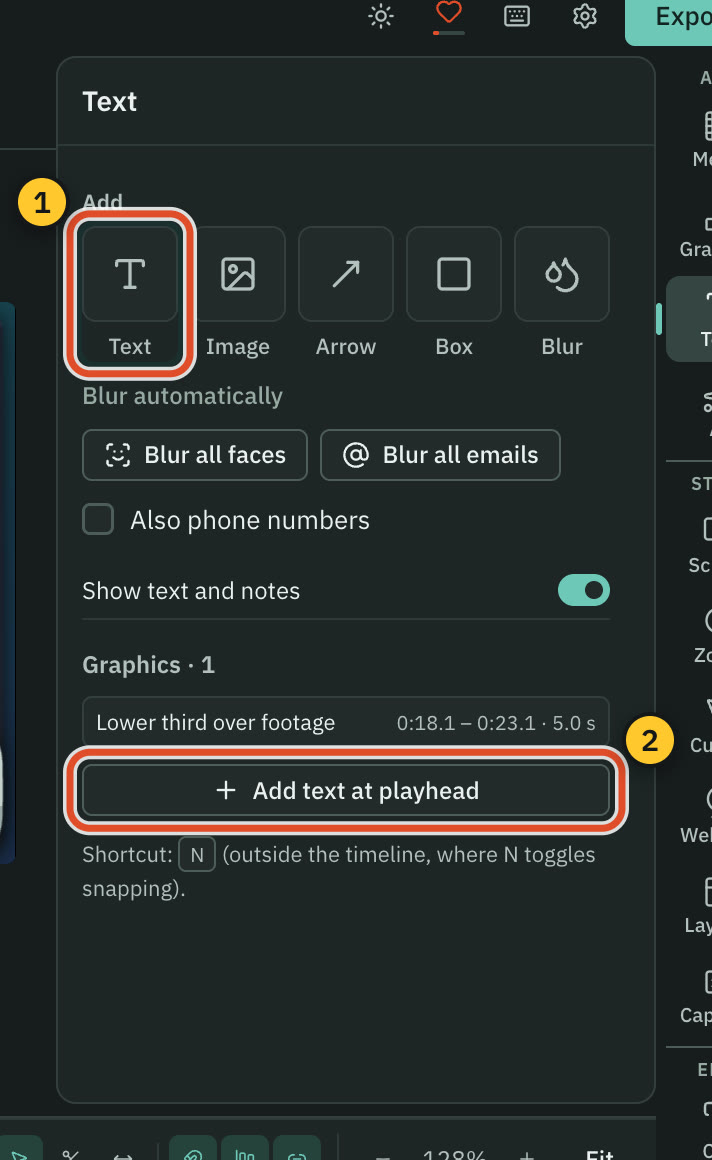
- Open Text in the right rail (
⌘ 3). - Under Add, press Text. A box saying "Your text" appears over the words you have selected in the script, or for five seconds from the playhead if none are selected.
- Type your own words in the text field.
- Drag the box on the preview to move it, and drag its corner to resize.
Select the text and the panel shows its settings:
- Size, as a share of the frame height, so it holds its size at any export resolution.
- Font, picked from the fonts installed on your Mac, Weight (Regular, Semibold, Bold or Black), Alignment, Italic and Underline.
- Line height, Opacity, Colour, Stroke and Stroke colour.
- Background, a filled box behind the text, with Box corners to round it. Clear the colour for none.
Add an arrow, a box or an image
Under Add, press Arrow, Box or Image. The item is placed at the playhead. Press Image and Cutscript asks you to choose a picture first.
| Item | Settings |
|---|---|
| Arrow | Direction (eight of them), Thickness, Colour. |
| Box | Fill and Corners. A box with no fill is drawn as a faint white wash. |
| Image | File, picked from the images in your project. It is fitted whole inside the box, undistorted. |
| Blur | Blur or Pixelate, Strength, Tint. |
The Kind tiles at the top change one item into another, and switching back keeps what you had set.
Move it in time and space
- Open Timing to set Starts, Length and Ends. These are seconds of the original video, so cutting words elsewhere does not renumber them. You can also drag the item's edges on the Graphics lane.
- Open Placement to type Left, Top, Width and Height as percentages of the video, and a Layer number to decide what sits on top. Reset placement puts it back.
- Delete note removes it.
Say a key line full screen
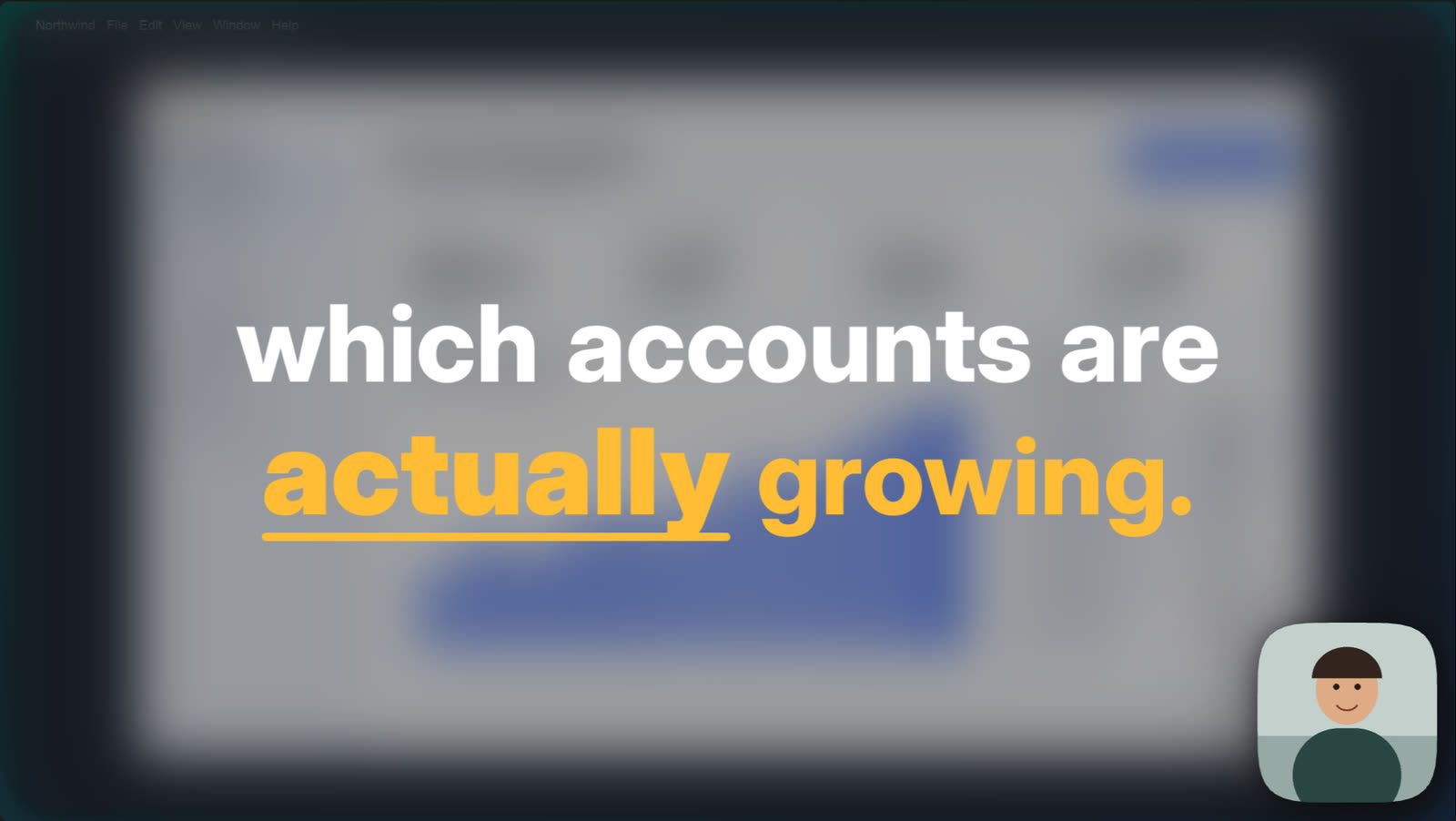
At a key moment, the speaker's own words can fill the screen, each word landing as it is said and the current word lit. It sits over a dimmed, solid or blurred picture. The words come from the transcript, so the project needs one.
Two ways to get it:
- Direct my video can add full-screen text at the lines that earn it, such as a hook or a number. Its plan lists each one with its price. From the Design pack it is free. Designed from scratch by the AI, it is priced. See Direct my video.
- Ask the AI chat, for example "show 'which accounts are actually growing' full screen". Placing a Design pack graphic costs nothing, though the chat itself runs on your own AI account. See One AI.
Once it is placed, open it in Graphics to change its layout (centred, stacked, or one big word at a time) and its background (dim, solid, blur or none).
Some facts that help:
- The words stay on your voice. If you cut footage or change speed afterwards, cut words drop out and the rest keep their timing.
- A correction you make to a word later does not change a graphic that already exists. Place it again, or edit it in its Design section.
- One graphic holds up to 40 words and stays up to 7 seconds. For a longer passage, use several.
- While it is on screen, the captions leave out the words it shows.
- The Design pack also has Full-screen spoken words (Graphics › Saved › Design pack). Added by hand, it starts with the template's sample words, so use the AI when you want your own.
Export
Text, arrows, boxes and images are drawn frame by frame, so a video that has them exports as MP4 H.264. See Export a video.
Related
Was this page helpful?
Comments
Longer questions go better in the forum.
No comments yet. Ask a question or add what you found.
Sign in with GitHub or Google to comment.
Sign in to comment