Skills
Skills are short craft guides the design director reads before it plans a graphic. Browse them, switch them off, customise them and test which ones load.
A skill is a short craft guide. It tells the design director when to use a pattern, what the idea is and how it varies, how to storyboard it, lay it out and move it, which pictures it needs and what to avoid. A skill is guidance, never a template: the director still composes every scene. Cutscript comes with more than a hundred skills, from a versus and a hero number to a map route, a lower third, a testimonial and a countdown, and you can write your own.
Before you start
- Skills shape what the AI director writes, so you need an AI source for it to matter. See Connect an AI account.
- Browsing, switching, editing and testing skills is free and works offline. Nothing in the library calls the AI.
Open the library
Press ⌘ ,, choose AI, then AI director, then Skills at the top of the page. The card is headed Skills, with the number of skills beside it.
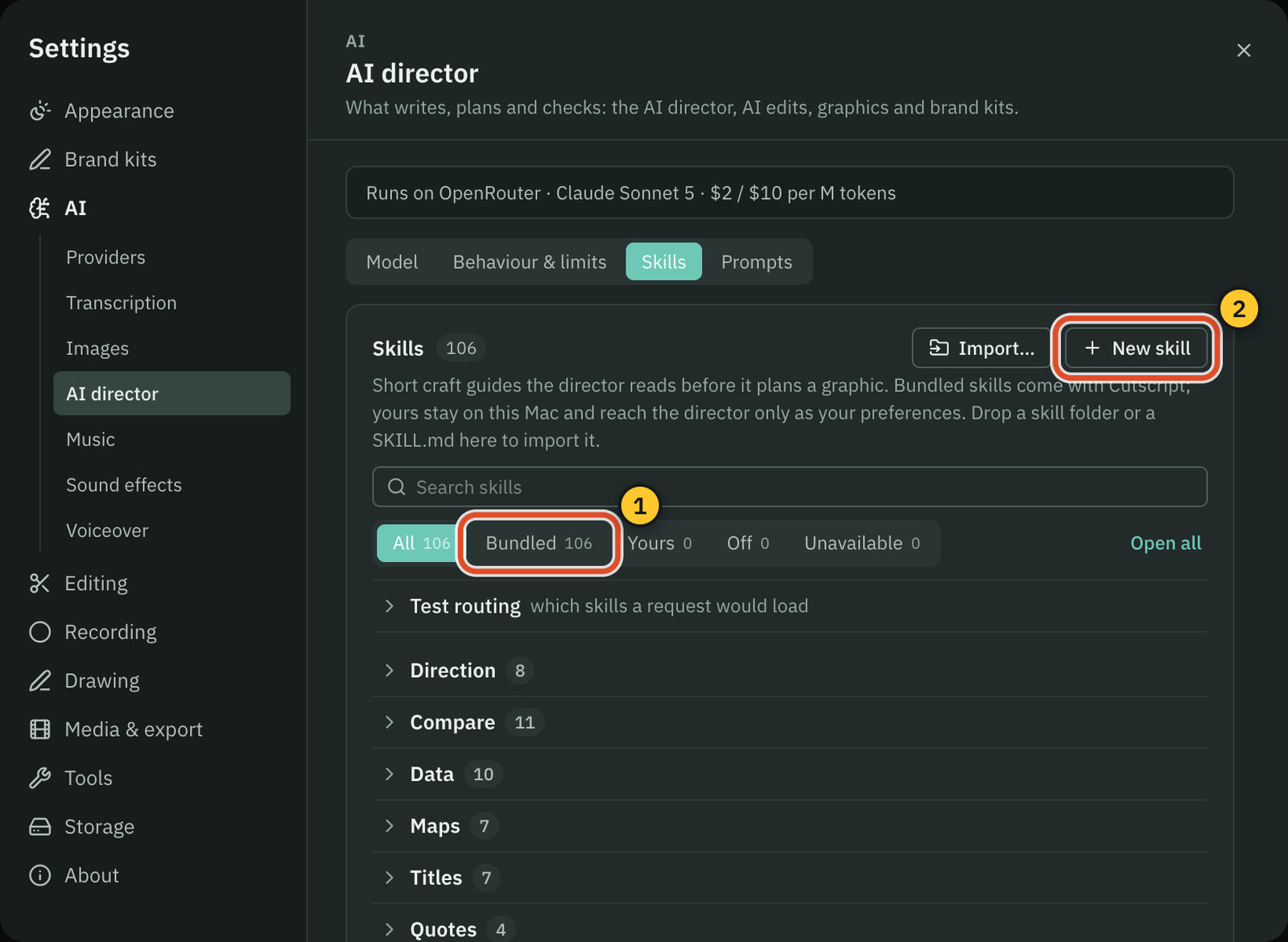
- Search skills looks at titles, ids, families and summaries.
- The filters are All, Bundled, Yours, Off and Unavailable, each with a count.
- Skills are grouped into families, such as Direction, Compare, Data, Maps, Titles, Quotes, Launch, Lists, Brand, Sport and Looks. Open all and Close all expand and collapse the groups.
- Each row shows the skill's title, a badge for where it came from, its one-line summary, its id such as
compare/versus-two-logos, its version and its priority. The switch on the right turns it on or off.
A skill that is switched off is never loaded. A skill marked Unavailable needs a drawing part this build does not have yet. It stays in the list and loads once the part ships.
How skills are chosen
You do not pick skills for a normal request. For each message, Cutscript works out which skills fit what you typed, what you attached and the shape of your data, and loads up to three. It does this on your Mac, for free. The choice shows as chips under the message box in Graphics › Create, headed Skills.
- Press the cross on a chip to stop that skill loading for this message.
- Press + Skill to pin another one, picked by family with a search box.
- A reset appears once you have changed the choice, so you can go back to Auto.
If no skill fits, the director writes a short design brief first: one message, a named direction and one bold move.
Test routing
Open Test routing under the search box. Type a request, for example "Northwind vs Solace: 120 vs 95 stores", and the list shows which skills would load, in order, and why. It is free and offline, and it runs the same selection Send uses.
Open a skill
Press a row to open it. The sheet has these tabs:
- Read shows the skill as the director reads it.
- Source shows the
SKILL.mdtext. - Edit appears for skills you own.
- Compare appears when a newer bundled version exists.
The footer has the switch, which reads "On: the director may load it" or "Off: never loaded", and the actions for this skill. Bundled skills offer Customise and Duplicate. Your own skills offer Edit, Duplicate, Export… and Delete.
Change a bundled skill
Press Customise. Your own copy opens in the editor, and it replaces the bundled one until you restore it. The row's badge changes to Customised. When Cutscript ships a newer version of that skill, the row gets an Update badge, and the sheet offers Compare, which shows your copy and the new one side by side, and Take the new version.
Restore bundled moves your copy to the Trash and uses the bundled skill again.
Your own skills
- New skill opens the editor with a starter. See Write your own skill.
- Save as skill… turns a result you like into a skill. On a finished graphic in Graphics › Create, open More actions and choose Save as skill…. Cutscript drafts the skill for free, without calling a model. Names, numbers and words in your graphic become slots, so the skill fits new requests.
- Import… takes a skill folder or a single
SKILL.md. You can also drop one onto the list. Imports are text only, and a folder with a script, a binary or a link is refused whole. Imported skills start switched off, so read one before you switch it on. - Export… writes a skill's folder to a place you choose.
- Delete moves a skill's folder to the Trash. The director stops using it at once.
Your skills stay on this Mac. They reach the director only as your preferences, never as instructions that override its rules.
The Direct my video playbook
One skill is not for graphics. Direct the whole video, in the Direction family, is the playbook that Direct my video follows: the phases, the questions, the defaults for each format and how to price. Read it, customise it, and restore it like any other skill.
Common problems
A skill I wrote does not load. Use Test routing with a request you expect it to handle. If it does not appear, add triggers that match your wording, and check that it is switched on.
A skill is Unavailable. It needs a drawing part this build lacks. Nothing to fix.
An imported skill does nothing. Imports start off. Open it and switch it on.
I changed a bundled skill and want it back. Open it and press Restore bundled.
Related
Was this page helpful?
Comments
Longer questions go better in the forum.
No comments yet. Ask a question or add what you found.
Sign in with GitHub or Google to comment.
Sign in to comment