Compositions and clips
Keep several edits of the same footage in one project, make one from a selection of words, and export one, a selection or all of them.
A composition is one edit of your footage. A project starts with one, named Main. Add more when you want a short version, a different order or a vertical cut of the same recording, without duplicating the project or its media.
Each composition has its own cuts and script edits, timeline, graphics, zooms, captions, aspect and notes. They share the project's media.
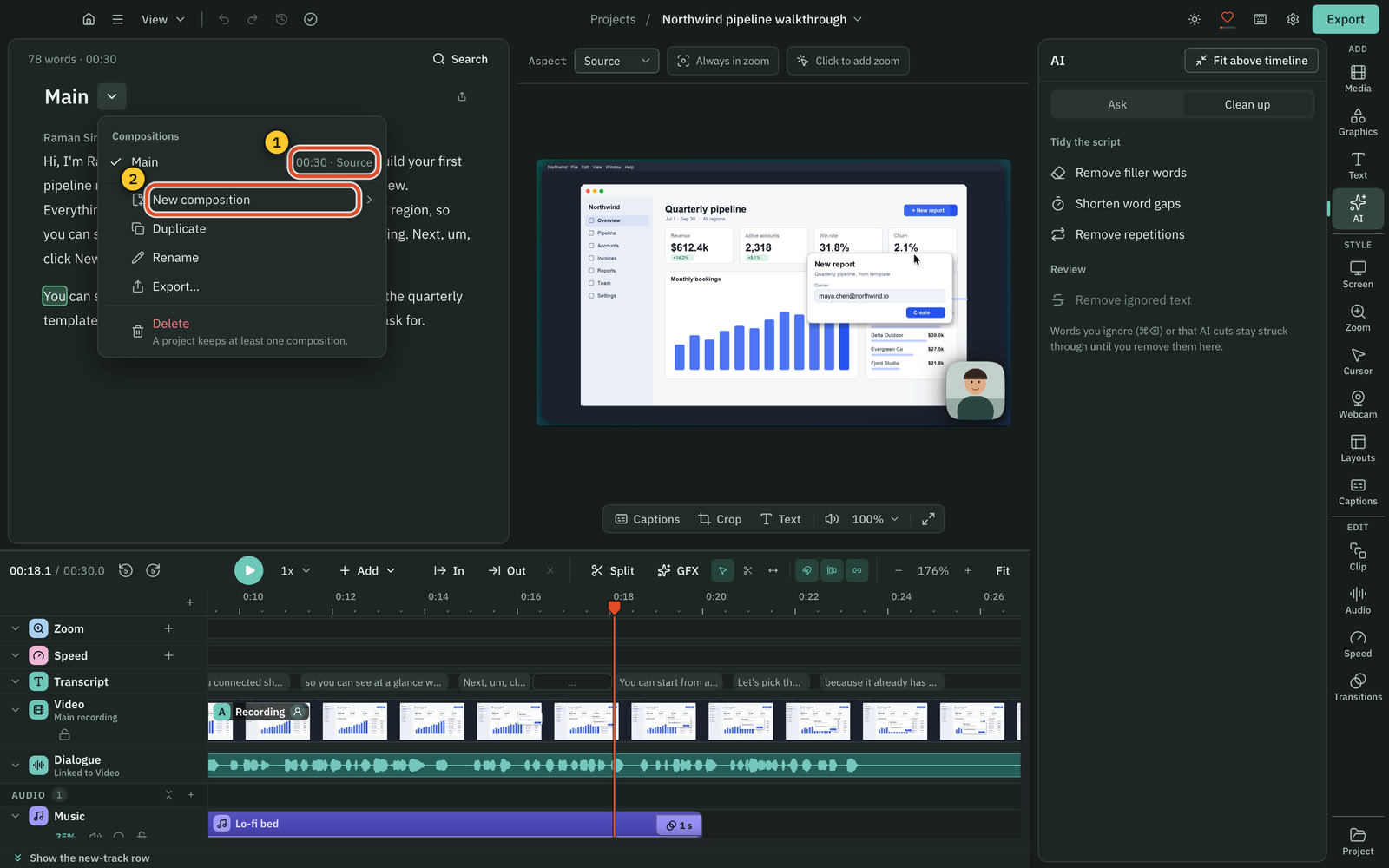
The composition header
The open composition's name sits at the top of the script. Click the name to rename it in place. The chevron beside it opens the switcher, which lists every composition with its length and aspect, such as "00:42 · 9:16". The open one has a tick, and a number shows how many there are. The icon at the right of the header exports the open composition.
Compositions made by the clipper also show a score, such as "00:42 · 9:16 · score 87", and their hook line under the name. See Make short clips.
Make a composition
From the switcher, choose New composition:
- Blank is the whole recording with nothing cut.
- From current is a copy of the composition you are in.
A new composition is named "Composition 2", "Composition 3" and so on. Duplicate copies the open one and names the copy "… copy".
From a selection of words
- Select words in the script.
- Right-click and choose New composition from selection….
- Name it. The box starts with the first words of your selection.
- Press Create (or
Return) to make it and stay where you are, or Create and open to switch to it.
The new composition keeps only the selected words, with every edit inside them. The one you were in is not changed. A message says "Created" with Open and Undo.
Switch, rename, duplicate and delete
Click a composition in the switcher to open it. Right-click a row for Export…, Rename…, Duplicate and Delete. Delete is not available for the last composition, and a message with Undo follows a delete. The project's media stays.
Undo history is kept per composition, so ⌘ Z never crosses from one to another. While Direct my video is running, you cannot switch, make or delete compositions, and a message asks you to wait until it finishes.
Export
- One composition: use the export icon in the header, or Export… in the switcher. This opens the usual export for that composition.
- Some words: right-click a selection and choose Export selection…. The export opens with that range.
- Several at once: with more than one composition, the switcher has Export compositions…. Tick the ones you want, set Resolution, Quality (Low, Medium, High, Max) and Burn in captions, then press Export N videos… and choose a folder. Each one is an MP4 (H.264) named after its composition, exported as it is edited, with its own aspect and captions. A file already in the folder is kept, and the new one gets a number. The dialog shows a queue with progress and a Cancel button.
Notes belong to a composition
Notes you write in the script are part of the composition you wrote them in. See Notes and checkpoints.
Limits
- Names can be up to 80 characters.
- A composition holds up to 500 notes.
- Checkpoints keep the open composition only. Restoring one made in another composition opens that composition first. See Notes and checkpoints.
Related
Was this page helpful?
Comments
Longer questions go better in the forum.
No comments yet. Ask a question or add what you found.
Sign in with GitHub or Google to comment.
Sign in to comment