Get set up and permissions
What the Get set up sheet does, which macOS permissions Cutscript asks for, and how to connect an AI account.
The first time you open Cutscript, a Get set up sheet lists what Cutscript uses and what, if anything, you need to do. Almost everything is built in, so you can close the sheet and start working. You can open it again at any time from Settings › Tools with Open Get set up.
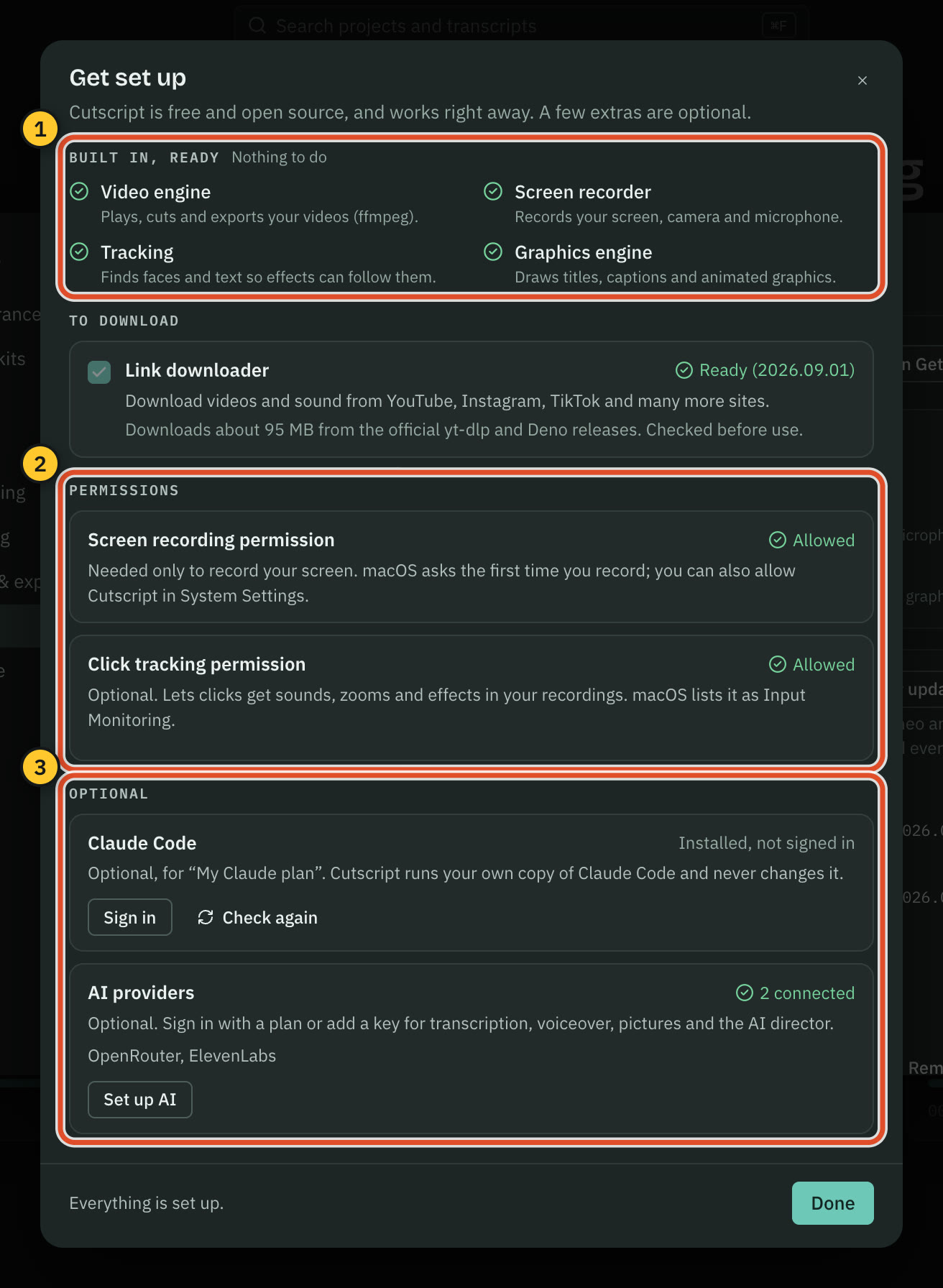
What the sheet shows
| Group | What is in it | What you do |
|---|---|---|
| Built in, ready | Video engine, Screen recorder, Tracking, Graphics engine | Nothing. |
| To download | Link downloader | Tick it to install it. Needed only to bring in videos from links. |
| Permissions | Screen recording permission, Click tracking permission | Allow them when you want to record. |
| Optional | Claude Code, AI providers | Only if you use your Claude plan or AI features. |
The link downloader is about 95 MB. Cutscript downloads it from the official yt-dlp and Deno releases and checks each file against its published checksum before using it.
Set up the link downloader
- Leave Link downloader ticked to install it. Untick it if you will never paste video links.
- Click Set up everything. A progress bar shows the download, and Cancel stops it.
- Click Done when every row is ready. Click Skip for now to leave without installing anything. If a download is running, Close leaves it running in the background.
If the download fails, click Try again. If your Mac is offline, the sheet says "No connection; you can set this up later." Cutscript tries again when your connection returns.
Permissions
macOS decides what Cutscript may access, and Cutscript cannot switch a permission on for you. It asks only when you use a feature that needs one.
| Permission | Needed for | Required? |
|---|---|---|
| Screen recording | Recording a display, a window or an area, and system sound | Only to record. |
| Microphone | Recording your voice | Optional. |
| Camera | A camera bubble, or an iPhone or iPad in Device mode | Optional. |
| Click tracking | Click sounds, zooms and effects that follow your clicks | Optional. |
| Documents, Downloads, Desktop | Opening videos and saving exports in those folders | macOS asks the first time you use one. |
Allow screen recording
- Open Settings › Recording. The Recording permissions card is at the top.
- Click Allow screen recording, then allow it when macOS asks.
- If you refused before, the button reads Open System Settings. In Privacy & Security › Screen & System Audio Recording, switch Cutscript on.
- Click Re-check recording access. If macOS asks you to quit and reopen Cutscript, save your work and do so.
On macOS 15 and later, macOS asks you to confirm screen recording again from time to time. When that happens, Cutscript tells you to confirm it in System Settings, then re-check.
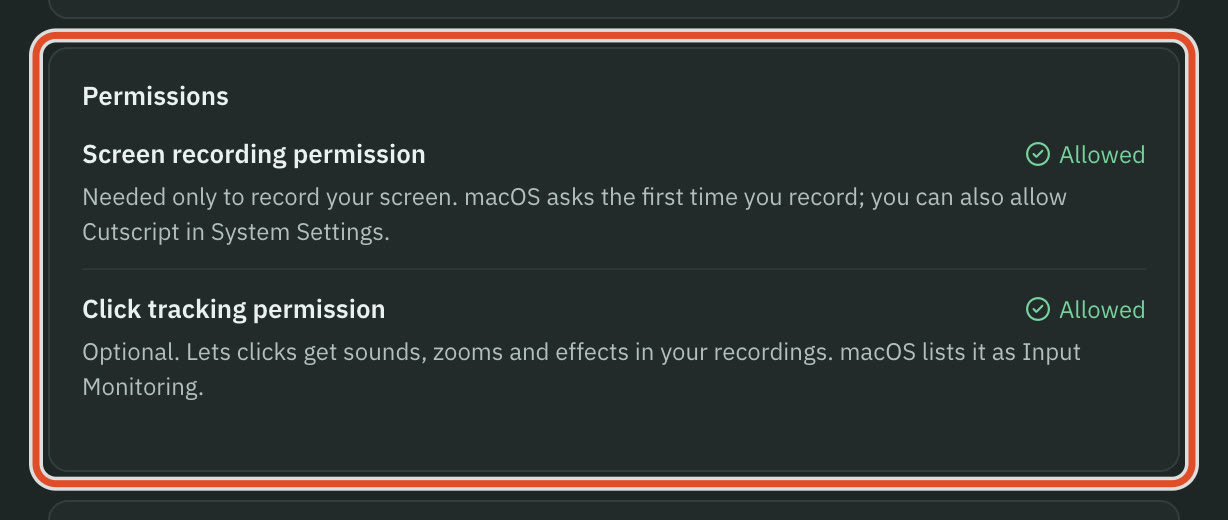
The same card has Allow microphone and Allow camera. Turn on only what you want to record.
Turn on click tracking
Click tracking records where you click, so clicks can get sounds, zooms and effects. macOS lists the permission as Input Monitoring. Screen recording works without it.
- In Get set up or Settings › Tools, find Click tracking permission and click Turn on. macOS adds Cutscript to its Input Monitoring list.
- Open System Settings › Privacy & Security › Input Monitoring and switch Cutscript on. Cutscript notices by itself. If it is already on, switch it off and on again.
- If Cutscript says "Quit and reopen Cutscript to finish turning on click tracking", click Relaunch.
If you already allowed Cutscript under Accessibility, click tracking works too. To record one take without clicks, choose Record without clicks in the recorder. See Click tracking.
Connect an AI account
AI features are optional and run on accounts you own. You do not need one to record or edit on the timeline. You do need one to get a transcript, because transcription is a cloud step.
- Open Settings › AI › Providers. You can also click Set up AI in the sheet, or the pill at the top right of the home screen, which reads Add API keys, Check API keys or Keys ready.
- For a transcript, connect ElevenLabs, fal.ai or OpenRouter. Paste your key into the card's field and click Save. On the OpenRouter card, click Paste a key first, or click Sign in with OpenRouter instead.
- For the AI chat and the AI director, connect OpenRouter, or sign in with your ChatGPT plan (Continue with ChatGPT) or your Claude plan.
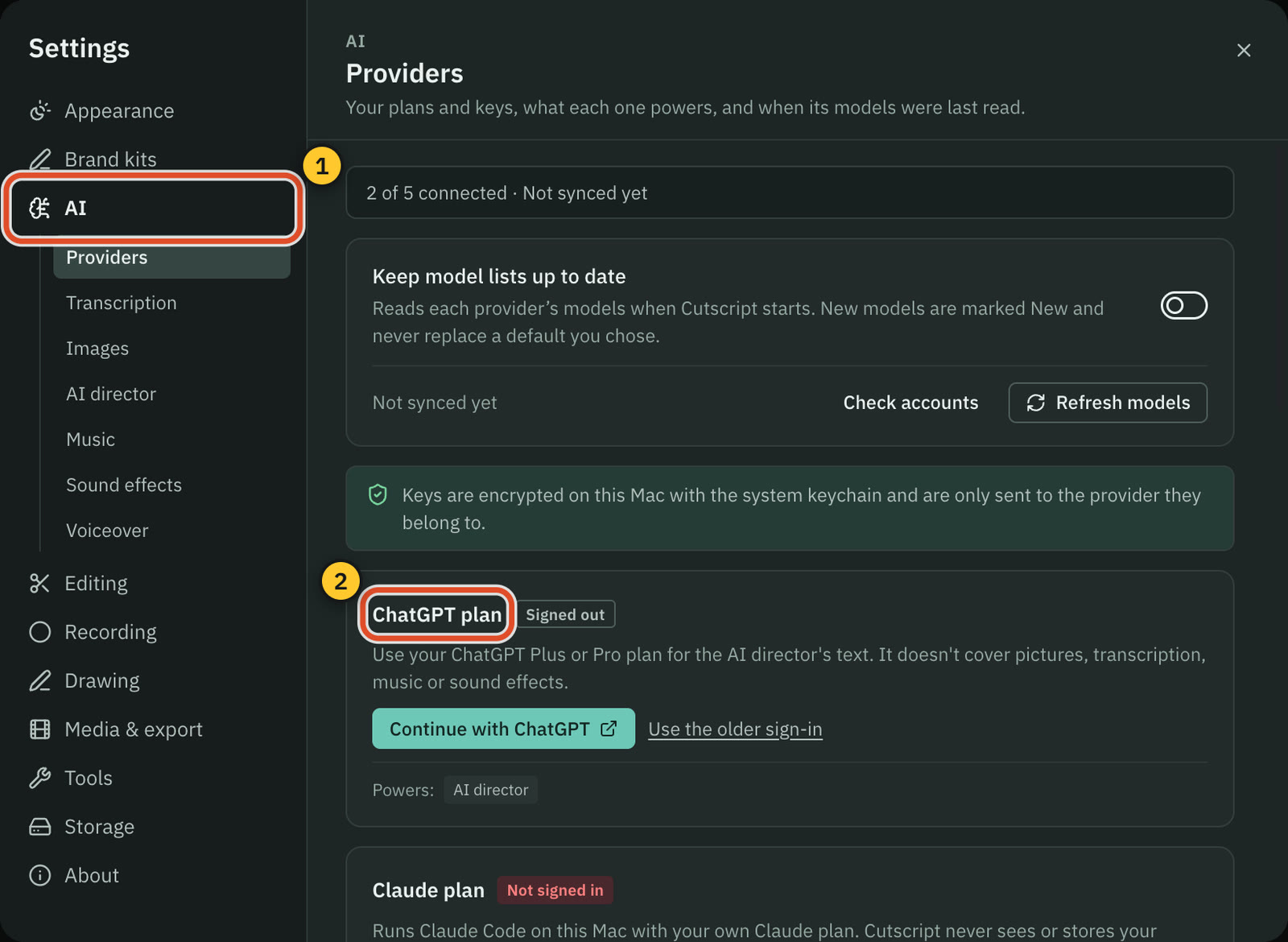
Keys are encrypted on this Mac with the system keychain and are only sent to the provider they belong to. Each provider bills you directly. To see a model's price before your first transcript, open Settings › AI › Transcription.
The Claude plan runs your own copy of Claude Code. If the Claude Code row says "Not installed", Cutscript shows Anthropic's install command to copy into Terminal. It never runs the command for you. After you install it, click Check again.
Related
Was this page helpful?
Comments
Longer questions go better in the forum.
No comments yet. Ask a question or add what you found.
Sign in with GitHub or Google to comment.
Sign in to comment