Notes and checkpoints
Leave notes in the script, mark moments on the timeline, and go back to an earlier state of the edit with History or a checkpoint.
Four small tools help you keep your place and undo your way back: notes in the script, markers on the timeline, History, and checkpoints. Notes and markers never appear in your video.
Notes in the script
A note is a block of your own text between lines of the script. Use it for reminders ("tighten this intro"), instructions for whoever edits next, or a to-do. A note is never spoken, never in the video, never in captions or subtitles, and never transcribed.
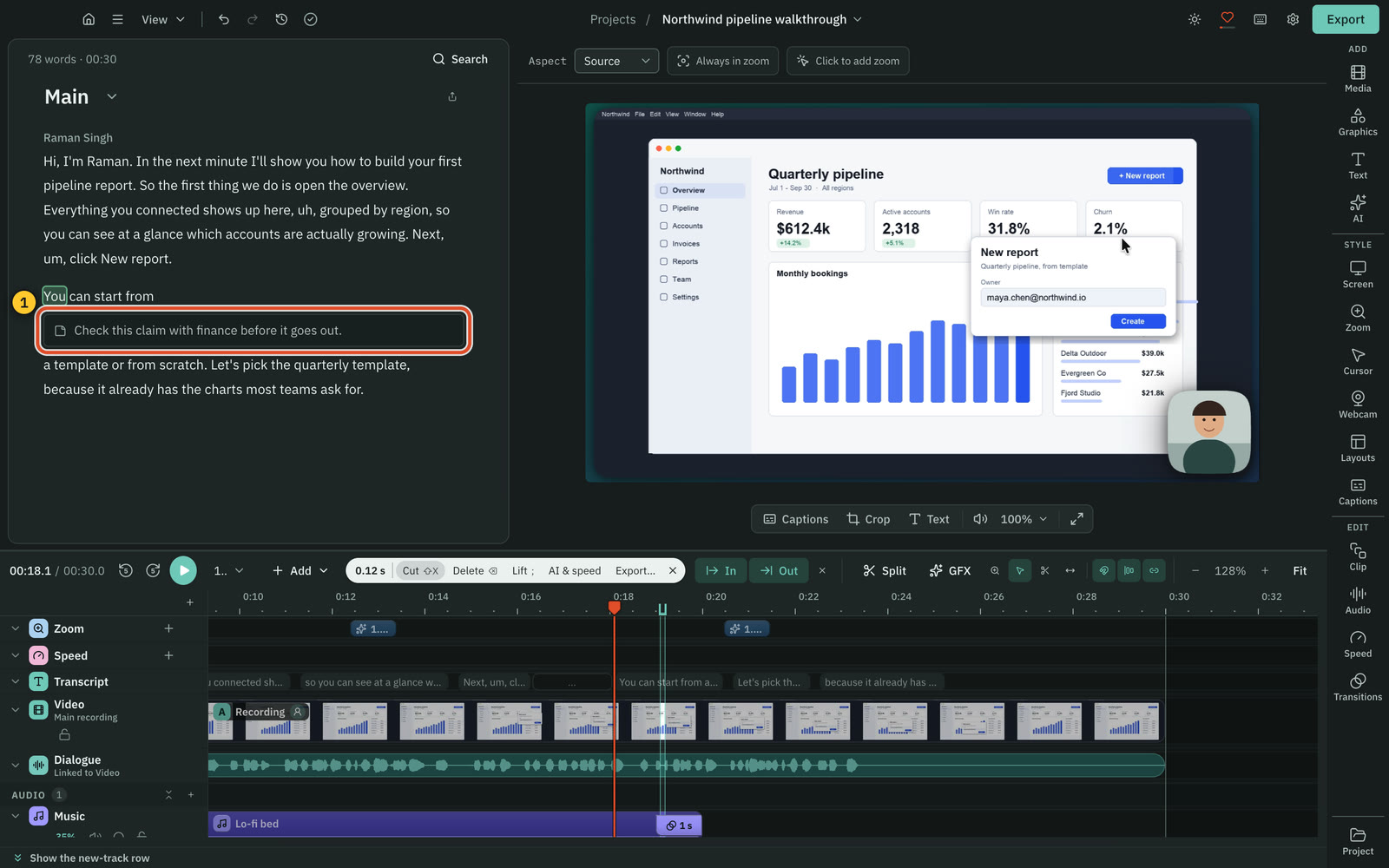
Add a note
Pick whichever is nearest:
- Move the pointer between two paragraphs, or below the last one, and press + Note.
- Right-click in the script and choose Add note here. The note goes at the word boundary nearest your click.
- Press
⌥ ⌘ N. The note goes at the caret, or before your selection, or before the word under the playhead.
The new note takes the keyboard straight away, so start typing. The empty note reads "Write a note. It is never in the video."
Edit and delete a note
- Type in the note to edit it. It grows with its text. A whole stretch of typing is one undo step.
- Press
Escto leave the note and go back to the script. - Press
⌫in an empty note, press the × on it, or right-click it and choose Delete note.
Where a note stays
A note is tied to a moment in the recording, not to a word. Cutting the words around it never moves it. When the word after it is cut, the note stays at the cut. ⌘ F search finds text inside notes as well as words.
Export notes
Notes are left out of transcript files unless you ask. Turn on Include notes in the transcript export to add them where they sit, each marked as a note. Subtitle files never include notes. See Transcripts and subtitles.
A note belongs to the composition you wrote it in. A composition holds up to 500 notes, and a note holds up to 4,000 characters.
Markers on the timeline
Press M with the timeline focused to drop a marker at the playhead. Drag it to move it, double-click it to jump to it, and press ⌫ to delete it. Snapping treats markers as targets, so clips and ranges line up with them. Direct my video adds chapter markers too.
See The timeline for the rest of the timeline keys.
History: undo and redo
Every edit you make is an undo step. ⌘ Z undoes, and ⇧ ⌘ Z redoes. The clock icon in the top bar opens History: a list of your steps with the current one marked and a time beside each. Click any step to jump to it. Later steps stay available until you make a new edit.
History belongs to the open composition and to this session of the app. For something that survives, use a checkpoint.
Checkpoints
Checkpoints belong to the AI chat. Before every message you send in the chat, and before each task of Direct my video, Cutscript saves the editable state of the project. If the AI's change is not what you wanted, you restore the project to that moment. If you never send a message in the chat, no checkpoints exist.
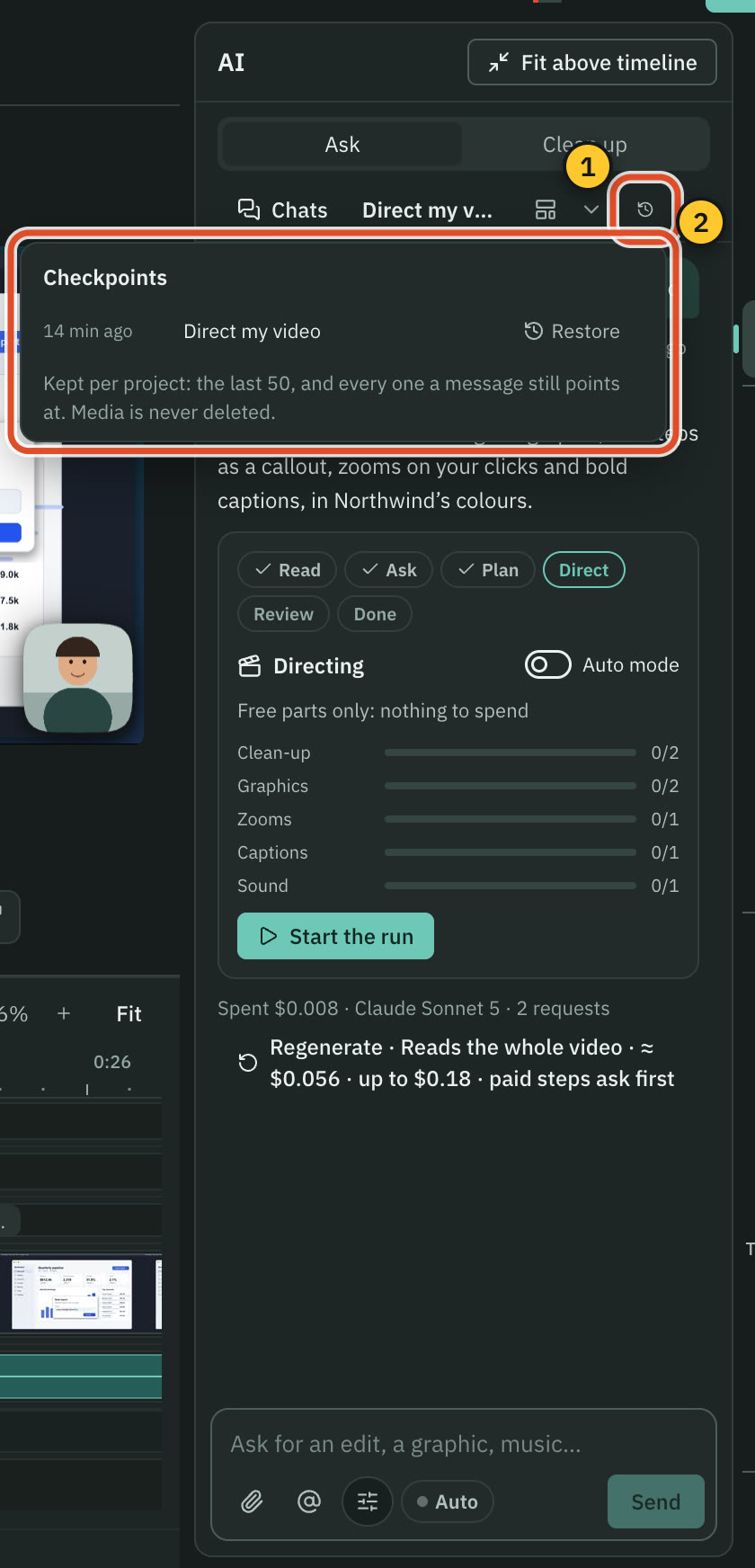
Restore a checkpoint
- Open AI in the right rail and choose the Ask tab.
- Under the message you want to undo, press Restore. It shows how long ago it was saved. Hover it to see what has changed since, such as "12 edits since: 3 graphics, 2 zooms".
- A box asks "Restore the project to before this message?" and explains that changes after it will be undone. Press Restore.
The restore is one undo step, so ⌘ Z brings the later edits back. The chat is not rolled back: messages after the restored point are dimmed, not removed.
The Checkpoints button in the chat bar lists every saved checkpoint, newest first, each with its time, its label and Restore. A checkpoint from a task of Direct my video is tagged Task. With several compositions, each row names the one it restores.
What a checkpoint keeps
A checkpoint keeps the edit as you can see it: cuts and script edits, zooms, speed changes, graphics, the camera, tracks and clips, the main recording's pieces, markers, captions, voice enhancement settings and your script notes.
It does not keep the project's name, row heights on the timeline, or the list of compositions. For a project with several compositions, a checkpoint keeps the open one's state only.
Limits
- Cutscript keeps the last 50 checkpoints per project, plus any that a message still points at.
- Restoring never deletes media. If you removed a file from the project since, the restore detaches it from the clips that used it.
- You cannot restore while the AI is working in the project, while Direct my video is running, or while an export of the project is running. Restore when it finishes, or stop it.
- If you delete a composition, its checkpoints cannot be restored.
Related
Was this page helpful?
Comments
Longer questions go better in the forum.
No comments yet. Ask a question or add what you found.
Sign in with GitHub or Google to comment.
Sign in to comment