Turn a long video into shorts
Paste a link to a long talk, ask for short clips, review the ranked plan, make five vertical clips and export them all in one go.
This walk-through turns one long talk into five vertical clips. The example is a 2 minute 30 second founder talk with five stories in it, but the steps are the same for an hour-long podcast. Finding the clips costs a little on your AI account. Making them is free.
Before you start
- A video you have the right to use. The Download from link card says "Download only videos you have the right to use", and the same goes for a file you attach.
- A transcription key (ElevenLabs, fal.ai or OpenRouter) and an AI source (a Claude plan, a ChatGPT plan or an OpenRouter key). The AI reads the transcript to find the moments. See Connect an AI account.
- An internet connection for the download, the transcript and the search.
1. Set up the request on the home screen
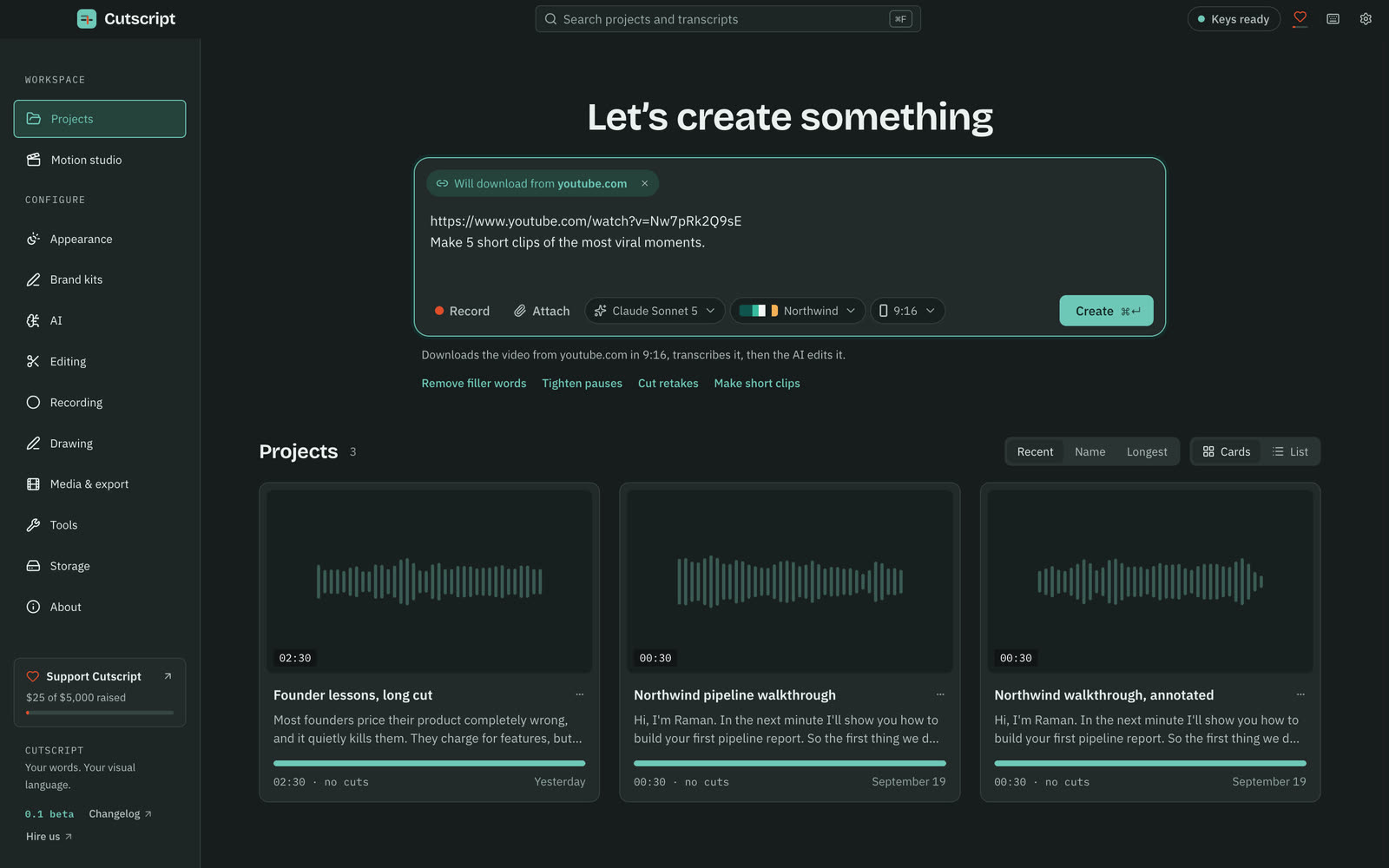
- Open the home screen. Under Let’s create something, paste the link to the video. A chip such as "Will download from youtube.com" appears. To use a file instead, press Attach.
- Press the Make short clips starter. It fills the box with "Make 5 short clips of the most viral moments." Change the number or the length in your own words if you like.
- Open the Aspect menu and choose 9:16, which Cutscript labels vertical for Shorts, Reels and TikTok.
- Pick a Brand kit if you have one.
- Read the line under the box. It says what Create will do before you press it.
2. Press Create
Press Create, or ⌘ ↵. The first time you use a link, Cutscript sets up its link downloader, about 95 MB, once. Then the composer shows each step with a Cancel button:
- It downloads the best video up to 1080p as an MP4.
- It makes a project in 9:16 with the frame set to follow the cursor of a recording and stay centred otherwise.
- It transcribes the video.
- It sends your request to the AI chat.
If a step needs something you have not set up, such as a transcription key, the composer says so and links to Settings.
3. Review the plan
The editor opens with AI on the Ask tab. The clips card moves through Find, Plan, Create, Check and Done. When it reaches Plan, the clips appear ranked by score. If you did not name a shape, it asks "What shape should the clips be?" and preselects 9:16.
Each row has:
- a switch, so you can leave a clip out;
- a title you can edit;
- its length, and a score from 0 to 100 for how likely it is to hold a viewer;
- the hook it opens on, and why it was picked;
- Play, which jumps to it in the long video.
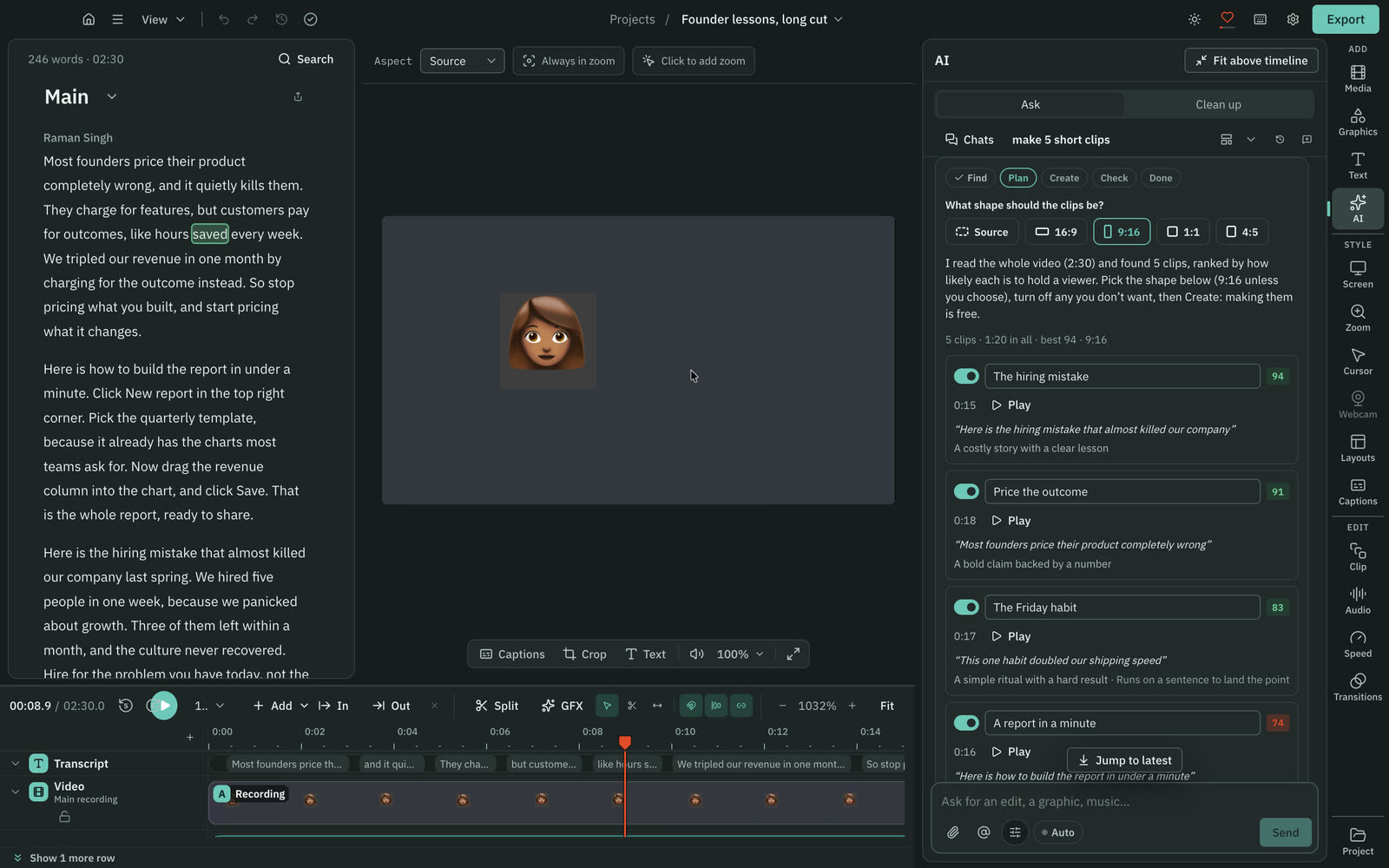
Press Play on the top two or three to hear them. Rename any title, and switch off the ones you do not want. Leave Full-screen hook text on if you want each clip to open with its first line shown big, word by word, as it is said.
4. Create the clips
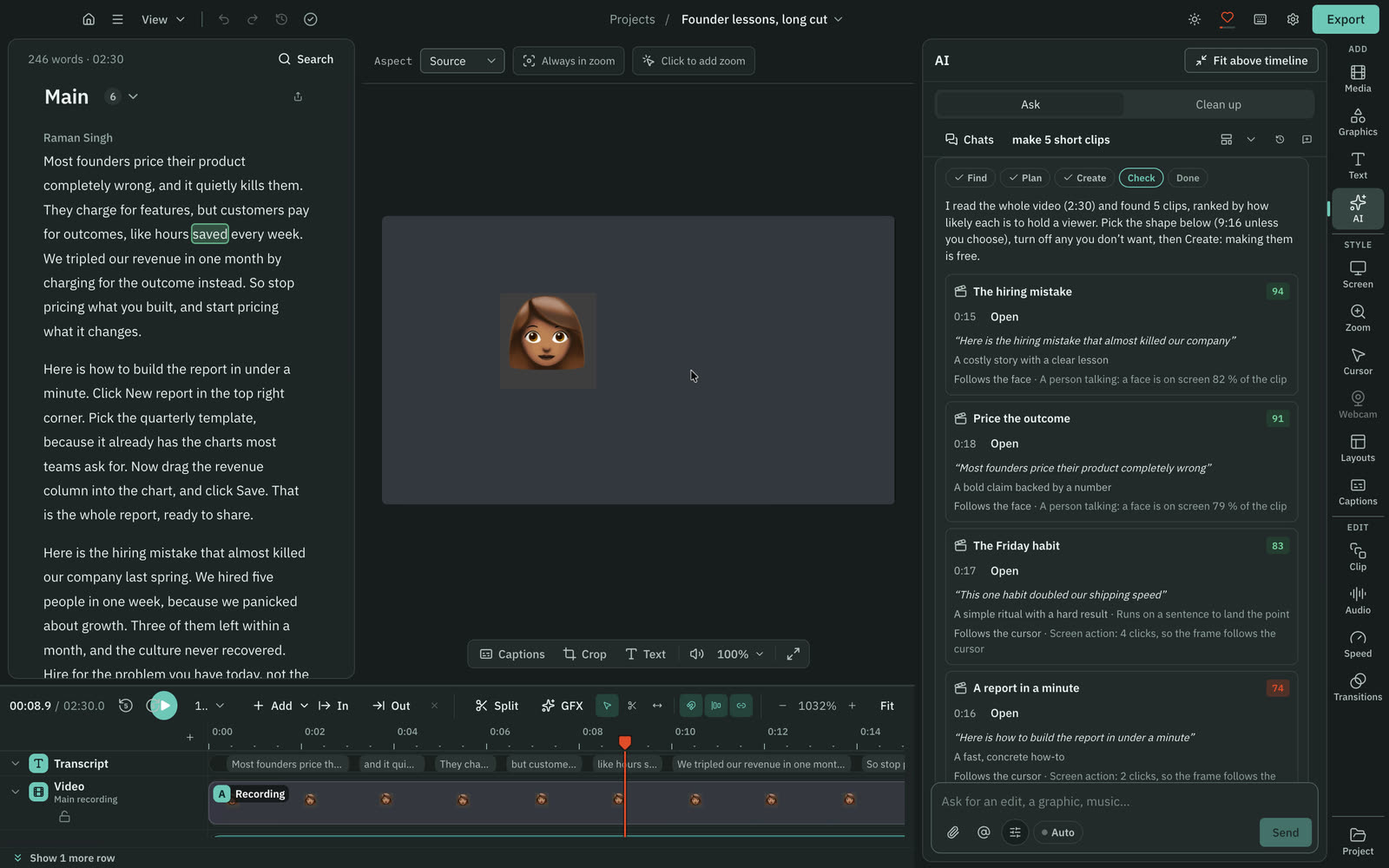
Press Create 5 clips · free. The count follows the clips you left on. Each clip becomes its own composition in 9:16. Each is cut to its own words, with fillers and pauses over 0.6 seconds trimmed to a short breath, and framed on the speaker's face or on the pointer. The row says which, and why.
5. Open a clip and look at it
Press Open on a clip. The editor switches to that clip's composition. Its script holds only that clip's words, and its captions are already on.
Play it through. Cut a word, change the caption style, or adjust the framing if it is off. To go back to the long video, switch composition from the top of the script. See Compositions and clips.
6. Check them
Back in the chat, Check runs the free checks first. They look at whether the framed face is inside the frame and not cut by an edge, and whether the captions sit inside the vertical safe area and clear of the face.
- Check by image looks at real frames of each clip as it will export. Its price, a typical figure and a ceiling, is on the button.
- Free checks only skips the look and costs nothing.
A problem comes with a fix card. Press Apply to accept it or Discard. Press Done when you are happy.
7. Export all the clips
- Press Export all clips.
- In Export compositions, tick the clips to export. Each file is named after its clip's title.
- Set Resolution, Quality and Burn in captions. Leave Burn in captions on for vertical video.
- Press Export 5 videos… and choose a folder.
Each clip exports as one MP4 H.264. A file already in the folder is kept, and the new one gets a number. The exports run one at a time, and Cancel the rest stops the queue. See Export for each platform.
What you made
Five vertical clips, each with its own cut, framing and captions, in one folder, from a single long video, plus a project that still holds the original. You can reopen any clip, change it and export it again. To style the captions for a vertical frame, follow Captions for vertical video.
Related
Was this page helpful?
Comments
Longer questions go better in the forum.
No comments yet. Ask a question or add what you found.
Sign in with GitHub or Google to comment.
Sign in to comment