Settings
Every tab in Cutscript's Settings, what each setting does and the value it starts with.
Open Settings with ⌘ ,, with the gear in the top bar, or from the list under CONFIGURE on the home screen. The tabs run down the left side.
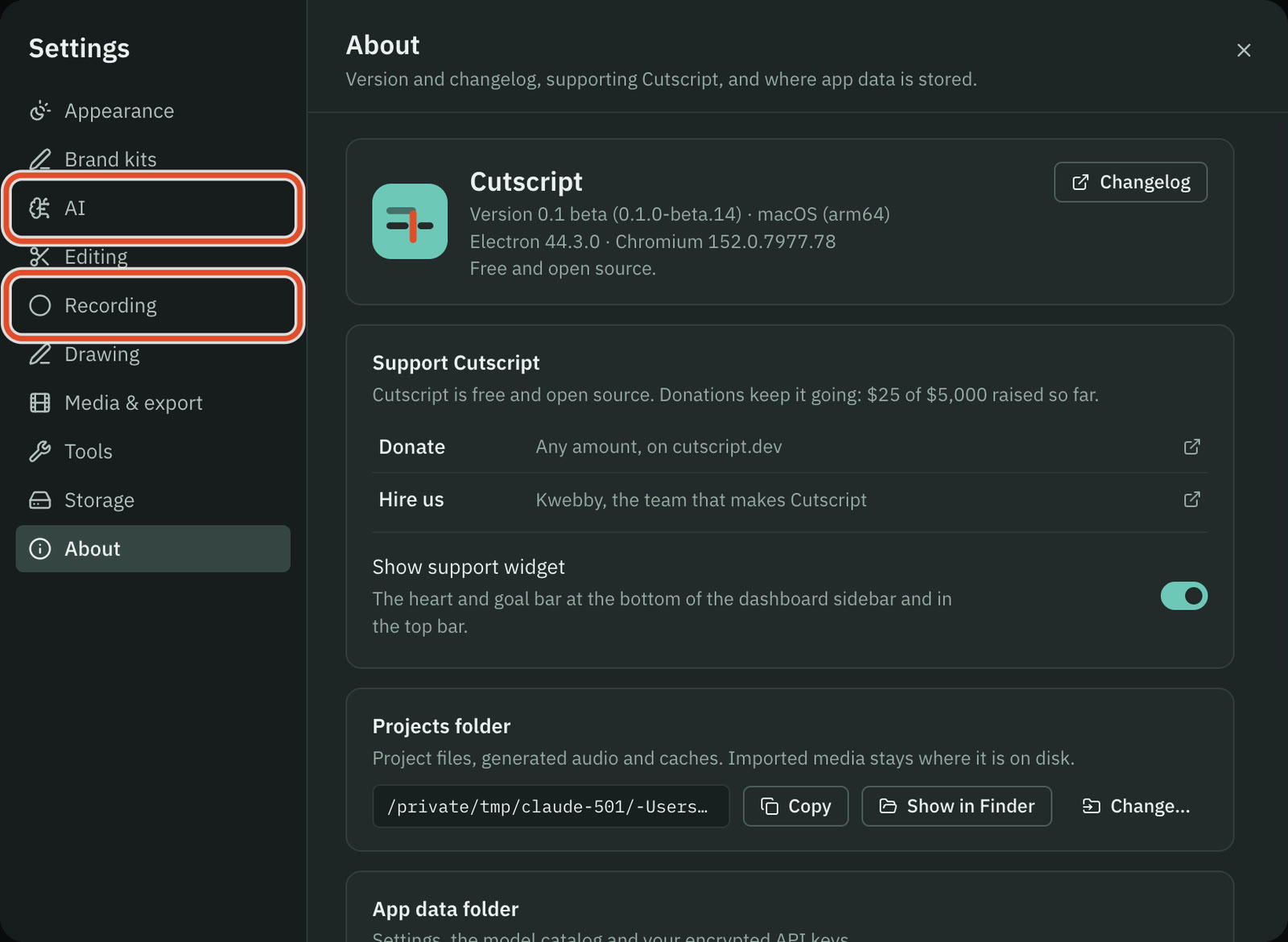
Cutscript saves a setting as soon as you change it. Settings live in settings.json in the app data folder (see File formats and where files live). If that file cannot be read, Cutscript starts with the defaults.
Appearance
Choose System, Light or Dark. The default is System. Video colours and exports do not change. The editor's top bar also has a one-click light and dark switch.
Brand kits
Your brand kits as searchable cards. Click Import from website to capture one from a site, or New kit to make one by hand. See Brand kits.
AI
The AI tab has seven sections, listed under it in the left nav.
| Section | What it holds |
|---|---|
| Providers | The five accounts: ChatGPT plan, Claude plan, OpenRouter, ElevenLabs and fal.ai. Keep model lists up to date (on by default) reads each provider's models when Cutscript starts. Check accounts and Refresh models do it now. |
| Transcription | The model that writes transcripts, plus Language (starts on Auto-detect), Identify speakers (on), Expected speakers and Mark sounds (on). |
| Images | The picture models for graphics. None is chosen until you choose one, so no AI pictures are made by default. |
| AI director | Four views: Model, Behaviour & limits, Skills and Prompts. |
| Music | The default music model, used in Media › Generate. |
| Sound effects | The default sound effect model. |
| Voiceover | The default voiceover model and voice. |
Under Behaviour & limits, Spending limits has Per message (starts at 0.50 USD) and Per day (starts Off). They count the AI director's OpenRouter and fal.ai spending. Transcription, voiceover, music and sound effects are charged by their provider and never count here. See Prices before every paid step.
Editing
- Deleting words. A read-only reminder of the keys: Delete (
⌫), Ignore (⌘ ⌫) and Restore (⇧ ⌘ ⌫). - Timeline. Add ranges by dragging on the timeline (on). Default transition and Default transition length set what
⌘ Dadds: a cross dissolve of 0.5 s to start, from 0.1 s to 4 s. Show out-of-sync badges (on). - Filler words. The words and phrases that Remove filler words looks for. Add your own, remove any, or click Reset to defaults. Matching ignores case and punctuation.
- Pause detection. Defaults for Shorten word gaps. Find pauses is More than 0.8 s to start, or Between a minimum and a maximum (3 s to start). Shorten to keeps 0.3 s of each pause to start.
- Repetitions. Longest repeated phrase is 8 words to start.
- Maps. Borders sets whose borders new map graphics draw where a border is disputed. It follows your Mac's region to start.
Recording
| Setting | Starts as |
|---|---|
| Recording permissions card | Shows Screen recording, Microphone, Camera and Click tracking. See Get set up and permissions. |
| Countdown | 3 s. Choose Off, 3s, 5s or 10s. |
| Frame rate | 60 fps, a maximum, not a target. Choose 30 fps or 60 fps. |
| Transcribe automatically | On. |
| System audio | On. |
| Microphone | On, with a picker for the input. |
| Camera | Off, with a picker. |
| Recordings folder | Default, inside the app data folder. Change folder… moves new takes elsewhere. |
| Cursor | Editable cursor (recommended). The others are System cursor in the video and No cursor. |
| Track clicks | On. |
| Hide desktop icons | Off. |
| Show recording frame | On. A thin outline marks window and area recordings. |
| Experimental recording modes | Off. Adds Device mode and Choose apps for app sound. |
| Reset recorder position | A button. The toolbar remembers a position for each display. |
| Add zooms automatically | On, with Zoom sensitivity on Balanced. Choose Fewer or More. |
| Stop shortcut | ⌃ ⌥ ⌘ R. It cannot be changed yet. |
| Pause / resume shortcut | ⌃ ⌥ ⌘ P. Type a new one in the field. |
Drawing
Settings for the drawing tools you use while recording. They apply to the next recording. The sections are General (the palette's display, edge and size, and whether drawing tools are on), Colours, Shortcuts, Pens and shapes, Step numbers, Fade, Effects and Recording and privacy. Click Reset all shortcuts… to put every drawing key back to its default. See Draw while you record.
Media & export
- ffmpeg detection. Shows the ffmpeg and ffprobe Cutscript uses, its version, and which encoders and filters are available. Cutscript carries its own copy. Click Re-detect to look again.
- Custom binaries. ffmpeg path and ffprobe path. Leave them empty to use the bundled copy, then Homebrew, then your system path.
Tools
What Cutscript has built in, the link downloader, permissions and optional add-ons. It is the same list as Get set up, with more controls. Open Get set up reopens the sheet.
- Download from link. yt-dlp and Deno with their versions, Check for updates, Update, Reinstall and Remove, and Auto-update the link downloader (on, checks once a week). Download folder is
Cutscript Downloadsin your Movies folder to start; Change… picks another. - Permissions. Screen recording permission and Click tracking permission.
- Optional. Claude Code and AI providers.
Storage
Projects folder shows where projects live, how many there are and how much space they use. Click Show in Finder to see it, Change folder… to pick another, or Use default folder to go back. When you change it, you can move your projects to the new folder (recommended, and the old copies go to the Trash) or choose Start with an empty folder, which leaves existing projects where they are. Imported media is not part of this folder. It stays where it is on disk.
About
- Your version, your Mac's system and chip, and a Changelog button that opens cutscript.dev/changelog.
- Support Cutscript with Donate, Hire us and Show support widget (on). The widget is the heart and goal bar in the dashboard sidebar and top bars. Turning it off also stops its request. See What leaves your Mac.
- Projects folder and App data folder, each with Copy and Show in Finder.
- Services: links to ElevenLabs, OpenRouter and FFmpeg.
Settings outside the dialog
The editor's View menu holds script and preview options: Show edit boundaries, Underline filler words, Show deleted text, Follow playhead, the script's text size and Show captions in preview. The export panel remembers your last choices for each tab.
Related
Was this page helpful?
Comments
Longer questions go better in the forum.
No comments yet. Ask a question or add what you found.
Sign in with GitHub or Google to comment.
Sign in to comment