Your first video in five minutes
Record or import a video, cut it by deleting words from the transcript, and export it.
This walk-through takes you from a recording, or a video you already have, to an exported file. The main move is the one Cutscript is built for: you delete words from the transcript, and the video is cut at those words.
Before you start
- Cutscript is installed. See Install Cutscript.
- You have a key saved for ElevenLabs, fal.ai or OpenRouter, so Cutscript can write the transcript. To record, you have also allowed screen recording. Get set up and permissions covers both.
Note: Transcription is billed by your provider, not by Cutscript. Open Settings › AI › Transcription to see each model's price before your first run.
1. Get a video into Cutscript
Pick one of two ways.
Bring in a video you already have
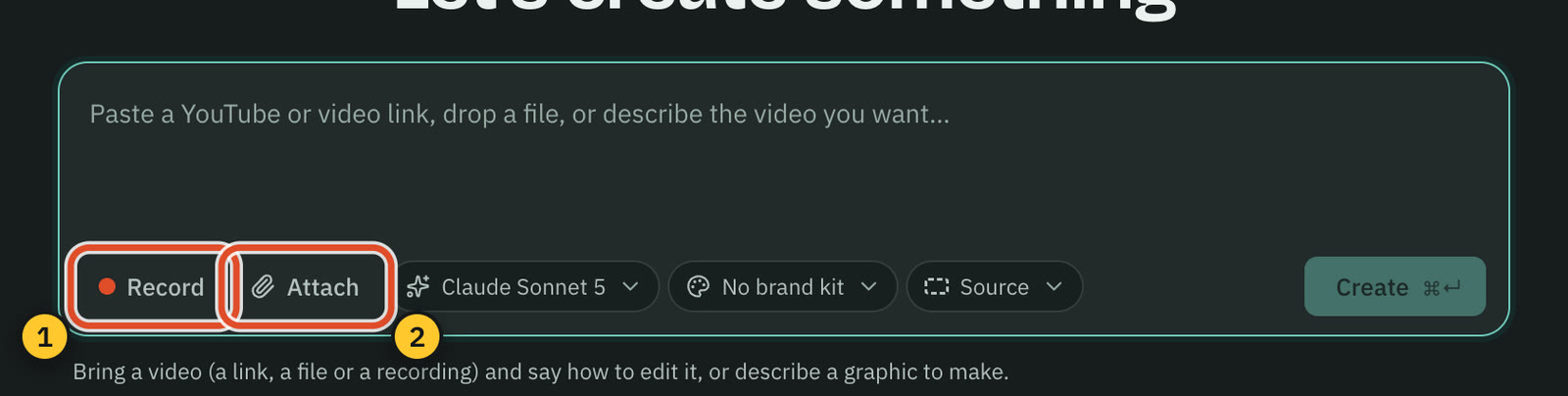
- On the home screen, drag a video or audio file onto the box under "Let’s create something". You can also click Attach and choose the file.
- Read the line under the box. It says what will happen, for example "Starts a project from talk.mov and transcribes it."
- Click Create, or press
⌘ ↵.
Cutscript starts the project, transcribes it and opens it. If you want to choose the language, the number of speakers or the transcription model first, use File › New Project… (⌘ N) instead. It shows the model, the provider and an estimate for your file's length before you click Create project.
Record your screen
- Click Record on the home screen, or choose File › New Recording… (
⇧ ⌘ R). The recorder bar appears. - Choose Display, Window or Area. For a display, move the pointer to the one you want. For a window, click it. For an area, drag a rectangle.
- Check the microphone in the bar. The microphone is on by default and the camera is off.
- Click Start recording, or press Return. A three-second countdown runs first.
- Talk through what you want to show. Click Stop or press
⌃ ⌥ ⌘ Rwhen you finish.
Your recording opens as a project. Cutscript starts the transcript by itself, because Transcribe automatically is on by default in Settings › Recording. If you clicked while recording, it also adds zooms at those clicks. See Record your screen.
2. Wait for the transcript
The script on the left shows the progress: Extracting audio, Uploading audio, then Transcribing. When it finishes, every word appears with its timing. If it fails, you see "Transcription failed" and a Retry button.
If the script says "Transcribe this video", click Transcribe. If it says a key is missing, add one in Settings › AI.
3. Cut the video by deleting words
- Click and drag across the words you want to remove, or click a word and press
⇧ →to extend the selection. - Press
⌫. The words leave the script, and the video is cut at the same points. - Press Space to play. The preview skips what you deleted, and the timeline shows a cut at each seam.
Changed your mind? Press ⌘ Z to undo, or select the words and press ⇧ ⌘ ⌫ to restore them. Cutscript saves as you work, and the check mark in the top bar means everything is saved.
4. Remove filler words and long pauses
- Open the AI panel in the right rail and choose the Clean up tab.
- Click Remove filler words. The find bar opens and finds every filler word in the script.
- Click Remove all to cut them in one step, or click Remove to take them one at a time.
⌘ Zundoes the whole batch.
Shorten word gaps and Remove repetitions work the same way.
These tools run on your Mac and cost nothing. See Remove filler words and pauses.
5. Export
- Click Export at the top right.
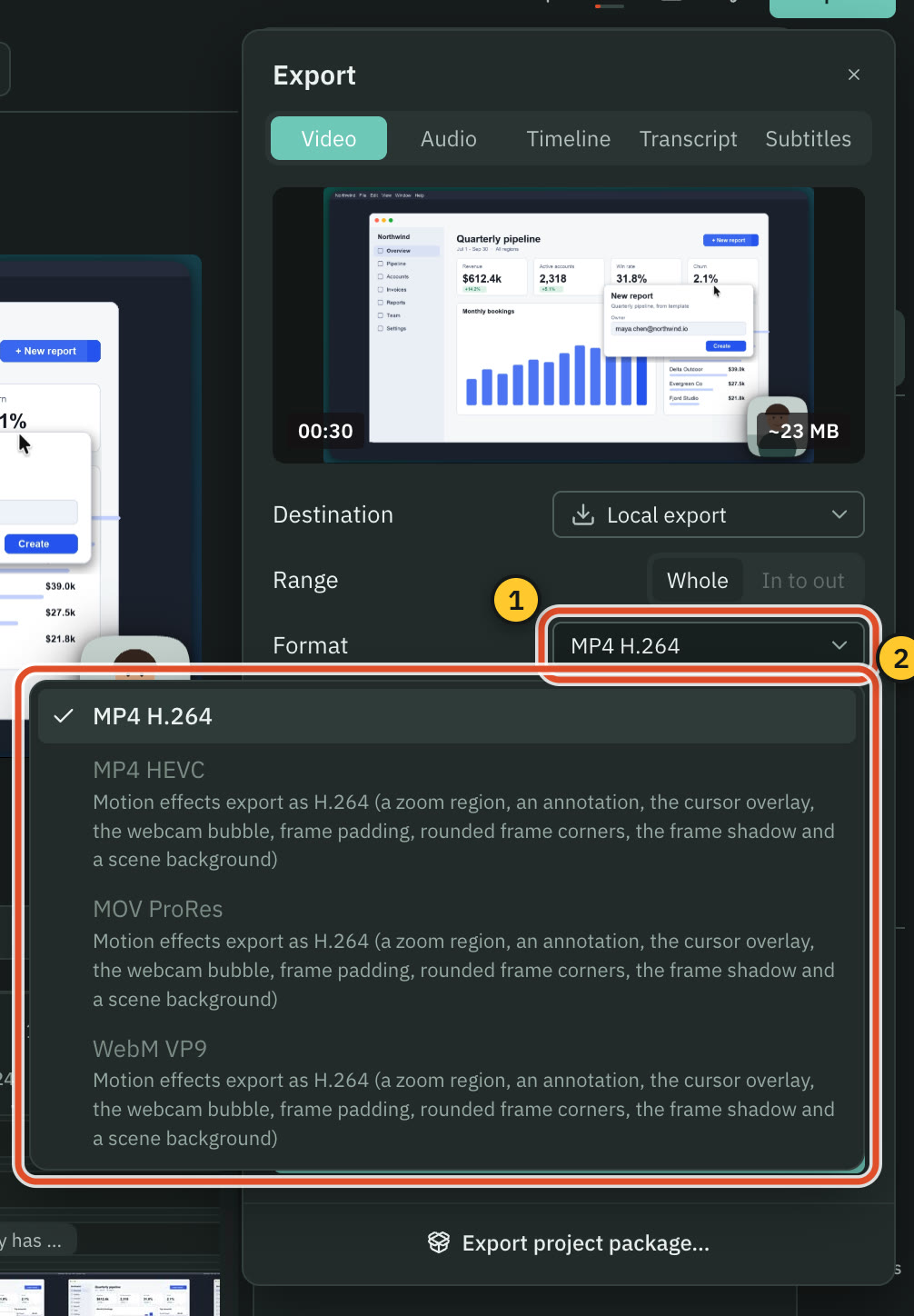
- On the Video tab, leave the defaults: MP4 H.264, the source size and frame rate, and high quality.
- Click Export and choose where to save the file.
- When the panel says "Export complete", click Show in Finder.
What to try next
- Add captions from the Captions panel (
⌘ 0). See Captions. - Change the look of a screen recording in the Screen panel (
⌘ 5). See Backgrounds and screen look. - Ask the AI for an edit in plain words. See How AI works in Cutscript.
Related
Was this page helpful?
Comments
Longer questions go better in the forum.
No comments yet. Ask a question or add what you found.
Sign in with GitHub or Google to comment.
Sign in to comment