Export a video
Render your edit as an MP4, MOV or WebM file, choose size, frame rate, quality and loudness, and burn in captions.
Export renders what you see in the editor into a video file. What the preview shows is what the file contains: your cuts, zooms, cursor, backgrounds, camera, captions and graphics.
Before you start
- Exporting is local. It runs on your Mac, needs no AI and no internet, and writes the file where you choose.
- Open the project you want to export. The export uses the composition that is open, so a project with several compositions exports the one you are looking at. See Compositions and clips.
Export a video
- Press Export in the top right, or press
⌘ E. - Stay on the Video tab. The preview shows the finished length and an estimate of the file size.
- Choose your settings (below).
- Press Export and choose where to save the file. The name starts as the project's or composition's name.
- Watch the progress. You can close the panel and keep working. The export keeps running, and Cutscript tells you when it finishes. Cancel stops it.
- When it says Export complete, press Show in Finder to see the file, or Export another.
If something goes wrong, the panel says Export failed, explains why, and offers Retry. After a successful export it can list notes about adjustments it made, for example when it had to change a setting you picked.
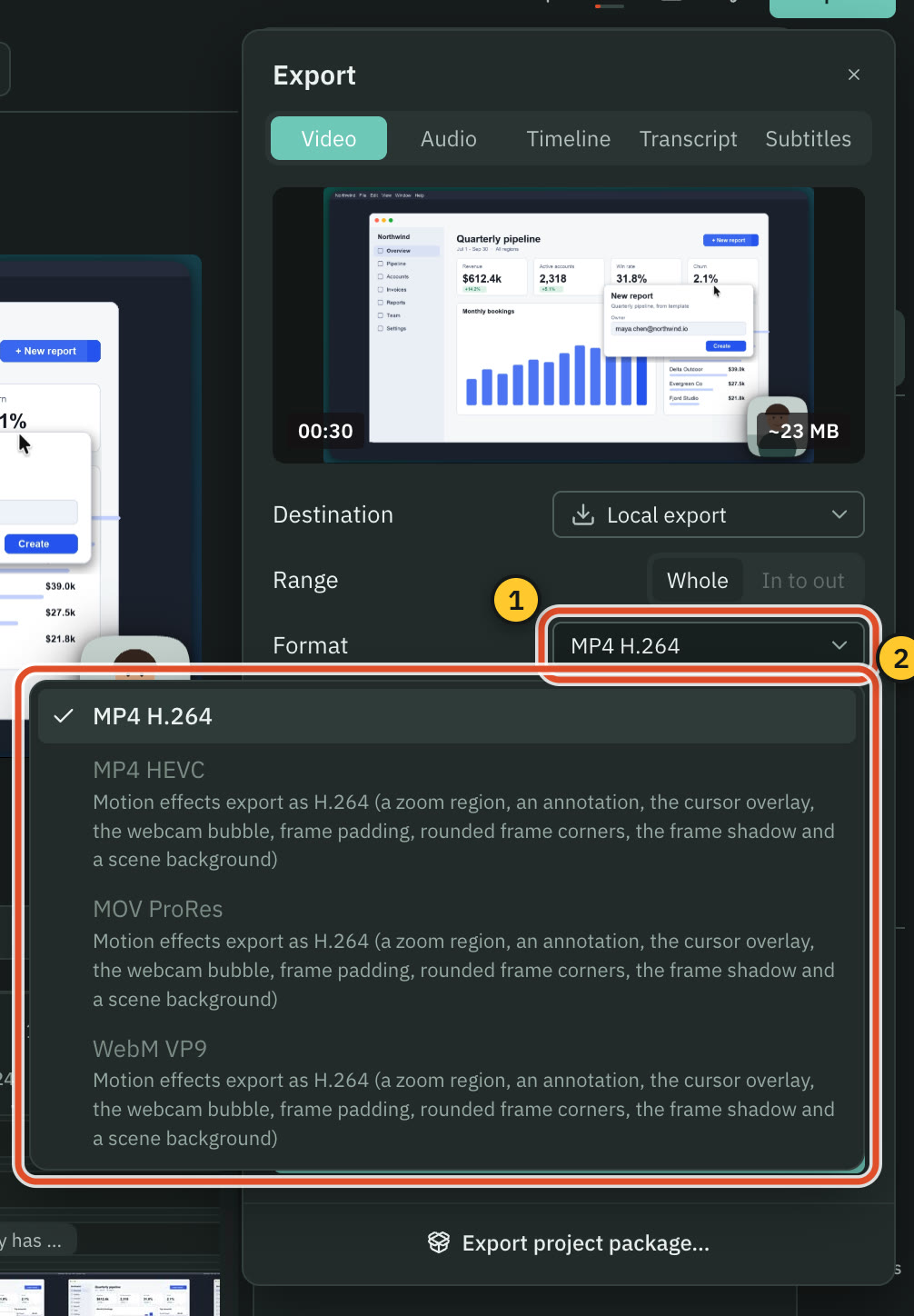
With motion effects in the project, the Format list greys out the formats that cannot be used and says why.
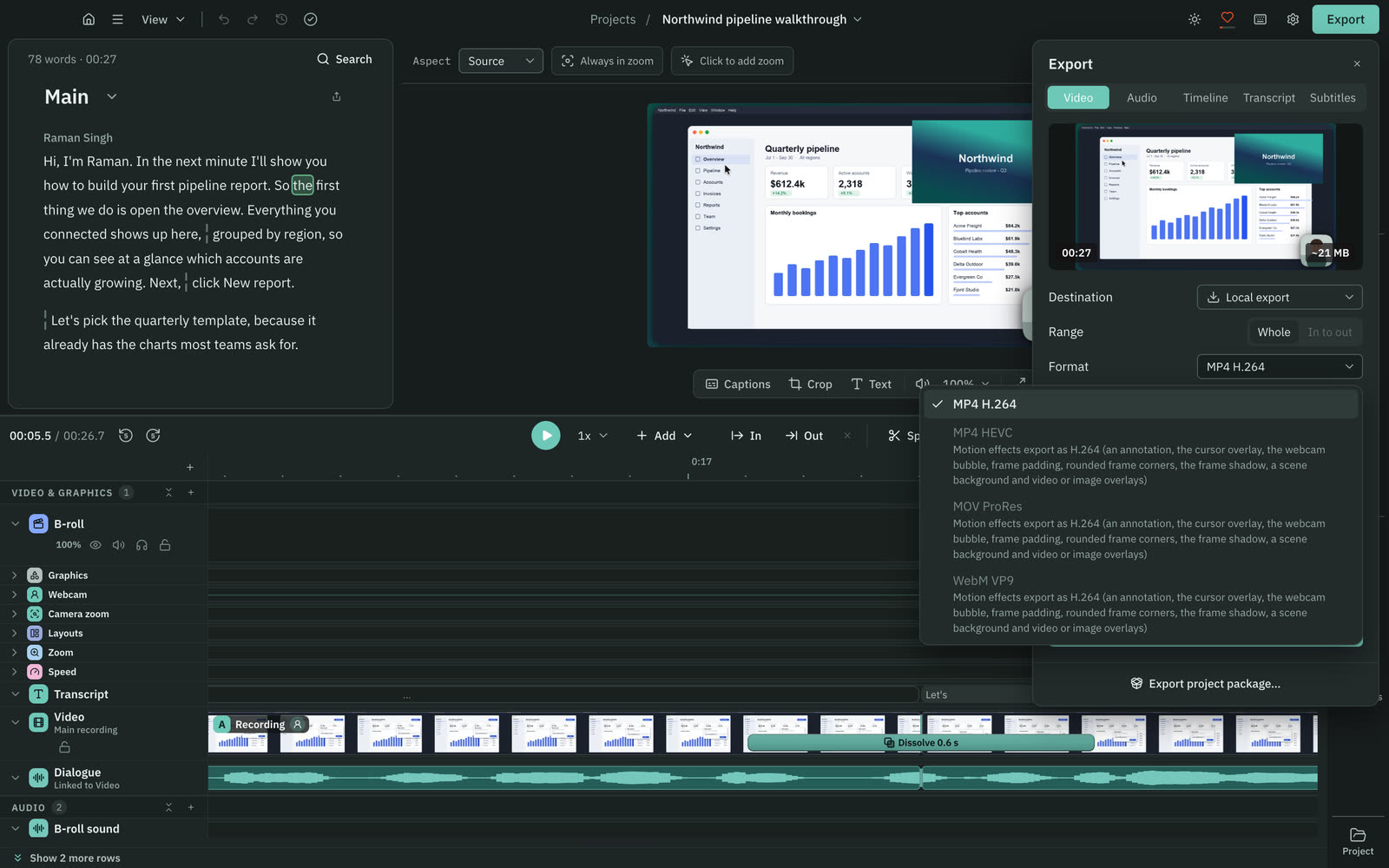
The settings
| Setting | Choices |
|---|---|
| Destination | Local export, which is the only one today. |
| Range | Whole, or In to out to export only the part between the timeline's In (I) and Out (O) points. |
| Format | MP4 H.264 (the default), MP4 HEVC, MOV ProRes, WebM VP9. |
| Resolution | Source, 4K, 1440p, 1080p, 720p, 480p. |
| Frame rate | Source, 24, 25, 30, 50 or 60 fps. |
| Quality | Low, Medium, High (the default) or Max. |
| Encoder | Hardware or Software. |
| Burn in captions | On or off. |
Open Advanced for Normalize volume and Audio bitrate.
Format
- MP4 H.264 plays almost everywhere.
- MP4 HEVC makes smaller files at similar quality, and not every player or site accepts it.
- MOV ProRes makes very large files meant for editing in another app. Low writes ProRes LT, Medium writes ProRes 422, and High and Max write ProRes 422 HQ.
- WebM VP9 is for the web. It is encoded in software, so it is slower than the others.
With motion effects, only MP4 H.264 is available. Zooms, the cursor, the camera bubble, padding, rounded corners, a shadow, a background, a crop, a fixed aspect, text and graphics, layouts, speed changes, video or image overlays and transitions are all drawn frame by frame, and that route produces H.264. The other formats are greyed out, and each says which effect is the reason. A new recording opens with padding, corners and a shadow, so it exports as H.264. An imported video you have not styled can use every format.
Resolution and frame rate
Resolution is measured on the short side, so a 1080 by 1920 vertical video is 1080p. A size larger than your source is greyed out, because Cutscript never scales up. Source keeps the recording's own size and frame rate.
Encoder
Hardware uses Apple VideoToolbox and is the fastest. Software is slower and compresses best. The encoder Cutscript ships is built without software H.264 and HEVC, so those two use Hardware, and VP9 uses Software. If your pick cannot run, Cutscript switches to the other one and says so.
Burn in captions
Turn on Burn in captions to draw the captions into the picture. It needs a transcript, and the Caption style link beside it opens the Captions panel. See Captions.
Loudness
Normalize volume sets the loudness of the whole mix.
| Choice | What it does |
|---|---|
| Off | Leaves the levels as they are. |
| Peak | Sets the loudest peak to -1 dB. |
| -14 LUFS | Measures the whole mix and sets it to -14 LUFS, with a true-peak ceiling of -1 dBTP. |
| -16 LUFS | The same at -16 LUFS, with a ceiling of -1.5 dBTP. |
| -18 LUFS | The same at -18 LUFS, with a ceiling of -1.5 dBTP. |
| -23 LUFS | The same at -23 LUFS, with a ceiling of -1 dBTP. |
Audio bitrate is 128, 192 (the default), 256 or 320 kbps. For platform-by-platform advice, see Export for each platform.
Credits for icons
If a visible graphic uses a Font Awesome Free icon, which needs a credit when you publish, a Save credits.txt switch appears. It writes the credit text next to the video, and the same text is always in the export notes.
If Export is greyed out
The panel explains why. The usual reasons:
- The project has no media yet, or no audio for an audio export.
- A clip on a video track is in a format Cutscript cannot draw, such as ProRes. Convert it to H.264 or HEVC, or remove the clip. The panel names the clip.
- There is no transcript, for the transcript and subtitle exports.
Other things you can export
The Audio tab exports only the sound as AAC audio (.m4a), Lossless WAV audio (.wav) (the default), MP3 audio (.mp3) or FLAC (.flac). Under Advanced you choose Channels (Mono or Stereo) and Sample rate (44100 or 48000), and the same loudness choices apply. The other tabs are covered in Send to Final Cut, Premiere or Resolve and Transcripts and subtitles.
Export project package…, at the bottom of the panel, saves the whole project as one file you can open on another computer. See Projects, files and relinking.
Related
Was this page helpful?
Comments
Longer questions go better in the forum.
No comments yet. Ask a question or add what you found.
Sign in with GitHub or Google to comment.
Sign in to comment