Send to Final Cut, Premiere or Resolve
Export your cuts and audio clips as a timeline file for Final Cut Pro, Premiere Pro, DaVinci Resolve or an EDL, and finish the edit in another editor.
You can edit the words in Cutscript and finish the picture somewhere else. Export › Timeline writes a file that Final Cut Pro, Premiere Pro or DaVinci Resolve opens as a timeline, with your cuts already made and your audio clips in place.
Before you start
- This is a file export. It needs no AI and no internet.
- The file describes your cuts and your audio. It is not a rendered video, so the look you built in Cutscript does not come with it. See "What is not in the file" below.
- A timeline file points to your media files. Keep the originals where they are, or use Include media files in export.
Export a timeline
- Press Export in the top right, or press
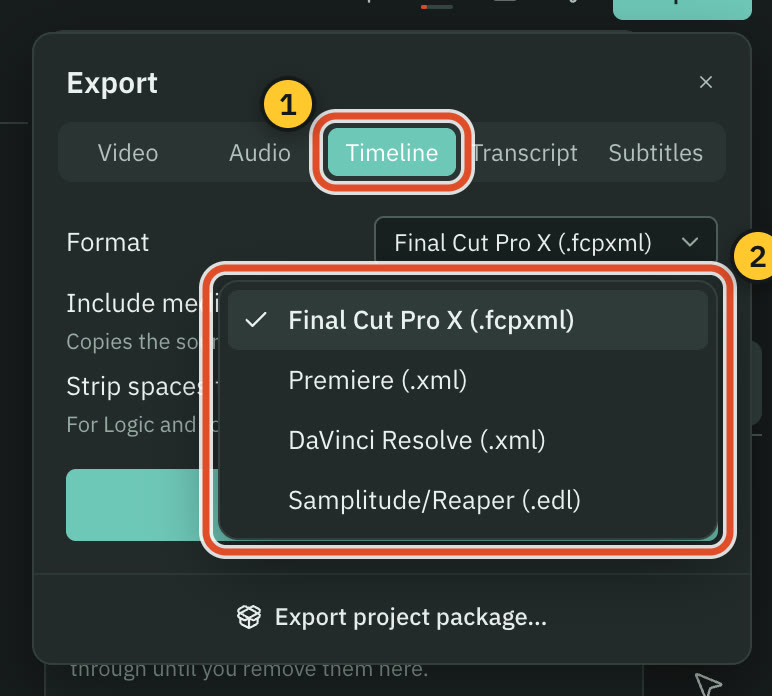
⌘ E, then open the Timeline tab. - Choose a Format:
| Format | Open it in |
|---|---|
| Final Cut Pro X (.fcpxml) | Final Cut Pro. This is the default. |
| Premiere (.xml) | Premiere Pro. |
| DaVinci Resolve (.xml) | DaVinci Resolve. |
| Samplitude/Reaper (.edl) | Any editor that reads a CMX3600 edit decision list, such as Samplitude and Reaper. |
- Turn on Include media files in export if you want the source media copied next to the timeline file, so the whole folder can be moved or shared.
- Turn on Strip spaces from filenames for tools that reject spaces in media names, such as Logic.
- Press Export and choose where to save.
Open it in the other editor
Each app has its own import command. The usual ones:
- Final Cut Pro: File › Import › XML…, then choose the
.fcpxmlfile. - Premiere Pro: File › Import…, then choose the
.xmlfile. - DaVinci Resolve: File › Import › Timeline…, then choose the
.xmlfile.
Menu names can change between versions of those apps, so check their own help if yours looks different.
What is in the file
- Your cuts. Each stretch of the recording you kept is a clip, in order, with the picture and its sound linked. The frame rate matches your recording.
- Your audio clips. Music, sound effects and voiceover come across on their own tracks, with their levels and whether they are muted. In Final Cut Pro they are connected clips with the roles music, effects and dialogue.
- Where the media is. The file points to your original files, or to the copies if you used Include media files in export.
The formats differ a little. The FCPXML file is version 1.10. The two XML files are the older Final Cut Pro 7 style that Premiere and Resolve both read. The EDL is CMX3600, non-drop frame, with record timecode starting at 01:00:00:00.
What is not in the file
When the export finishes, Cutscript shows a note for each of these that applies, so you see it before you rely on the file.
- Speed changes. Every kept range plays at normal speed, so the timeline can run longer or shorter than your exported video. Audio clips stay on the words they were placed against.
- Motion effects. Zooms, the cursor, backgrounds, padding, the camera bubble, text and graphics, layouts and captions are drawn only in an exported video. The same goes for the pictures of B-roll clips: only audio clips come across.
- More than one track in an EDL. An EDL describes a single track, so audio clips on other tracks are left out. Choose FCPXML or an XML format to keep them.
If you need the effects, export a video too, and bring it into the other editor beside the timeline. See Export a video.
When the export is refused
- The main track has moved pieces or gaps. A timeline file lays the kept footage out in its original order, so Cutscript refuses rather than write a file that opens wrong. Restore the original order (right-click a piece) or turn the main-track magnet on, which closes the gaps. See The timeline.
- An audio-only project with unlinked audio, exported as EDL. An EDL holds only the recording's own track, and here the sound is on separate clips. Export FCPXML or an XML format instead, or link the audio.
Related
Was this page helpful?
Comments
Longer questions go better in the forum.
No comments yet. Ask a question or add what you found.
Sign in with GitHub or Google to comment.
Sign in to comment