Keyboard shortcuts
Every Cutscript keyboard shortcut, grouped the way the app groups them.
Press ⌘ / (or ⇧ ?) in the editor, or click Keyboard shortcuts in the top bar, to open the same list inside Cutscript. The list in the app is built from the app's own keymap, so it always matches your version.
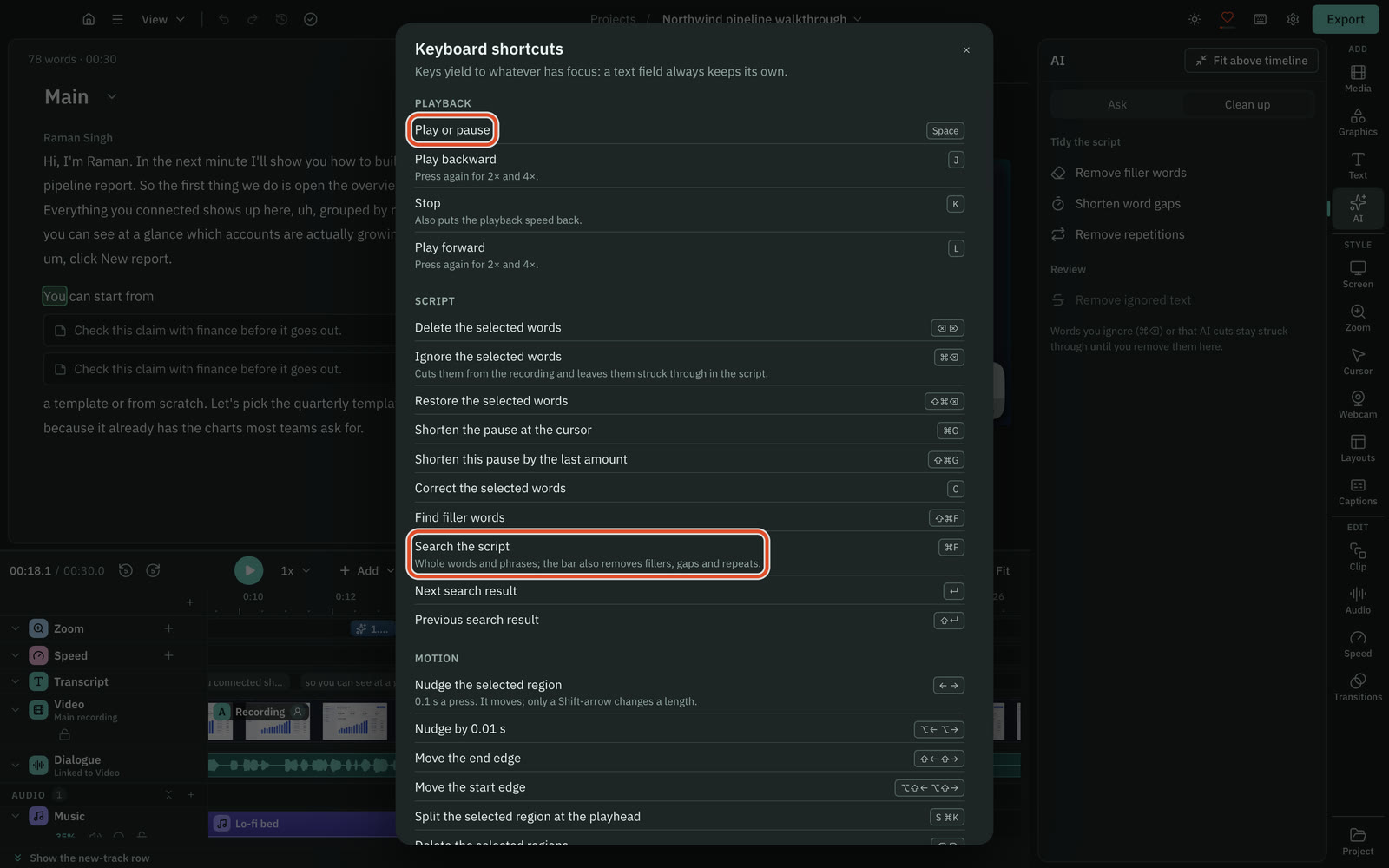
Three things to know:
- Keys give way to whatever has focus. A text field always keeps its own keys.
- Timeline keys work only while the timeline has focus, so click the timeline first. Media library keys work only while the library has focus.
- Modifier keys are written in the order macOS prints them:
⌃Control,⌥Option,⇧Shift,⌘Command.
Anywhere
These are the menu bar's shortcuts.
| Keys | What it does |
|---|---|
⌘ , | Open Settings |
⌘ N | New Project… |
⇧ ⌘ R | New Recording… |
⌘ I | Import Media… |
⌘ E | Export… |
⇧ ⌘ H | Go to All Projects |
⌘ Z, ⇧ ⌘ Z | Undo, redo |
⌘ X, ⌘ C, ⌘ V, ⌘ A | Cut, copy, paste, select all |
⌥ ⌘ 0, ⌥ ⌘ =, ⌥ ⌘ - | Actual size, zoom in, zoom out for the whole window |
On the home screen, ⌘ ↵ runs Create and ⌘ F searches your projects and transcripts.
Playback
| Keys | What it does |
|---|---|
Space | Play or pause |
J | Play backward. Press again for 2× and 4×. |
K | Stop, and put the playback speed back |
L | Play forward. Press again for 2× and 4×. |
Script
| Keys | What it does |
|---|---|
⌫ or ⌦ | Delete the selected words |
⌘ ⌫ | Ignore the selected words: cut them from the recording and leave them struck through in the script |
⇧ ⌘ ⌫ | Restore the selected words |
⌘ G | Shorten the pause at the cursor |
⇧ ⌘ G | Shorten this pause by the last amount |
C | Correct the selected words, while the script has focus |
⇧ ⌘ F | Find filler words |
⌘ F | Search the script. The bar also removes fillers, gaps and repeats. |
↵, ⇧ ↵ | Next, previous search result |
← → | Move the word cursor |
⇧ ← → | Extend the word selection |
⌘ A | Select every word |
⌥ ⌘ N | Add a note at the cursor |
Panels
These open the panels in the right rail from anywhere in the editor.
| Keys | Panel |
|---|---|
⌘ 1 | Media |
⌘ 2 | Graphics |
⌘ 3 | Text |
⌘ 4 | AI (shows or hides it) |
⌘ 5 | Screen |
⌘ 6 | Zoom |
⌘ 7 | Cursor |
⌘ 8 | Webcam |
⌘ 9 | Layouts |
⌘ 0 | Captions |
⌘ \ | Show or hide the panel, and reopen the one that was open last |
With the rail focused, ↑ ↓ move between entries, ↵ opens the focused entry and ⇥ goes into the open panel.
Zooms, speed regions and text
| Keys | What it does |
|---|---|
Z | Add a zoom at the playhead |
X | Add a speed region at the playhead |
N | Add text at the playhead |
Each one adds a one-second range, clipped to the room there is. While the timeline has focus, N turns snapping on or off instead.
With a range selected:
| Keys | What it does |
|---|---|
← → | Nudge it by 0.1 s |
⌥ ← → | Nudge it by 0.01 s |
⇧ ← → | Move its end edge |
⌥ ⇧ ← → | Move its start edge |
S or ⌘ K | Split it at the playhead |
⌫ or ⌦ | Delete it |
⌥ ↓, ⌥ ↑ | Select on the next or previous lane |
⇧ C | Show or hide the cursor overlay |
View
| Keys | What it does |
|---|---|
⇧ ⌘ =, ⇧ ⌘ - | Bigger, smaller script text |
↵ | Show the selection's settings |
⌘ / or ⇧ ? | Show keyboard shortcuts |
Esc | Close what is open: the export panel, then the script cursor, then any selection, then the find bar |
Timeline
Click the timeline first.
| Keys | What it does |
|---|---|
← → | Step one frame |
⇧ ← → | Step one second |
↑ ↓ | Go to the previous or next edit |
I, O | Set the in point, the out point. Hold ⌥ to skip snapping. |
⇧ I, ⇧ O | Go to the in point, the out point |
⌥ X | Clear the in and out points |
; | Lift the in/out range: remove the clips inside it and leave the gap |
⇧ X | Cut the in/out range and close the gap |
⌘ K, S or ⌘ B | Split at the playhead |
⌥ W | Insert a one-second gap at the playhead |
⌫ or ⌦ | Delete the selected clips, markers or range. The gap stays. |
⇧ ⌫ | Ripple delete: close the gap |
⌘ C, ⌘ X, ⌘ V | Copy, cut and paste clips at the playhead |
⌘ D | Duplicate the selected clips. With none selected, add the default transition at the playhead. |
⌥ ← → | Nudge the selected clips one frame |
⌥ ⇧ ← → | Nudge the selected clips one second |
⌥ ,, ⌥ . | Slip the selected clips one frame |
⌥ [, ⌥ ] | Trim the clip start, end to the playhead |
M | Add a marker |
N | Turn snapping on or off |
⌘ L | Link or unlink the recording's audio |
P | Turn the main-track magnet on or off |
=, - | Zoom the timeline in, out |
⇧ Z | Zoom the timeline to fit |
Esc | Clear the clip or marker selection, then the in/out range |
Tools
| Keys | Tool |
|---|---|
V | Select |
B | Razor |
Y | Slip |
Tracks
These act on the track of the selected clip, or the last track header you clicked.
| Keys | What it does |
|---|---|
⌥ ⇧ M | Mute or unmute |
⌥ ⇧ S | Solo or unsolo |
⌥ ⇧ H | Hide or show |
⌥ ⇧ L | Turn the track lock on or off |
⌥ ⇧ C | Collapse or expand |
Media library
| Keys | What it does |
|---|---|
← → ↑ ↓ | Move between items. Add ⇧ to extend the selection. |
⌘ A | Select every item shown |
↵ | Preview the item |
A | Add the selected media at the playhead |
⌫ or ⌦ | Remove the selected media from the project. Cutscript asks first. |
Esc | Clear the selection |
⌘ V | Import copied files or a copied picture |
Recording
While you choose what to record:
| Keys | What it does |
|---|---|
1, 2, 3 | Display, Window, Area |
4 | Device, only when Experimental recording modes is on |
↵ | Start recording |
Esc | Clear the selection or close the recorder |
⌘ W | Close the recorder |
⌘ , | Recorder settings |
While a recording runs, these work even when Cutscript is in the background:
| Keys | What it does |
|---|---|
⌃ ⌥ ⌘ R | Stop recording |
⌃ ⌥ ⌘ P | Pause or resume |
⌃ ⌥ ⌘ D | Turn drawing on or off |
⌃ ⌥ ⌘ L | Turn the laser on or off |
You can change the pause shortcut in Settings › Recording. The stop shortcut cannot be changed yet.
Drawing keys
These work while drawing mode is on. They are the defaults, and you can change every one in Settings › Drawing. Esc always leaves drawing.
| Group | Keys |
|---|---|
| Tools | A Pointer, P Pen, H Highlighter, ⇧ A Arrow, I Line, R Rectangle, C Ellipse, T Text, N Step number, S Spotlight, L Laser, B Privacy box, Z Zoom mark, X Eraser |
| Boards | W Whiteboard, K Blackboard |
| Colours | 1 to 8 for the eight colours, 0 for the last custom colour |
| Actions | [ and ] for size down and up, ⌘ Z undo, ⇧ ⌘ Z redo, E clear drawings (⌫ and ⌦ also clear), F next fade time, ⇧ N restart step numbers, ⇧ S follow spotlight |
Related
Was this page helpful?
Comments
Longer questions go better in the forum.
No comments yet. Ask a question or add what you found.
Sign in with GitHub or Google to comment.
Sign in to comment