Transcripts and subtitles
Export what was said as a document (Word, HTML, Markdown, plain text or RTF) or as a subtitle file (SRT or VTT) timed to your edited video.
The words Cutscript transcribed can leave the app in two ways. A transcript is a readable document of what was said. Subtitles are a timed file you upload next to a video, so viewers can turn them on and off.
Before you start
- You need a transcript. Transcription is a cloud step that runs on your own ElevenLabs, fal.ai or OpenRouter account. See Transcription. Until a transcript exists, the Transcript and Subtitles tabs say so, and while transcription is running they ask you to wait.
- The export itself is local. It needs no AI and no internet.
- Both follow your edit. Deleted words are never exported, and a word you corrected comes out with its corrected spelling.
Export a transcript
- Press Export in the top right, or press
⌘ E, then open the Transcript tab. - Choose a Format: HyperText Markup Language (.html), Markdown (.md), Microsoft Word (.docx), Plain text (.txt) (the default) or Rich Text Format (.rtf).
- Set what to include:
- Include composition name puts the name at the top. It starts on.
- Include ignored text adds ignored words, the struck-through ones, marked as removed. Deleted words are never included.
- Include speaker labels names who is speaking. Speaker labels on every paragraph repeats the name on each paragraph instead of only when the speaker changes.
- Timecodes can be None (the default) or Paragraph, which puts a time at the start of each paragraph.
- Include notes adds your own script notes where they sit, each marked as a note. They are off by default, because notes are never part of what was said.
- Press Export and choose where to save.
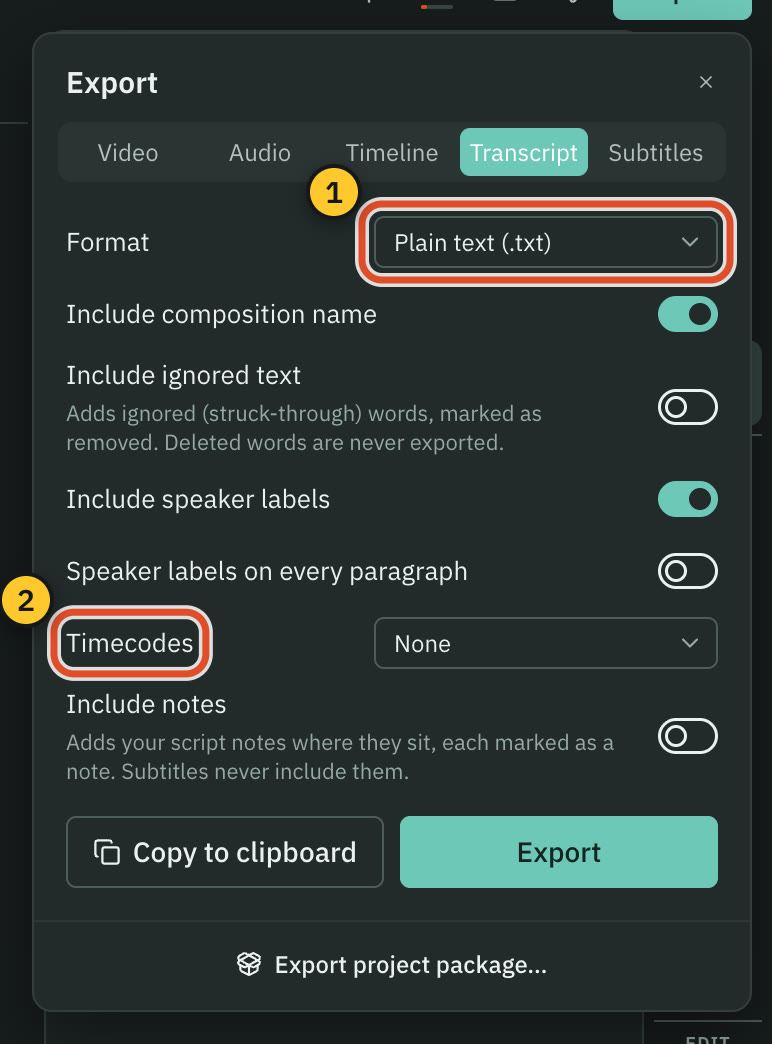
To paste the text somewhere instead of saving a file, press Copy to clipboard. It is not available for Word, which can only be a file.
Timecodes match the finished video, so they already account for your cuts and any speed changes.
Export subtitles
- Press Export, then open the Subtitles tab. You can also press Export subtitles… at the bottom of the Captions panel.
- Choose a Format:
- SubRip Titles (.srt), the default, is the most widely accepted.
- Video Text Titles (.vtt) is the format web video players use.
- Turn Show speakers on if each subtitle should name who is speaking. It starts off.
- Set Max characters per line (10 to 80, starting at 42) and Max lines per card (1 to 4, starting at 2). They decide how a sentence is broken into subtitles.
- Press Export and choose where to save.
Subtitle timing is on the finished video's clock, so after you cut words or change speed, the file lines up with the exported video. Cut and hidden words are left out. If every word has been removed, the file is empty and Cutscript tells you.
Tip: Many players load a subtitle file by themselves when it has the same name as the video.
Subtitles or burned-in captions?
They solve different problems.
- A subtitle file is separate from the video. Viewers can switch it on or off, and sites can read it as text. It carries no colours or fonts.
- Burned-in captions are drawn into the picture with the style you chose, and they are always visible. See Captions.
You can do both for the same video.
If Export is greyed out
The reason is written under the button:
- "Transcribe this project to export its transcript" or "to export subtitles". Run transcription first.
- "Transcription is in progress. You can export once it finishes."
If a file comes out empty, it is because every word has been deleted or removed from the transcript. Restore some words and export again.
Related
Was this page helpful?
Comments
Longer questions go better in the forum.
No comments yet. Ask a question or add what you found.
Sign in with GitHub or Google to comment.
Sign in to comment