The design director
Describe a graphic in your own words. The AI plans it, shows a storyboard and a price, builds it, checks it and improves it before you add it.
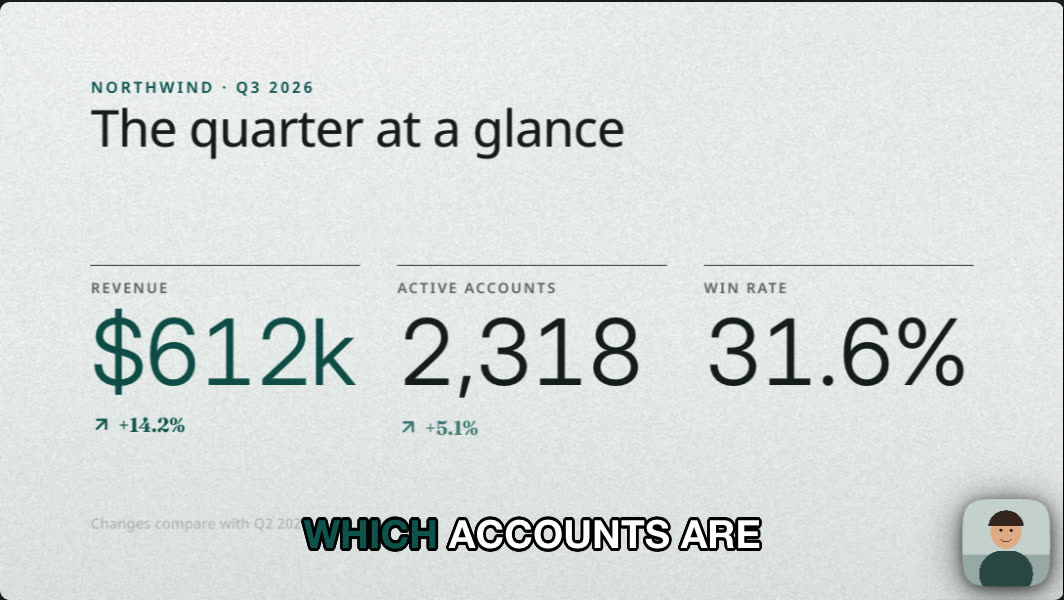
The design director makes motion graphics from a description: titles, lower thirds, maps, charts, infographics, comparisons and more. It writes a real design, a small program that draws type, gradients, 3D, maps and charts, and Cutscript renders it frame by frame. The preview and the export show the same frames.
Before you start
- An AI source for the AI director. A Claude plan, a ChatGPT plan or an OpenRouter key.
- An image model, only if you want AI pictures. Pictures need an OpenRouter or fal.ai key, and they are off until you choose a model in Settings › AI › Images.
- No account for the starting points. Starting points and the Design pack are free and work offline.
Make a graphic
- Open Graphics in the right rail (
⌘ 2) and stay on Create. On the home screen, the Motion studio page in the sidebar is the same chat without a project. - Describe the graphic in the message box, which says "Describe the graphic…". For example: "Delhi to Paris at night: start close on Delhi, pull out along the route, push into Paris." Attach files if you like: images, SVG, CSV, Excel, JSON, PDF, Word or text.
- Check the price line under the box. It gives a typical price, the most it can cost and the number of looks, ending "· 3 looks". On a plan it reads "Runs on your Claude plan · 3 looks", with a price only for pictures.
- Press Send.
- Read the Storyboard card (below), change anything you like for free, and press Build.
- Look at the result. Press Add at playhead to put it in the video.
A message box that is empty shows four starters you can try, and Start from a design · free, works offline, which opens one of the hand-made designs, grouped by family, as a playable turn labelled "Starting point, not your design".
Set the details in Options
Press Options (the sliders button) for:
- Brand, the brand kit the graphic uses.
- Model, which text model writes it.
- Pictures, the image model. The chip reads "Images: None" until you choose one.
- Graphics: the Format chip sets the aspect (match the video, 16:9, 9:16, 1:1, 4:5, 4:3 or 21:9), the length in seconds (1 to 60) and whether it sits Over the video or has its Own background. The Looks chip sets how many times the director reviews a new design, from 1 to 5.
Under the box, Skills chips show the craft guides Cutscript would load for what you typed, at most three. Remove one, or press + Skill to pin another. See Skills.
The storyboard
Before it writes any code, the director plans. The card shows the message and tone, the beats and shots, the words on screen, the motion, and any AI pictures with their prices. Editing it is free: nothing is sent until you press Build.
- Build shows its price on the button: a typical figure and the most it can cost. On a plan it shows only what the pictures could cost.
- Build without images skips the pictures and shows its own price.
- Keep this style for the project keeps the look for the next graphics. The card then says "Style: … (project)" and offers a button to release the style again.
- Auto-continue next time skips the wait. You can set this in Settings › AI › AI director › Behaviour & limits under Wait at the storyboard: Every turn, With pictures (the default) or Auto-continue.
What it checks
After it builds, it checks the design for free: it compiles, every frame is the same however it is reached, nothing is cut off or outside the safe area, text is readable over what is behind it, the numbers come from your request or your data, nothing flashes, and nothing reaches the network. A failed check gets up to two paid fixes. If it still fails, you get the nearest hand-made example filled with your words, labelled "Starting point, not your design".
Then the director looks at a contact sheet of its own frames and patches the design. A patch is kept only if the checks still pass. You can use the design from the first passing check.
Use it, change it, keep it
The result shows the design with free variants you can switch between, usually Quiet, Balanced and Loud, and these actions:
- Add at playhead, or Add to selection when a range is selected, or Replace the selected graphic.
- Preview in video shows it over your video. Press Space to play. Nothing changes until you add it.
- Edit props opens its words, colours, numbers and pictures, free. See Edit a graphic by hand.
- Code shows the design's code.
- More actions has Save to library, Restore this version · free, Regenerate (priced), and Save as skill….
To change it with AI, type in the same chat: "make the title bigger and the route gold". A change like this is small and priced before you send. It changes the current graphic rather than starting a new one.
What it costs
The design and its looks run on the strongest model your source offers. Settings › AI › AI director › Model › Roles lets you pick a Design model. The price shows before each paid step. A design that could cost more than Per design (default $4) asks for a second click. On a plan, text is free in Cutscript and pictures are always priced. See Prices before every paid step.
In Behaviour & limits you also set Richness (Lean, Standard or Rich, which allows up to two supporting pictures), Check rounds, Look rounds and After a change.
Pictures and files
With an image model chosen, the director can make a supporting picture such as a background or a texture. It checks each picture, never draws a logo, and saves it to your library. Your logos are never sent to an image model: the engine places them. Files you attach are read on your Mac. A scanned PDF is read with OCR only after you click and see the price.
Common problems
The price says over your limit. Raise Per design in Settings, or use Build without images.
No pictures appear. The image model is None. Choose one in Settings › AI › Images.
It says to add a key. The AI director has no source ready. Open Settings › AI › Providers.
You got a starting point, not your design. The checks failed after the paid fixes. Describe the graphic in plainer terms with fewer parts and send again, or start from one of the free designs.
Related
Was this page helpful?
Comments
Longer questions go better in the forum.
No comments yet. Ask a question or add what you found.
Sign in with GitHub or Google to comment.
Sign in to comment