Transitions
Put a dissolve, dip, push or other transition on a cut, or a crossfade between two sounds. Drag one from the shelf onto the timeline.
A transition softens a cut. Without one, the picture jumps from the end of one piece to the start of the next. With one, it dissolves, pushes, wipes or dips. Between two sounds, a crossfade does the same for audio.
Where a transition can go
A transition sits on a cut. Cutscript finds them for you:
- On the main recording: every place the script removed footage, every razor mark, and every boundary where you reordered pieces.
- Between two clips on a track: two clips that touch on a video or image track take a picture transition. Two clips that touch on an audio, music or sound effects track take a crossfade.
Add a transition
- Open Transitions in the right rail (the Edit group).
- Hover a tile on the shelf to preview it.
- Drag the tile onto a cut on the timeline. Cuts light up as you get close, and the one it will land on glows. Or double-click a tile (or press
Enteron it) to put it on the cut nearest the playhead. - Change how it looks, either by dragging the ends of its block on the timeline or in the panel (see below).
You can also hover a cut's seam on the Video row and press +, or press ⌘ D to add the default transition at the cut nearest the playhead. With clips selected, ⌘ D duplicates them instead.
The shelf
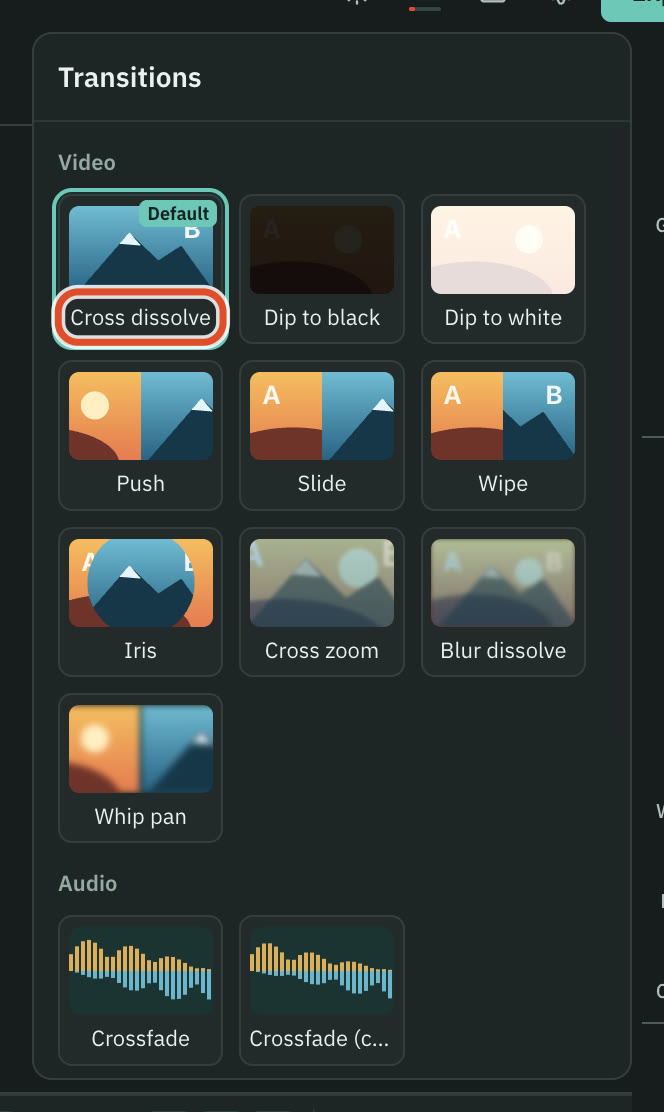
Video
| Transition | What it does |
|---|---|
| Cross dissolve | The next clip fades in over the last one |
| Dip to black | Fades down to black, then up into the next clip |
| Dip to white | Fades up to white, then down into the next clip |
| Push | The next clip pushes the last one out of the frame |
| Slide | The next clip slides in over the last one |
| Wipe | A straight edge sweeps across and reveals the next clip |
| Iris | A circle opens from the centre onto the next clip |
| Cross zoom | Zooms into the last clip and out of the next one |
| Blur dissolve | A dissolve that softens to a blur in the middle |
| Whip pan | A fast, blurred push, like a quick camera pan |
Audio
| Transition | What it does |
|---|---|
| Crossfade | The two sounds blend with no dip in loudness |
| Crossfade (constant gain) | The last sound fades out as the next fades in, in straight lines |
Change a transition
Click a transition on the timeline to select it. The Transitions panel then shows its settings:
- Type: swap it for another transition of the same family.
- Duration: from 0.1 to 4 seconds. A new one is 0.5 seconds. You can also drag its ends on the timeline.
- Alignment: Centre straddles the cut, half before and half after. Start begins at the cut. End finishes at the cut.
- Direction: Left, Right, Up or Down, for Push, Slide, Wipe and Whip pan.
- Ease: Linear, Ease in and out, Ease in or Ease out. Each transition has its own default.
Below the shelf, the panel lists every transition on the timeline with its time. Click one to select it and move the playhead there.
Right-click a cut
Right-clicking a cut or a transition opens a menu: Replace with, Alignment, Direction, Edit in sidebar, Remove transition, and Move playhead to the cut. On a cut where the script removed footage there is also Restore removed footage, which puts it back in the script and the video. A cut with no transition offers Add cross dissolve (or whichever default you set) and Add transition for the rest.
To remove a transition, select it and press ⌫, drag it off the track, or use Remove transition.
Set the default
Settings › Editing › Timeline has Default transition (starting at Cross dissolve) and Default transition length (0.5 seconds). Those are what ⌘ D adds. On a sound track, the default is a crossfade.
Limits
- A transition plays only as long as the clips allow. If the piece before or after the cut is shorter than the transition, or there is no more footage past the cut to blend with, it plays shorter. The panel says why, for example "Plays 0.3 s of 0.5 s".
- A picture transition cannot go on a sound track, and a crossfade cannot go on a picture track.
- On a locked track you cannot add or change a transition. Switch off the track's lock first.
- An older project's black bar wipes still play as before. They are not on the shelf, but you can replace one with any transition.
Related
Was this page helpful?
Comments
Longer questions go better in the forum.
No comments yet. Ask a question or add what you found.
Sign in with GitHub or Google to comment.
Sign in to comment