Backgrounds and screen look
Put the recording on a gradient, a wallpaper or your own image, and set its padding, corners, shadow, crop and shape.
The Screen panel styles the frame around your recording: what is behind it, how much space surrounds it, how rounded its corners are, and the shape of the whole video. The preview and the export show the same result.
Before you start
- A new recording opens on the Studio look: the Mist gradient, 20 % padding, 8 % corners and a soft shadow.
- A video you import opens unstyled, full frame, with nothing added. See "Export" below for why.
- An audio-only project has no recording to frame, so it shows only Background and Aspect. They style the canvas that text and graphics draw on.
- Nothing here needs AI or an internet connection.
Pick a look
- Open Screen in the right rail (
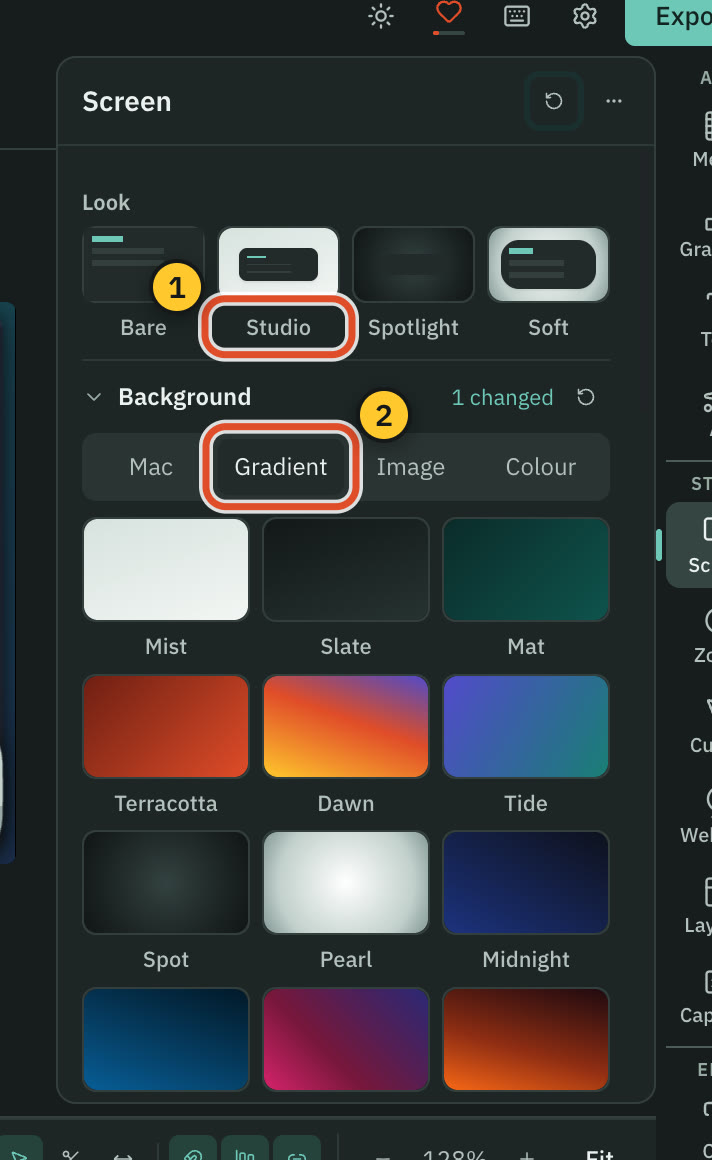
⌘ 5). - Under Look, pick Bare, Studio, Spotlight or Soft.
| Look | What it sets |
|---|---|
| Bare | The recording edge to edge. Nothing added. |
| Studio | Mist gradient, soft shadow, rounded frame. |
| Spotlight | A dark radial ground and a deep shadow, so the frame floats. |
| Soft | Tight margins, heavy rounding and a blurred halo behind the frame. |
A look sets the background, padding, corners and shadow together. It never changes your crop or aspect. Change any one setting afterwards and the look tile stops being selected.
Choose a background
Open Background. The tabs are Mac, Gradient, Image and Colour.
- Mac shows the desktop wallpapers on this Mac. Pick one and Cutscript copies the picture into the project. If a wallpaper has light and dark versions, Appearance lets you choose Auto, Light or Dark. Greyed wallpapers are not downloaded yet; pick one to see how to get it. Protected wallpapers stay private unless you press Show protected wallpapers, and macOS may ask you to confirm.
- Gradient has ready-made tiles. Pick Custom to build your own: set the Style (Linear or Radial), the Angle, and each colour stop with its Position. Add stop adds another colour.
- Image lists the pictures already in the project. Import image… adds one.
- Colour is a colour field with a row of swatches. Clear it to leave nothing behind the frame. In that case the padding exports as black.
Blur softens the background behind the frame (0 to 8).
Set the frame
Open Frame:
- Padding is the space around the recording, from 0 to 100 %. It starts linked, so all four sides move together. Unlink it to set Top, Right, Bottom and Left one by one.
- Corners rounds the recording, from 0 to 50 %.
- Shadow runs from 0 to 200 %.
The reset button in the group heading puts all three back to the shipped values.
Change the shape and crop
Open Aspect & crop.
- Pick an aspect: Source (the recording's own), 16:9, 9:16, 1:1, 4:3, 4:5 or 16:10. The Aspect menu above the preview does the same.
- Leave Auto reframe on if you want the video to fill the new shape. It follows the recorded cursor and keeps your zooms. Without cursor data the framing stays centred.
- Turn on Crop on the preview and drag the edges of the picture, or open Advanced and set Crop top, Crop right, Crop bottom and Crop left (each up to 49 %). Use the whole frame undoes the crop.
For a vertical video, choose 9:16 and read Captions for vertical video.
Export
Padding, corners, shadow, a background, a crop and a fixed aspect are all drawn frame by frame, so a video that uses any of them exports as MP4 H.264. That is why an imported video opens unstyled: it keeps every format, including HEVC, ProRes and WebM, until you style it. See Export a video.
Related
Was this page helpful?
Comments
Longer questions go better in the forum.
No comments yet. Ask a question or add what you found.
Sign in with GitHub or Google to comment.
Sign in to comment