Blur faces, emails and areas
Hide a face, an email address or any area of the picture. Track the blur as the thing moves, or let Cutscript find every face or email for you.
A blur hides part of the picture: a customer's face, an email address in a window, a number on a dashboard. You can place one by hand and have it follow the thing as it moves, or press one button to blur every face or every email address in the video.
Finding faces and emails uses Apple's Vision technology, built into macOS, so it runs on your Mac. It needs no AI account and costs nothing. These two buttons are Mac only.
Blur an area by hand
- Move the playhead to a moment where the thing you want to hide is on screen.
- Open Text in the right rail (
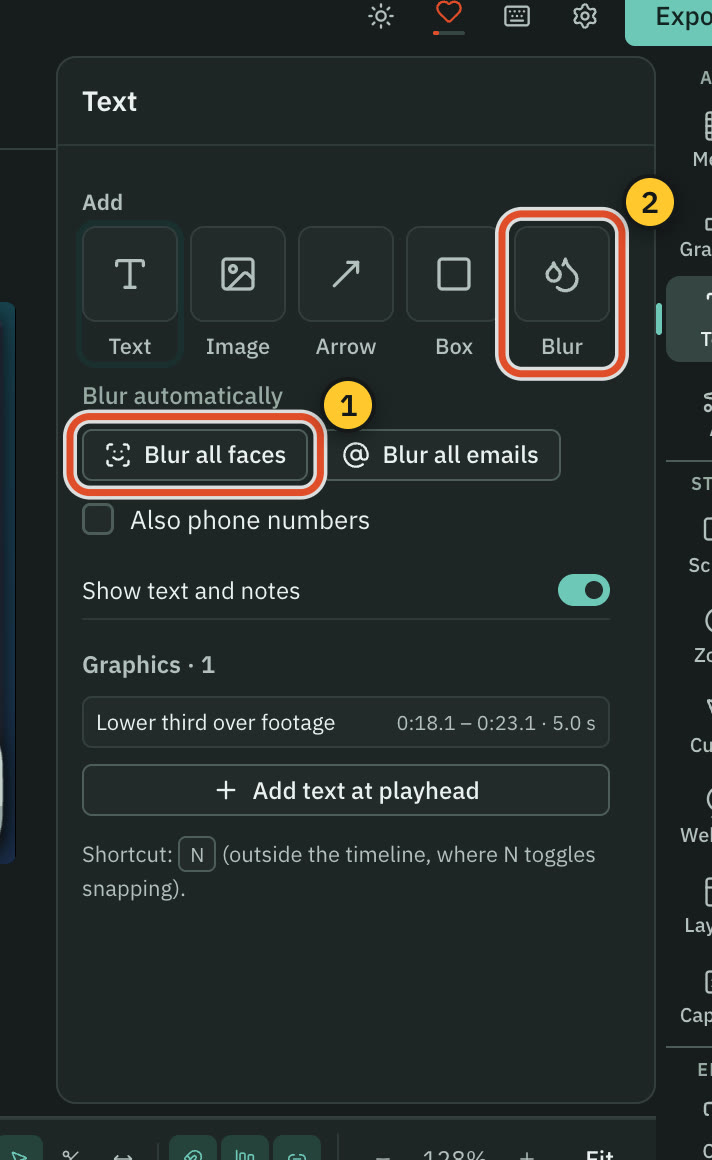
⌘ 3) and press the Blur tile. A blur box appears over the picture at the playhead. - Drag the box on the preview to cover what you want to hide, and drag its corners to resize it. Guides help it snap into place.
- In the panel, choose Blur or Pixelate under Blur. Set Strength (1 to 100) and, if you like, a Tint.
- On the Graphics row of the timeline, drag the ends of the blur's block to set when it appears and disappears.
A blur covers whatever is on screen under it, including after a zoom or crop moves the picture. It is applied in the preview and in the export. The recording file in your project is not changed, so it still holds the original pixels.
Make the blur follow
A selected blur has a Tracking group. Use it and the box follows the thing it covers, in the preview and in the export.
- Move the playhead onto the blur, on a frame where the box sits right over the subject. Tracking starts from the frame you see.
- Press Track forward. The arrow beside it, Choose how to track, offers Track forward, Track backward, Track both ways and Track one frame. The button repeats the last choice.
- Watch the progress. A dashed box follows the subject on the preview. Press Stop or
Escto stop and keep what is done. - Play it through. The tracked path covers the time the blur has on the Graphics row.
Pick an engine
| Engine | Best for | Default |
|---|---|---|
| Pixel lock | Screen recordings: text, windows, logos. It follows exact pixels. | Projects made from a recording |
| Apple Vision | Camera footage: people and objects that turn or change | Imported footage on a Mac |
Smoothing applies to Apple Vision only (50 % to start). Pixel lock follows exact pixels, so it is never smoothed. Padding grows the box by a share of its shorter side, from 0 to 100 %.
When the tracker loses its subject
The panel shows "Lost at" and the time. At that point the blur holds its last box and grows a little, so nothing is left uncovered by accident. Drag the box back onto the subject on the preview, then press Re-track from here.
Any drag or resize of the box on a frame is a correction for that frame. The panel counts them ("2 corrections"), and Remove the correction on this frame takes one out. Clear track throws the tracking away and keeps the blur.
Blur every face or email
Under the quick-add row in the Text panel, Blur automatically has two buttons.
- Press Blur all faces or Blur all emails. Tick Also phone numbers first if you want phone numbers with the emails.
- Wait for the scan. A progress bar and Cancel show while it reads the video.
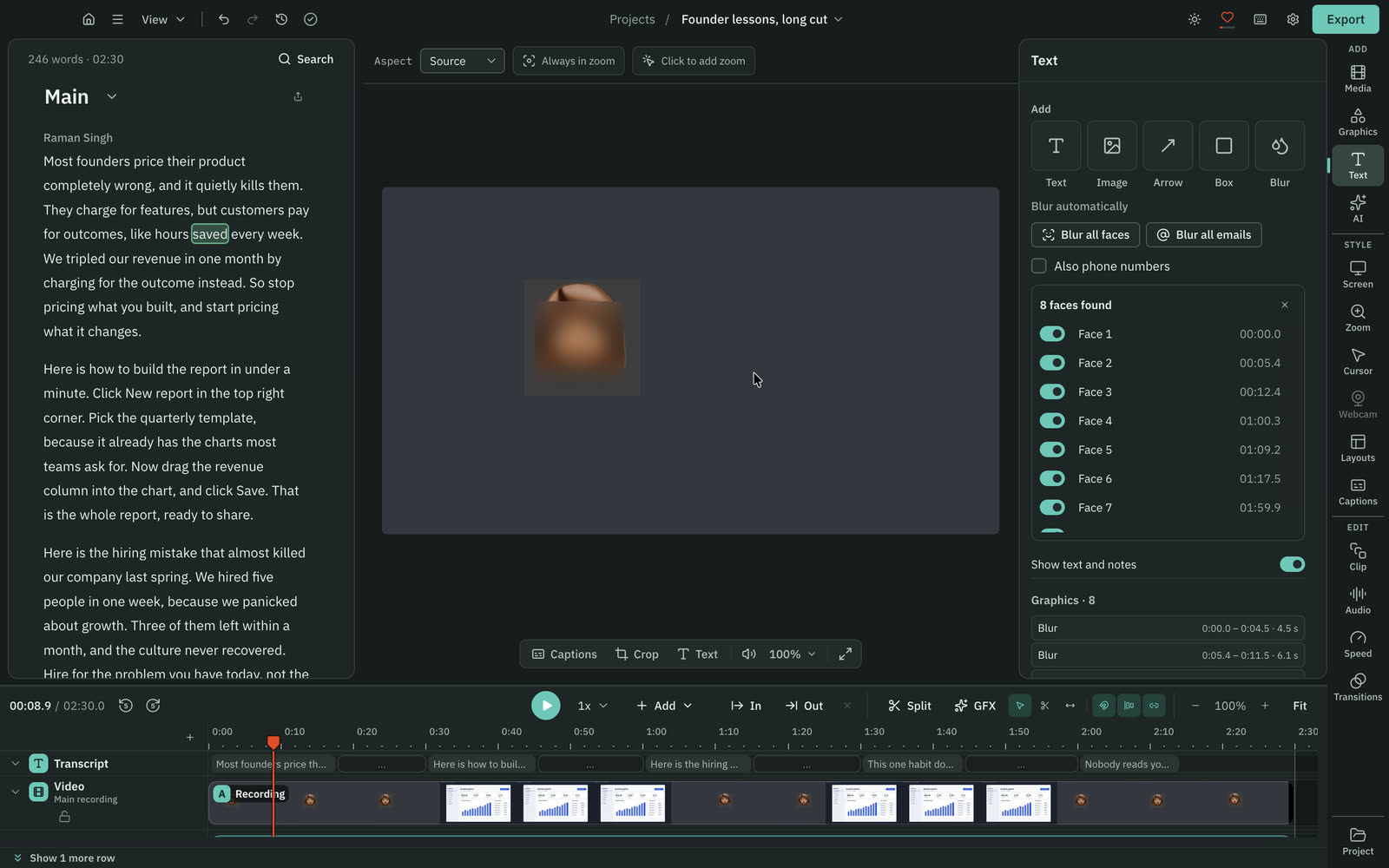
- Cutscript adds one tracked blur for each face or address, as a single undoable step.
- Review the list that appears, such as "4 faces found" or "1 match found". Each item has a switch to turn it off and a button that jumps to it. Press the × to close the list.
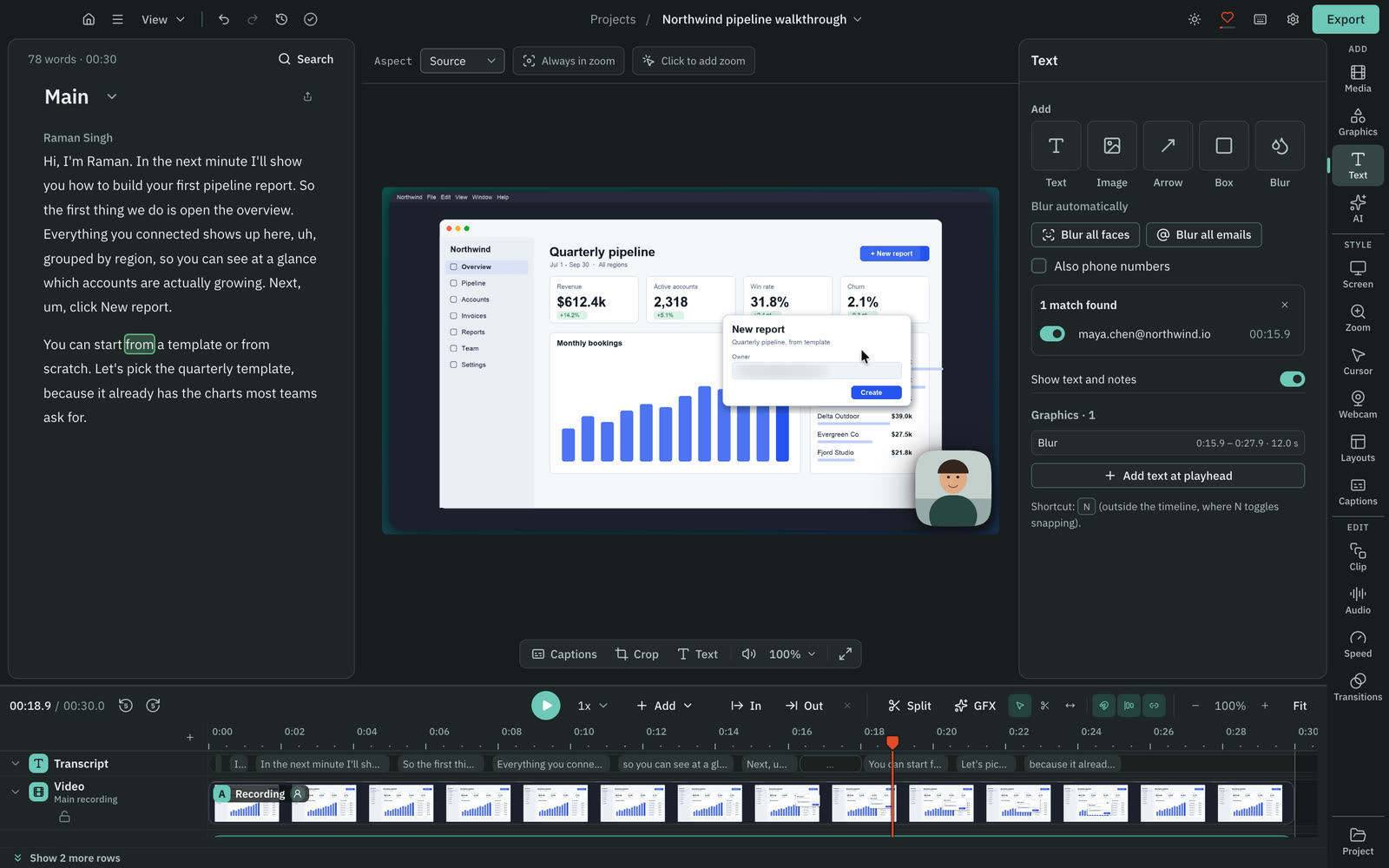
If nothing is found the list says "No faces found" or "No emails found". You can still place and track a blur by hand.
Emails are read from the picture, as text on screen. They are not read from the transcript, so an address that is only spoken will not be found.
Before you export
If a blur lost its subject for part of its time, the Video tab of the export warns you: "A tracked blur lost its subject for part of its time. There it holds its last box." Press Show me to jump to the first spot. Check those places before the video leaves your Mac.
The blur settings and the Tracking group are also reachable from the preview: click a blur there to select it.
Warning: A blur hides pixels in the preview and the export, not in your project's files. A project package carries the original recording unless you leave the media out, so share an exported video, not a package, when what you hid is private.
Related
- Draw while you record for blur, pixelate and redact boxes made during a take
- Blur every email in a recording
- Export a video
Was this page helpful?
Comments
Longer questions go better in the forum.
No comments yet. Ask a question or add what you found.
Sign in with GitHub or Google to comment.
Sign in to comment