Direct my video
The AI reads your whole video, asks a few questions and writes a priced plan for clean-up, chapters, graphics, zooms, captions and sound. You approve it first.
Direct my video is for the moment you have a finished recording and want it polished in one pass. The AI reads the whole transcript, asks a few quick questions, and proposes a plan with a price on every item. Nothing is spent and nothing changes until you approve the plan, and each task can ask again before it runs.
Before you start
- A transcript. The AI plans from the words. See Transcription.
- An AI source. Connect a Claude plan, a ChatGPT plan or an OpenRouter key. On a plan the planning is free in Cutscript.
- The project open. The run edits the project in front of you.
- A brand kit, if you have one. Every graphic, caption and look in the run uses the kit named on the plan. See Brand kits.
Run it
- Open the project and press
⌘ 4to open the AI panel. Stay on Ask. - Press the Direct my video card. Its words go into the message box. You can also type "direct my video", or open Options and press Direct my video in the Whole video row.
- Read the price line under the box. It covers the reading, which costs one request for each part of about nine minutes, and the planning request. On a plan it says it runs on your plan. Press Send.
- Wait while the chat says "Reading the whole video". The chip row at the top of the card shows where you are: Read, Ask, Plan, Direct, Review, Done.
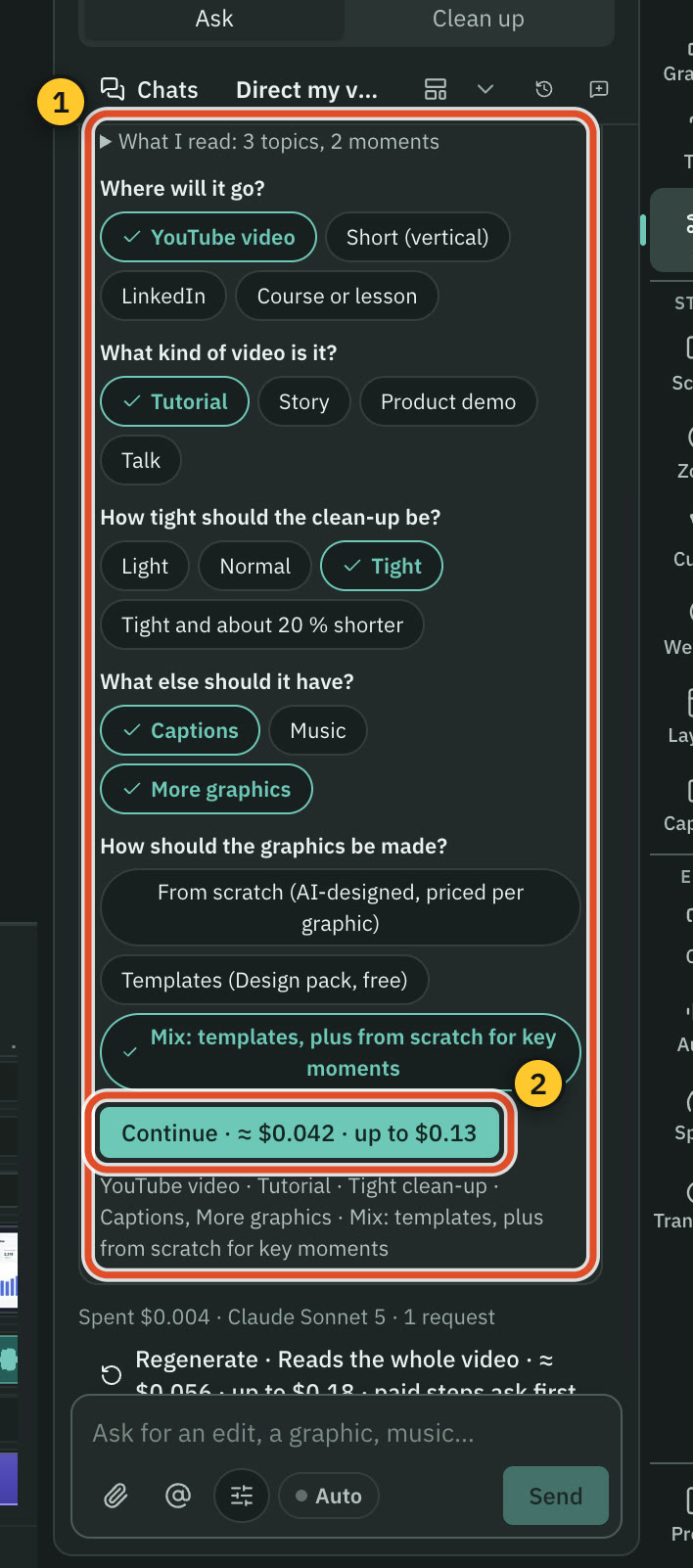
- Answer the questions (below), then press Continue. The button carries the price of the planning request.
- Read the plan (below), switch off anything you do not want, and press Approve plan.
- Let it run. By default it stops before each task and asks. Auto mode, described below, lets it run on its own.
The questions
You get up to four quick questions with a sensible answer already chosen, plus one that is always asked.
- Where will it go? YouTube video, Short (vertical), LinkedIn, or Course or lesson. It is skipped for a short vertical video.
- What kind of video is it? Tutorial, Story, Product demo or Talk.
- How tight should the clean-up be? Light, Normal, Tight, or Tight and about 20 % shorter.
- What else should it have? Captions, Music, More graphics.
- How should the graphics be made? From scratch (AI-designed, priced per graphic), Templates (Design pack, free), or Mix: templates, plus from scratch for key moments. Nothing is chosen for you here, and Continue waits until you pick.
A line under the buttons sums up your answers. Under What I read you can open the topics the AI found.
The plan
The plan card shows the total, such as "≈ $1.05 · up to $2.87 · about 4 min", and the brand kit it will use, or "No brand kit: neutral styling". The two figures are the typical price and the most it can cost.
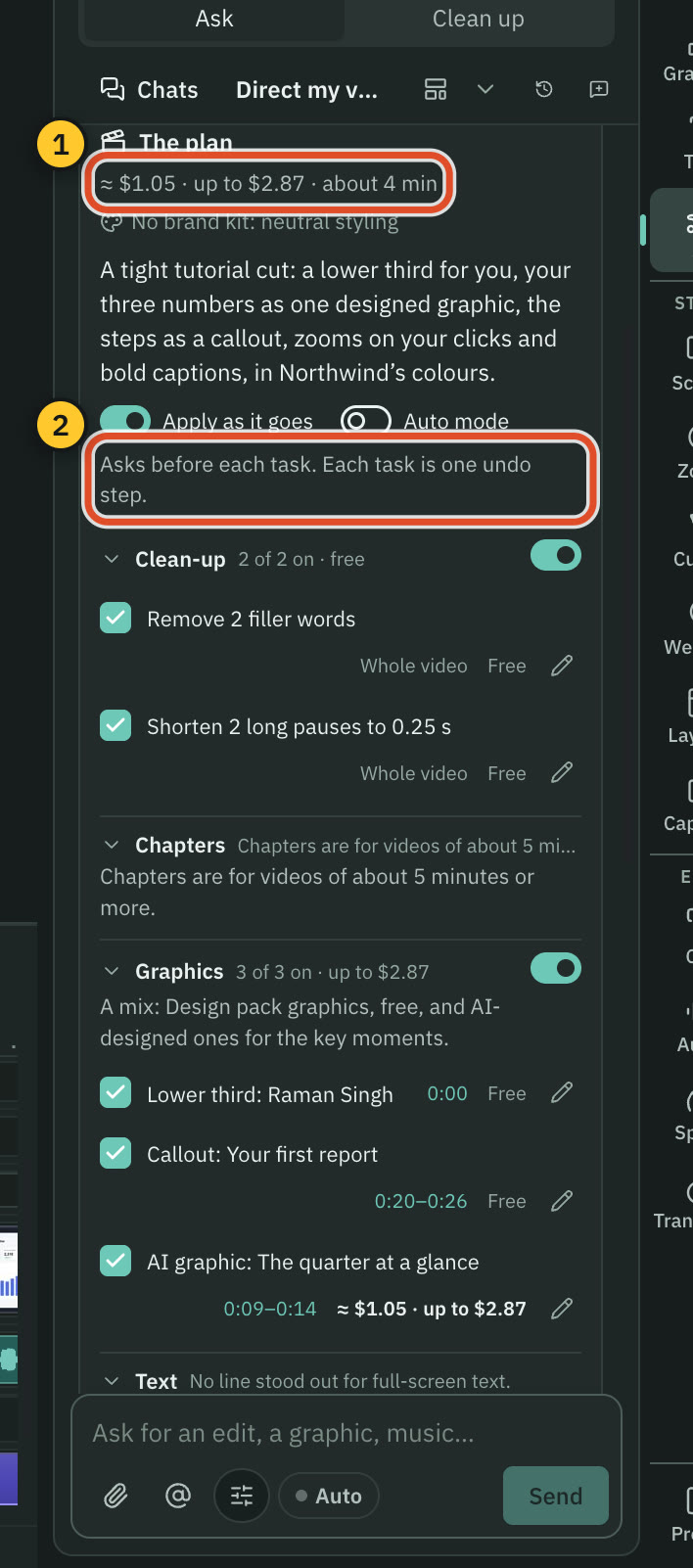
The plan has eight sections. Each has its own switch, and each item has a checkbox, a time you can click to jump to, a price and a pencil that edits its words.
| Section | What it can hold | Price |
|---|---|---|
| Clean-up | Filler words, long pauses shortened, repeated takes, and an AI cut to a target length | Free, except the cut to length |
| Chapters | Markers, chapter cards and a YouTube chapter list, for videos of about five minutes or more | Free |
| Graphics | Lower thirds, titles, callouts and stat cards from the Design pack, and AI-designed graphics | Design pack free, AI-designed priced |
| Text | Key lines said full screen, word by word | Free from templates, priced from scratch |
| Zooms | Automatic zooms from your clicks, punch-ins, and a vertical fill | Free |
| Captions | Captions in a style that suits the video | Free |
| Transitions | Transitions at chapter starts | Free |
| Sound | Enhance voice, click sounds, sound effects and music | Voice and click sounds free, effects and music priced |
Four kinds of item cost money: the cut to length, AI-designed graphics, sound effects and music. Music from your own library is a free alternative to generated music. Music and effects made with ElevenLabs are listed in credits, not dollars. Anything that cannot run now is left out, and the card says why.
Graphics that repeat, such as chapter cards, are designed once and reused with new details. The plan shows lines like "Chapter cards (4) · designed once · 1 AI design + 3 reuses", and the reuses are free.
Approve, or change
- Approve plan · up to $2.87 approves everything that is switched on. If the plan is all free, the button says Approve plan with no amount.
- Approve free parts only approves the free items and leaves the priced ones out.
- Change… lets you type a change, such as "Fewer graphics, no music, chapters every few minutes". Change the plan shows its price first, because the AI is asked again.
Approval is the only thing that spends money. The approved total, plus a margin of 10 % and one cent, becomes the run's budget. If a priced task would go over it, the run stops and asks.
While it runs
Free edits run first, then the priced ones, one at a time, each placed at its planned moment. Progress bars show each section, and a line shows the money: "Spent $1.12 of $3.50 approved".
- Stop halts the run. Continue the run picks it up again.
- If a task fails, its row says why, with Retry and Skip.
- A card that says "Run anyway · up to $X" means a re-quote went over the budget. Press it to go ahead, or Skip it.
- Cutscript saves a checkpoint before each task, and each has its own Restore.
- While a run is going, switching, making and deleting compositions wait.
Auto mode and Apply as it goes
The plan has two switches.
- Auto mode is off by default. Off, the run stops before each task with a small card: "Next: …", the items and their prices, and Run, Skip and Edit. Nothing runs without your click. On, the whole approved plan runs end to end inside the budget. You can flip it mid-run.
- Apply as it goes is on by default. Each finished task is applied as one undo step. Off, results wait as cards, and Apply all applies them.
Review and finish
After the tasks, the AI checks the result as it plays: graphics over the webcam or captions, colours outside your brand kit, text that does not match the speech, zooms that miss the click, and music that is too loud under speech. It offers fixes as cards. A review that looks at the frames costs money, so its price is shown first. Finish the review closes it.
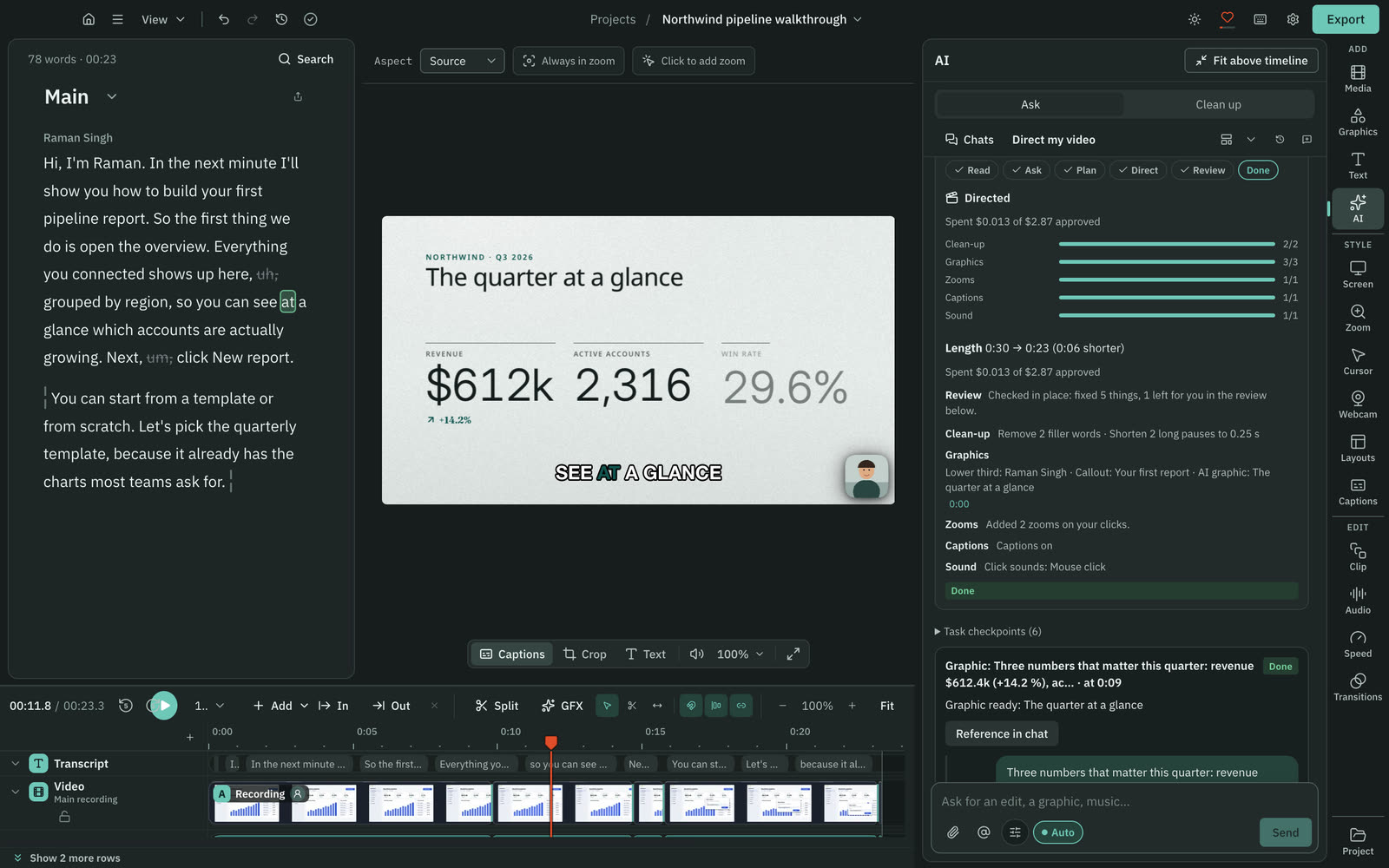
The Done card lists what changed in each section, with links that jump to it. It shows the length before and after, such as "12:30 → 10:42 (1:48 shorter)", the money spent against the approved total, and the YouTube chapter list with a Copy button. Anything skipped or failed is listed with Retry.
Change how it directs
The playbook is a skill you can read and edit: Direct the whole video in Settings › AI › AI director › Skills. The two prompts it uses, Direct the video: reading and Direct the video: the plan, are in Prompts. See Skills and Read and change the prompts.
Limits
The plan holds at most 200 items. It keeps graphics at least eight seconds apart. From scratch it offers at most eight AI-designed graphics, and a mix offers three. In a long video, full-screen text is kept rare: three to eight in ten minutes, never closer than 30 seconds, and not within five seconds of another graphic.
Common problems
Continue does not work. The graphics question is still unanswered. The hint beside the button says so.
Approve plan is disabled. A priced item needs something you do not have yet: a key, an internet connection or a ready plan. The button's tooltip names it. Switch the priced items off, or press Approve free parts only.
"Wait for the AI to finish." Another job is running in this chat. Wait for it, or press Stop.
An item says it cannot run. The line under it says why, for example a missing key for music. Add the key, or switch the item off.
Related
Was this page helpful?
Comments
Longer questions go better in the forum.
No comments yet. Ask a question or add what you found.
Sign in with GitHub or Google to comment.
Sign in to comment