The timeline
Move, trim, split and layer clips on the multitrack timeline. The recording's picture and sound stay linked until you unlink them.
The timeline sits under the preview and script. The words you delete show up here as cuts, and you can add your own clips, music and graphics around the recording. Use it when you need to place something at an exact moment or change how clips overlap.
What you see
From top to bottom:
- Video & graphics. Video and image tracks you add, with the front-most track on top. Under them are the lanes that hold timed ranges: Graphics, Webcam, Camera zoom, Layouts, Zoom and Speed.
- Transcript. The script's words as blocks above the picture.
- Video. The main recording, as a strip of frames.
- Dialogue. The recording's own sound, labelled "Linked to Video".
- Audio. Audio, music and sound effects tracks you add, below the recording.
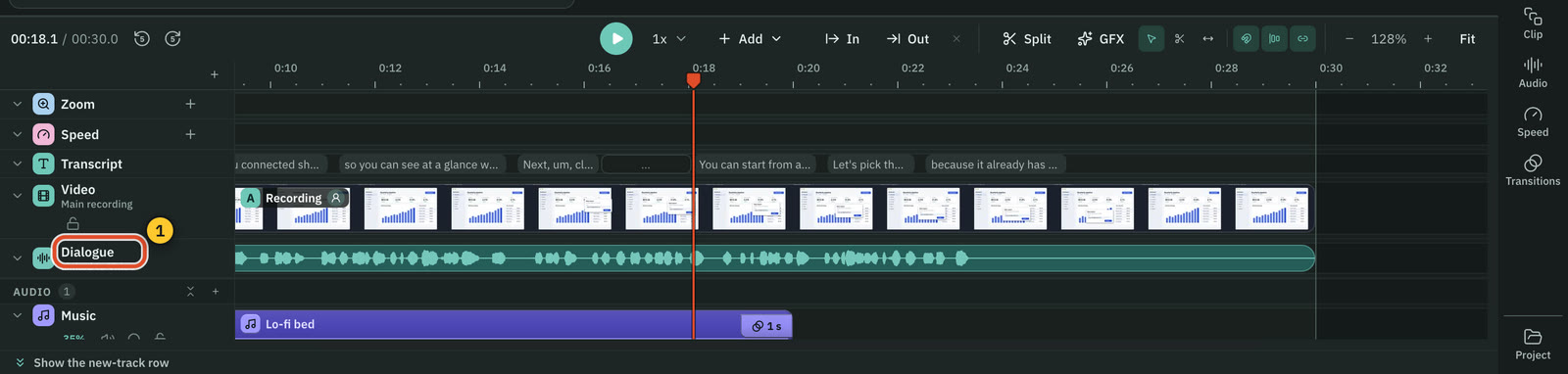
Cuts from the script show as seams on the Video and Dialogue rows. Hover one to see how much was removed, with Restore and + (a transition) beside it.
Move around
The bar above the timeline has the time, Back 5 seconds and Forward 5 seconds, Play (Space), a speed menu from 0.5x to 2x, and Add, which imports media, adds an empty track or generates music or a sound effect. J, K and L play backward, stop and play forward; press J or L again for 2x and 4x.
To zoom the timeline use − and + (or - and =), and Fit (⇧ Z) to fit it all in the window.
Note: Timeline keys work while the timeline has focus, so click it first. When the script has focus, the same keys can mean something else.
Select, cut and split
Three tools sit in the bar. Press V for Select, B for Razor (click to split; ⇧-click splits every track) and Y for Slip (drag a clip to change which part of its media plays).
- Split the clips under the playhead with the Split button,
Sor⌘ K. With clips selected only they split. With none, every unlocked clip and the main recording split. - Move a clip by dragging it. Trim it by dragging either edge. An edge that cannot go further tells you why.
- Nudge the selected clips with
⌥ ←and⌥ →(one frame) or add⇧for a second. - Copy, cut, paste and duplicate clips with
⌘ C,⌘ X,⌘ Vand⌘ D. - Snapping (
N) pulls clips to cuts, markers and the playhead. Hold⌥while dragging to skip it once.
Cut a range
Press In (I) and Out (O) at the playhead, or drag across an empty part of the timeline. The script highlights the same words. A range bar appears with:
| Button | Key | What it does |
|---|---|---|
| Cut | ⇧ X | Removes the range from the recording and every unlocked track, and closes the gap |
| Delete | ⌫ | Removes the range from the recording and the clips inside it. Clips at fixed times stay put. |
| Lift | ; | Removes the clips inside the range and leaves a gap. The recording is untouched. |
| AI & speed | Music, a sound effect or a voiceover for the range, Ask AI, or a speed change | |
| Export… | Exports only this range |
Hover a button to preview what it will do. Each is one undo step. ⌥ X clears the range.
The main recording
Splitting the recording makes pieces. Click a piece and its words light up in the script. Drag a piece to reorder it. Right-click a piece for Split at playhead, Ripple delete, Delete and leave gap, Insert gap before…, Close gap, Set In/Out to piece and Restore original order.
The Main track magnet (P) decides what happens to the space. With it on, which is the default, pieces close up and a delete closes the hole. With it off, a Free chip appears: pieces stay where you put them and gaps stay. A gap plays as the background with silence, and shows in the script as a chip such as "Gap 2.0 s". Click the chip to select it, double-click to change its length, and press ⌫ to close it. ⌥ W inserts a one-second gap at the playhead.
Picture and sound stay linked
The recording's picture and its Dialogue move, split and trim together, so a script edit never leaves the sound behind. Linked selection (the chain button beside the magnets) makes a click on one select both. ⌥-click picks one side.
To move the sound alone, right-click the Dialogue row and choose Unlink audio (⌘ L). The dialogue becomes ordinary clips on a Dialogue track at the top of the Audio group. From then on script edits change the picture only, and a red badge such as +0.4 s shows when a clip has drifted. Choose Move into sync to put it back. Link audio joins them again, or Snap back and link when the clips no longer line up.
Tracks and clips
Add a track from Add in the bar, from the + on a group header, or by dropping a file onto an empty part of the timeline: a new track appears where you drop it. The kinds are Video track, Image track, Audio track, Music track and Sound effects track.
Each track header has toggles: hide (video and image), mute and solo (video, audio, music, sound effects), and lock. Drag the grip to reorder, double-click the name to rename, and drag the bottom edge to resize the row. Right-click for Add … above, Add … below, Move up, Move down and Delete track.
Click a clip and open Clip in the right rail for its start, duration, trim, placement, Fades, volume and the choice Pin to script or Fixed position. A pinned clip moves with the words it starts on when you cut the script. A fixed clip stays at its time on the timeline.
Markers
Press M to drop a marker at the playhead. Drag it to move it, double-click it to jump there, and press ⌫ to delete it. Snapping treats markers as targets.
Keys
⌘ / lists every shortcut, and Keyboard shortcuts has the full table. The ones you will use most: ← and → step one frame (add ⇧ for a second), ↑ and ↓ jump to the previous or next edit, V, B and Y pick a tool, S splits, M adds a marker, N toggles snapping, P toggles the main track magnet, and ⌘ L links or unlinks the recording's audio.
Related
Was this page helpful?
Comments
Longer questions go better in the forum.
No comments yet. Ask a question or add what you found.
Sign in with GitHub or Google to comment.
Sign in to comment