Update Cutscript
How to move to a newer version of Cutscript, and what stays when you do.
Cutscript does not update itself. When a new version is out, you download it and replace the old app. Your projects and settings stay where they are.
Check your version
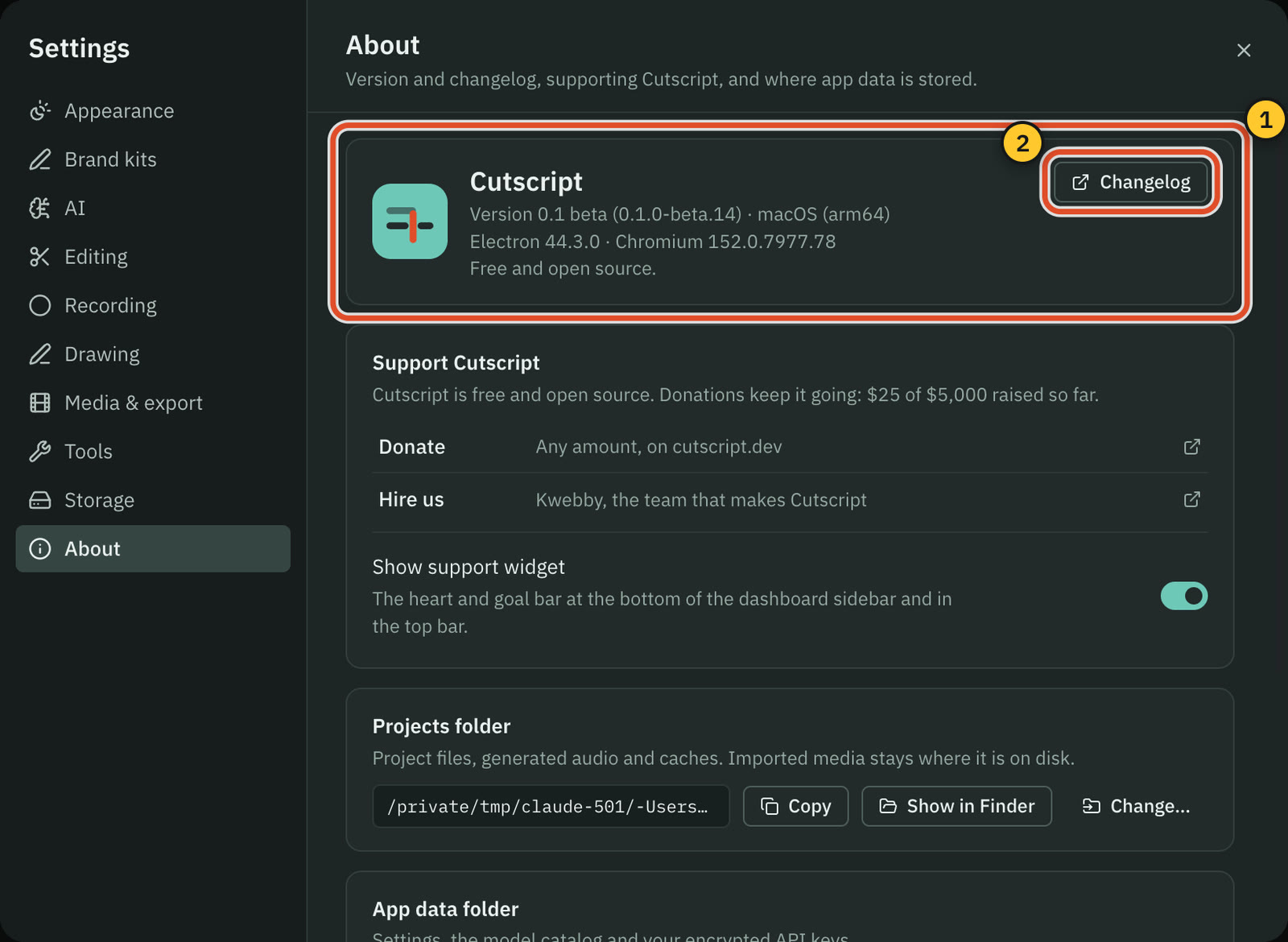
Open Settings › About. The version line reads like "Version 0.1 beta (0.1.0-beta.14)", followed by "macOS (arm64)". Compare it with the version on the download page and in the changelog.
Update the app
- Read what changed. Click Changelog in Settings › About, or choose Help › Changelog. Both open cutscript.dev/changelog in your browser.
- Finish what you are doing. Stop any recording and let exports finish, then quit Cutscript with
⌘ Q. - Download the new version from cutscript.dev/download. See Install Cutscript for the steps.
- Open the disk image and drag Cutscript onto Applications. When Finder asks, choose Replace.
- Open Cutscript from Applications.
What stays when you update
- Your work and settings. Projects, recordings, libraries, settings and saved keys live in the app data folder, and replacing the app does not touch it. Settings › About shows where it is.
- Older projects. Each release's notes say that graphics, projects and chats from earlier betas open, play and export as before.
- macOS permissions. Every release is signed with the same Developer ID, so macOS normally keeps what you allowed. On macOS 15 and later it may still ask you to confirm screen recording again.
Projects from a newer version
An older Cutscript cannot open a project saved by a newer one. It says "This project was created by a newer version of Cutscript. Update Cutscript to open it." A project package from a newer version gets a similar message. If you share projects between Macs, keep them on the same version.
If you need to go back to an earlier version, the download page lists older builds under Older versions when they are available. Projects you saved in the newer version will not open in the older one.
What updates by itself
- The link downloader. Cutscript checks once a week and installs a newer yt-dlp or Deno, because sites change and old versions stop working. In Settings › Tools you can click Check for updates or Update, or turn off Auto-update the link downloader. A small dot on Tools in the Settings list means an update is waiting.
- Model lists. With Keep model lists up to date on, Cutscript reads each AI provider's models when it starts. Click Refresh models in Settings › AI › Providers to read them now.
Related
Was this page helpful?
Comments
Longer questions go better in the forum.
No comments yet. Ask a question or add what you found.
Sign in with GitHub or Google to comment.
Sign in to comment