One AI
Ask for edits, graphics, music and clean-up in plain words. Changes arrive as cards you apply as one undo step, and paid steps show their price first.
One AI is a single chat for the whole editor. You type what you want, and it decides how to do it: it can cut your script, add captions and zooms, make a graphic, generate music, and chain several of those together. Nothing changes until you press Apply or Run on a card.
Before you start
- An AI source. Connect a Claude plan, a ChatGPT plan or an OpenRouter key. If none is ready, the chat says so and has an Open Settings button.
- A transcript for script edits. A project without one shows "Script edits need a transcript: ask to 'transcribe the video' first." See Transcription.
- An internet connection for every request that uses AI.
Open it
- Open a project and press
⌘ 4, or choose AI in the right rail. The same key hides the panel again. - Stay on the Ask tab. The other tab, Clean up, finds fillers, pauses and repeats on your Mac for free. See Remove filler words and pauses.
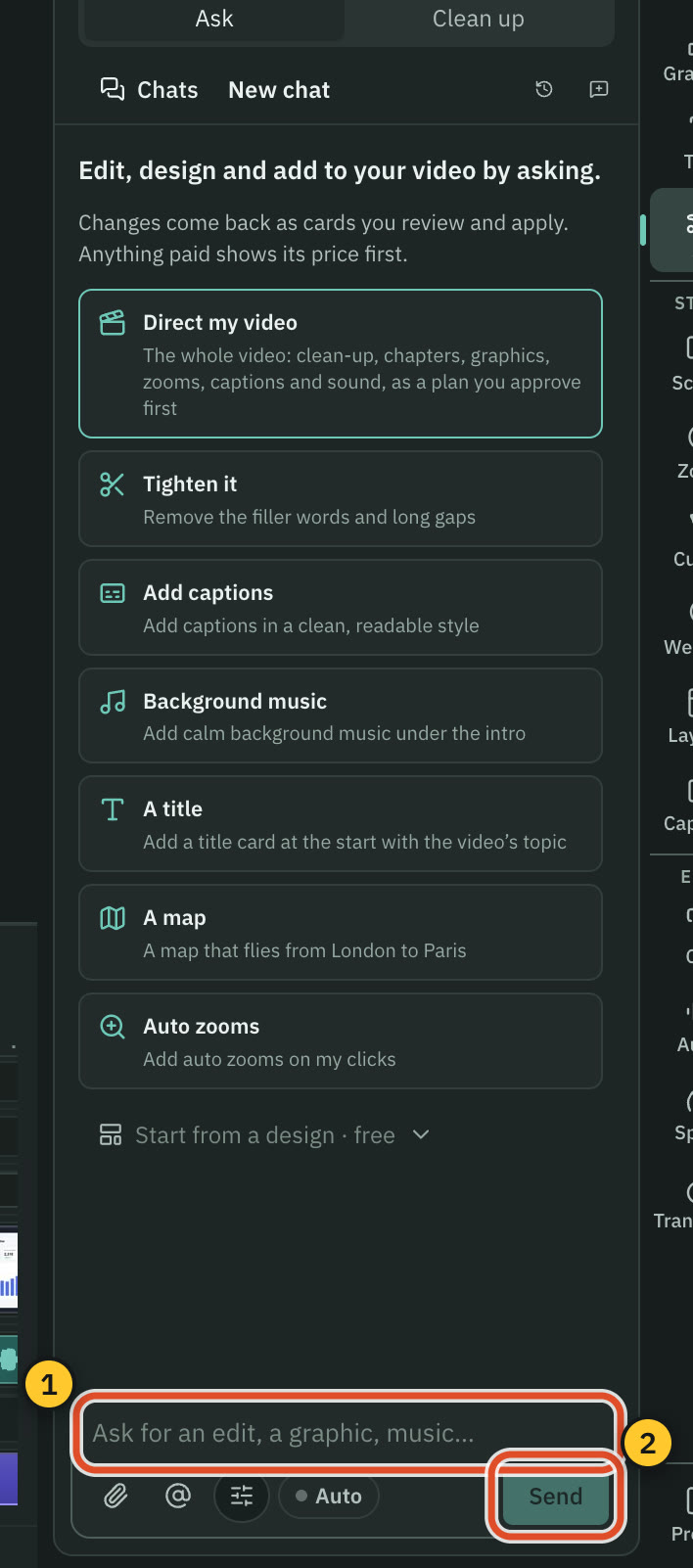
An empty chat shows starter cards: Direct my video, Tighten it, Add captions, Background music, A title, A map and Auto zooms. Pressing one puts its text in the message box. Nothing is sent until you press Send (⌘ ↵). You can also start from the home screen: the Let’s create something box makes a project from your link or file, transcribes it and hands your request to this chat.
What happens to your message
- A graphic. "A map that flies from London to Paris" goes to the design director, which plans it, shows a storyboard and builds it. See The design director.
- A clean-up. "Remove the filler words and long gaps" and "Add auto zooms on my clicks" run on your Mac. They are free, and the cards appear at once.
- Anything else. "Add captions", "Tighten the intro and add a lower third with my name", "Add calm background music under the intro". The AI plans the work and replies with one card for each step.
- The whole video. "Direct my video" starts a plan for the whole thing. See Direct my video.
- Short clips. "Make 5 short clips" finds the strongest moments. See Make short clips.
The AI can change your script (fillers, gaps, repeats, cuts, word fixes, speaker names), the timeline (zooms, speed, text, splits, volume, transitions, markers and clips), the look (background, padding, corners, cursor, webcam and captions), and add things: Design pack graphics, your saved graphics, icons, music, sound effects, voiceover, AI pictures and brand kits. It can read your script, timeline, media and brand kits before it answers, and it can open a panel or select something for you.
Review the cards
Every reply is a set of cards.
- A change card lists what it would change, item by item. Hover an item to see its words in the script, and click it to go there. Untick anything you do not want. Apply (the button also shows how many changes are ticked) is one undo step. Discard keeps the card for the record. Review in script opens the matching find bar for a clean-up. When a reply has several change cards, Apply all (with the count) applies them together.
- A run card is a step that costs money or takes a while, such as making a picture or music. It shows its price first and does nothing until you press its button, Run, Build or Generate. Skip drops it. When it finishes you can press Add to timeline or Reference in chat.
If a run could cost more than your per-message limit, the first click asks and the button changes to Run anyway. See Prices before every paid step.
You can say "undo that" or "redo" in the chat. Both are instant and free. Say "remove the graphics you added" and only those go.
Auto mode
The Auto button beside Options is off by default. Turned on, the AI applies its changes and runs steps up to the price on the Send line, without asking each time, then checks what it placed on screen and fixes problems for up to two rounds. A fix that removes something is never applied by itself. A step over the price still waits for you. The line under the box starts with "Auto:" and names the price it will stay within.
Options, files and references
Press Options (the sliders button) to set:
- Brand, the brand kit every graphic uses. See Brand kits.
- Model, which text model answers. On a plan the menu is headed "Text AI: your ChatGPT plan" or your Claude plan, and Change in Settings → AI… opens Settings.
- Pictures, the image model. The chip reads "Images: None" until you choose one.
- Graphics, the format (aspect, length and background) and the number of looks, which is how many times the director reviews a new graphic's frames.
- Auto mode and Whole video, which puts "Direct my video" in the box.
The paperclip attaches files: images, SVG, CSV, Excel, JSON, PDF, Word or text. The @ button refers to an earlier chat, message or result, and you can type @ too.
Chats and checkpoints
- Chats lists every chat for this project or for all projects, newest first, with search. Open one, rename it, or start a new one. Deleting a chat has an Undo, and deleted chats wait in Recently deleted, where you can restore them.
- Restore under a message brings the project back to how it was before that message, as one undo step.
Common problems
Send is disabled and the line says why. No AI source is ready, you are offline, or today's limit is reached. The line under the box names the fix.
"Wait for the AI to finish this reply." Another job is running in this chat. Apply and Run buttons wait for it.
A change card says the transcript was replaced. You re-transcribed after it was planned, so its word edits no longer fit. Ask again.
Related
Was this page helpful?
Comments
Longer questions go better in the forum.
No comments yet. Ask a question or add what you found.
Sign in with GitHub or Google to comment.
Sign in to comment