Webcam and layouts
Style the camera bubble, change it for part of the video, key out a green screen, and put the screen and camera side by side in 2, 3 or 4 panels.
If you recorded with a camera, its picture sits on the screen as a bubble. The Webcam panel styles that bubble. The Layouts panel goes further and splits the frame into two to four panels for part of the video.
Before you start
- The Webcam panel needs a camera video. Record with the camera on, or press Use a video as the camera… to use another video from your project. Without one, the panel says "No camera in this video".
- Layouts need a video to work on.
- Nothing here needs AI or an internet connection.
Show the camera and pick a shape
- Open Webcam in the right rail (
⌘ 8). - Turn Show camera on.
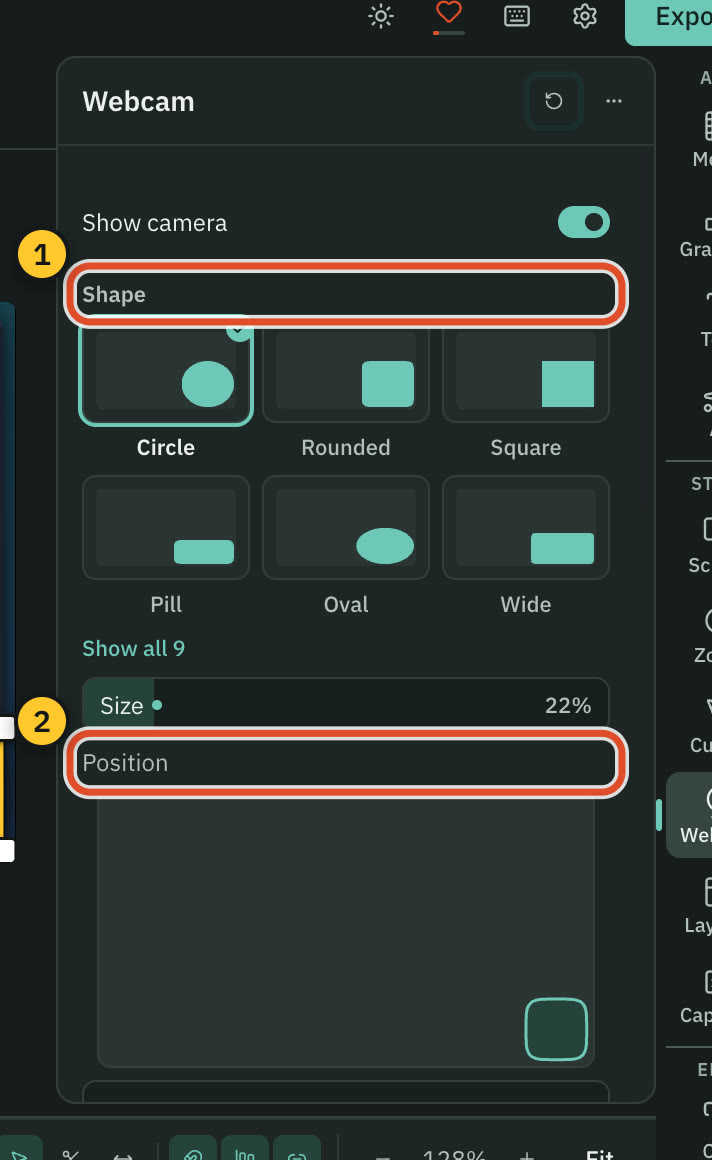
- Pick a Shape: Circle, Rounded, Square, Pill, Oval, Wide, Tall, Framed or Full screen.
- Drag Size (10 to 100 % of the picture's short side, so it holds its size at any resolution).
- Set Position: drag the small preview, or pick one of the nine places in the grid. You can also drag and resize the bubble on the big preview.
Open Advanced for the finer controls: Mirror (on by default, so you see the camera as you saw it while recording), Roundness, Shadow, Margin, Across and Down, Hold size through zooms, and four Crop sliders that trim the camera frame before it is fitted into its shape.
Add a border
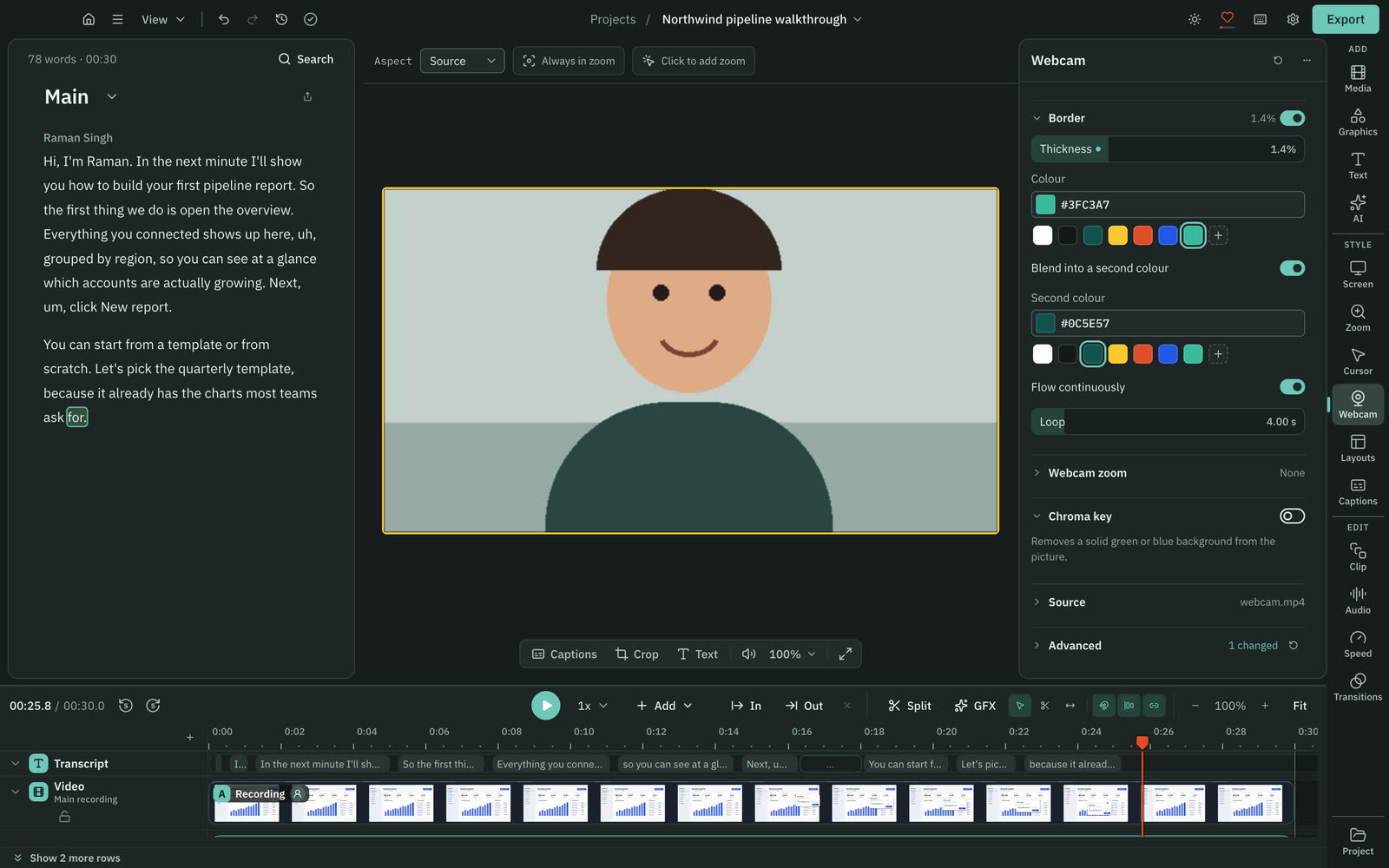
Turn on Border, then set Thickness and Colour. Blend into a second colour adds a Second colour, and Flow continuously makes the blend travel around the bubble, with Loop setting how many seconds one trip takes.
Remove a green or blue screen
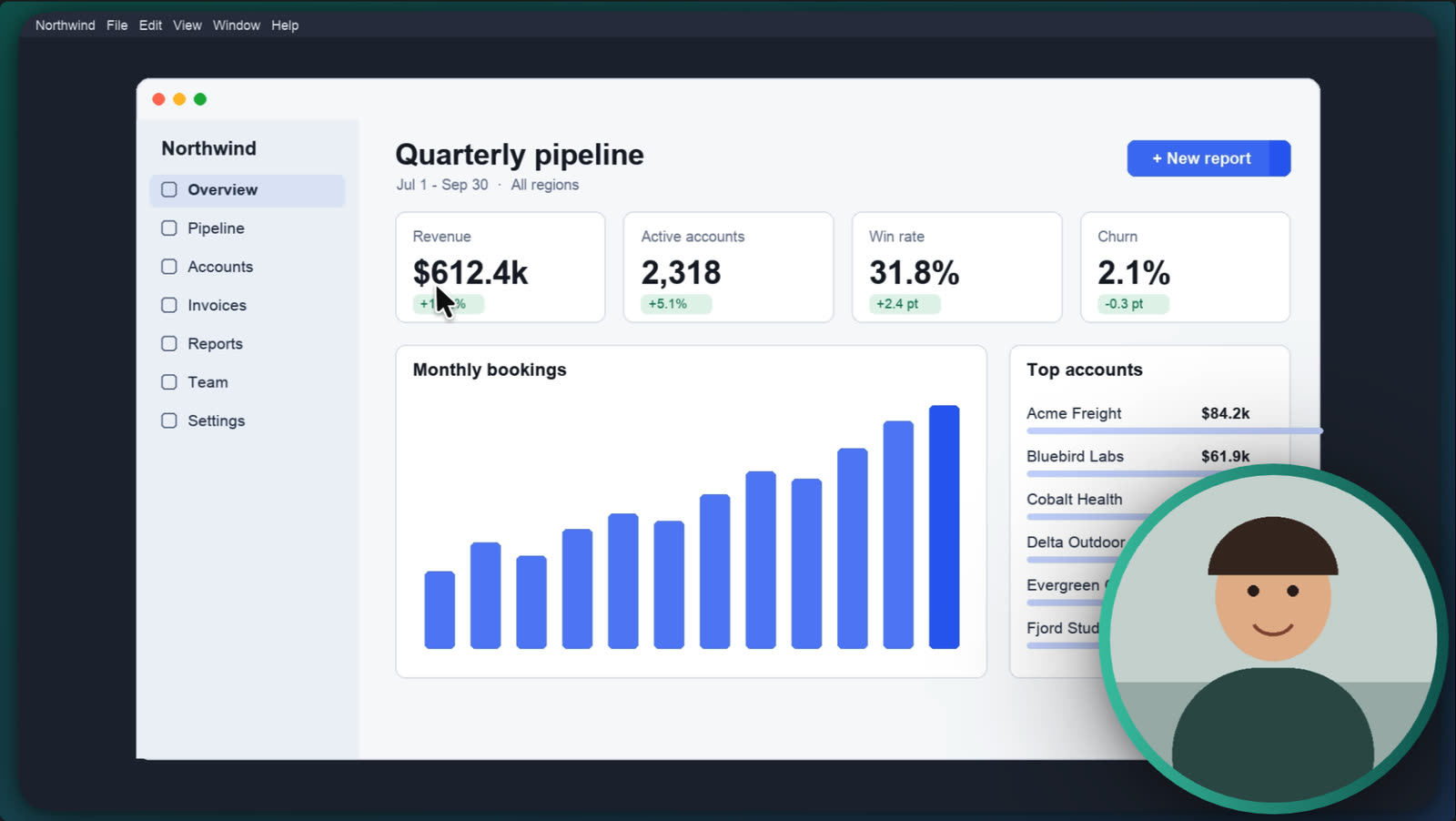
Turn on Chroma key and pick the Key colour. Tune Tolerance, Edge softness and Spill reduction until the backdrop is gone. It works best on an evenly lit green or blue screen, and any matching colours in the picture are removed too.
Change the camera for part of the video
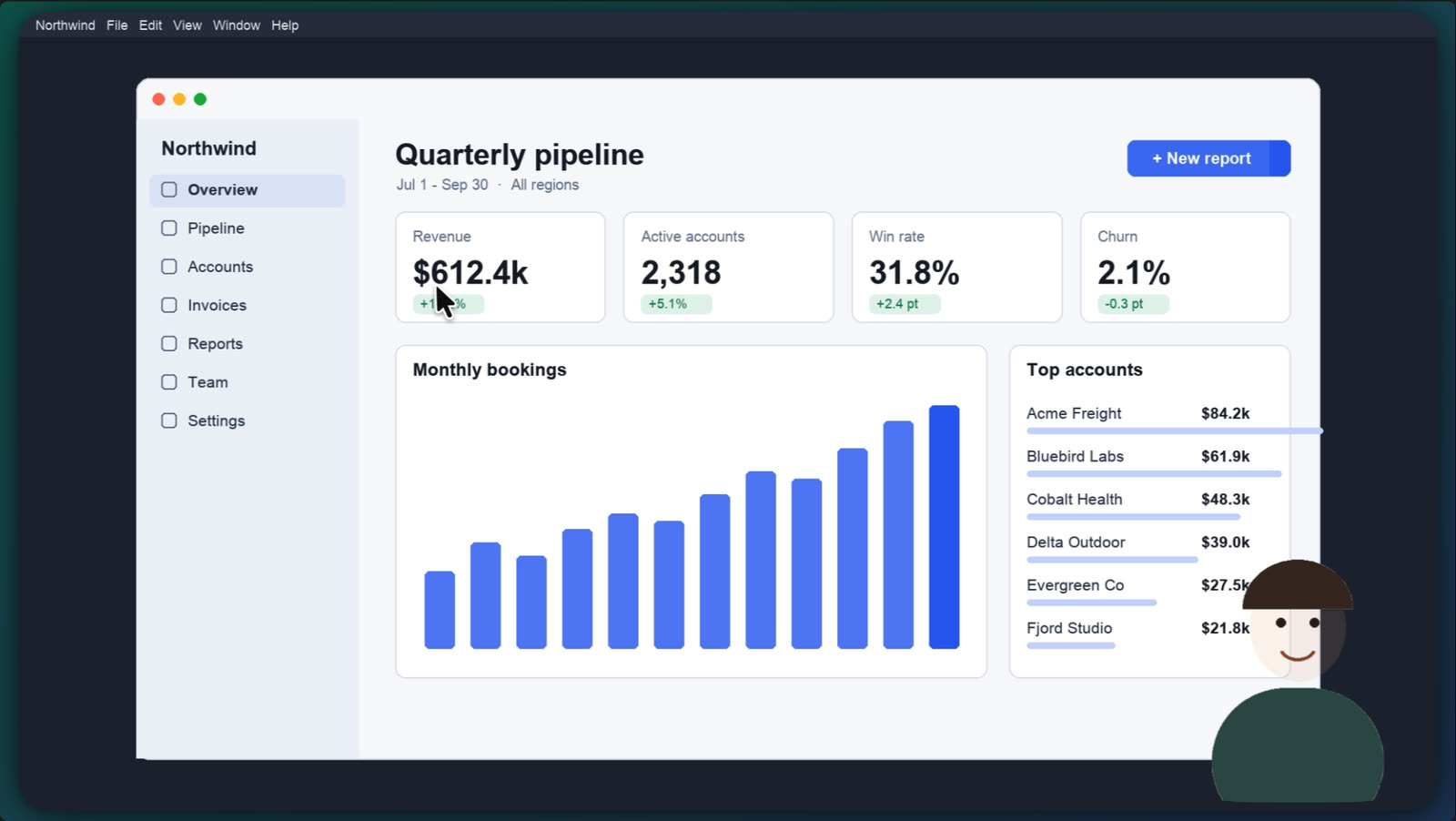
Layout for this video sets the camera's box (Square, Portrait, Landscape, Full screen or Custom) and its Cutout (Rounded, Oval, Diamond or Hexagon). The shape tiles above set both at once. Animate changes makes the camera glide between layouts, and Transition sets how long that takes.
To change the camera for one passage only:
- Select words in the script, or set In and Out on the timeline.
- Open Selected passage.
- Press Full screen to fill the frame with the camera, Hide to remove it, or pick another layout. Use default puts the passage back.
Open Webcam zoom and press Zoom selected passage to zoom the camera image inside its frame for those words. Amount runs from 1× to 4×, Ease in, Ease out and Easing shape the move, and Use as defaults makes this zoom the starting point for the next ones.
Choose the camera source
Open Source and pick the Video the bubble shows. A video you bring in with Use a video as the camera… starts at the first second of the recording, follows your cuts and speed changes, and hides itself when it ends. It does not loop.
Put the screen and camera in 2, 3 or 4 panels
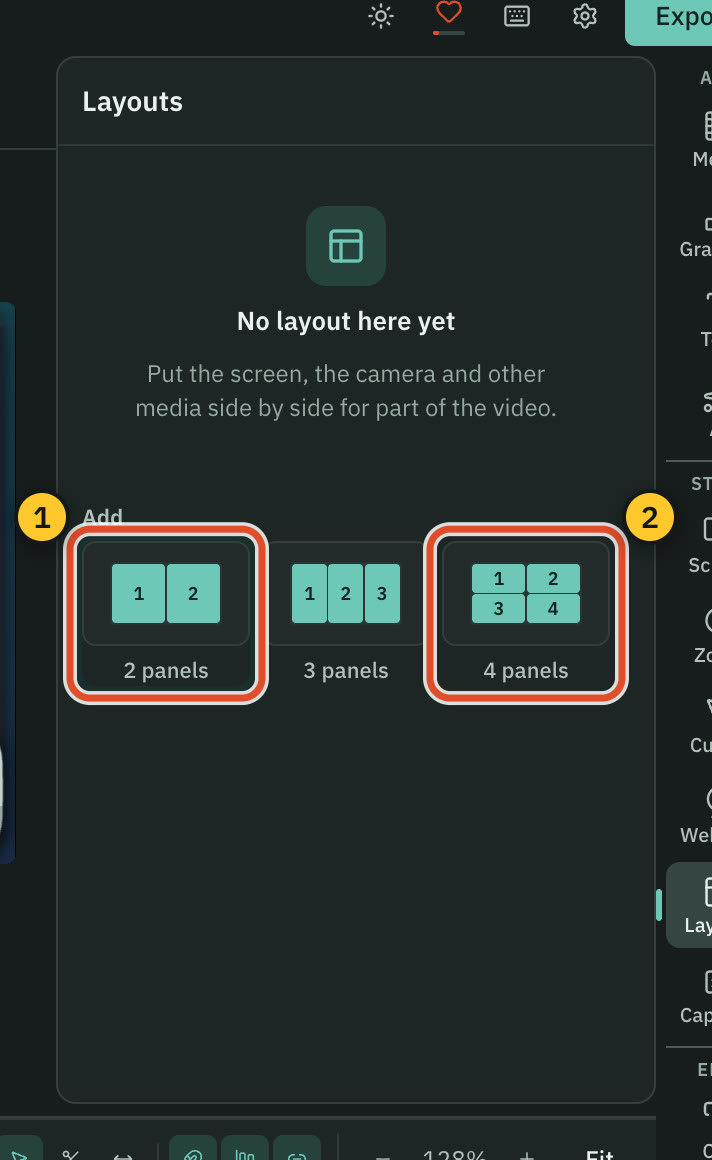
A layout shows several pictures side by side for part of the video.
- Select the words where the layout should start, or leave the playhead where you want it.
- Open Layouts (
⌘ 9). - Under Add (or Add another when a layout is already selected), press 2 panels, 3 panels or 4 panels. The layout covers the selected words, or five seconds from the playhead.
- Under Arrangement, pick Auto, Rows, Columns, Grid, Large left or Large top.
- Under Panel sources, choose what each numbered panel shows: Screen, Webcam, Empty, or any other video or image in the project. The swap button exchanges a panel with the next one.
- Pick Fill or Fit under Panel fit. In the preview, drag inside a panel to move its crop.
Open Frame to set Padding (up to 15 %), Gap (up to 10 %), Corners (up to 25 %) and the Background colour. Timing shows Starts and Ends, or drag the layout's edges on the timeline. All layouts lists every layout and lets you jump to one.
Other videos in a panel loop without sound. Add their sound as audio clips on the timeline.
Export
The bubble and layouts are drawn frame by frame, so a video that uses them exports as MP4 H.264. See Export a video.
Related
Was this page helpful?
Comments
Longer questions go better in the forum.
No comments yet. Ask a question or add what you found.
Sign in with GitHub or Google to comment.
Sign in to comment