Blur every email in a recording
Find every email address on screen with one button, check each match, track a blur by hand where one is missed, and export a clean video.
You recorded a walkthrough, and a card on screen shows a customer's email address while it moves across the picture. This walk-through hides that address, and every other one, for the whole video. The example is a tour of a dashboard where a "New report" card carries an address and drifts across the screen.
Before you start
- A Mac. Blur all emails and Blur all faces use Apple Vision, which runs on your Mac. They need no AI account and no internet.
- A project with the recording open in the editor.
- Time to watch the result. A privacy blur deserves a final look.
1. Find every address
- Press
⌘ 3to open Text in the right rail. - Under Blur automatically, tick Also phone numbers if numbers appear on screen too.
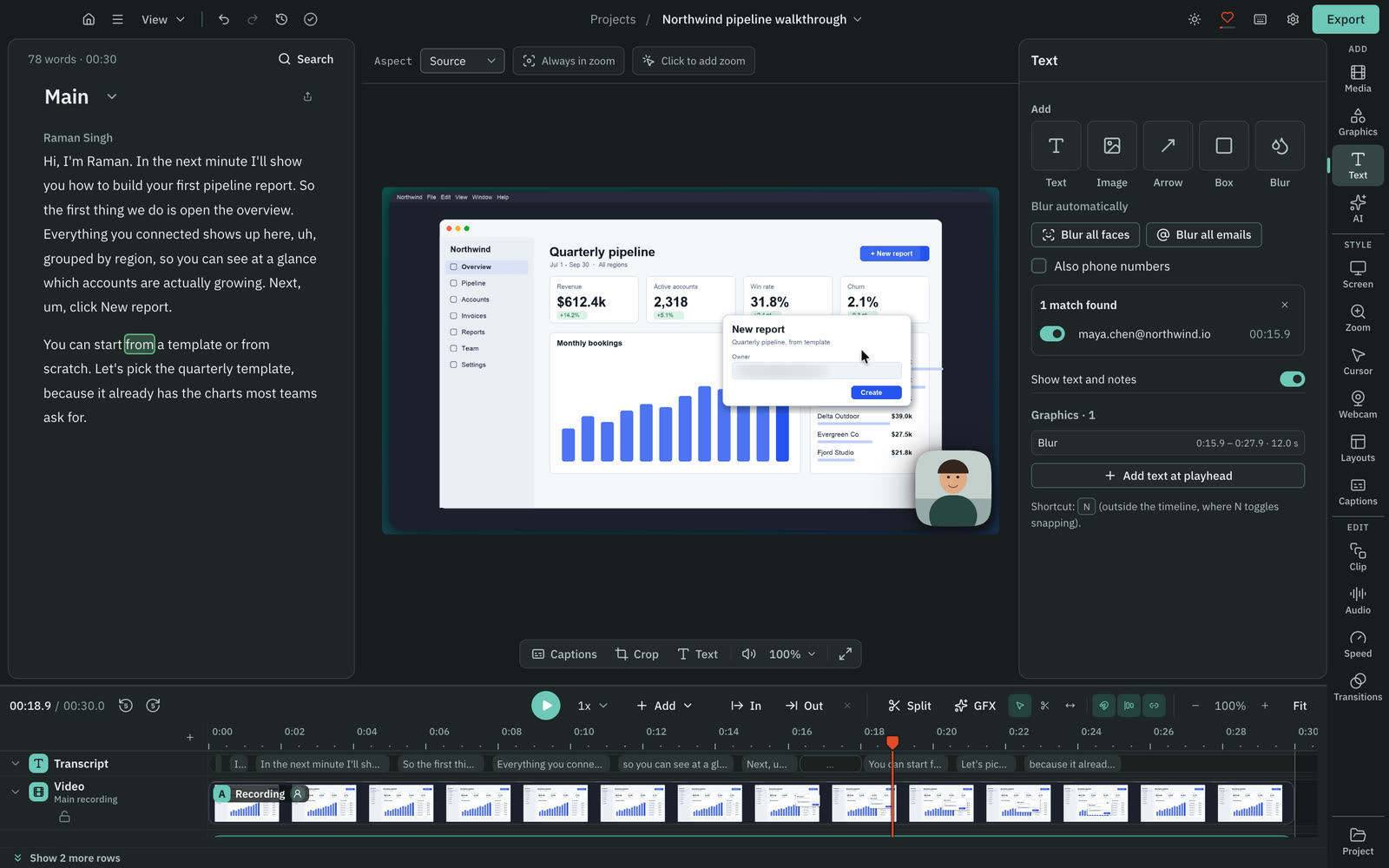
- Press Blur all emails.
A progress bar shows "Finding emails" with a Cancel button. The scan reads the picture, not the transcript, so it finds addresses in a window, a slide or a card. When it finishes, Cutscript adds one tracked blur for each address it found, as a single undo step.
2. Check the list
A list under the buttons says how many it found, such as "1 match found". Each row has:
- a switch, to turn that blur on or off;
- the address, and the time it first appears;
- a jump, so a click takes you to it.
Turn off any match you do not want blurred. If it says "No emails found", the scan read no address on screen. You can still place a blur by hand, as in step 4.
3. Watch it follow
Play the video from the start. The blur follows the address as its card moves, and it keeps following while the camera zooms. Check three things:
- It covers the whole address on every frame.
- It appears before the address does, and leaves after.
- It follows the right thing when two cards cross.
Cutscript widens each automatic blur by 0.5 seconds at both ends and pads the box by 35 %, because text recognition boxes are approximate. If you see an edge peeking out, select the blur and raise its Padding in the Tracking group.
4. Add a blur by hand where one is missed
The scan reads the picture at most twice a second, and only when the picture has changed. It reads English text. An address that flashes by, or one in a tiny font, can be missed. Scrub the whole video once to look for them.
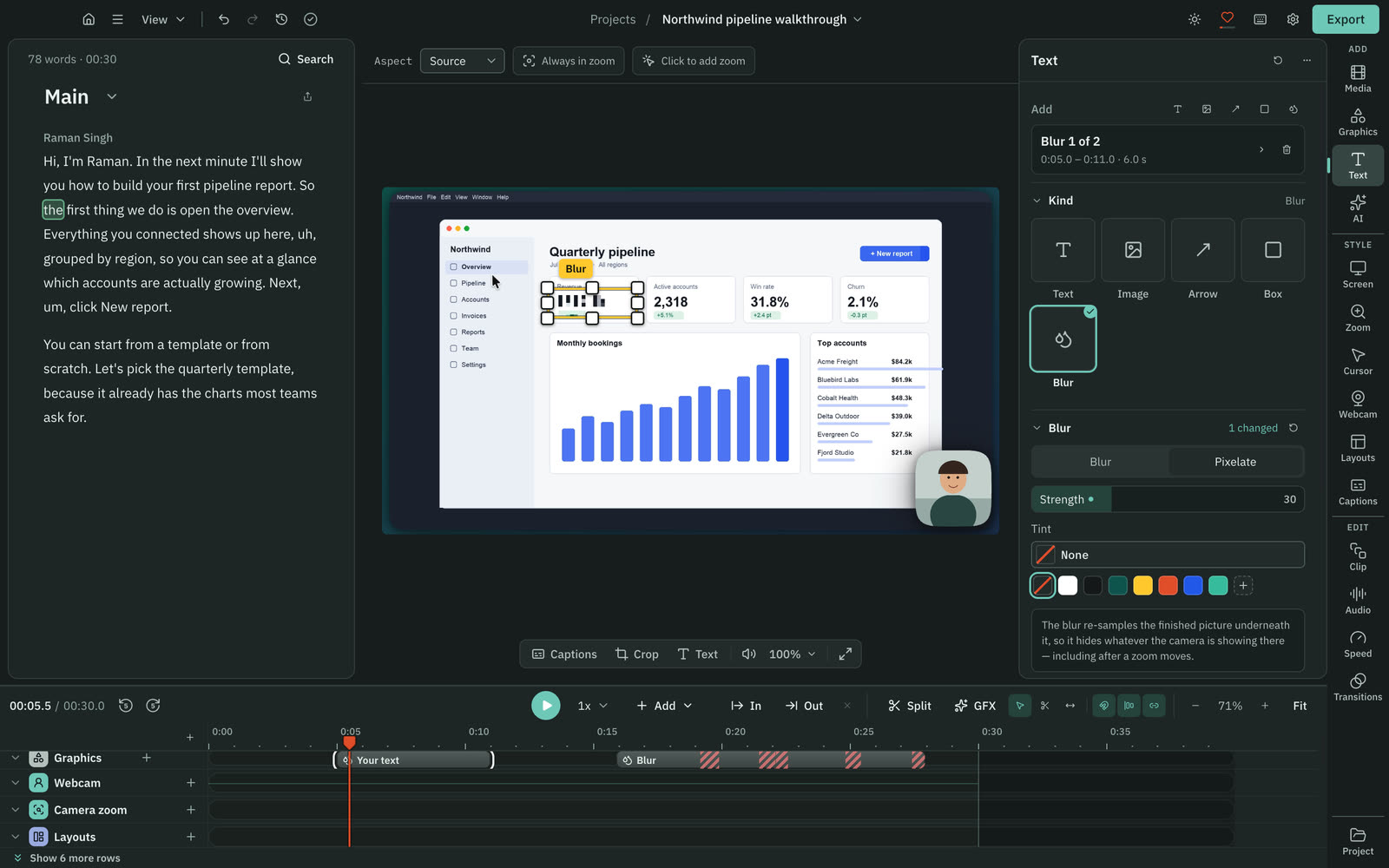
- In Text, press the Blur tile in the Add row. A box appears on the preview.
- Drag the box over the address and resize it.
- Find the Tracking group in the right rail. Set Engine to Pixel lock, which follows exact pixels in screen recordings, text and windows. A recording made in Cutscript starts on it.
- Press Track forward. The arrow beside it also offers Track backward, Track both ways and Track one frame.
- Press
Escto stop and keep what is done.
If a notice says "Lost at 00:12.4", the blur lost what it was following and now holds its last box, growing a little. Drag the box back onto the address on the preview, then press Re-track from here. Clear track starts over.
5. Pick the look
Select any blur. In the Blur group, choose Blur or Pixelate, and set Strength high enough that you cannot read the text. Tint adds a colour. The blur re-samples the finished picture underneath it, so it hides whatever is there, including after a zoom moves. Check one frame at full size.
6. Export, and look again
Press Export, or press ⌘ E. If a tracked blur lost its subject for part of its time, the panel warns you: "A tracked blur lost its subject for part of its time. There it holds its last box." Press Show me to jump to the first one, fix it, and come back. Holding a blur on its last box is the safe failure, so the picture is covered, not exposed.
Export as usual. See Export a video. Then open the exported file in another player and scrub through the whole thing. The blur is drawn into the picture of the file, so it cannot be removed later, and the file is the one to check before you send it.
What blur does not cover
A blur hides the picture only. Check these too:
- Spoken words. If you read an address aloud, it is still in the audio. Cut those words in the script.
- Captions and transcripts. They come from the words. If you turned captions on, an address you said appears in them. Remove from transcript hides words from the script, the captions and transcript exports, but the video still plays them.
- Other windows. Any address the scan did not read is not blurred.
What you made
A video with every email address hidden by a blur that follows it, each one checked by you. The blurs stay in the project as editable layers, so you can change them and export again. To hide people instead, press Blur all faces in the same place.
Related
Was this page helpful?
Comments
Longer questions go better in the forum.
No comments yet. Ask a question or add what you found.
Sign in with GitHub or Google to comment.
Sign in to comment