Projects, files and relinking
Where projects live, how to move one to another Mac as a single file, and what to do when media goes missing.
A project holds one edit: the media it uses, the transcript, your cuts, the timeline, graphics and settings. Recordings, imported files and audio-only projects all become projects, and all of them save automatically.
Your projects
The home screen lists them under Projects. Click one to open it. Search at the top looks at project names and the start of each transcript. Sort by Recent, Name or Longest, and switch between Cards and List.
The menu on a project offers Open, Rename, Duplicate, Export project package…, Show in Finder and Move to Trash. A project that goes to the macOS Trash can be restored from there. Your original media files are not touched.
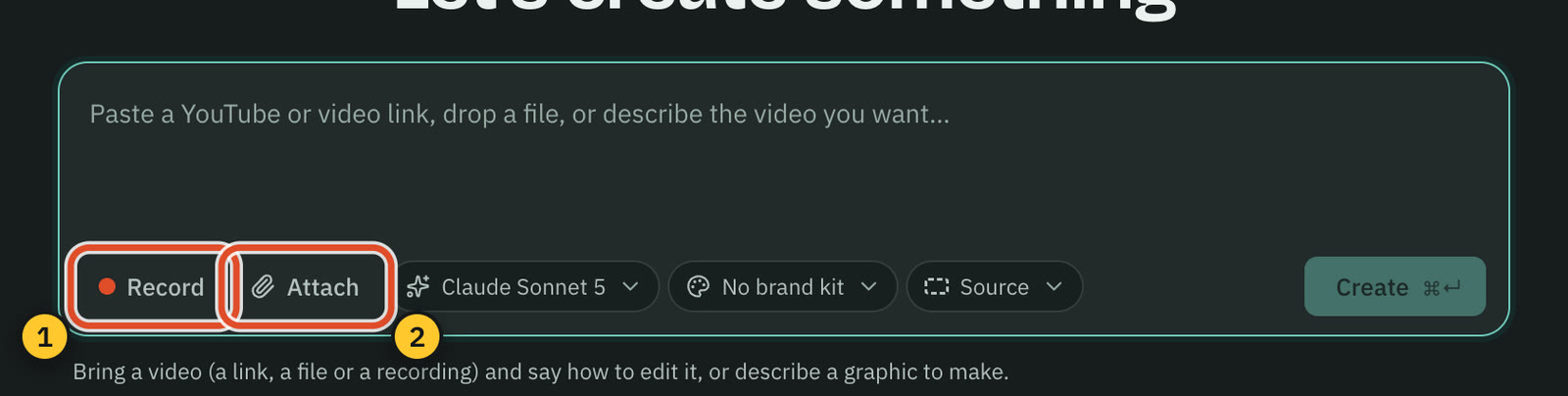
Press ⌘ N (File › New Project…) to start from a file. The editor saves as you work. The check mark in the top bar means "All changes saved", and Retry save appears if a save fails. Each project reopens at the position where you left it.
Where files live
- Project files are in the projects folder: the project itself, generated audio, and caches such as waveforms and thumbnails. Settings › Storage › Projects folder shows the path, with Show in Finder and Change folder…. Changing it can move your projects across and send the old copies to the Trash, or start with an empty folder and leave existing projects where they are.
- Imported media stays where it is. Cutscript points at the original file. If you move or rename it, the project cannot find it (see Relink below).
- Recordings move into the project. When you stop a take, its files move from the recordings folder into the project, so they travel with it.
Audio-only projects
Import an audio file instead of a video and the project gets a canvas instead of a picture. The preview reads "Audio only. Add a background, text or graphics." Choose an aspect and a background in the Screen panel, then add text, graphics, captions, images or video overlays, and export a video. Transcript editing works the same way as for video.
The Project panel
Project in the right rail shows the file's facts: its name and edited length, the media (file, duration, size, codecs, resolution), what a recording captured, the transcript, and the asset counts. Show in Finder reveals the file. The transcript group has Transcribe… or Re-transcribe…. Re-transcribing replaces the transcript in another language or model, and resets script edits such as deleted words and corrections, so Cutscript asks first.
Send a project to another Mac
A project package is one file that carries a whole project: its media, compositions, graphics and brand kit. It is named like "My video.csproj". It is a ZIP archive that happens to share its extension with a Visual Studio project, so Cutscript reads the content first and refuses a file that is not a Cutscript package.
Export a package
- Choose File › Export Project Package…, press Export project package… at the foot of the Export menu, or use the project's menu on the home screen.
- Choose how to handle media:
- Include all media: everything the project plays travels in the file.
- Include media, smaller copies: videos are re-encoded at the same size and timing with a lower bit rate.
- Leave media out: the recipient relinks recordings and imported files.
- Switch Include AI chats and checkpoints and Include brand kit on or off. Both are on to start. The dialog shows how many of each there are.
- Read the size line, such as "About 1.2 GB · 3 media files", then press Export… and choose where to save.
A progress bar shows while it writes, with Cancel. The project itself is not changed. When it finishes, a message offers Reveal in Finder. If some media files are missing from this Mac, the dialog tells you they will be listed as missing.
Open a package
Choose File › Import Project Package…, drop a .csproj file on the home screen, or double-click it in Finder. It opens as a new project, and nothing you already have is changed. If the package left media out, a message says how many files need relinking.
Warning: A package holds your original recordings unless you choose Leave media out. If you blurred something private, share an exported video instead.
Relink missing media
Cutscript tells you when a project cannot find its files: a message says "3 media files are missing" with a Relink… button, and the preview shows a card with Locate….
- Press Relink… or Locate…. The Relink media list opens.
- Each row shows the file's name, its kind (Video, Audio or Picture) and where it used to be.
- Press Locate… on a row and choose the file on this Mac.
- Repeat for each. When the last one is found, a message says "All media found". Your edits stay as they are.
If you later open Relink media with nothing missing, it reads "Every media file is where the project expects it."
Related
Was this page helpful?
Comments
Longer questions go better in the forum.
No comments yet. Ask a question or add what you found.
Sign in with GitHub or Google to comment.
Sign in to comment