Bring in a video from a link
Paste a YouTube, Instagram, TikTok, Vimeo or other video link, pick the quality and format, and Cutscript saves it into your media.
Download from link saves a video, or only its sound, from a web address into your Cutscript media, ready to edit.
Warning: Download only videos you have the right to use. Cutscript shows this note on every download screen.
Before you start
- It needs an internet connection.
- The first time, Cutscript sets up two free helper programs: yt-dlp, an open-source downloader, and Deno, which YouTube needs. Both come once from their official GitHub releases (about 95 MB), and each file is checked against its published checksum. You start this yourself by pressing Set up. Get set up offers the same step on first launch. See Get set up and permissions.
- It accepts links to YouTube and Shorts, Instagram, Facebook, X, Pinterest, TikTok, Vimeo, Reddit and many more sites.
- It does not use cookies or sign-ins.
Download a video
- Open it in one of three places:
- Media in the right rail, then the link button labelled Download from a link.
- File ▸ Download from Link… in the menu bar. With no project open, this shows a small window and the download goes to your library for every project.
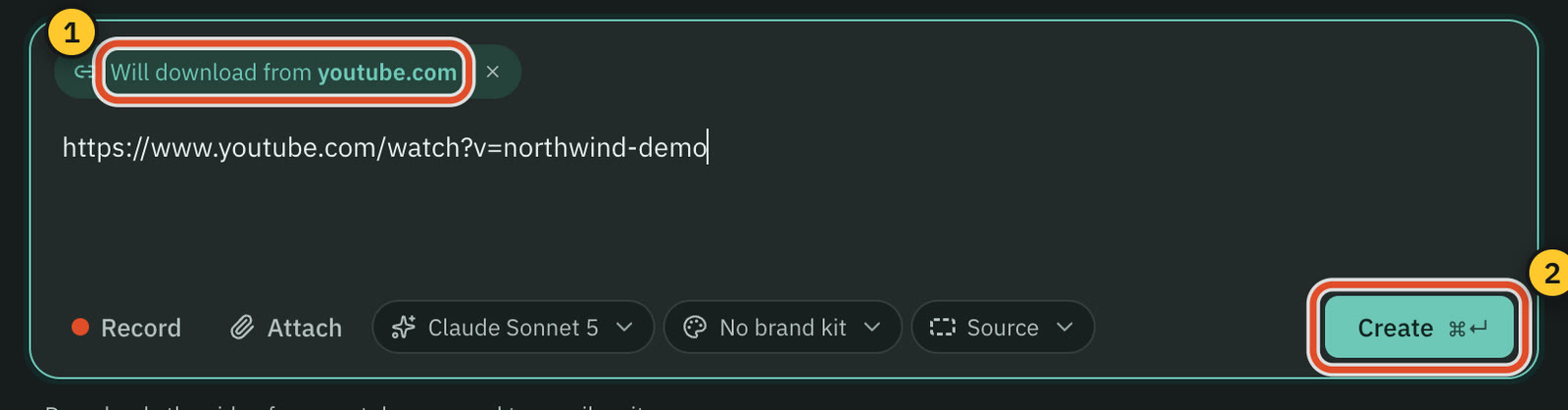
- The home screen's "Let's create something" box. Paste a link there and a chip says "Will download from" and the site. See Your first video in five minutes.
- Paste the link. Cutscript checks it as you paste. You can also press Check.
- A card shows the thumbnail, title, length and site. Choose Video or Audio only.
- For Video, pick a Quality from the list of what that video really offers, each with its file size, and a Format:
- MP4 plays everywhere, and it is the default.
- MKV and WebM are there when the site offers them. Otherwise they say "Not offered for this video".
- For Audio only, pick M4A, the site's own sound with no re-encoding, or MP3, which is converted and plays everywhere.
- Press the download button. Its label says what you chose, for example Download 1080p MP4, with the size.
When the download finishes, the file is added to your project and to Media › Saved, so you can use it again in other projects.
Watch the queue
Downloads you start appear under Downloads, in the order they run. Each row shows its progress, speed and time left.
- Cancel download stops one.
- Try again repeats a download that failed or was cancelled.
- Remove from the list clears a finished one, and Clear finished clears them all.
- The folder button reveals a finished file in Finder.
You can close the view while it runs. A strip at the top of the Media panel shows "Downloading" and the percentage.
When a link is refused
Cutscript says why, in plain words. The common reasons:
- The video is private, removed, or needs you to sign in. Cutscript never signs in.
- The link is a playlist, or a post with several videos. Copy the link of one video.
- It is a live stream or a premiere that has not ended. Try again afterwards.
- It is not a web link, or it has a user name and password in it.
Sites change often. If a link that should work does not, open Settings › Tools and press Check for updates next to Download from link. Cutscript also checks once a week and updates the helpers by itself, unless you turn off Auto-update the link downloader. The same card can Reinstall or remove the helpers.
Related
Was this page helpful?
Comments
Longer questions go better in the forum.
No comments yet. Ask a question or add what you found.
Sign in with GitHub or Google to comment.
Sign in to comment