Transcription
Turn the speech in a video into a transcript with a time for every word. Choose the model and language, and see the price first.
Editing by text, captions, the AI chat and the clipper all start from a transcript. Transcription is a cloud step: your audio goes to the provider you chose, and the transcript comes back with a time for every word. Cutscript has no on-device transcription today.
Before you start
- A key. Connect an ElevenLabs, fal.ai or OpenRouter account. A ChatGPT or Claude plan cannot transcribe, because OpenAI's plan sign-in covers text and pictures you send, not audio.
- An internet connection.
- Speech in the media. A file with no audio track says "This media has no audio" and cannot be transcribed. You can still edit it on the timeline.
Transcribe a video
- Open the project. If it has no transcript, the script area says Transcribe this video (or audio).
- Press Transcribe.
- Watch the progress: Extracting audio, Uploading audio, then Transcribing. Cancel stops it.
If no key is connected, Cutscript opens Settings › AI instead, and a notice says Add a transcription key.
You can also start it from the Project panel in the right rail. Press Transcribe… (or Re-transcribe… when a transcript exists). The dialog shows the model, its price for this file, the Language and Detect speakers.
Transcription also starts on its own in two places:
- A new recording. With Transcribe automatically on in Settings › Recording, a take is transcribed as soon as it becomes a project.
- The home screen. A link or file you send from Let’s create something is downloaded, made into a project and transcribed, then your request goes to the AI.
Cutscript does not start a second transcription for a project. If a transcript already exists, or one is already running, it shows that one and a notice says Transcript loaded or Already transcribing. Only Re-transcribe… replaces a transcript.
Choose the default model
Open Settings › AI › Transcription. The line at the top names the default, for example "Recommended: Scribe v2 · ElevenLabs", with its price per hour of audio.
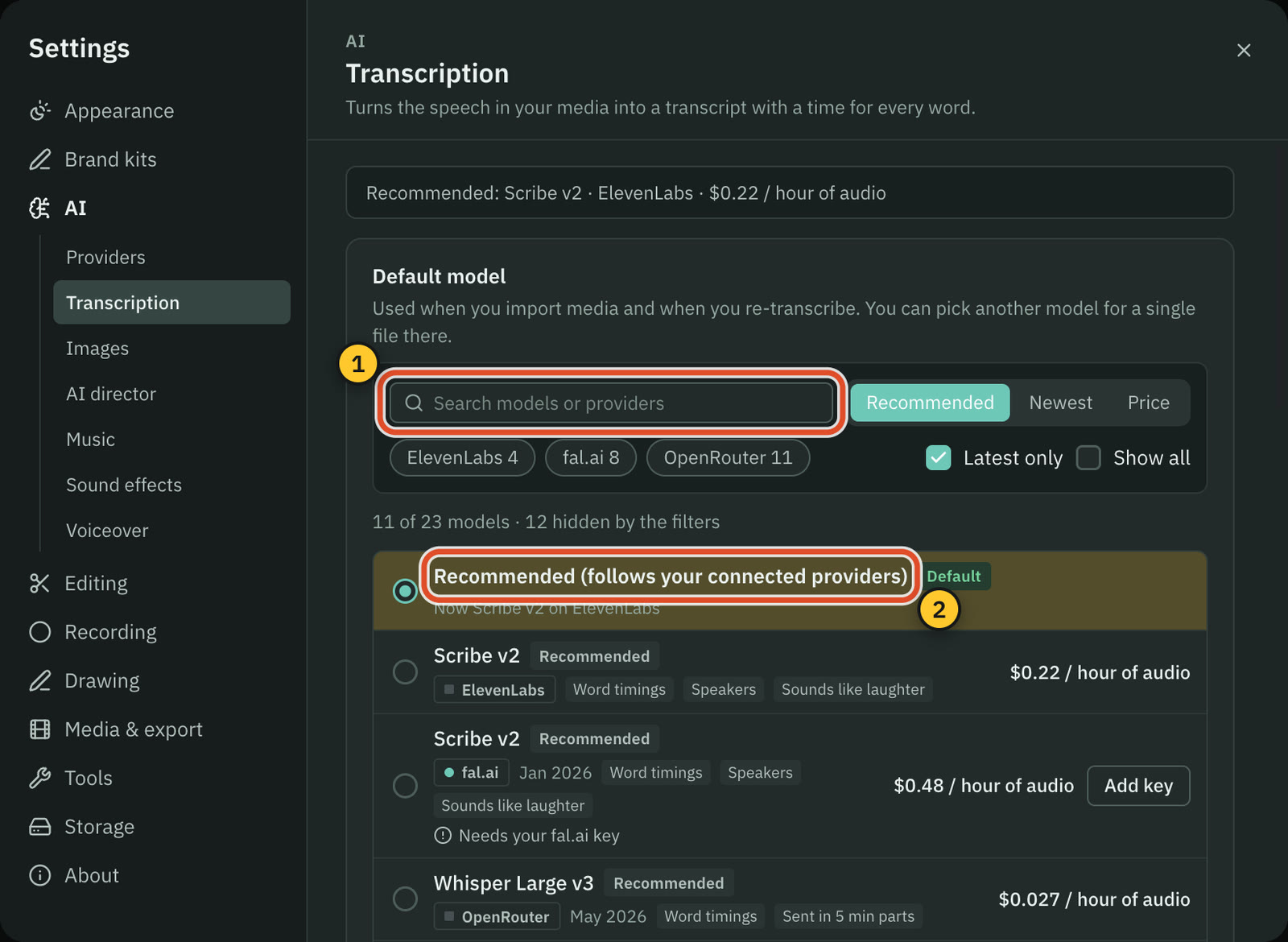
The first row is Recommended (follows your connected providers). It picks the first of these whose provider you have a key for: Scribe v2 on ElevenLabs, Scribe v2 on fal.ai, then Whisper Large v3 on OpenRouter. A line under it says what it means now, such as "Now Scribe v2 on ElevenLabs".
Below it is the list of models. Each row shows the name, the provider, when it was released, what it can do (Word timings, Speakers, Sounds like laughter) and its price with the unit. Press a row's radio button to make it your default.
- Search by model or provider, and sort by Recommended, Newest or Price.
- The provider chips filter by account, and show how many models each has.
- Latest only is on by default. Show all adds the models Cutscript cannot call, each with the reason. For example, a model that "returns text without word timings" cannot drive editing by word.
- A model whose provider has no key says "Needs ElevenLabs key", or the name of its provider, with an Add key button.
- A muted row at the bottom says the ChatGPT plan cannot transcribe.
When a newer model of the same family exists, a line offers it, for example "Newer: … · same price", with Use it. Nothing changes until you press it.
Options
Under Options, new projects start with these. A model that cannot use an option ignores it.
| Option | What it does | Works with |
|---|---|---|
| Language | Auto-detect works for most recordings. Naming the language can help. | Every provider |
| Identify speakers | Labels who is speaking. On by default. | ElevenLabs, fal.ai, and OpenRouter models marked Speakers |
| Expected speakers | A hint from Auto-detect to 8 speakers. 1 speaker means no labels. | ElevenLabs only |
| Mark sounds | Marks laughter, music and other sounds in the transcript. | ElevenLabs and fal.ai |
OpenRouter models send long audio in parts of five minutes. Where a model labels speakers per part, the labels can change between parts, and the Detect speakers row in the dialog says so.
Use another model for one file
In Project › Transcribe…, the Model menu starts on your default, shown as "Default · Scribe v2 via ElevenLabs". A model you pick there is for this run only and does not change Settings. The line under it names the model and its provider, and gives the price with an estimate for this file's length. The Language menu starts on your default language, which is Detect automatically unless you changed it.
Re-transcribe
Re-transcribe… replaces the transcript. The dialog warns you: "The current transcript will be replaced." If you have edited the script, it adds that your edits will be reset: deleted, ignored and hidden words, corrections, speaker names and shortened pauses. Use it when the language was wrong or you want a different model. A transcript that failed shows Transcription failed with a Retry button.
What it costs
The provider charges your own account. Cutscript shows the price in three places: the model list, the Transcribe… dialog, and the summary line in Settings › AI › Transcription. Prices are per hour of audio, with an estimate for the length of your file. They do not count toward the AI director's spending limits.
Note: The Transcribe button in an empty project, and automatic transcription of a new recording, start at once with your default model. They do not stop to ask. Check the default and its price in Settings › AI › Transcription, or turn Transcribe automatically off.
Common problems
It says it needs a key. The default model belongs to a provider with no key. Add the key in Settings › AI › Providers, or choose a model from a provider you have connected.
The model cannot run. The dialog names the reason, and its button says Add a key or Open Settings.
The language is wrong. Open Re-transcribe…, pick the language, and run it again.
It failed part way. Press Retry. If it keeps failing, check your internet connection and the key on its provider card.
Related
Was this page helpful?
Comments
Longer questions go better in the forum.
No comments yet. Ask a question or add what you found.
Sign in with GitHub or Google to comment.
Sign in to comment