Record your screen
Record a display, a window or an area with your voice, system sound and camera. The take opens as a project when you stop.
Cutscript has its own recorder: a small bar that floats above your screen. You choose what to record, press start, and when you stop the take opens in the editor as a project. The picture, your voice, system sound, the camera and the pointer path are saved as separate tracks, so you can change any of them later.
Before you start
- A Mac on macOS 15 or later. On an older version the recorder says "Recording requires macOS 15.0 or later."
- Screen recording permission. macOS asks the first time. If you said no, allow Cutscript in System Settings › Privacy & Security › Screen & System Audio Recording, then press Re-check recording access in Settings › Recording. Microphone and camera permission are asked when a recording first uses them.
- 5 GB of free space on the disk that holds your recordings folder. Cutscript will not start below that. It warns you at 2 GB while recording, and at 500 MB it stops and saves the take.
- Recording works offline. The transcript that follows needs your own transcription account: see Transcription.
Record a take
- Press Record on the home screen, or choose File › New Recording… (
⇧ ⌘ R). The recorder bar appears. - Choose what to record. Press Display, Window or Area, or press
1,2or3.- Display: move the pointer onto the screen you want. Its name and size appear in the middle of it.
- Window: hover over a window to outline it, then click it.
Taband⇧ Tabstep through the windows. - Area: drag a rectangle. Drag the handles to resize it, drag inside to move it, or press the arrow keys to nudge it by 1 point (hold
⇧for 10 points, or⌥to resize instead of move). Click the size to type exact W and H values, or pick Free, 16:9, 9:16, 4:3 or 1:1.⌘ Aselects the whole display. The smallest area is 64 × 64 points. While the shape is Free, an area snaps to nearby window edges; hold⌘or⇧to drag without snapping. Cutscript remembers your last area.
- Set your microphone, sound and camera in the bar (next section).
- Press Start recording, or press
Return. The chevron beside it, Start options, opens the countdown and the microphone. The Cutscript window minimises as you start, so it never ends up in your video. - Wait for the countdown. It is 3 seconds by default and runs over the thing you are recording. Press Cancel to stop it.
- Record. The bar shows the time, a microphone level, Pause, Stop and Discard. These shortcuts work from any app:
⌃ ⌥ ⌘ Rstops,⌃ ⌥ ⌘ Ppauses and resumes. File › Stop Recording does the same as Stop. - Press Stop. Cutscript saves the take, creates the project and opens it in the editor.
Discard asks "Discard this recording?" before it deletes anything. Choose Keep recording to carry on.
Sound, microphone and camera
Three pickers sit between the mode buttons and the settings gear.
- Microphone. On by default, using your Mac's default input. Pick another input, or No microphone. The picker shows a level meter so you can check your voice before you start. If the microphone sends only silence, the bar says so while you record.
- System sound. This is the sound your Mac plays. The picker reads Sound from all apps by default. Choose None to leave it out. To record one app only, see Record sound from one app.
- Camera. It reads No camera until you pick one. A small self-preview opens beside the bar, marked "Not in screen capture", so you can check your framing without it appearing in the video. The camera is recorded on its own and shows up as the webcam bubble in the editor: see Webcam and layouts.
Each source is its own track. After recording, Project in the right rail lists what the take holds, and Clip has the levels.
Recording settings
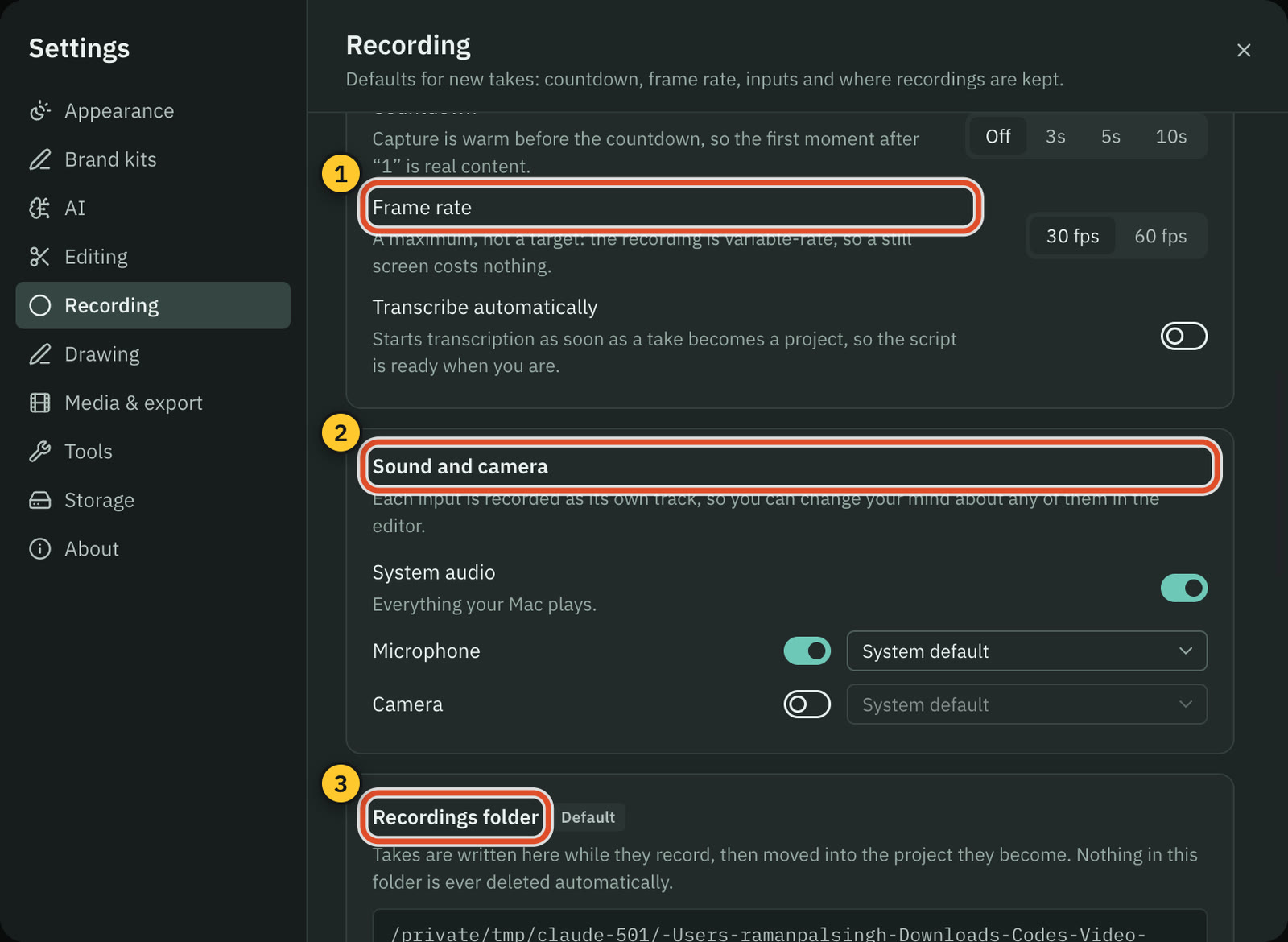
Open the gear in the bar (Recorder settings, ⌘ ,) for a quick menu, or go to Settings › Recording for everything.
| Setting | Choices | Default |
|---|---|---|
| Countdown | Off, 3, 5 or 10 seconds | 3 seconds |
| Frame rate | 30 or 60 fps. A maximum, not a target: a still screen costs nothing. | 60 fps |
| Cursor | Editable cursor (recommended), System cursor in the video, No cursor | Editable |
| Track clicks | On or off | On: see Click tracking |
| Hide desktop icons | Keeps the wallpaper without Finder's icons, in Display and Area takes | Off |
| Show recording frame | A thin outline around window and area recordings | On |
| Add zooms automatically | On or off, with sensitivity Fewer, Balanced or More | On, Balanced |
| Transcribe automatically | Starts the transcript as soon as the take becomes a project | On |
With Editable cursor the pointer is not baked into the picture, so you can restyle it after recording. Settings › Recording also has Reset recorder position, because the bar remembers a separate position for each display.
Tip: Set the countdown to 5 seconds if you need time to switch to the app you are recording.
Where takes are saved
While you record, the take is written to the recordings folder. When you stop, it moves into the project. Settings › Recording › Recordings folder shows the path, with Show in Finder, Change folder… and Use default folder. Nothing in that folder is ever deleted automatically.
If a recording is interrupted
If Cutscript quits or your Mac restarts during a take, the files stay on disk. The next time you open the recorder the bar offers Recover 1 unfinished recording (or the count). Open it and press Recover to turn the take into a project. Discard… asks before moving it to the Trash, and Not now keeps everything where it is.
Related
Was this page helpful?
Comments
Longer questions go better in the forum.
No comments yet. Ask a question or add what you found.
Sign in with GitHub or Google to comment.
Sign in to comment