Brand kits
Keep a brand's colours, fonts, logos and voice in one place, capture them from a website, and let graphics and the AI chat use them.
A brand kit holds one brand's colours, fonts, logos and notes about its voice. Pick a kit and every graphic the AI makes, every caption and every look in a Direct my video run uses it, so your videos match your brand without you repeating yourself.
Before you start
- Nothing for making a kit by hand, or for importing one from a website. Both work without an AI account.
- Analyze with AI needs an AI source for the AI director. See Connect an AI account.
- Importing from a website needs an internet connection.
Open your brand kits
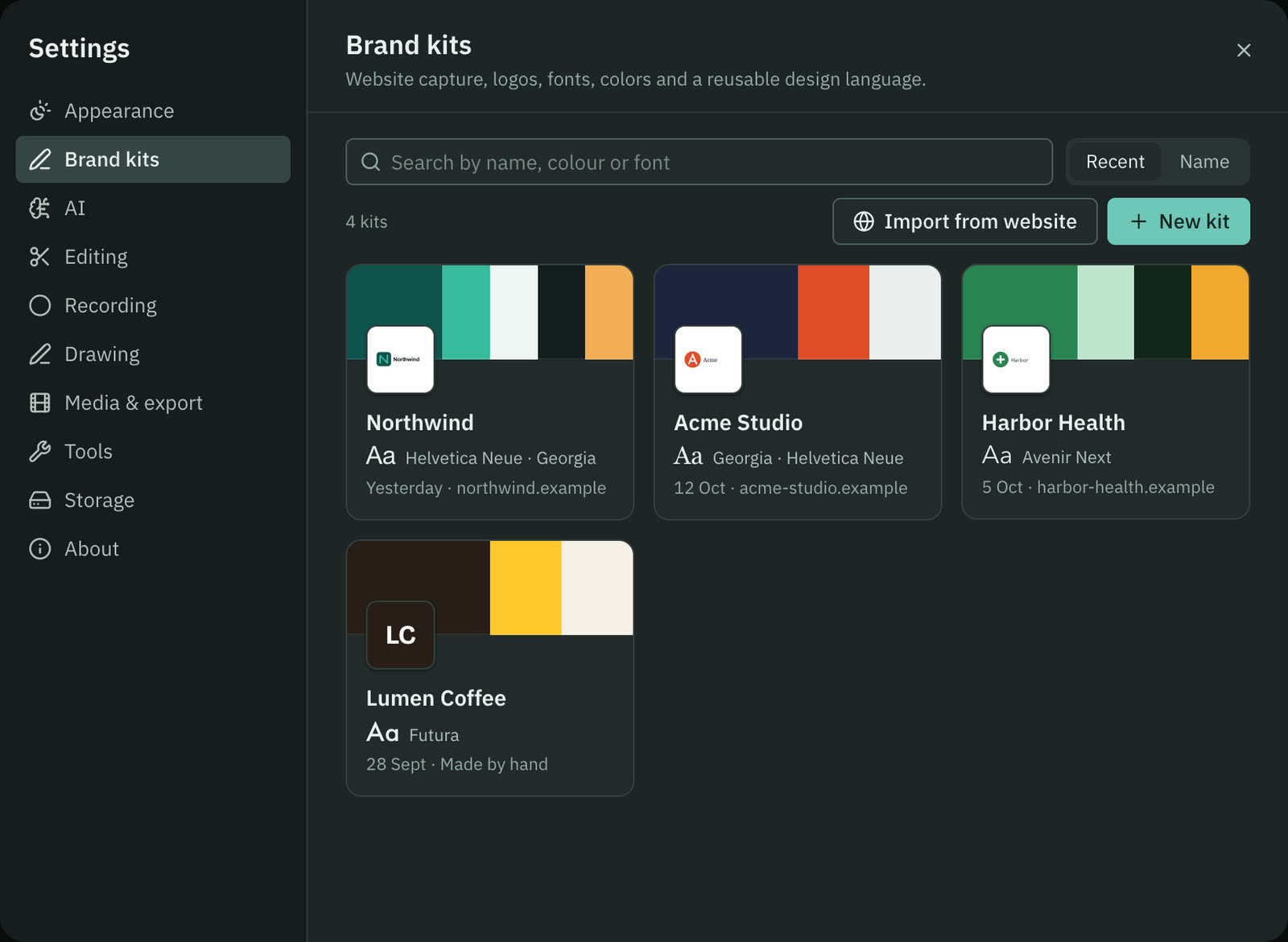
Press ⌘ , and choose Brand kits. Each kit is a card with its name, logo and colours. You can search by name, colour (a hex such as #0c5e57, or a name such as teal, navy or pink) or font, and sort by Recent or Name. A count above the cards says how many kits you have.
Capture a kit from a website
- Press Import from website.
- Type the address, for example
https://example.com, and press Import. - Wait. The message says "Reading example.com in an isolated browser. This can take up to 35 seconds."
- The new kit opens. A notice says "Imported" with the site's name, and "Review its logos and colours."
Cutscript loads the public page in an isolated browser and collects its visible colours, fonts, logo candidates and a screenshot. No AI is used, and no commercial fonts are downloaded. Check the logos afterwards: some need to be added by hand.
Make a kit by hand
Press New kit. Fill in the name, then add colours, fonts and logos as below, and press Save brand. A kit you have not saved says "Not saved yet".
What is in a kit
Open a card to see the whole kit.
- Brand name and Website at the top.
- Colour palette. The first colour is the Primary and the second is the Accent. Press Add colour (up to 16), click a swatch to change it with the colour wheel, click a hex to copy it, press the star to make another colour the primary, or press the cross to remove one.
- Fonts, up to four. The first is Display and the second is Body. Each is drawn in itself. If a font is not installed on your Mac, a warning says previews and exports use a fallback until it is.
- Logos and files. Add logos takes SVG or PNG files, and Add media takes other brand pictures. Imported kits also list a website reference screenshot. Each file has a button that shows it in Finder.
- Voice, tone and notes. Write how the brand sounds and moves: tone of voice, type, colour use, shapes, motion, spacing. The AI reads this with every graphic.
- Where it is used. Shows whether this is your default kit, and where the kit is used.
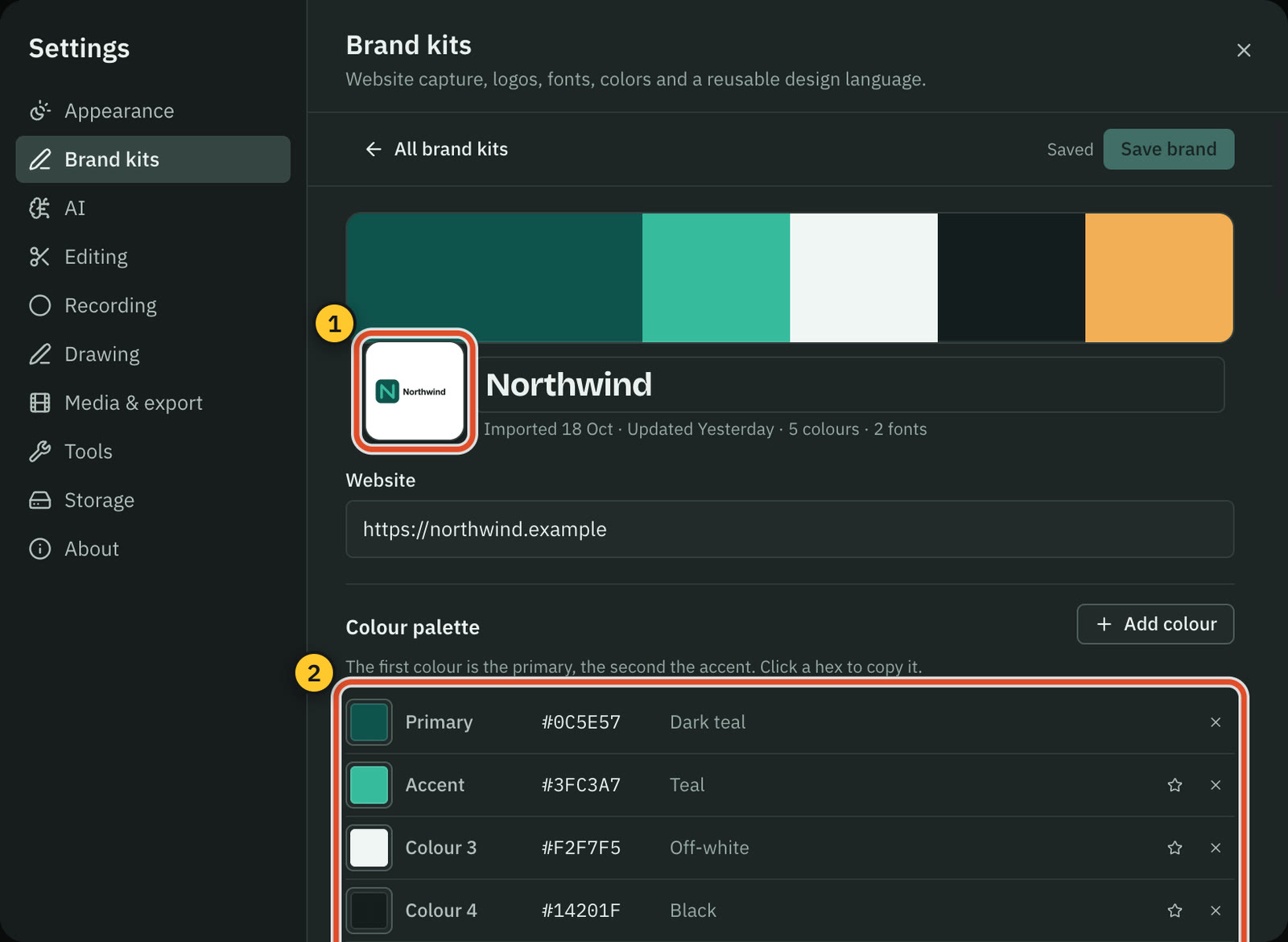
Your changes are a draft until you press Save brand. If you leave with unsaved changes, Cutscript asks: Save and continue, Discard changes or Keep editing.
Analyze with AI
Under Prompt used to build this kit, press Analyze with AI. Cutscript sends the kit's name, colours, fonts and notes, with the prompt shown there, to your AI director. It writes a short guide to the brand's design language and saves it into Voice, tone and notes. It keeps only the colours and fonts that were already in the kit.
This is one short text request. It has no price line today, and on a ChatGPT or Claude plan it costs nothing in Cutscript. To change the instructions, press Edit prompt. See Read and change the prompts.
Use a kit
- Make default. In Where it is used, press Make default. New graphics and AI chats start with this kit. Stop using as default takes it back.
- Pick a kit for one request. In the AI chat and in Graphics, open Options and use Brand. On the home screen, use the Brand kit menu. A chat keeps the kit it used.
- In Direct my video. The plan names the kit: "Brand: Northwind". With none chosen it says "No brand kit: neutral styling".
When a kit is picked, its colours, fonts, logos and notes shape the graphics the AI makes. See The design director and Direct my video.
Remove a kit
Open the kit and press Remove kit, then Move to Trash to confirm. The kit's folder, with its screenshot, logos and uploads, moves to the macOS Trash, so you can put it back from the Finder.
Common problems
The import found no logo. Some sites hide their logo. Press Add logos and choose the file.
The import took too long, or failed. Check the address and your connection, then press Import again. A page that needs a sign-in cannot be read.
A font looks different in the export. It is not installed on this Mac. Install it, or pick one that is.
Analyze with AI says to add a key. The AI director has no source ready. Open Settings › AI › Providers.
Related
Was this page helpful?
Comments
Longer questions go better in the forum.
No comments yet. Ask a question or add what you found.
Sign in with GitHub or Google to comment.
Sign in to comment