Captions for vertical video
Switch a video to 9:16, style word-by-word captions that fit a tall frame, place them where they read well, and burn them into the export.
Most vertical video is watched with the sound off or low, so captions do real work. This walk-through takes a landscape recording, frames it for 9:16 and sets up captions that fit a tall screen. It uses the same settings the clipper uses for its own clips, so you can match them.
Before you start
- A project with a transcript. Captions come from it, so read it first and correct any wrong words. See Get accurate transcripts.
- A video that works in a tall frame. A talking head, or a screen recording where the action stays near the cursor, both work.
1. Switch the project to 9:16
- Above the preview, open the Aspect menu and choose 9:16.
- Open Screen in the right rail (
⌘ 5). Under Aspect & crop, check that Auto reframe is on. It fills the new shape, follows the recorded cursor and keeps your zooms. With no cursor data, such as a talking head, the frame stays centred. - If the speaker is off-centre, turn on Crop on the preview and drag the edges of the picture until they are framed.
If you start from the home screen instead, pick 9:16 in the Aspect menu there, and the project is made in that shape.
2. Open the captions
Press ⌘ 0 to open Captions. A project's captions start on the Clean style, which suits a landscape video. Captions only show when the project has a transcript. Otherwise the panel offers Transcribe.
3. Pick a bold, short-line style
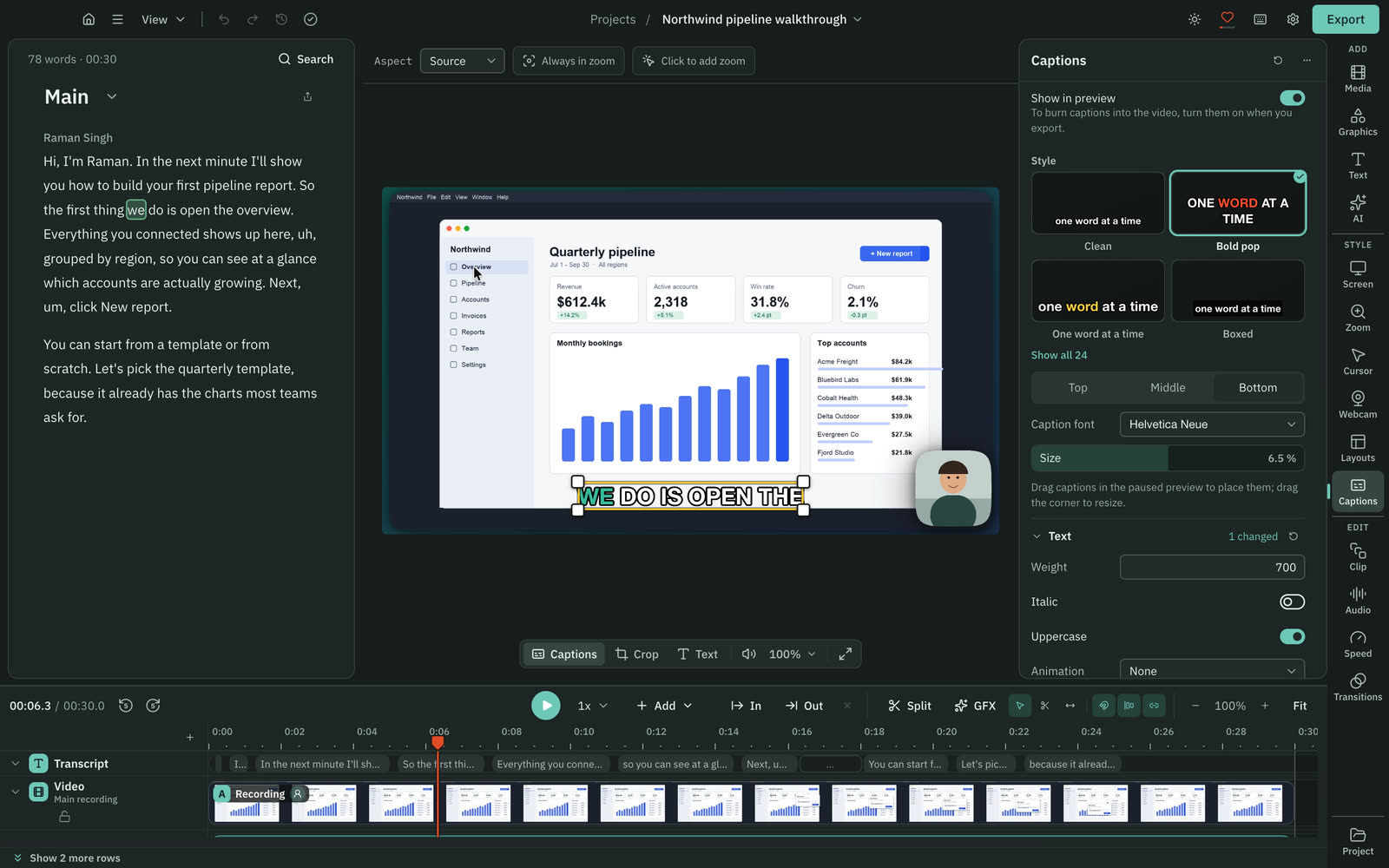
Choose a style in the grid under Style. Tall frames suit big, bold words, a few at a time. Bold pop is the one the clipper uses for its Shorts. One word at a time and Boxed are also worth trying. The preview updates as you click.
4. Match the clipper's settings
These values give a few words per card, readable at phone size:
| Setting | Where | Value |
|---|---|---|
| Size | Top of the panel | 3.6 % |
| Weight | Text | 800 |
| Uppercase | Text | Off |
| Highlight the active word | Text | On |
| Animation | Text | None |
| Background | Background | Outline |
| Characters per line | Layout | 20 |
| Lines per caption | Layout | 2 |
Size is a fraction of the frame height. A tall frame is a lot of height, so a small percentage is already large. The caption card is never wider than 90 % of the frame, and a card that does not fit is broken into the fewest even lines. A very long word shrinks the whole card until it fits, so check your longest line.
5. Place the captions
Pause the preview and drag the captions to where you want them. Drag the corner to resize. The clipper puts them centred, about 60 % of the way down the frame, inside the safe area, so they stay clear of the edge where apps often draw their own controls. Top, Middle and Bottom are quick starting points.
Scrub through the video. Check a line with a long word, a line with a name, and the first and last captions. Press C on any word that is wrong. The captions use the corrected text.
6. Add a full-screen opening line (optional)
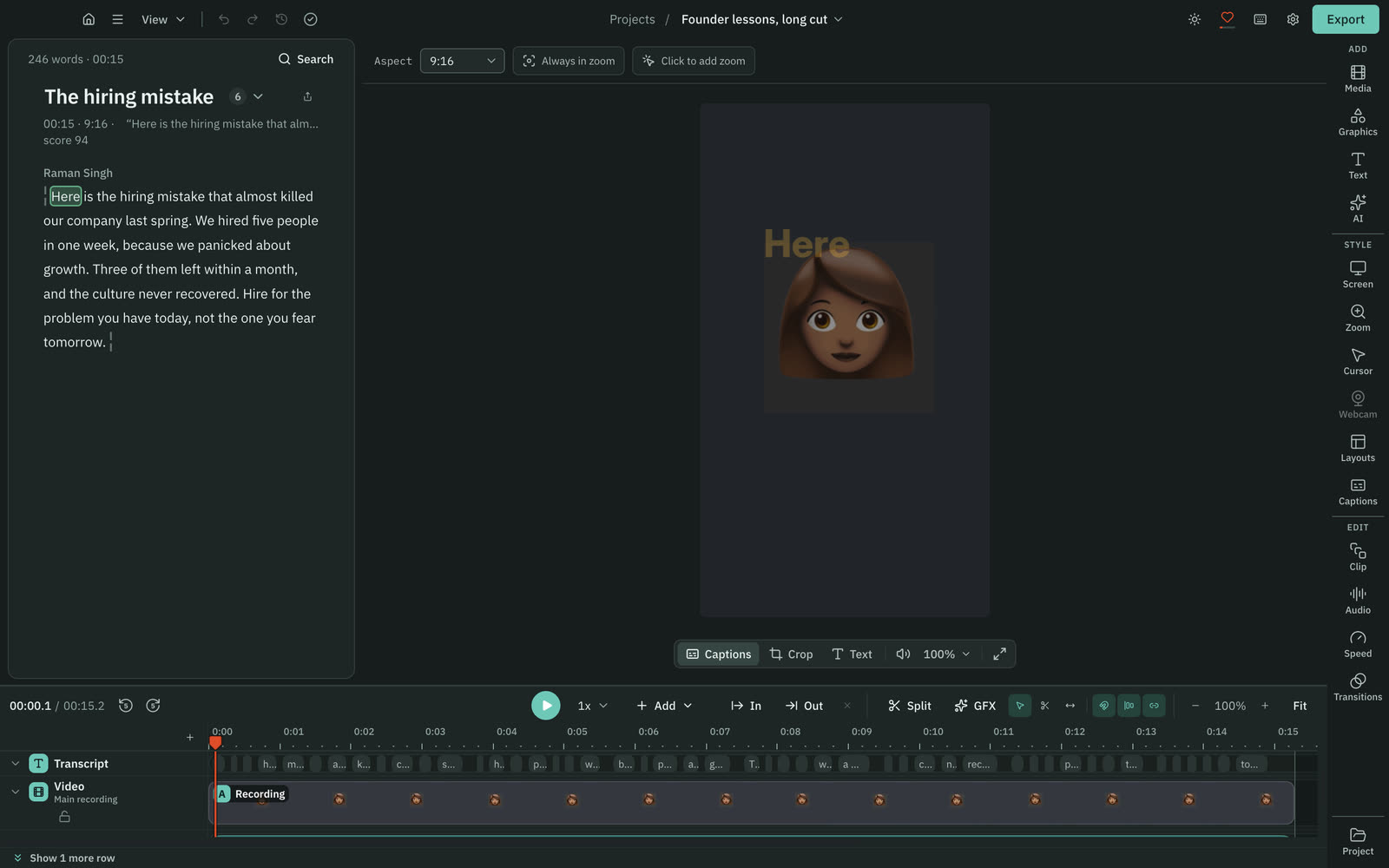
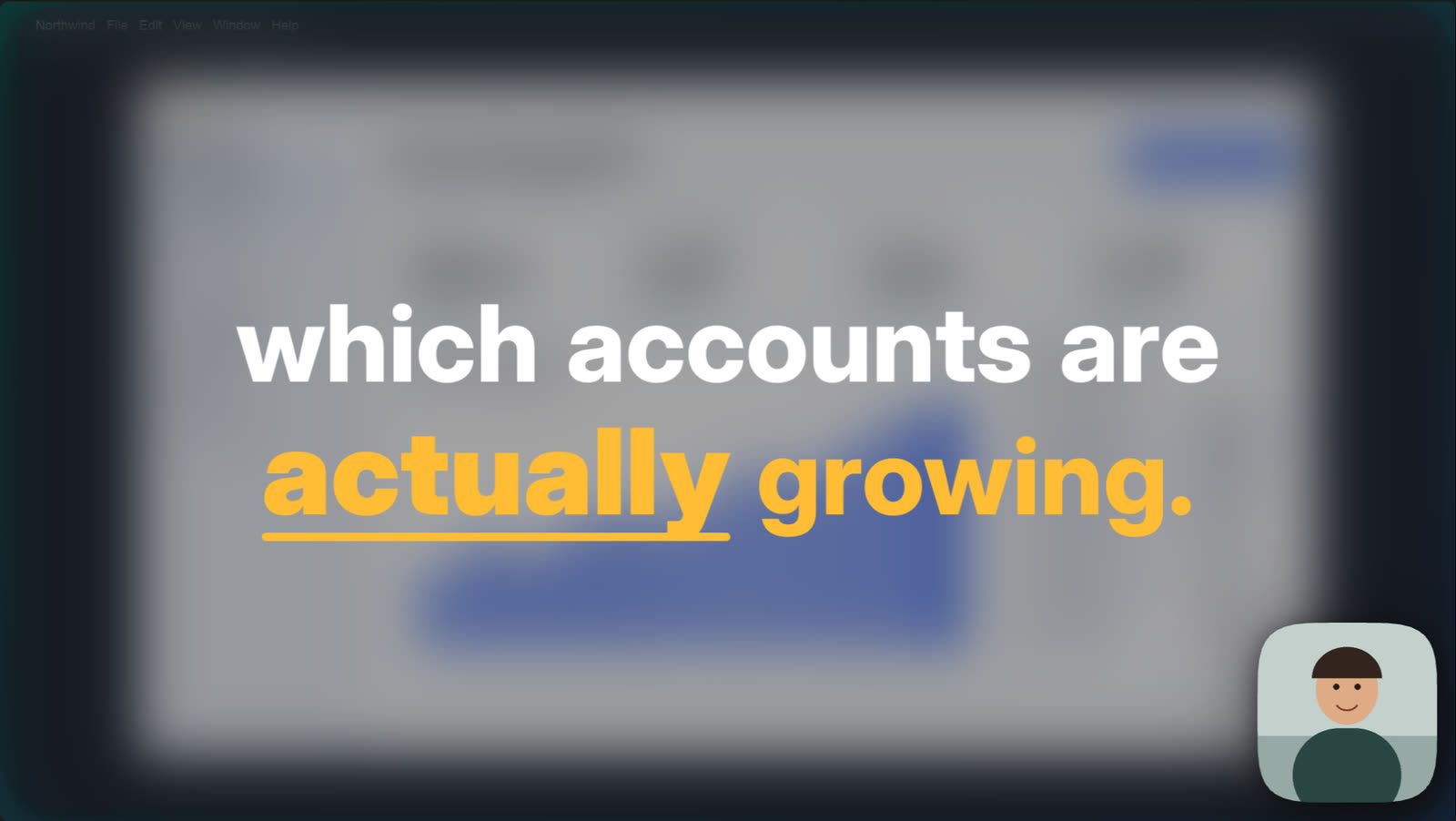
A line shown full screen, word by word as it is spoken, holds a viewer in the first seconds. Words shown this way are not captioned a second time. Full-screen hook text in the clipper plan makes one for each clip, and Direct my video can add them across a video.
7. Burn them in and export
The Show in preview switch only controls what you see while editing. To put the captions in the file, turn them on in Export.
- Press Export, or press
⌘ E. - On the Video tab, set Resolution to 1080p. That is a 1080 by 1920 frame in 9:16, as long as your source is 1080p or larger.
- Leave Format on MP4 H.264.
- Turn on Burn in captions.
- Open Advanced and set Normalize volume to -14 LUFS.
- Press Export.
Burned-in captions use the same layout as the preview, so what you placed is what you get. They need an ffmpeg with the libass library, and the one inside Cutscript has it.
What you made
A 9:16 video with bold word-by-word captions that fit a tall frame, sit where they read well and use the corrected text. To get this look on several clips at once, let the clipper make them, since it applies these settings to every clip. See Turn a long video into shorts.
Related
Was this page helpful?
Comments
Longer questions go better in the forum.
No comments yet. Ask a question or add what you found.
Sign in with GitHub or Google to comment.
Sign in to comment