Remove filler words and pauses
Find um, uh, long pauses and repeated phrases in the script, review them, and remove them all in one undoable step.
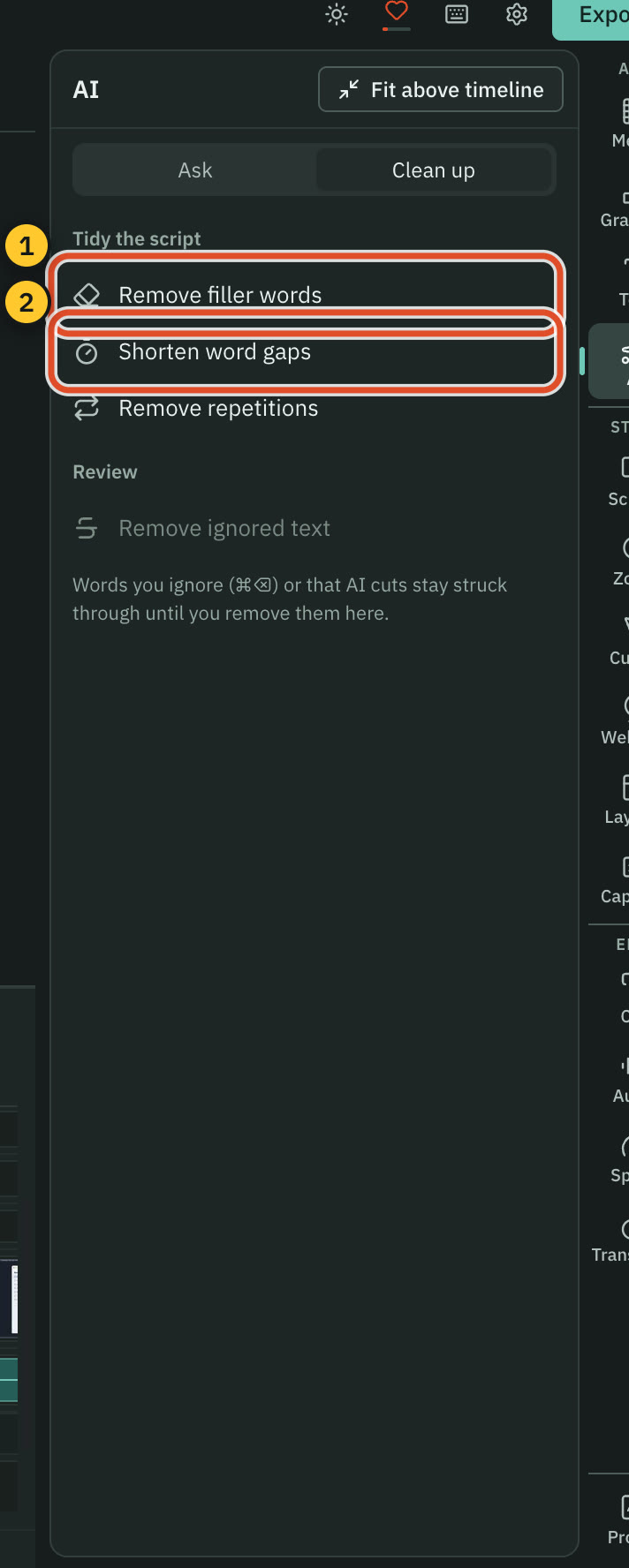
Three clean-up tools work on the transcript: one finds filler words, one shortens long pauses, and one removes phrases you said twice in a row. Each highlights what it found in the script, lets you step through the matches, and applies a change to one match or to all of them.
They run on your Mac against a word list and settings you control. They do not call an AI service and cost nothing.
Before you start
- The project needs a transcript: see Edit by editing text. With no transcript the tools say "Transcribe the video first".
- A filler the transcriber did not write down cannot be found. Skim the script once before you rely on it.
Open a tool
- Press
⇧ ⌘ Fto find filler words. - Open AI in the right rail (
⌘ 4), choose the Clean up tab, and press Remove filler words, Shorten word gaps or Remove repetitions. - Press
⌘ Fto search the script. The bar's AI actions row has Remove fillers, Remove gaps and Remove repeats. Back to search returns you. Despite the row's name, these three tools use no AI account.
A bar floats over the top of the script. Press Esc to close it.
Remove filler words
- Press
⇧ ⌘ F. The bar reads Filler words and shows how many it found, such as 3/12. - Every match is highlighted in the script. Press
Enterand⇧ Enterto step through them, or use the arrows in the bar. - Pick what happens to a match in the Action list:
- Delete: cut it from the video and the script.
- Ignore: cut it from the video, but keep it in the script, struck through.
- Remove from transcript: hide the text. The video still plays it.
- Skip: keep it and dismiss the match.
- Press Remove for the current match, or Remove all for every match. Remove all is one undo step, and a message such as "Deleted 12 filler words" has an Undo button.
Tip: Words such as "kind of", "you know" and "literally" are sometimes meant. Step through the matches with
Enter, or choose Ignore first. Ignored words stay on screen, struck through, so you can check them before you press Remove ignored text in AI › Clean up.
The filler word list
The starting list is: um, umm, uh, uhh, uh-huh, er, erm, ah, hmm, mm, mhm, you know, i mean, kind of, sort of, basically and literally.
Change it in the bar with the Filler word settings button, or in Settings › Editing › Filler words, where Reset to defaults restores the list above. Matching ignores case and punctuation. A phrase matches words that follow each other, spoken by the same speaker. Words you already cut are skipped, and a word you corrected is matched as corrected.
To see fillers while you read, switch on View › Underline filler words.
Shorten pauses
- Press Shorten word gaps. The bar reads Gaps.
- Choose which pauses to find. More than finds every pause longer than the number you set. Between finds pauses between two numbers. The starting values are more than 0.8 seconds, or between 0.8 and 3 seconds. The search includes silence at the start and the end of the recording.
- Set shorten to: how much of each pause to keep. The starting value is 0.3 seconds. At 0, the pause is removed.
- Press Shorten for the current pause or Shorten all for every one. If every match is already short enough, a message says "Nothing to shorten".
Cutscript shortens a pause by cutting its middle, so exactly the amount you chose remains. Your numbers are saved in Settings › Editing › Pause detection.
One pause at a time
Select the words before a pause and press ⌘ G, or right-click and open Pause. The menu offers Remove pause, 0.1 s, 0.25 s, 0.5 s, 1 s, Set manually… and Shorten all word gaps…. ⇧ ⌘ G shortens a pause by the last amount you used. While the gaps bar is open, each matching pause shows in the script as its length in seconds, between the two words.
Remove repetitions
Press Remove repetitions. The tool finds a phrase of up to 8 words that you said again straight away ("I think I think") and removes the earlier one, so it keeps your last take. The bar has up to and words to change the length from 1 to 20 words. The same actions are there, and the bar says "Keeps the last take".
Related
- Edit by editing text
- Get accurate transcripts
- One AI for a single request such as "tighten this video"
Was this page helpful?
Comments
Longer questions go better in the forum.
No comments yet. Ask a question or add what you found.
Sign in with GitHub or Google to comment.
Sign in to comment