Direct a whole video
Let the AI read your video, ask a few questions and run a priced plan for clean-up, graphics, zooms, captions and sound, with a checkpoint before each task.
This walk-through takes a finished tutorial recording and lets the AI do the polish in one pass: clean-up, a lower third, a callout, zooms on your clicks, captions and sound. You approve a priced plan first, and you can undo any task. The pictures show a sample, a short pipeline walkthrough. Your totals will differ.
Before you start
- A project with a transcript. Cut out what you do not want first, so the plan fits the video you will publish. See Edit by editing text.
- An AI source: a Claude plan, a ChatGPT plan or an OpenRouter key. On a plan the planning is free in Cutscript. See Connect an AI account.
- A brand kit, if you have one. Everything the AI makes uses it. See Brand kits.
1. Start it
- Press
⌘ 4to open AI and stay on Ask. - Press the Direct my video card. The words go into the message box.
- Read the price line under the box. It covers reading the whole video and planning.
- Press Send.
The chips at the top of the card show where you are: Read, Ask, Plan, Direct, Review, Done.
2. Answer the questions
The AI reads the video, then asks up to four questions with a sensible answer already chosen:
- Where will it go? YouTube video, Short (vertical), LinkedIn, or Course or lesson.
- What kind of video is it? Tutorial, Story, Product demo or Talk.
- How tight should the clean-up be? Light, Normal, Tight, or Tight and about 20 % shorter.
- What else should it have? Captions, Music, More graphics.
One question is always asked and never preselected: How should the graphics be made? Choose Templates (Design pack, free) to spend nothing on graphics, From scratch (AI-designed, priced per graphic), or the Mix. Continue waits until you answer.
Press Continue. The button shows the price of the planning step.
3. Read the plan
The plan card shows a total, "≈ typical · up to most · about N min", and the brand kit it will use. Below are sections: Clean-up, Chapters, Graphics, Text, Zooms, Captions, Transitions and Sound. Each section has a switch. Each item has a checkbox, a time you can click to jump to, a price and a pencil that edits its words.
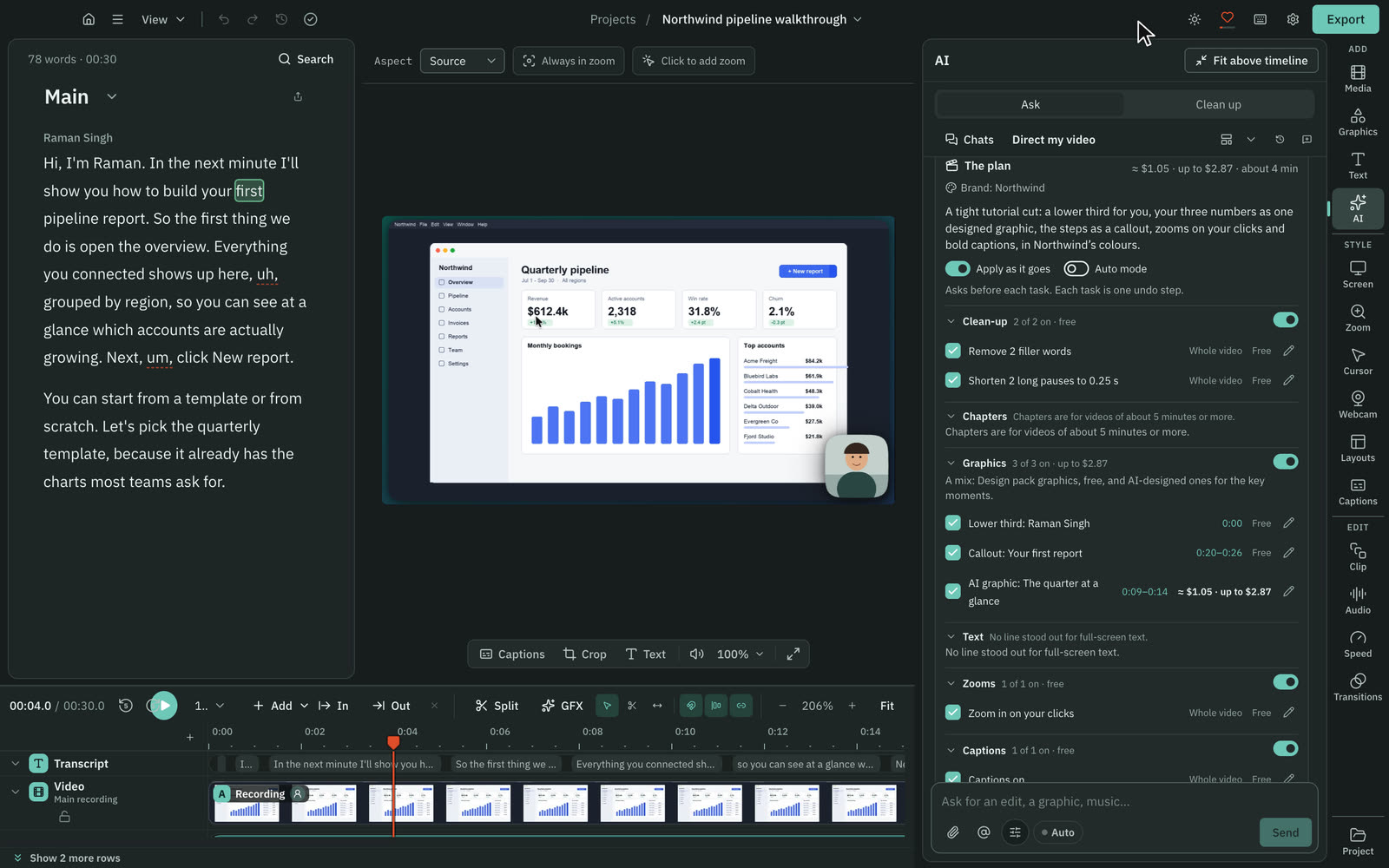
Switch off what you do not want. Press the pencil on a lower third to put your own name and role in it. Press Change… to ask for a different plan, such as "Fewer graphics, no music". That asks the AI again, so its price is shown first.
Two switches sit above the sections:
- Apply as it goes is on. Each finished task is one undo step.
- Auto mode is off. The run stops before each task and asks. Leave it off the first time.
4. Approve
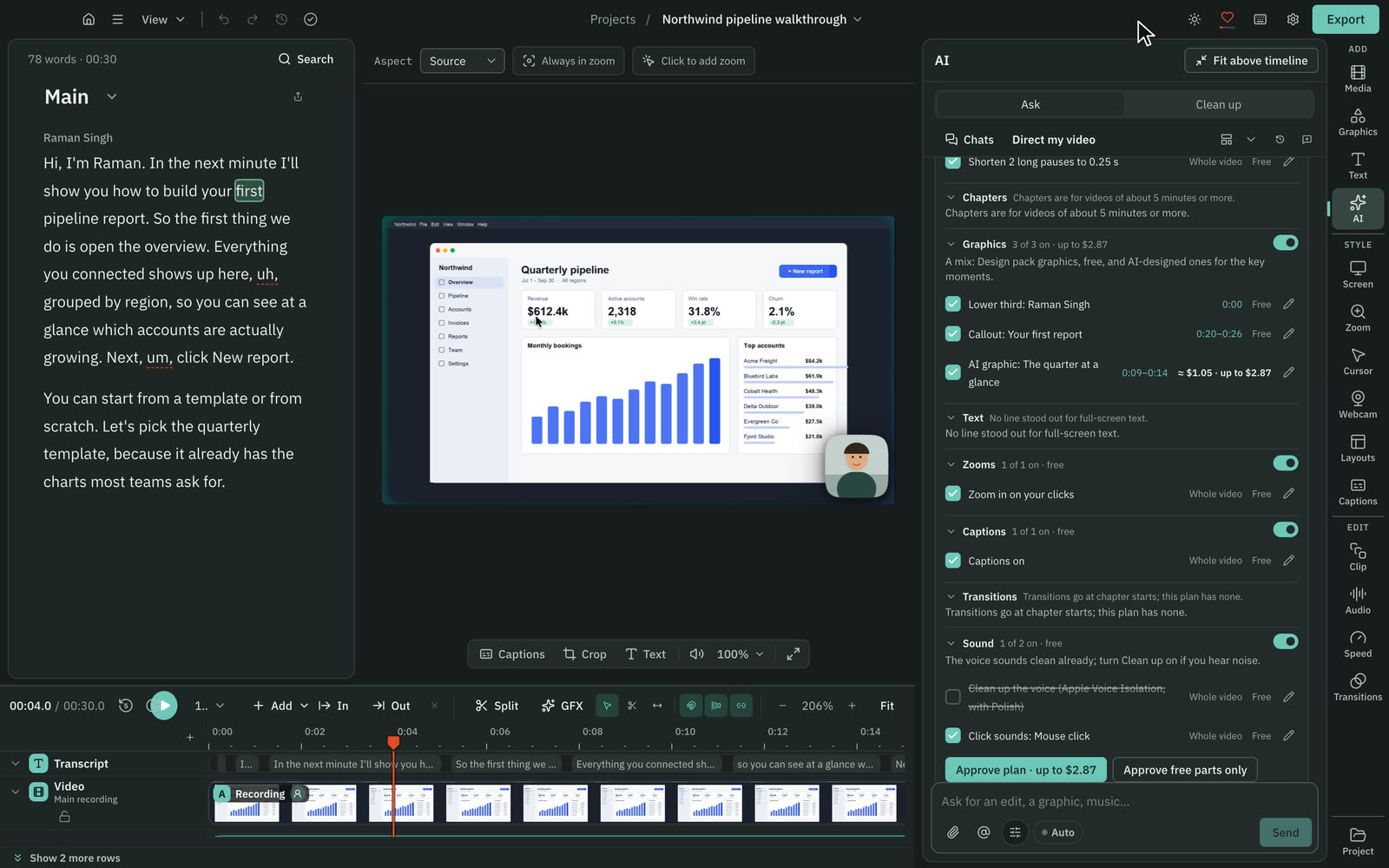
At the bottom of the plan, press Approve plan · up to $…. That approves everything that is switched on. If you want to spend nothing yet, press Approve free parts only. Nothing is spent until you approve.
5. Run it, task by task
Free tasks run first, then priced ones. With Auto mode off, a small card appears before each task: "Next: …", its items and prices, and three buttons.
- Run does the task.
- Skip leaves it out.
- Edit lets you change its items first.
Press Run on each. Cutscript saves a checkpoint before every task. If a task goes wrong, a Restore on its checkpoint brings the project back to how it was. Stop halts the run, and Continue the run picks it up again.
6. Review
After the tasks, the AI checks the result as it plays. It looks for graphics over the webcam or captions, colours outside your brand kit, text that does not match the speech, zooms that miss the click and music that is too loud under speech. Fixes come as cards. Press Apply all fixes, or apply them one at a time. A look at the frames is priced and shows its price first. Look at the frames too asks for it. Finish the review closes it.
7. Done
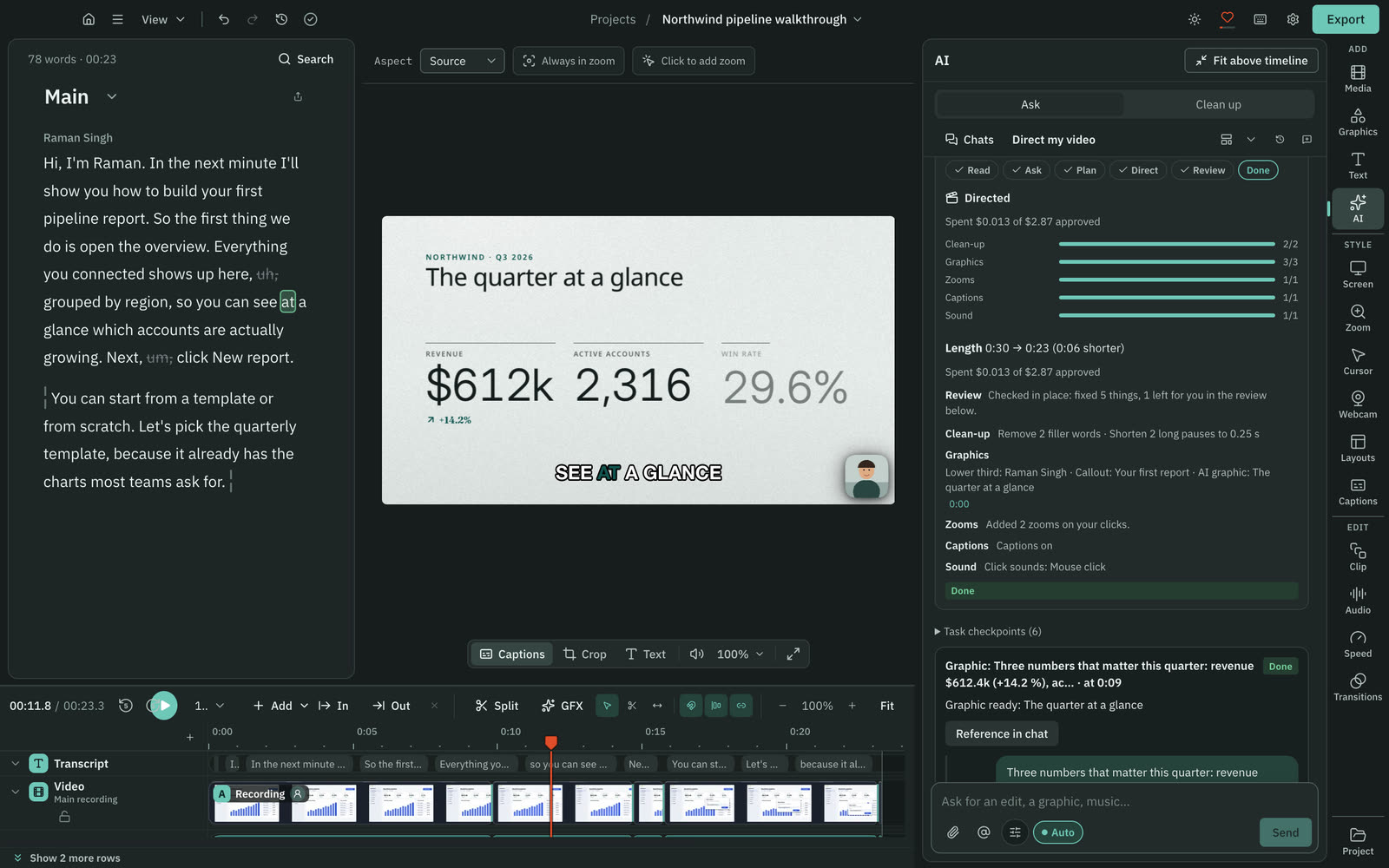
The Done card lists what changed in each section, with links that jump to it. It shows the length before and after, and the money spent against the approved total. For a video of about five minutes or more it also has a YouTube chapter list with a Copy button.
8. Finish by hand
Play the video from the start. Click any graphic on the preview to change its words and colours in the right rail. Anything you dislike can be undone with ⌘ Z, or by restoring a checkpoint. When it looks right, export. See Export for each platform.
What you made
A polished video from a raw cut, built from a plan you approved line by line. You saw the cost before each paid step, and you can undo each task alone. To change how the AI directs in future, edit the Direct the whole video skill in Settings › AI › AI director › Skills. See Skills.
Related
Was this page helpful?
Comments
Longer questions go better in the forum.
No comments yet. Ask a question or add what you found.
Sign in with GitHub or Google to comment.
Sign in to comment