Cursor and clicks
Redraw the pointer in the style and size you want, smooth its movement, and add click effects and click sounds.
Cutscript records where your pointer moves and where you click. In the editor it draws the pointer again from that data, so you can enlarge it, smooth it, change its style and add effects and sounds to every click. The preview and the exported file match.
Before you start
- You need a take recorded in Cutscript with pointer tracking on. An imported video has no pointer data, and the panel says so.
- Click effects and click sounds need click tracking as well. If a take has none, the panel shows "This recording has no click data" and a Turn on click tracking link that opens Settings › Recording. See Click tracking.
- Nothing here needs AI or an internet connection.
Style the pointer
- Open Cursor in the right rail (
⌘ 7). - Leave Show pointer on. Turn it off to hide the pointer in the video.
- Pick a style. Your Mac draws the pointers of this Mac as macOS draws them (the arrow, the pointing hand, the I-beam and the open hand). Under Styles there are six more: Modest light, Modest dark, Chunky, High visibility, Soft rounded and Minimal line. Hover a tile to preview it on the picture.
- Drag Size (0.5× to 10×).
Press the small refresh button next to Your Mac if the pointers did not load. Credits and licences lists who made each bundled style and under which licence.
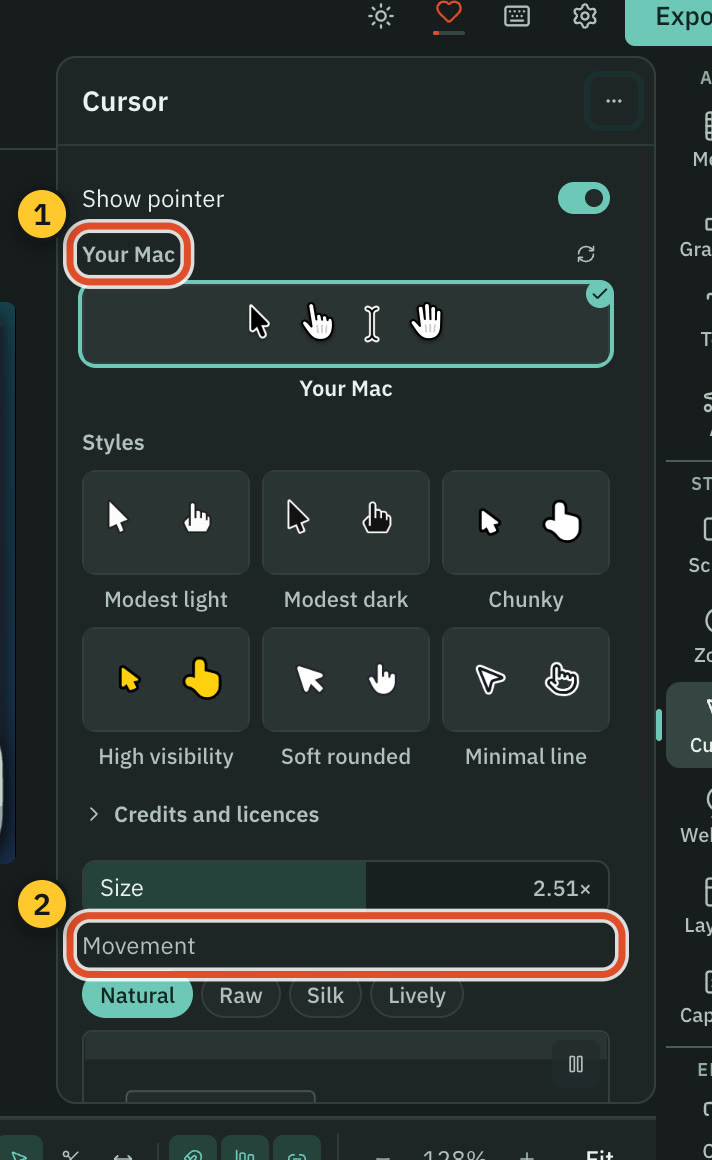
Movement
Movement has four presets:
| Preset | What it does |
|---|---|
| Natural | Gently smoothed with a little sway. The default. |
| Raw | Exactly where the pointer was. No smoothing, no sway. |
| Silk | Heavily smoothed, for slow, deliberate demos. |
| Lively | Springy, with a ripple on every click. |
The demo under the presets moves a pointer with your current settings, so you can judge a change without playing the video.
Open Advanced movement to set it yourself: Smoothing and Sway (each 0 to 2), and Spring damping, Spring mass and Spring stiffness.
Click effects
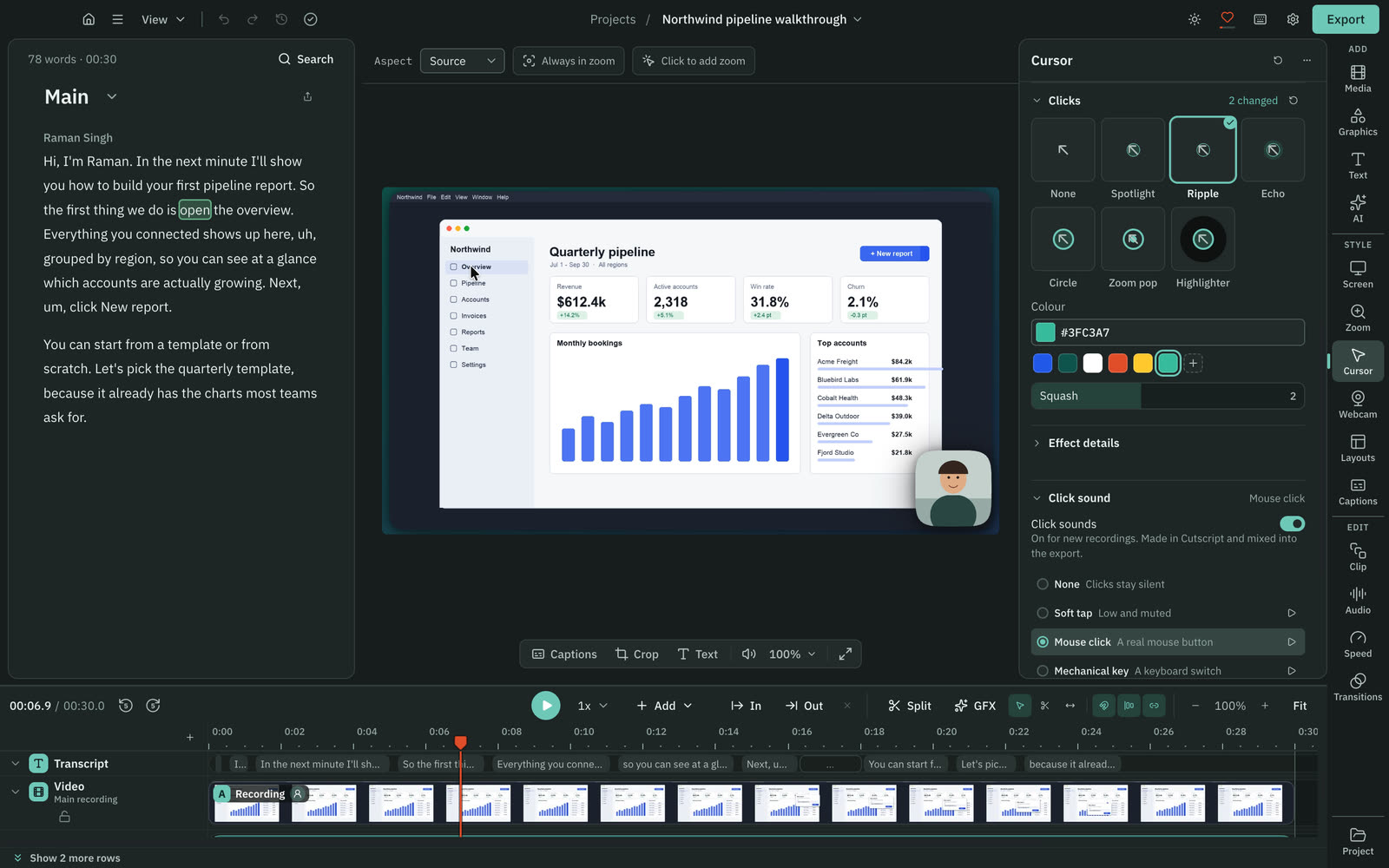
Open Clicks and pick one of the tiles: None, Spotlight, Ripple, Echo, Circle, Zoom pop or Highlighter. New recordings start on None.
Once an effect is on you can set:
- Colour of the effect.
- Squash, how much the pointer shrinks and springs back on a click.
- Under Effect details: Size, Opacity, Duration and Squash time.
Click sounds
Cutscript makes its own click sounds, so there is nothing to download or license. New recordings get one automatically.
- Open Click sound.
- Turn Click sounds on.
- Pick a sound: Soft tap, Mouse click, Mechanical key, Pop or Tick. Press the play button beside one to hear it. New recordings start on Mouse click.
- Set Volume. It starts at 60 %.
- Leave Skip clicks closer than 80 ms on if a fast burst of clicks should sound as steady taps, not a rattle.
A right click plays the same sound a little lower. The sounds are mixed into the exported file.
Hide the pointer but keep the sound
Turn Show pointer off and the Click sound group stays available, so the clicks can still be heard.
Export
The pointer is drawn frame by frame, so a video that shows it exports as MP4 H.264. See Export a video.
Related
Was this page helpful?
Comments
Longer questions go better in the forum.
No comments yet. Ask a question or add what you found.
Sign in with GitHub or Google to comment.
Sign in to comment