Blur screen in a video: 3 ways to hide private details
Hide emails, names, passwords and faces in a screen recording. A fixed box, a blur that follows, and what QuickTime Player and iMovie can do.
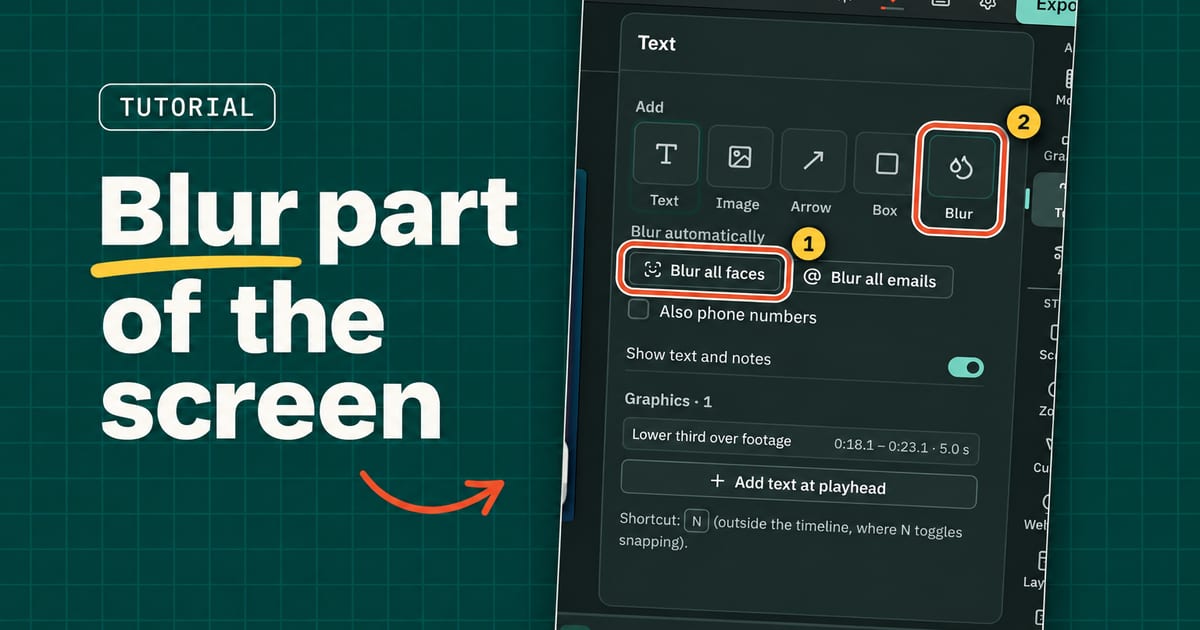
I once posted a tutorial with a customer's email address sitting in a card in the corner. A viewer pointed it out in the comments within the hour. Now I blur the screen before anything leaves my Mac.
To blur screen details in a video, cover the private area with a blur or pixelate box, set when it appears and disappears, and let it follow the thing if it moves. QuickTime Player and iMovie cannot do this. Cutscript can, and its blur is free on the free plan.
This guide covers the three cases people search for: a fixed area, a moving face, and text that shows for a few seconds.
Key Takeaways
A blur box in Cutscript covers an area of the picture, and you set its start and end on the timeline so it hides text that shows for only a few seconds.
A tracked blur follows a moving face or window, using Pixel lock for screen recordings and Apple Vision for camera footage on a Mac.
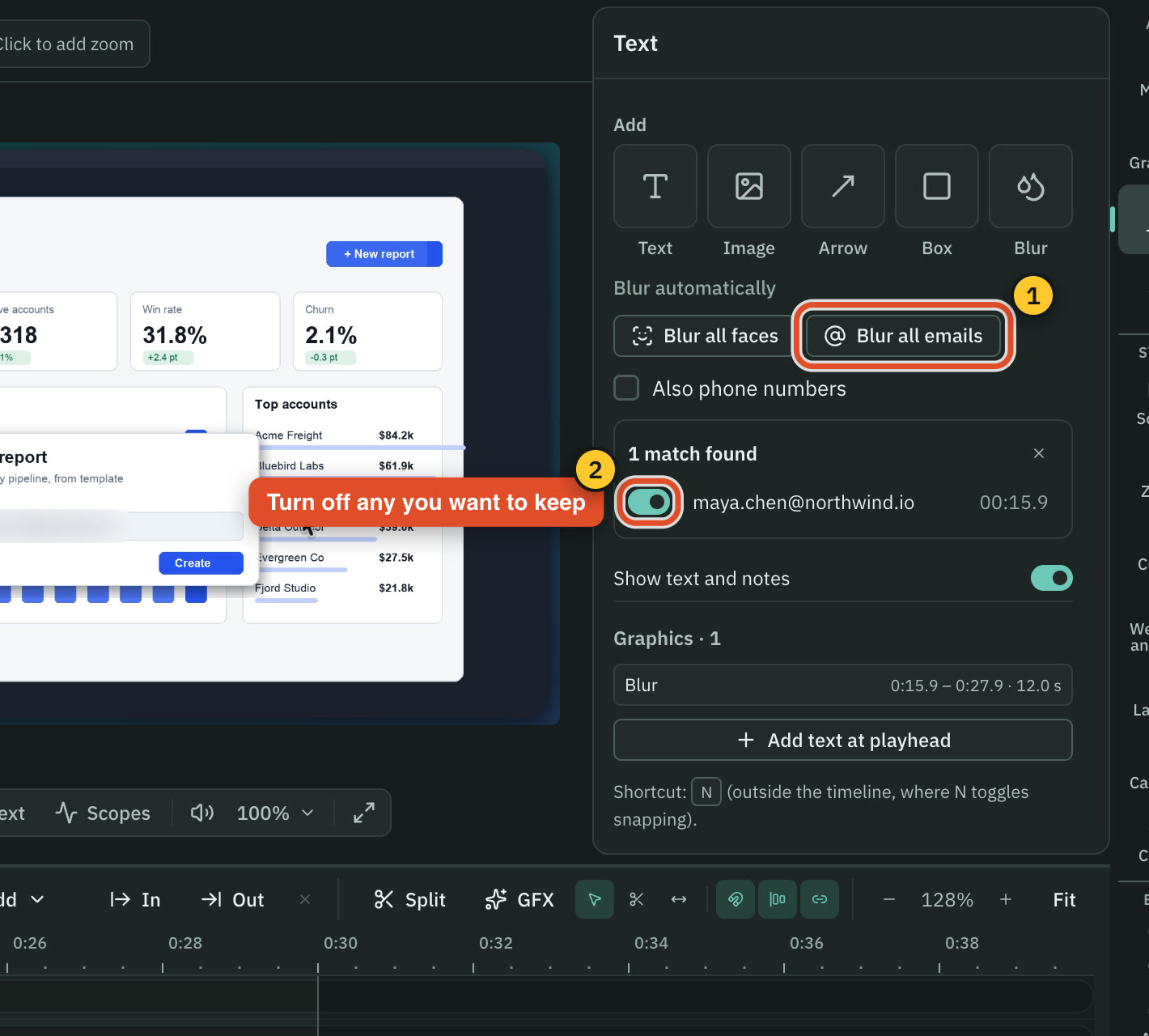
On a Mac, Blur all faces and Blur all emails find every match for you, and you can switch off any you want to keep.
QuickTime Player has no blur or any effects, and iMovie has no blur or pixelate filter, so the free Mac workaround is a solid colour box placed over the area.
A blur hides pixels in the preview and the export, so share the exported video and not a project package.
Always play the exported video from start to finish before you post it.
What do you need before you blur a screen?
You need the recording, an editor that can blur, and about five minutes. The best fix is still the one you make before recording, so close what you do not need.
Turn on a Focus such as Do Not Disturb from Control Center so a message cannot slide in mid-take. On a Mac you can also record just part of the display: press Shift Command 5 and choose Record Selected Portion, and the private area stays out of the frame from the start.
Sometimes you cannot avoid it. A dashboard shows customer names, a terminal prints a key, a face walks into the shot. That is when you blur.
How do you blur part of a screen in Cutscript?
Place a blur box over the area, pick Blur or Pixelate, and set when it shows. It takes about a minute for one fixed area. The steps below come from the blur guide.
Move the playhead to a moment where the thing you want to hide is on screen.
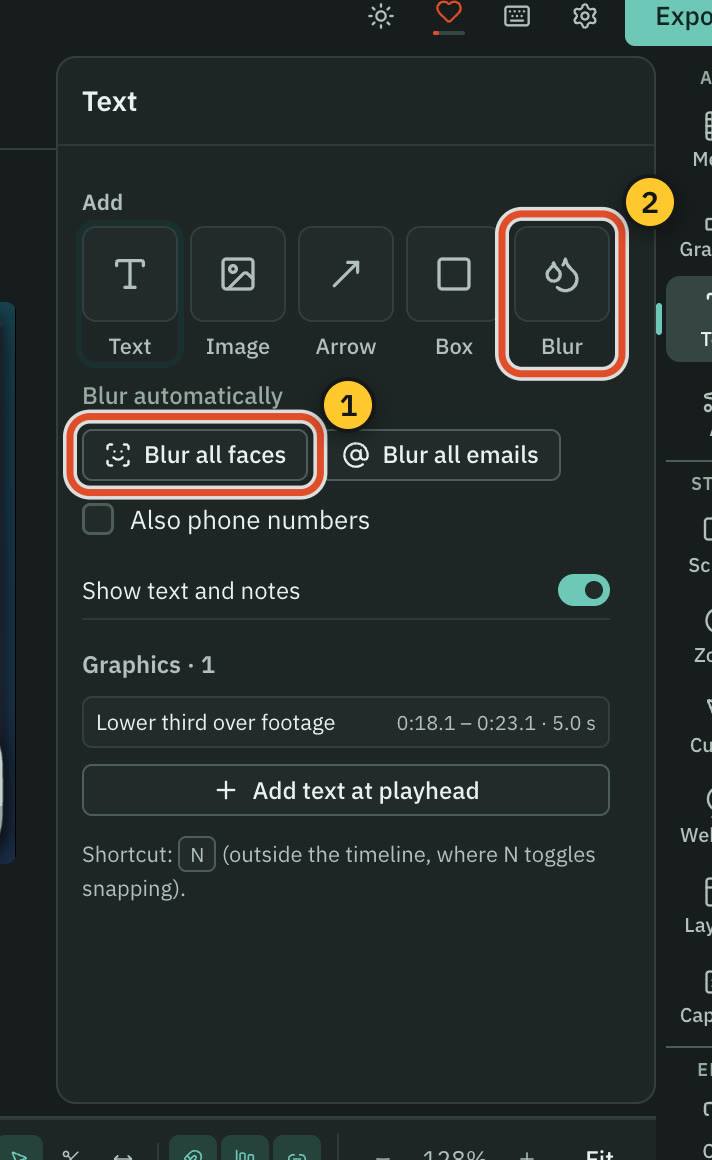
Open Text in the right rail (
⌘ 3) and press the Blur tile. A blur box appears over the picture.Drag the box on the preview to cover the detail, and drag its corners to resize it.
Under Blur in the panel, choose Blur or Pixelate, then set Strength from 1 to 100. Add a Tint if you like.
On the Graphics row of the timeline, drag the ends of the blur's block to set when it appears and disappears.
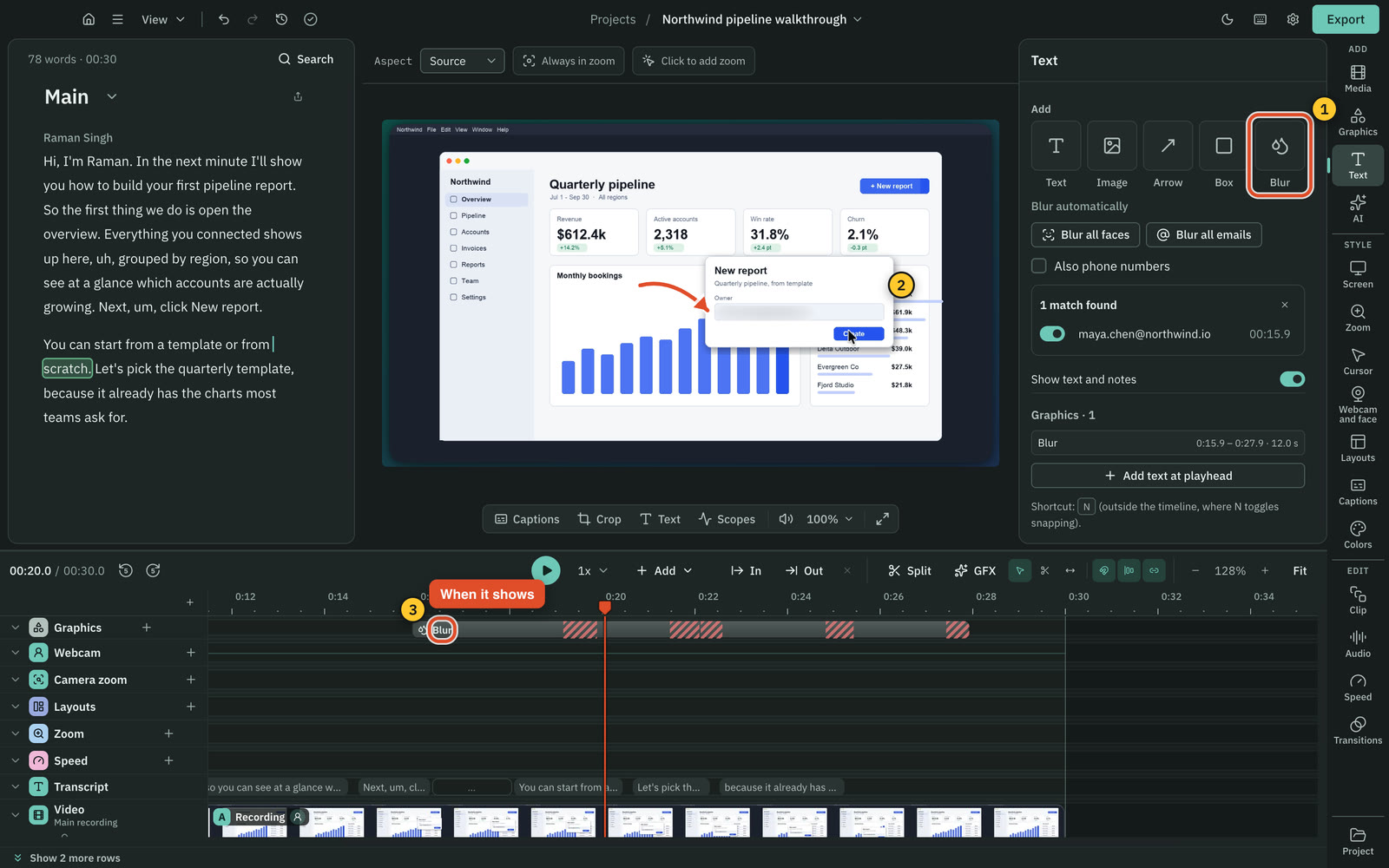
A blur covers whatever is on screen under it, even after a zoom or crop moves the picture. Cutscript applies it in the preview and in the export, and your original recording file is not changed.
Which is better, blur or pixelate?
Both hide the detail. Blur smooths the area, and pixelate turns it into coarse squares. For a password or an API key, raise Strength until the characters cannot be read at all, then step through the frames to check.
How do you blur text that appears for a few seconds?
Set the blur's block on the timeline to the seconds the text is visible. A notification that slides in for four seconds needs a four second block, and the blur is gone the moment the text is.
Scrub to the first frame where the text shows, and place the blur there.
Drag the right end of the blur's block on the Graphics row to the last frame where the text shows.
Add a little time on each side, about half a second, so the text does not peek out at the edges.
If you recorded with Cutscript on a Mac, you can also hide an area during the take. A privacy box (press B) blurs, pixelates or redacts the area while you record.
Blur and pixelate arrive in the editor as blur items you can move and retime. Redact covers the pixels for good in Display and Area recordings.
How do you blur a moving face or a moving window?
Use tracking. Put the box over the subject on one frame, press Track forward, and the box follows it, in the preview and in the export.
Move the playhead onto the blur, on a frame where the box sits right over the subject.
Press Track forward. The arrow beside it, Choose how to track, also offers Track backward, Track both ways and Track one frame.
Watch the dashed box follow the subject on the preview. Press Stop or
Escto keep what is done.Play it through and check every frame.
Cutscript offers two tracking engines, described in the blur guide.
Pixel lock follows exact pixels and suits screen recordings: text, windows and logos. Apple Vision suits camera footage, where people turn and objects change, and it is Mac only. On Windows, a blur you place by hand tracks with Pixel lock.
What if the tracker loses the subject?
The panel shows "Lost at" and a time. There the blur holds its last box and grows a little, so nothing is left bare by accident. Drag the box back onto the subject and press Re-track from here.
Can you blur every face at once?
Yes, on a Mac. Press Blur all faces under Blur automatically and Cutscript finds every face, adds one tracked blur for each and lists them. It uses Apple Vision, which is built into macOS, so it runs on your Mac with no AI account.
Blur all emails works the same way, reads text from the picture, and finds only addresses that are on screen, not ones you only say out loud.
Can QuickTime Player or iMovie blur part of a video?
No. Neither app has a blur or pixelate tool. Here is what Apple's own help pages say.
QuickTime Player's editing topics are split, rearrange, add a clip, rotate, trim and remove audio or video. Trimming (Edit > Trim) cuts the start and end, so it can remove a bad moment, but it cannot hide an area of the picture.
iMovie's video effects are filters applied to a selected clip or range, and the page names no blur or pixelate. Crop removes everything outside a frame, so it only helps when the private part sits at an edge.
The free Mac workaround in iMovie
Cover the area with a solid colour box. It is a patch, not a blur, and it works for a fixed spot.
Move the playhead to where the cover should start. Click Backgrounds above the browser and double-click a solid colour background, as in Apple's backgrounds page.
Drag that background above your video clip in the timeline until the green Add icon appears.
Click Video Overlay Settings, choose Picture in Picture from the pop-up menu on the left, then click Apply.
Drag the box over the private area in the viewer and drag a corner to resize it, as in Apple's picture-in-picture guide.
Drag the ends of the overlay clip in the timeline to match the seconds the detail shows.
For a moving subject, the same page describes the Add Keyframe button, which sets a new position at each point in time. That works for a slow drift. For a face that walks around, it means dozens of keyframes by hand, and a missed one leaves the face showing.
Where can Claude help?
In the Claude desktop app, Claude Code works with files on your computer. With FFmpeg installed, it can pull frames from your video with the fps filter, and Claude reads images, so it can say what is on screen.
I tried it on one of my own 7-second clips: Claude cut seconds 2 to 5 into a new file and read an email address straight off one of the frames.
Paste this into Claude Code with the path to your video:
Use ffmpeg to pull one frame every second from the video file I give you, into a new folder next to it. Look at every frame.
List every email address, person's name, password, API key, account number and notification that you can read on screen.
For each one give: the timestamp as mm:ss, what it says (replace the middle of any secret with "***"), and where on screen it sits (for example top right, or the second line of the terminal).
Do not change, cut or re-export the video. Only write the frame images.
End with how many items you found.

Video: [path to your video]
In a regular chat, the upload list for Claude covers documents and images, not video or audio files. There, give Claude the timestamped transcript, or export a frame and attach it. The transcript catches what the speaker says out loud, such as an email or a password.
Paste this into Claude with the timestamped transcript.
You are a privacy reviewer for a screen recording. I will paste a timestamped transcript.
List every moment where the speaker says or reads out personal or secret details: email addresses,
phone numbers, full names of customers, passwords, API keys, account numbers, home addresses.
Rules:
- Quote the exact words, but replace the middle of any secret with "***".
- Give the timestamp as mm:ss for each item.
- Skip public information such as company names and product names.
Output a table with three columns: Timestamp, What was said (masked), What to check on screen.
End with a line saying how many moments you found.
Then jump to each timestamp, look at the picture, and blur what shows. Check the list against the video yourself, because Claude can miss a detail.
What mistakes should you avoid when you blur a screen?
Most leaks come from timing and from sharing the wrong file. These are the ones I see most.
Blur too short. Start the blur before the detail appears and end it after it leaves.
Low strength. Raise Strength until you cannot read the text, then check a paused frame.
A lost track. Cutscript warns you in the Video tab of the export ("A tracked blur lost its subject for part of its time"). Press Show me and check those spots.
Sharing a project package. A blur hides pixels in the preview and the export, not in your project's files. A project package carries the original recording unless you leave the media out, so share an exported video.
Skipping the final watch. Play the exported video from the first frame to the last. A static cover can let the original show for a frame if it is off by a moment.
Which way should you use?
Method | Fixed area | Moving subject | Time-limited text | Cost |
|---|---|---|---|---|
Cutscript blur box | Yes | Yes, with tracking | Yes, on the timeline | Free plan |
Cutscript Blur all faces or emails | Found for you | Yes, tracked | Yes | Free plan, Mac only |
iMovie colour box | Yes, a patch not a blur | Keyframes by hand | Yes, set the clip length | Free on Mac |
QuickTime Player | No | No | No | Free on Mac |
Frequently Asked Questions (FAQs)
How do I blur part of a screen recording?
Add a blur box over the area, set how long it shows on the timeline, and export. In Cutscript, press the Blur tile in the Text panel, drag the box over the detail and set its block on the Graphics row. The original file is not changed.
Can iMovie blur part of a video?
No. iMovie's effects apply to a whole clip or range, and none is a blur or pixelate. You can cover the area with a solid colour box using picture-in-picture instead.
Can QuickTime Player blur the screen?
No. QuickTime Player can record, trim, split and rearrange, and it has no effects or blur. You can record just part of the screen with Shift Command 5 so the private area is never captured.
How do I blur a moving face in a video?
Use a tracked blur. Place the box over the face, press Track forward, and check the result. On a Mac, Blur all faces adds a tracked blur for each face it finds.
Does a blur really hide the information?
Yes in the exported video, if the blur is strong enough and covers every frame. The recording file in your project still holds the original pixels, so share the export. Redact in a Display or Area recording covers the pixels for good.
Is blurring free in Cutscript?
Yes. Blur, tracking, Blur all faces and Blur all emails are on the free plan, and free exports carry a small Cutscript watermark. Blur all faces, Blur all emails and Apple Vision tracking need a Mac.
Final Thoughts
Blurring a screen comes down to three checks: cover the right area, cover it for the right seconds, and make it follow if it moves. QuickTime Player and iMovie cannot do the blur, so use a tool that can, and keep the iMovie colour box for a quick fixed patch.
Open your next recording in Cutscript, press Blur, and play the export once from start to finish before you post it.
Comments
Longer questions go better in the forum.
No comments yet. Ask a question or add what you found.
Sign in with GitHub or Google to comment.
Sign in to commentKeep reading
Tutorials
Extract audio from video on a Mac: 3 free ways, step by step
Pull the sound out of any video on a Mac with QuickTime Player, FFmpeg or Cutscript, and learn which of MP3, WAV and M4A to keep.
Tutorials
Lower third: how to make one for free on a Mac
What a lower third is, the safe area and contrast rules that keep it readable, and three free ways to build one on a Mac.
Tutorials
How to make a jump cut: 2 fast ways on a Mac
What a jump cut is, when it works, and two ways to make one on a Mac: split and delete by hand, or cut the pauses and fillers from the transcript.