Record screen and computer audio on a Mac: 3 clear ways
What the built-in Mac tools record, which macOS version adds system sound, and how to capture screen, computer audio, mic and camera as separate tracks.
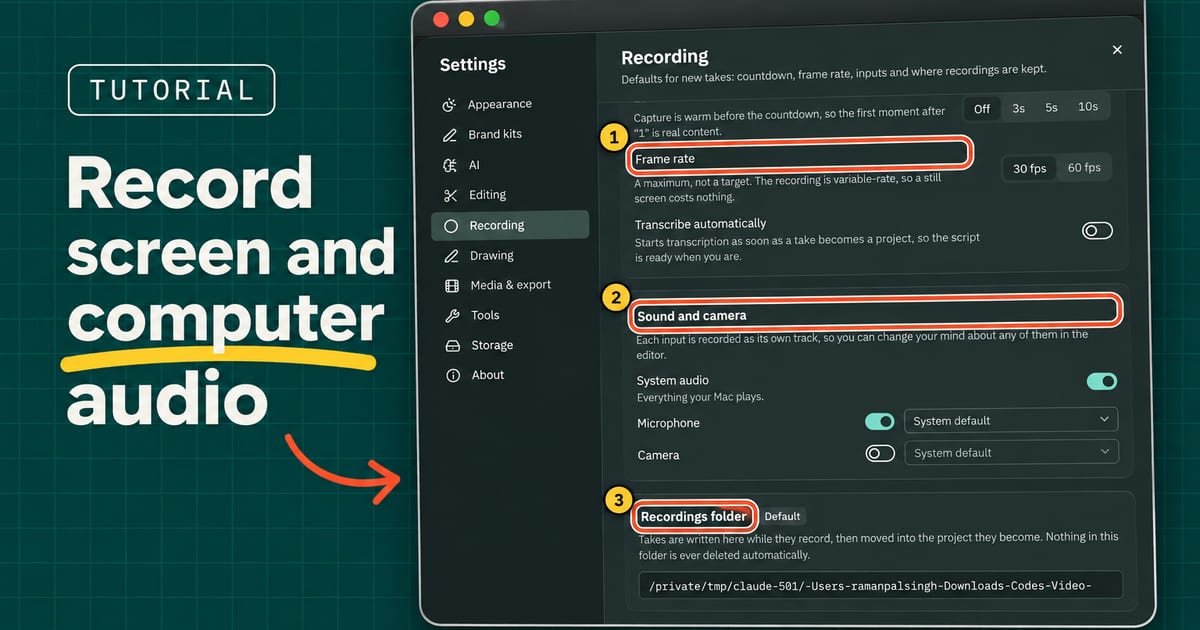
Most Mac screen recordings of a video or a call come out silent, or they carry only your voice. The sound your Mac plays is a different source from your microphone, and the tool you use decides whether you get it.
I record tutorials with sound from the Mac every week, so I checked what each tool does today.
Quick answer: To record your screen and computer audio on a Mac, press Shift Command 5 and pick Include System Audio, but only on macOS 27 or later. On earlier versions the built-in tools record the microphone only. Cutscript records system sound on macOS 15 and later, as its own track.
Key Takeaways
The Screenshot app (Shift Command 5) records system audio only on macOS 27 Golden Gate or later, according to Apple.
QuickTime Player's screen recording opens the same Screenshot tools, and Apple's page does not mention system audio.
Built-in recordings save one .mov file, so your voice and the Mac's sound are not separate tracks.
Cutscript records system sound, the microphone and the camera as separate tracks, on macOS 15 or later.
Choosing one app's sound in Cutscript is Mac only and experimental.
macOS asks for permission under Privacy & Security before any recorder can capture the screen and its sound.
What counts as computer audio?
Computer audio, also called system audio, is the sound your Mac plays: a video in a browser, a call, a game, a notification chime. It is not the microphone. A recorder that offers only a microphone captures your voice and whatever your speakers leak into the room.
That difference explains most "no sound" complaints in the Apple Community forums.
How to record screen and computer audio with the Screenshot app
The Screenshot app can record system audio on macOS 27 Golden Gate or later. Apple says to choose Include System Audio to record system audio with the screen recording.
Press Shift Command 5. Apple's guide confirms this opens the Screenshot tools.
Pick Record Entire Screen, Record Selected Window or Record Selected Portion.
Open Options. Under Microphone, pick your microphone, or None.
Choose Include System Audio.
Click Record. To stop, click the Stop Recording button in the menu bar.
Selecting a window needs macOS Tahoe 26 or later, per the same Apple page. Recordings are saved as .mov files.
What if my Mac runs an older macOS?
On a version before macOS 27, Apple's recording page documents only the microphone. The Screenshot app will record your voice, not the sound the Mac plays. I will not send you to a third-party audio driver here, because Apple does not document one. Upgrade, or use a recorder that captures system sound itself, like Cutscript.
Does QuickTime Player record computer audio?
QuickTime Player starts a screen recording but hands the work to the Screenshot app. Apple says File > New Screen Recording opens Screenshot and displays the tools. The page says nothing about system audio.
So QuickTime gets exactly what the Screenshot app gets on your macOS version. It adds no separate way to capture the Mac's sound.
What the built-in tools cannot do
I like the built-in recorder for a quick clip. It has limits that matter once you edit.
One file. The output is a single .mov, so you cannot lower the music and keep your voice.
No single-app sound. Apple documents one switch, Include System Audio. It covers everything the Mac plays.
Older macOS. Before macOS 27, no documented system audio.
No camera track. Screenshot records the screen; your face needs another tool.
How to record screen and computer audio with Cutscript
Cutscript records the screen, system sound, your microphone and the camera, each as its own track. The recorder needs macOS 15 or later.
Press Record on the home screen, or File > New Recording (Shift Command R). The recorder bar appears.
Choose Display, Window or Area.
In the bar, check the three pickers. Microphone is on by default. System sound reads Sound from all apps. Camera reads No camera until you pick one.
Press Start recording. Wait for the 3 second countdown.
Press Stop, or use Control Option Command R from any app.
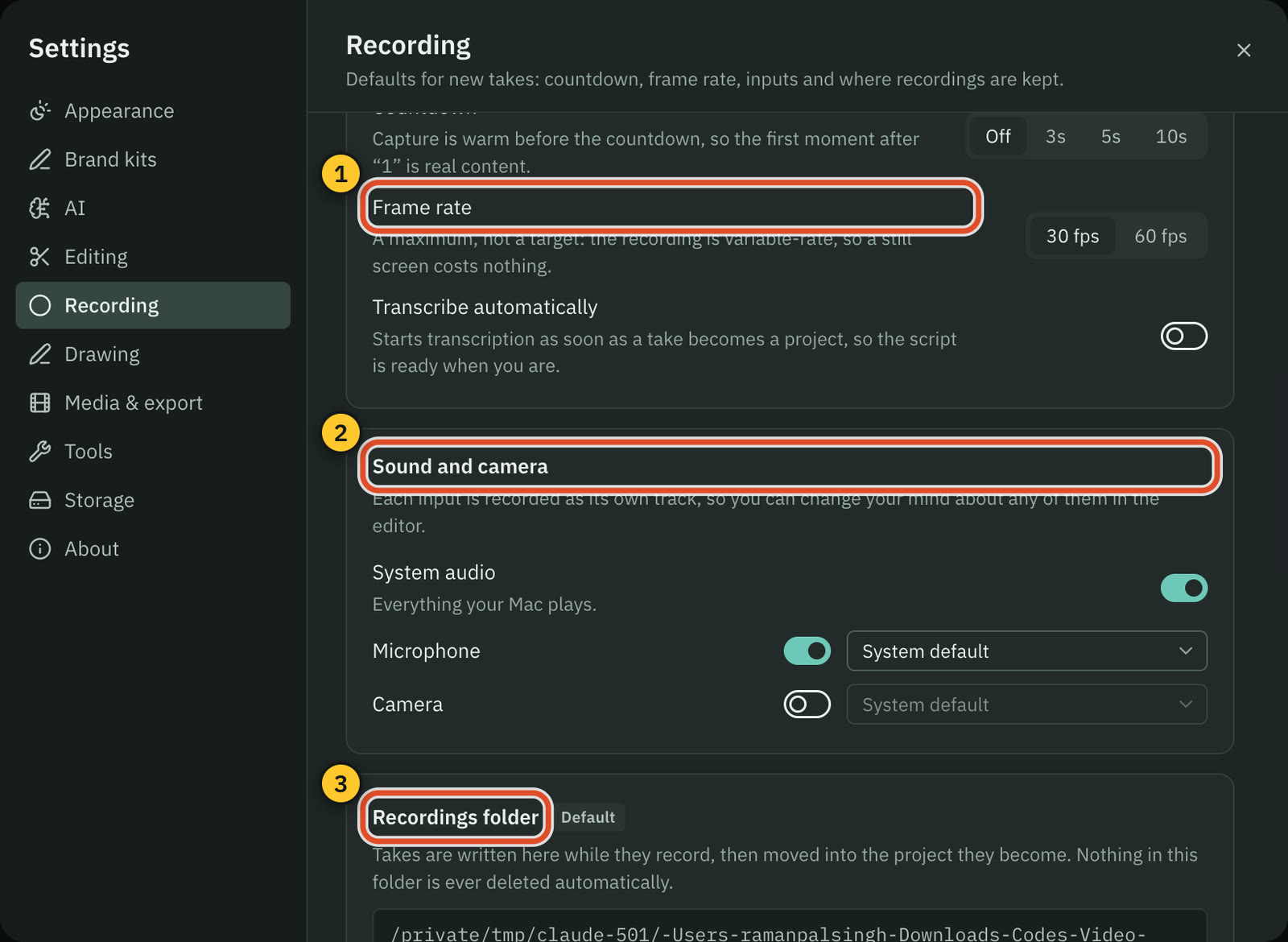
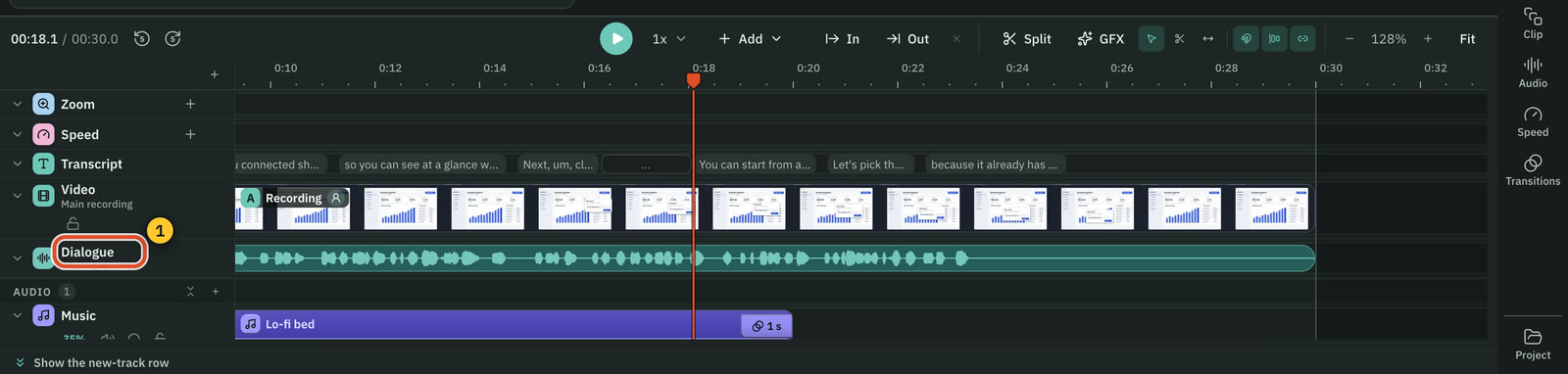
The take opens as a project. Project in the right rail lists each track, and the Clip panel has the level and a mute switch for each.
Why separate tracks matter
Say a video plays loudly while you talk over it. With separate tracks I turn the video down and keep my voice. Muting a track hides it without deleting it, so you can bring it back.
How do I record only one app's sound?
Choosing one app's sound is Mac only and experimental. It keeps a chat ping or background podcast out of your video. Your microphone is a separate track and is not affected.
Open Settings > Recording and switch on Experimental recording modes.
Open the recorder with Shift Command R.
Press the sound picker, and under System sound press Choose apps.
Tick the apps. Apps playing sound now are listed first. Tick Show background apps if one is missing.
Check the bar, which reads Sound from 1 app. Press Start recording.
Start the apps first: an app you open after recording begins is not recorded. If a browser stays silent, choose All apps, because some browsers play sound through helper processes. The known limitations page says this mode is built but not yet checked on real hardware.
Which permissions does macOS ask for?
macOS asks before any app records. Screen and system sound sit under Privacy & Security, in Screen & System Audio Recording. There you turn recording on or off for each app.
The microphone has its own switch in Privacy & Security > Microphone. If you said no to Cutscript, allow it there, then press Re-check recording access in Settings > Recording.
Where Claude helps
A recording with sound makes a transcript, and a transcript is text Claude can read. In the Claude desktop app, Claude Code can run FFmpeg on the recording file. In a regular chat, the upload list for Claude covers documents and images, not video or audio files, so give it the words.
Paste this into Claude with the transcript.
You are an editor for a screen-recording tutorial. Below is the transcript with timestamps.
Write: (1) a two-sentence summary, (2) chapters in the format "00:00 Title" with 5 to 8 entries,
each title under 6 words, (3) three moments where I speak over the system sound and may need to lower it.
Use only what the transcript says. Do not invent timestamps.

Transcript:
[paste transcript here]
Which method should you use?
Method | System sound | Separate tracks | Camera | macOS |
|---|---|---|---|---|
Screenshot app | Yes, per Apple | No | No | 27 or later |
QuickTime Player | Same as Screenshot | No | No | Same |
Cutscript | Yes | Yes | Yes | 15 or later |
Cutscript, one app | One app | Yes | Yes | 15 or later, experimental |
Frequently Asked Questions (FAQs)
Can QuickTime Player record computer audio on a Mac?
Apple's QuickTime page does not say so. It describes starting a recording that opens the Screenshot tools, so you get what the Screenshot app offers on your macOS version.
Does Shift Command 5 record sound from the computer?
Yes, on macOS 27 Golden Gate or later, via Include System Audio. On earlier versions Apple documents only the microphone.
Why is my Mac screen recording silent?
The microphone is off or set to None, or your macOS version has no system audio option. Check Options in the Screenshot toolbar, then check the permission under Privacy & Security.
Can I record a call and my own voice together?
Yes. Pick system sound for the other side and the microphone for you. In Cutscript they are separate tracks, so you can balance them later. Ask everyone on the call before you record.
Can I record only one app's sound on a Mac?
The built-in tools have no such option in Apple's documentation. Cutscript offers Choose apps, which is Mac only and experimental.
Final Thoughts
Check your macOS version first. On macOS 27 or later, Shift Command 5 and Include System Audio cover a quick recording. For a recording you will edit, separate tracks for voice, system sound and camera save time. Install Cutscript, press Shift Command R, and record a short test take.
Comments
Longer questions go better in the forum.
No comments yet. Ask a question or add what you found.
Sign in with GitHub or Google to comment.
Sign in to commentKeep reading
Tutorials
Extract audio from video on a Mac: 3 free ways, step by step
Pull the sound out of any video on a Mac with QuickTime Player, FFmpeg or Cutscript, and learn which of MP3, WAV and M4A to keep.
Tutorials
Blur screen in a video: 3 ways to hide private details
Hide emails, names, passwords and faces in a screen recording. A fixed box, a blur that follows, and what QuickTime Player and iMovie can do.
Tutorials
How to make a jump cut: 2 fast ways on a Mac
What a jump cut is, when it works, and two ways to make one on a Mac: split and delete by hand, or cut the pauses and fillers from the transcript.