Record more than one source
Record up to three pictures in one take, such as two displays, a window and an iPhone, then show them together or switch between them in the editor.
One take can record more than one picture. Next to the main display, window or area, add another display, another window, an area or a cabled iPhone or iPad. Each one is recorded to its own file at the same time. In the editor they start side by side, and you choose which one to show at each moment.
Before you start
- Everything in Record your screen applies: macOS 15 or later, screen recording permission and free disk space.
- A take holds up to three pictures: the main one and two more.
- To add an iPhone or iPad, turn on Experimental recording modes in Settings › Recording, connect the device with a cable, and allow camera access. See Record an iPhone or iPad.
Add a source
- Open the recorder and choose the main picture as usual with Display, Window or Area.
- Press Add source in the recorder bar, next to the mode buttons.
- Pick the next picture the same way: press Display, Window, Area or Device, then point at the display, click the window, drag the area or choose the device. The line under the bar says what to do, for example "Click a window to add it."
- Press Add followed by the name of the picture, or press
Return. Press Cancel orEscto stop adding. - The source appears as a chip in the bar with its name: the app's name for a window, the display's name, "Area 640 × 360" or "iPhone". To add one more, press Add source again.
- Press Start recording.
To take a source out, press the × on its chip. The same picture cannot be added twice.
If a source cannot be recorded, its chip stays in the bar and its tooltip says what to fix, for example "Safari is no longer on screen. Show it again, or remove it from the sources." Start recording waits until every source can be recorded.
What each source records
- The main picture is the one you chose first. The microphone, the computer's sound, the camera and the editable pointer belong to it, as in a one-picture take.
- Each added source records its picture only. It shows the pointer as it looked on that screen, so you cannot restyle the pointer there. An iPhone or iPad added as a source records no sound.
How the editor shows them
When you first open the take, Cutscript adds a layout named All sources over the whole video, with every picture whole and none cropped:
- Two pictures use Auto: side by side on a wide video, stacked on a tall one.
- Three pictures use Large left on a wide video, the main one large with the others beside it, or Large top on a tall one, with the others below it.
- With the camera. If you recorded the camera and its bubble is showing, it stays as the bubble on top of the pictures, in a corner where it covers none of them, made smaller if it has to be. To turn it off for a layout, or for a Show one source passage, use Camera bubble on top under Panel sources. To put the camera in a panel instead, choose Webcam as that panel's source.
All sources is an ordinary layout. Open Layouts (⌘ 9) to change it: under Arrangement, Rows stacks the pictures and Columns puts them side by side. You can also drag its edges on the timeline, or remove it. Removing it does not bring it back the next time you open the project. In the panels, the main picture is called Screen and each added source goes by its name, so you can put any of them in any panel. See Webcam and layouts.
Show one source over time
To switch between pictures as the video plays, show one of them full frame from a point on.
- Move the playhead to where the switch should happen, or select words in the script.
- Open Layouts (
⌘ 9). - Under Show one source, press Screen, the name of an added source, or All sources.
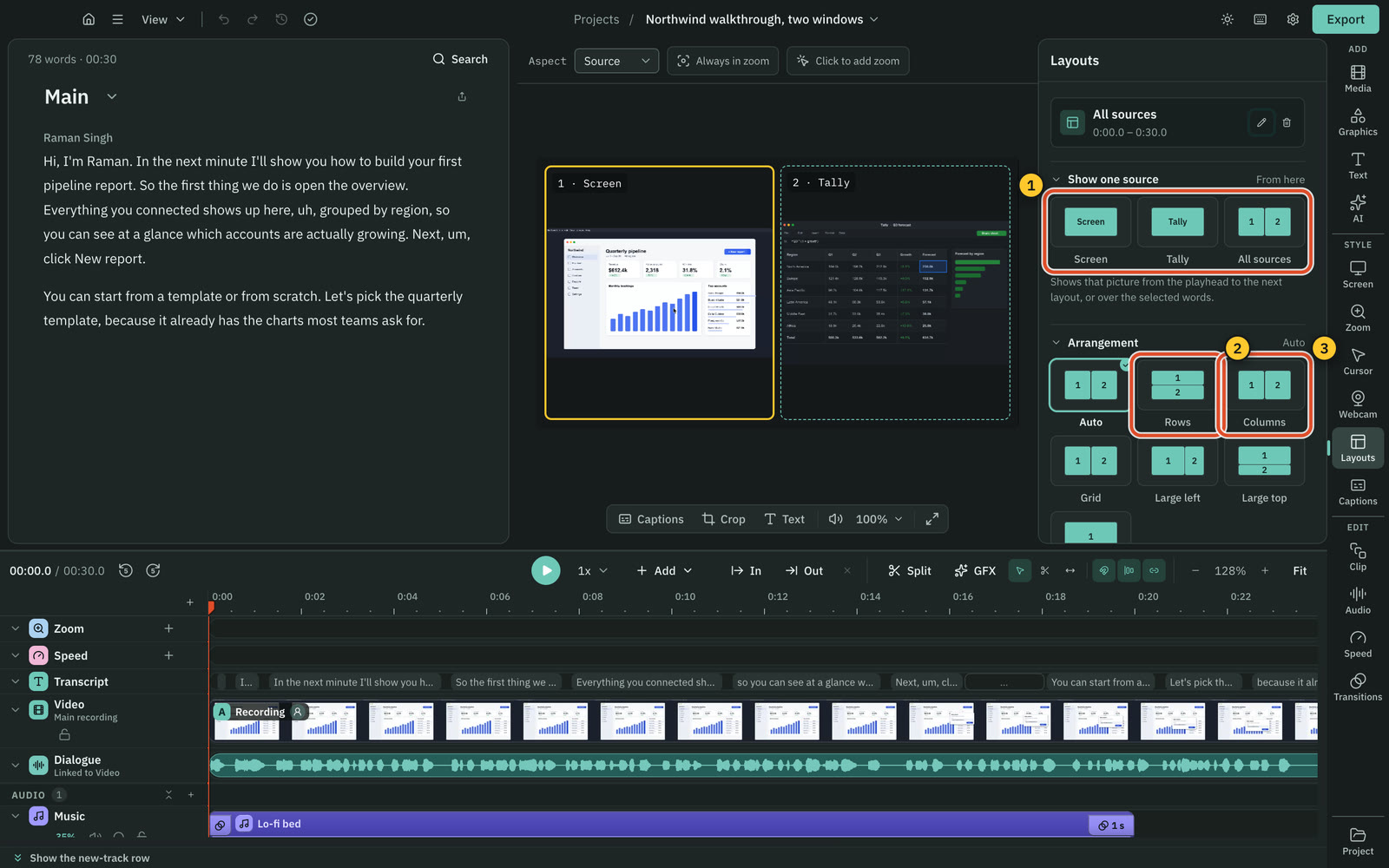
That picture fills the frame from the playhead to the next layout, or over the words you selected, with the camera bubble on top if it is showing. On the timeline the passage reads One source. Repeat at each point where you want to switch. Each switch is one step, so ⌘ Z takes it back. If there is no room left after the playhead, Cutscript says "Nothing left to switch here": move the playhead earlier, or select some words.
Cuts and speed changes move every source with the main picture, so the pictures stay in step. Layouts are drawn frame by frame, so a video that uses them exports as MP4 H.264, and the export matches the preview. See Export a video.
Related
Was this page helpful?
Comments
Longer questions go better in the forum.
No comments yet. Ask a question or add what you found.
Sign in with GitHub or Google to comment.
Sign in to comment