Storage and cleaning up
See what Cutscript keeps on your Mac in Settings › Storage › What uses space, and free space without losing your work.
Settings › Storage › What uses space measures every folder Cutscript keeps, shows the total next to the free space on the disk, and offers a clean-up for the things that can go. Caches are cleared at once, because Cutscript rebuilds them. A project, an unfinished recording or a model asks first. Projects and recordings go to the Trash, so you can put them back.
Open it
- Press
⌘ ,and choose Storage. - Below Projects folder is What uses space. It measures Cutscript's folders when the tab opens.
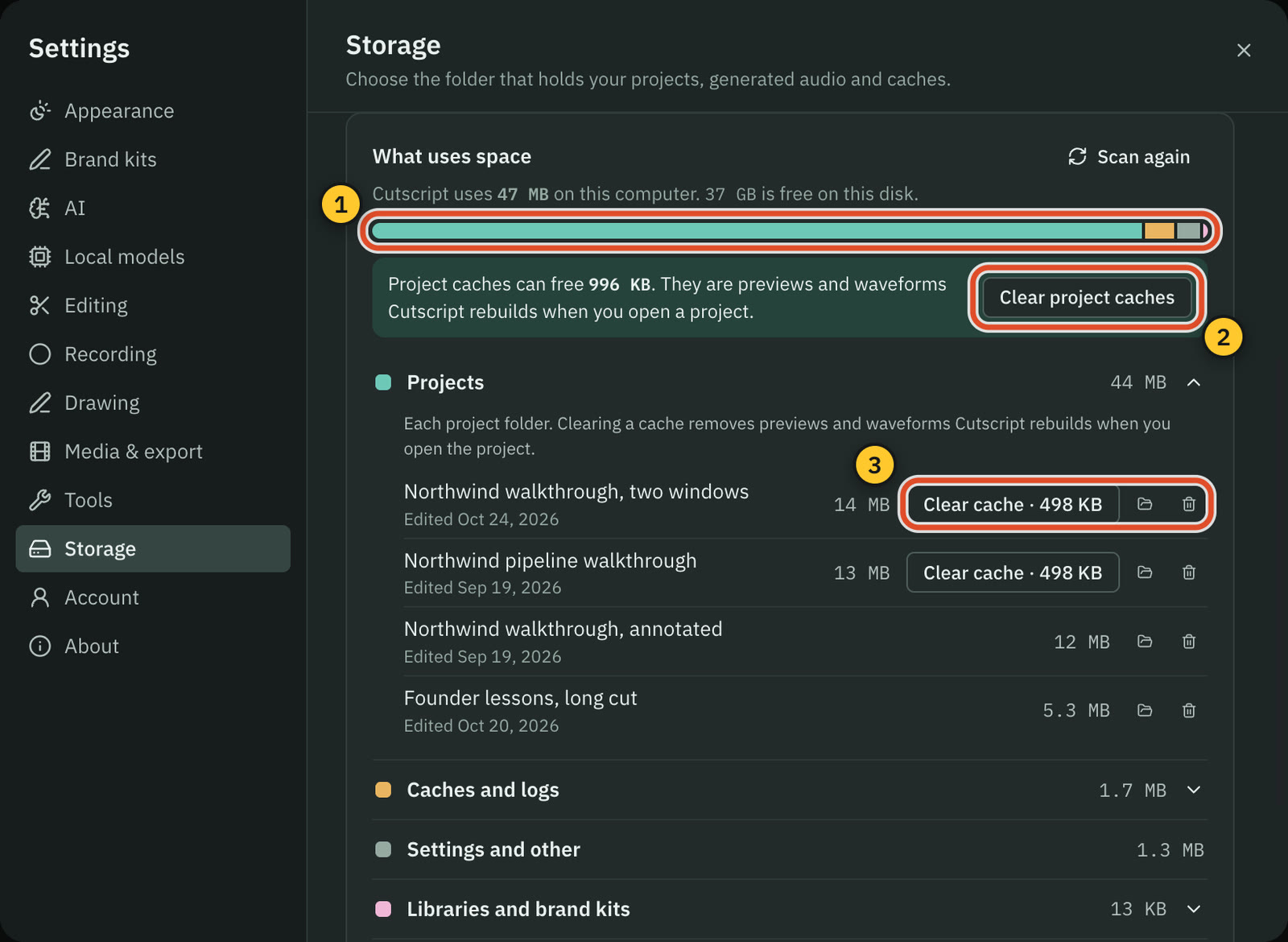
The first line says how much Cutscript uses on this computer and how much is free on the disk. The bar splits the total by group. The groups are listed largest first. Press a group to open it and see its items, each with its size. Press Scan again to measure again, for example after you delete files in Finder.
The groups
| Group | What it holds | What you can do |
|---|---|---|
| Projects | Each project folder, with the date you last edited it | Clear cache, show it in Finder, move it to the Trash |
| Unfinished recordings | Takes that never became a project, kept so you can recover them | Show it in Finder, move it to the Trash |
| Local models | Models downloaded for transcription, AI and voices, including the ones in Ollama's folder | Remove |
| Libraries and brand kits | Your media, audio and graphics libraries, graphics sources and brand kits | Show it in Finder |
| AI director | Chats, attachments, skills, the Design pack, the preview cache and voice previews | Clear the preview cache and voice previews, show any of them in Finder |
| Caches and logs | The app cache and Cutscript's logs | Clear the app cache, Clear old logs |
| Settings and other | Settings, keys and small files Cutscript keeps | Nothing to clean |
Projects and recordings are measured where they are, even if you moved the projects folder or the recordings folder to another drive.
Clear caches
A project's cache holds previews and waveforms that Cutscript rebuilds the next time you open the project.
- Every project at once. When there is something to free, a line above the groups says "Project caches can free" and the amount. Press Clear project caches.
- One project. Open Projects and press Clear cache on its row. The button shows how much it frees.
- The preview cache and voice previews in AI director, and the App cache in Caches and logs, have a Clear button. They fill again as you use Cutscript. Part of the app cache can be in use, and that part goes when Cutscript restarts.
- Clear old logs removes logs older than a day and keeps the current ones.
These clean-ups run as soon as you press the button. They do not ask, because nothing you made is removed.
Remove a project, a recording or a model
- Open the group and press the trash button on the item's row.
- Confirm with Move to Trash, or Remove for a model. Press Cancel to keep it.
- A project moves to the macOS Trash with all its files. You can put it back from the Trash in Finder.
- An unfinished recording moves to the Trash. To keep it as a project instead, recover it from the recorder: see Record your screen.
- A model is deleted, not moved to the Trash. Download it again in Settings › Local models whenever you need it. An Ollama model is removed through Ollama, so open Ollama first. See Local AI models.
The project you have open is left alone. Its row says "Open now: close it to clear its cache or remove it."
What a clean-up never removes
- Files a project still uses. Clearing a cache skips any file the project names, so nothing in your edit goes missing.
- Your media. Imported files stay where they are on disk, outside Cutscript's folders, and nothing here touches them.
- Libraries, brand kits, chats, attachments, skills and the Design pack. They have no clean-up here. Manage them in their own places, such as Settings › Brand kits.
- Settings and keys.
- Anything you did not press. Nothing on this page runs until you press its button.
Related
Was this page helpful?
Comments
Longer questions go better in the forum.
No comments yet. Ask a question or add what you found.
Sign in with GitHub or Google to comment.
Sign in to comment