Change how Cutscript looks
Switch between light and dark, and pick your own accent colour, fonts, density, text size, logo colour and app icon.
Cutscript can look the way you like to work: light or dark, in your own colour, with your own fonts, roomier or more compact. These settings change the app on this computer only. Your videos, captions and exports never use them.
Nothing here needs AI or an internet connection.
Switch between light and dark
The top bar on the home screen and in the editor has a theme button, just left of Keyboard shortcuts. Its icon shows what you have: a sun for Light, a moon for Dark, and a screen for System, which follows your Mac's own setting.

Each click moves to the next one: Light, then Dark, then System, then Light again. Point at the button and its tooltip names the one you have and the next one, for example "Theme: System, dark now. Switch to light".
You can also pick System, Light or Dark under Theme in Settings › Appearance. It is the same setting.
Customize the colours
- Open Settings (
⌘ ,) and choose Appearance. - Under Customize, find Colours.
- Pick one of the Accent presets: Cutscript teal, Blue, Indigo, Violet, Rose, Amber, Forest or Graphite. Or press the colour well beside them to open the colour wheel, or type a hex value such as
#7C3AED. - Check the two previews, Light and Dark. They show text, a tag and a button in your colour, in each theme.
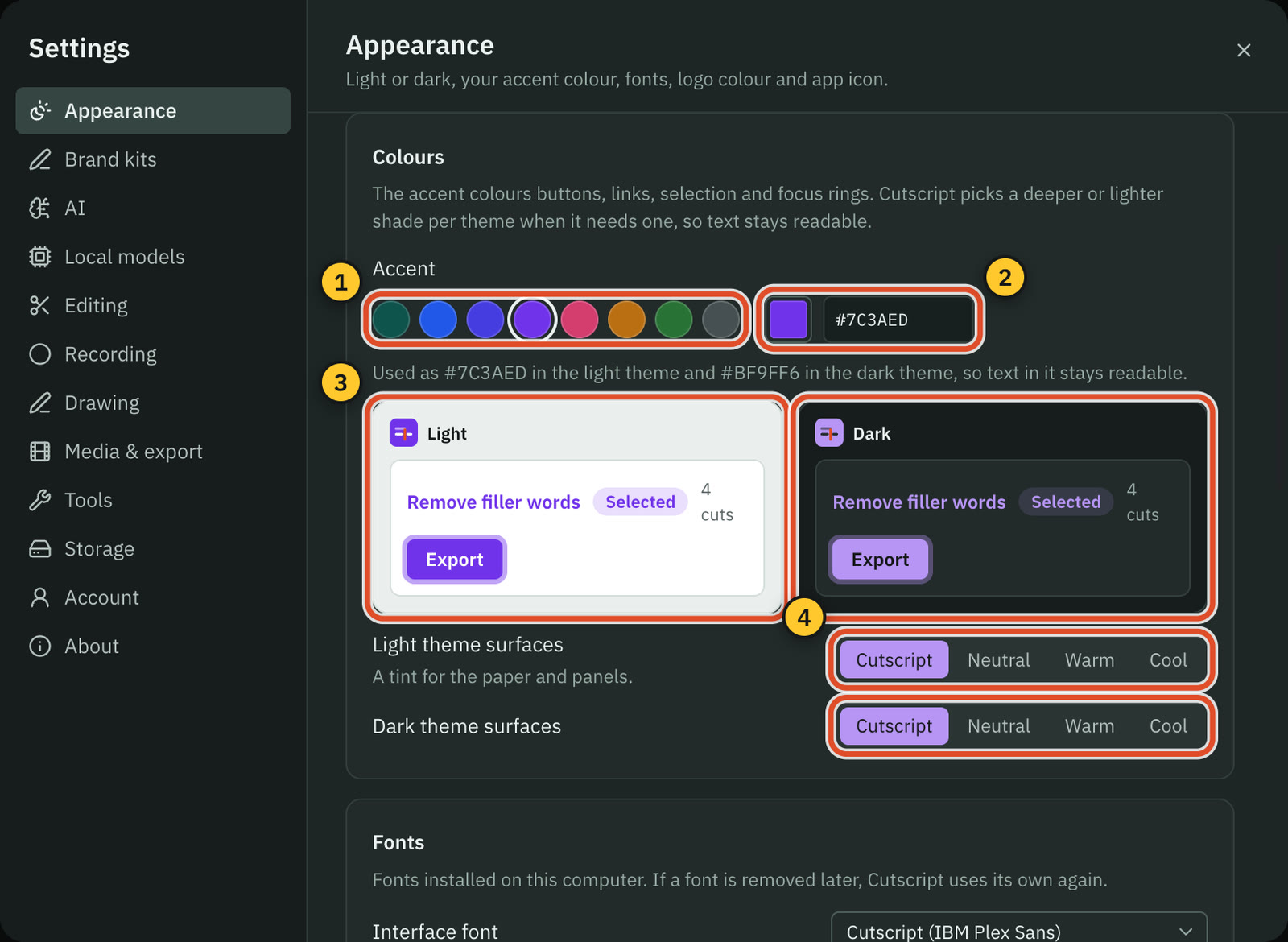
The accent colours buttons, links, selected words and focus rings. Every change shows at once.
If text in your colour, or on it, would be hard to read, Cutscript uses a deeper shade of it in the light theme and a lighter one in the dark theme, and a line under the accent says which: for example "Used as #7C3AED in the light theme and #BF9FF6 in the dark theme, so text in it stays readable."
Light theme surfaces and Dark theme surfaces tint the paper and panels of each theme: Cutscript, Neutral (grey), Warm or Cool. Text keeps the same contrast on every tint.
Fonts and text size
Under Fonts:
- Interface font sets the font of the whole app. It lists every font installed on this computer, with a search box ("Search installed fonts…") and a preview of each one. Cutscript (IBM Plex Sans) is the default.
- Script font sets the font of the transcript you edit. Same as the interface is the default.
- Script text size sets the transcript's size, from 13 to 22 px, with a sample line under it. It is the same setting as View › Text size in the editor.
Under Look and feel:
- Density: Compact makes buttons, fields and spacing smaller, so more fits on screen. Comfortable is the default.
- Corners: Square gives panels, buttons and timeline clips small corners. Rounded is the default.
- Text size scales the text across the app, from 90% to 125% in steps of 5. It changes the text, not the whole window.
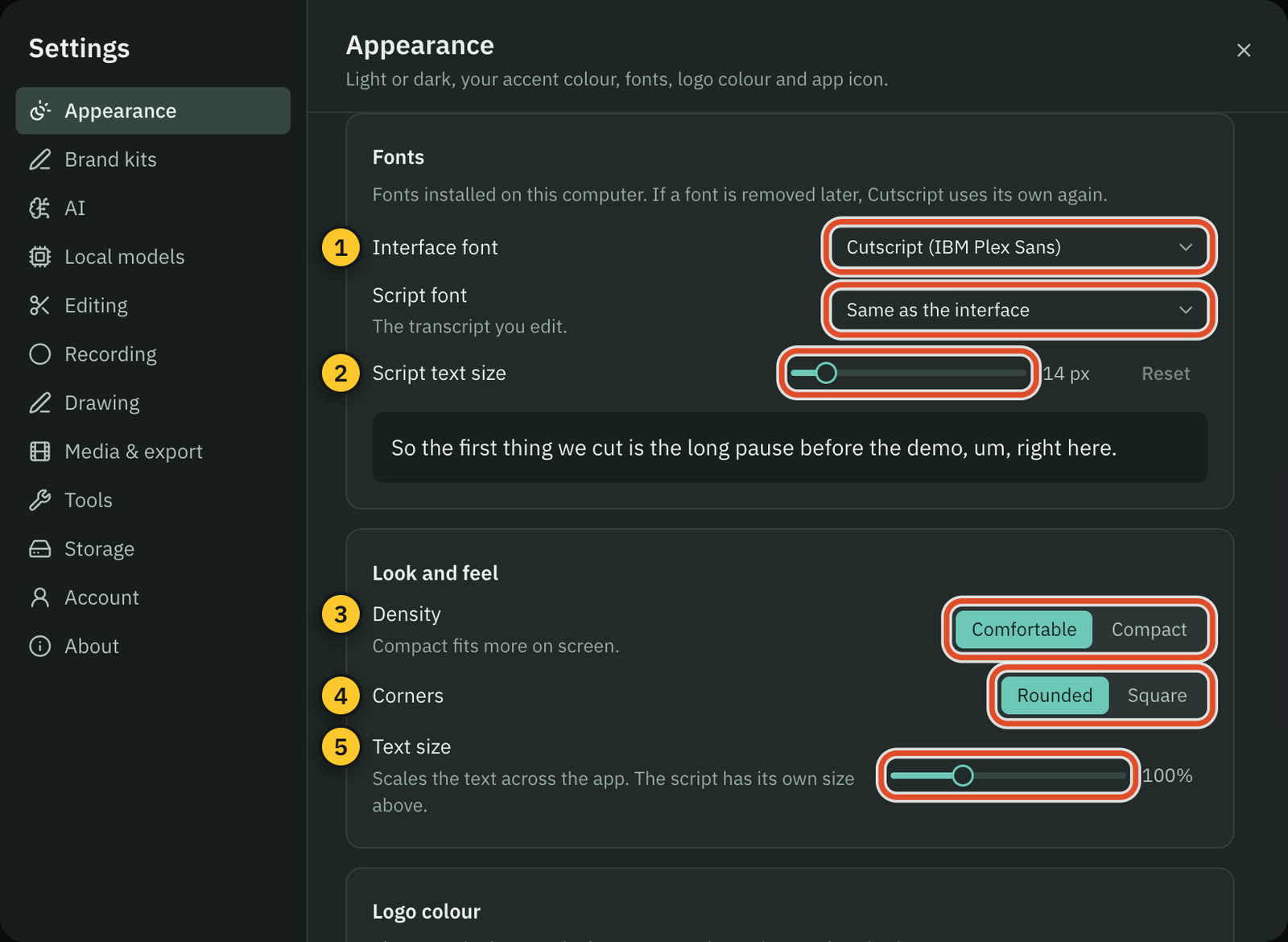
If you later remove a font you picked, Cutscript goes back to its own font, and Settings says so.
The logo colour and the app icon
Logo colour sets the colour of the Cutscript logo on the home screen, in Settings and at sign in:
- Accent follows your accent colour. This is the default.
- Original keeps Cutscript teal.
- My colour uses a colour you pick.
App icon changes the icon in the Dock while Cutscript is open:
- Pick Original, Midnight, Graphite, Violet, Forest or Paper. When you have picked an accent colour, Accent is offered too, and it follows your accent.
- Or press Upload image… and choose your own square PNG or JPG, at least 256 px on each side.
- Press Use the original to go back to the Cutscript icon.
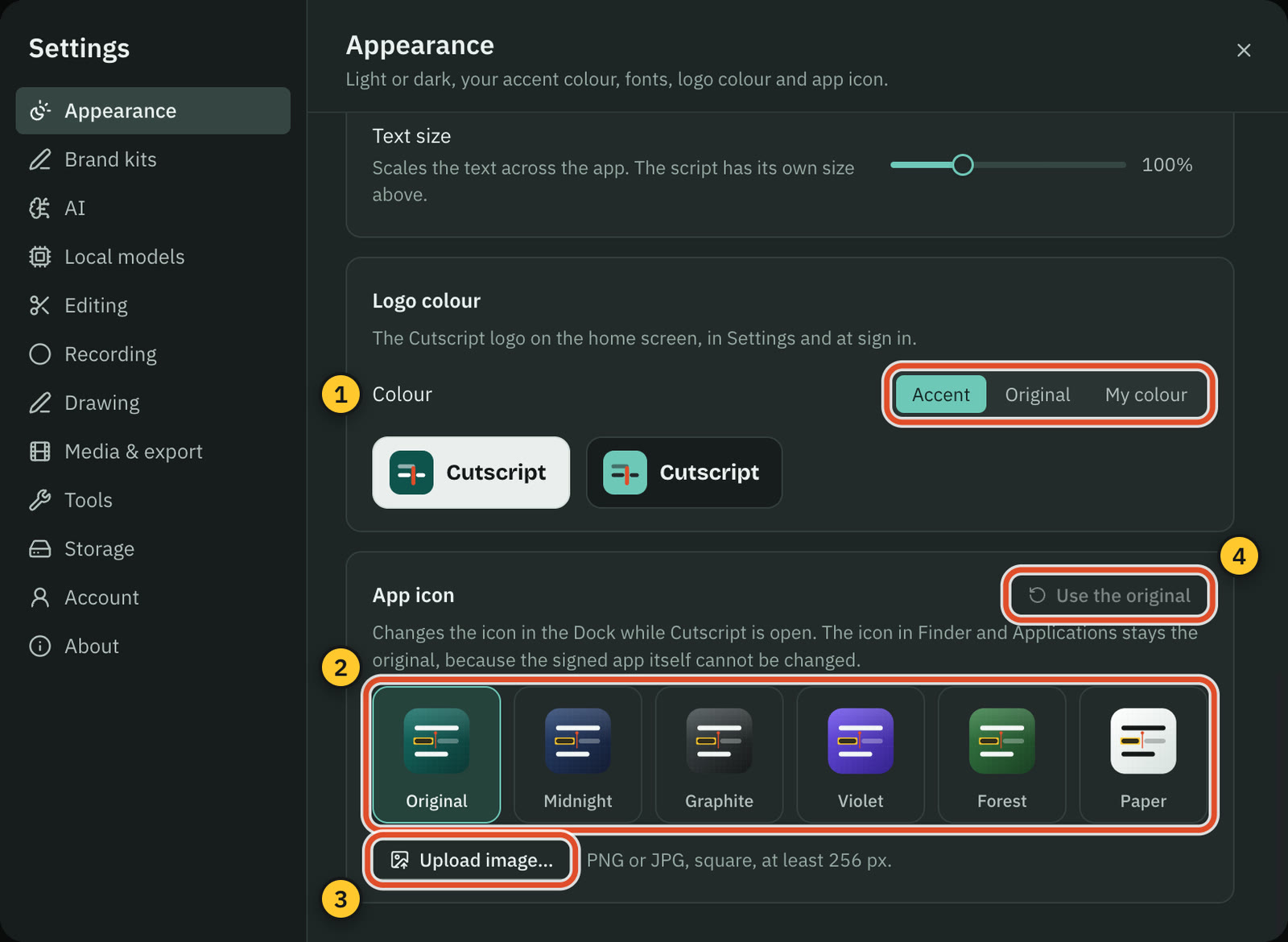
The new icon shows at once and every time Cutscript starts. The icon in Finder and in Applications stays the original, because the signed app itself cannot be changed.
An uploaded image must be a PNG or JPG, square, between 256 and 8,192 px on each side and no larger than 20 MB. If it is not, Cutscript says what is wrong, for example "This image is 1200 × 800 px. Choose a square image."
Start over
Reset to Cutscript defaults, at the top of Customize, brings back the original colours, fonts, density, corners, text size and logo colour. It leaves the app icon as it is; use Use the original for that.
What these settings do not change
- Your videos and exports. Captions, backgrounds and graphics keep their own colours and fonts.
- The recording controls and the drawing tools you use while recording keep Cutscript's own look.
- Other computers. The settings are saved on this computer.
Related
Was this page helpful?
Comments
Longer questions go better in the forum.
No comments yet. Ask a question or add what you found.
Sign in with GitHub or Google to comment.
Sign in to comment